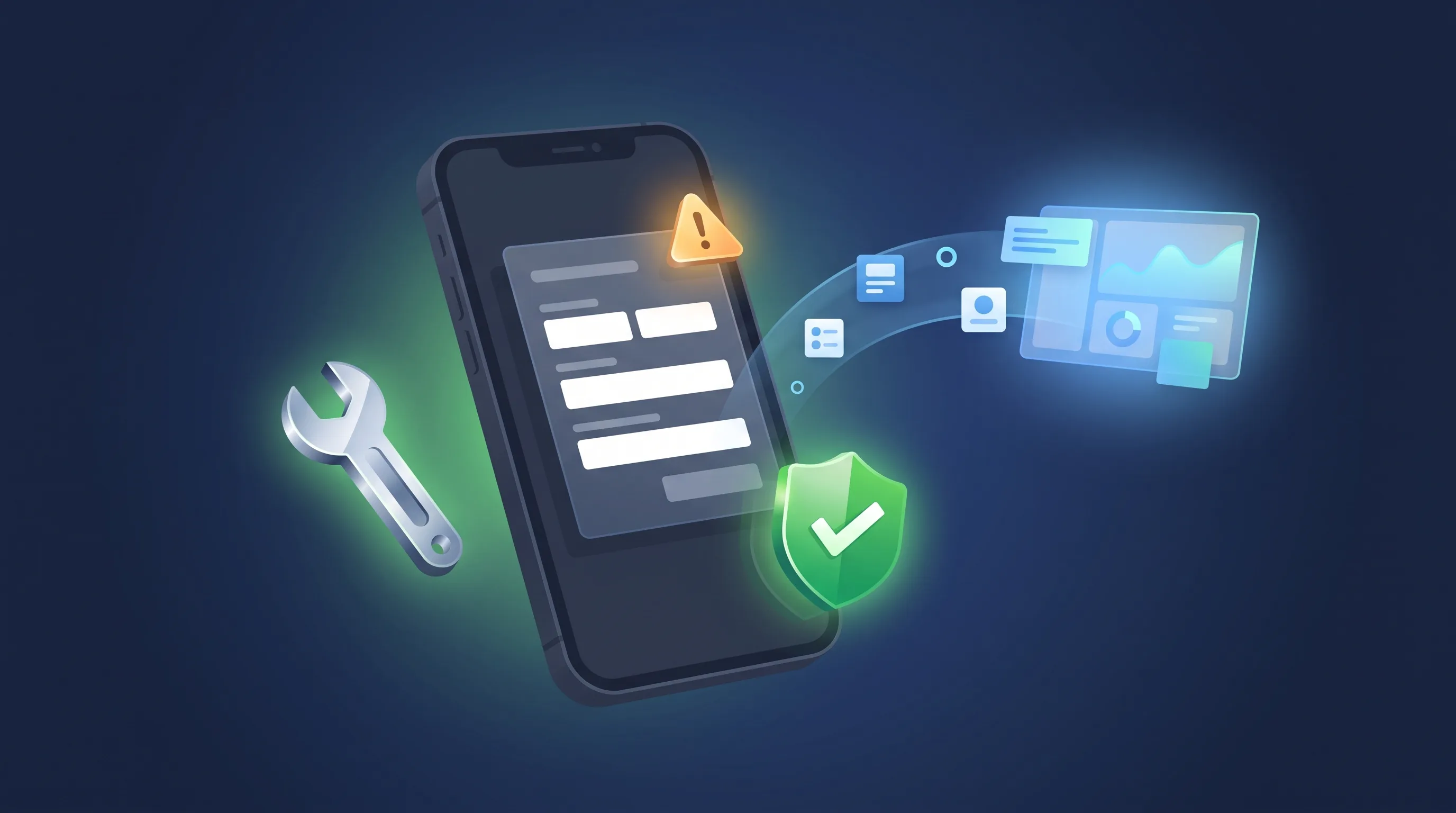
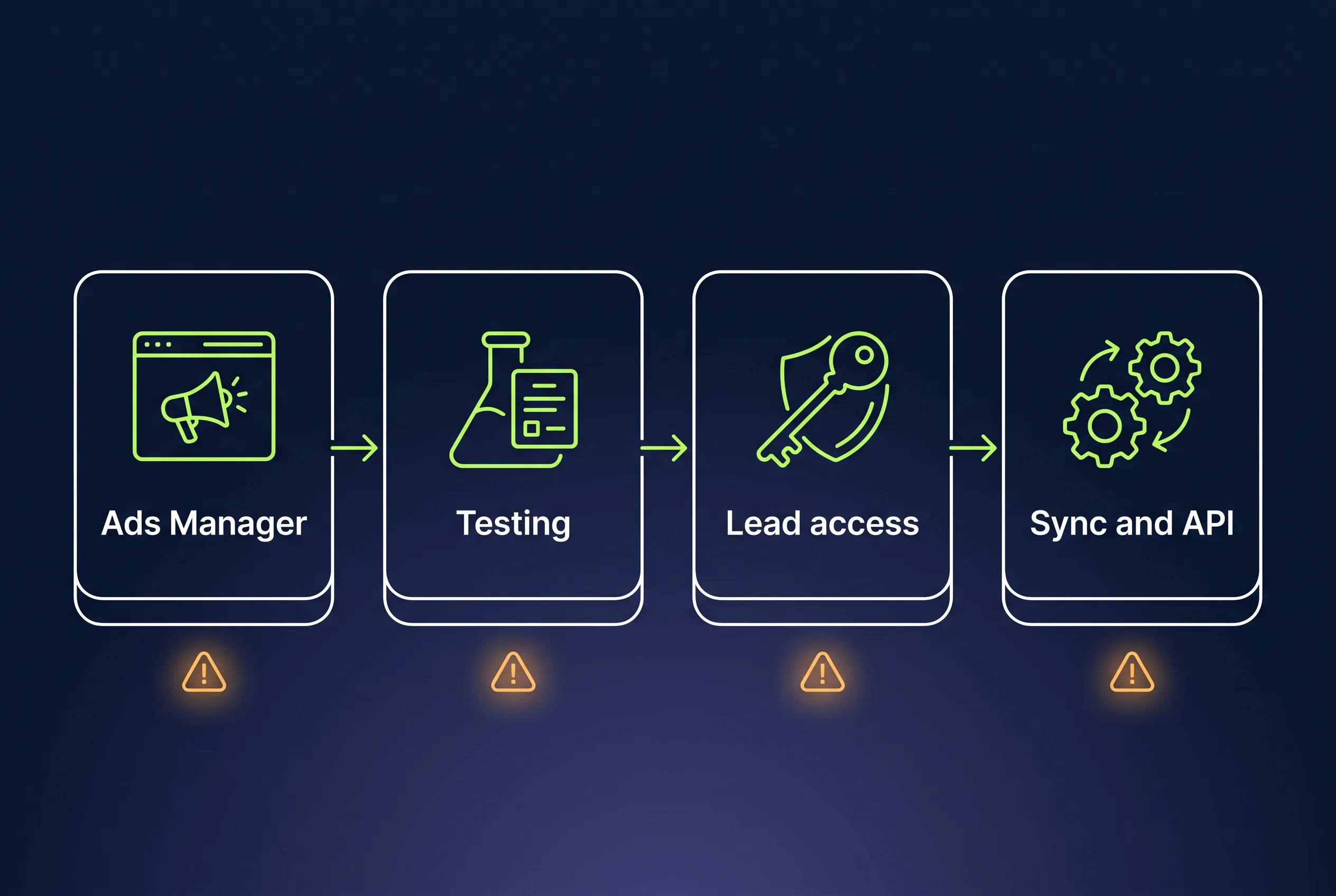
Facebook lead ads fail in a small number of predictable ways, and Meta’s error messages are more specific than they first look. This page lists the messages people hit most often, word for word, grouped by where you see them: publishing the ad, testing the form, lead access, and syncing leads to a CRM. Each one has the cause and the fix. Where we have a full guide to a single error, this page links to it rather than repeating it.
We run LeadSync, which moves leads from Facebook and Instagram lead ads into CRMs, email and SMS, so we see these errors every day, both in our own logs and in customers’ support tickets. The numbers below come from our own data.
Quick reference
| Error message (short form) | Where you see it | What it means | Fix |
|---|---|---|---|
| Terms of service not accepted (#1815089, #1892181, #1892234, #1892291) | Ads Manager when publishing | The Page never accepted Meta’s Lead Generation Terms | Accept the terms for the Page |
| Please provide a valid business privacy policy URL | Instant Form builder | The form has no working privacy policy link | Link a real privacy policy web page |
| Ad set may get zero leads | Ads Manager | Budget or audience too small for the ad set | Widen budget or audience |
| A test lead was already created for this leadgen form | Lead Ads Testing Tool, sync tools | One test lead per form already exists | Delete the old test lead, create a new one |
| CRM access has been revoked from Lead Access Manager | Testing tool, CRM or sync tool | Lead access is customised and your CRM isn’t assigned | Assign the CRM in Leads Access |
| Verification needed | Meta Business Suite login | Meta wants business or identity verification | Complete verification in Security Center |
| Error 190: session has been invalidated | Sync tools, API | The Facebook login behind the connection was reset | Reconnect Facebook |
| Error 100 / subcode 33: Unsupported get request | Sync tools, API | Meta won’t return one object, often a deleted test lead | Usually nothing, check other leads arrive |
| (#200) … leads_retrieval | Developer apps, custom webhooks | The app lacks lead permissions | Grant leads_retrieval, use a Page token |
| (#4), (#17), (#32), 80001 request limit reached | Sync tools, API | Graph API throttling | Wait, retry, poll less often |
Errors in Ads Manager when you publish
“Terms of service not accepted”
This is the lead ads error people search for most often, and Meta shows it in several wordings:
- “Terms of service not accepted: You can’t run lead ads until your Facebook Page accepts Facebook’s Lead Generation Terms of Service.” (#1815089, also seen as #1892181)
- “Lead ads terms of service not accepted: To run lead ads, you’ll need to agree to Meta’s Lead Ad Terms of Service.” (#1892234)
- “Terms of service not accepted for promoted page: For partnership ads, you can’t run lead ads until the promoted Facebook Page accepts Facebook’s Lead Generation Terms of Service.” (#1892291)
Cause: the Facebook Page running the ad has never accepted Meta’s Lead Generation Terms. The ad account, billing and form are fine. For partnership ads, it is the partner’s Page that has to accept.
Fix: a Page admin accepts the terms once for that Page, then you republish. Our full guide to the terms of service not accepted error covers where to accept them, why the error can persist after accepting, and the partnership ads case.
“Please provide a valid business privacy policy URL”
Cause: every Instant Form needs a link to your privacy policy in its Privacy section, and Meta will not publish the form without one. The error also appears when the link points somewhere Meta won’t accept.
Fix: host your privacy policy as a normal web page on your own domain and paste that URL into the form. Meta rejects links to PDFs, images and file downloads (Privyr). The policy should say what you collect on the form and how you use it. If you don’t have one yet, write one before you run ads; accepting the Lead Generation Terms commits you to having it. Our lead ad campaign walkthrough shows where the field sits in the form builder.
“Ad set may get zero leads”
Cause: Ads Manager’s delivery estimate thinks the ad set won’t get enough results to exit learning, usually because the budget is small for the audience or the audience is too narrow.
Fix: raise the daily budget or widen the audience or placements. It is a warning, not a block. The details are in how to fix “ad set may get zero leads”.
Errors when you test a lead form
“A test lead was already created for this leadgen form”
The full message reads: “A test lead was already created for this leadgen form. Delete the existing lead before creating a new one.”
Cause: Meta allows one test lead per form at a time. If you, a colleague or a tool created a test lead earlier and never deleted it, a new one is refused.
Fix: open Meta’s Lead Ads Testing Tool, select the Page and form, click Delete lead, then create a new one. Only the person or app that created the test lead can delete it, so if a sync tool created it, delete it there. Deleting a test lead never touches real leads. Our lead ads testing guide covers the tool and three other ways to send a test lead, including LeadSync’s built-in tester. If Meta’s tool keeps refusing, our free Meta Lead Ads Testing Tool creates the test lead through Meta’s API instead and emails it to you.
A test lead is sent but never arrives
This isn’t an error message, but it is the most common thing people see next. If the testing tool shows the lead as created and your CRM never receives it, the problem sits between Meta and the destination: lead access, the connection, or the form mapping. Work through the lead access errors below, then our Facebook leads not syncing checklist. To check the Meta side on its own, send a lead with our free testing tool: it emails the test lead to you, so if that arrives and your CRM’s copy doesn’t, the break is in the CRM connection.
Lead access and account errors
“CRM access has been revoked from Lead Access Manager”
Cause: someone has customised lead access for the Page in Meta Business Settings. Once lead access is customised, only the people and CRMs on the list can read leads, even Page admins (Meta Business Help). Your CRM or sync tool was left off, or was removed.
Fix:
- Go to Business Settings from your ad account.
- Under Integrations, open Leads Access and click the Page.
- Check that your own Facebook account is listed under people.
- Open the CRMs tab and check your tool is listed (for LeadSync it appears as LeadSync Lead Ads Notifications). If it isn’t, click Assign CRMs and add it.
- Send a test lead to confirm.
Our support centre has screenshots for CRM access revoked and for checking whether Page lead access has been customised.
“Verification needed” in Meta Business Suite
Cause: Meta wants to verify the business, the person, or both before it lets you manage the assets. It often appears after a new admin is added or after unusual login activity.
Fix: in Business Settings, open Security Center and start verification if prompted, then check identity confirmation on the personal account and turn on two-factor authentication. Step-by-step instructions are in our verification needed article.
Missing Page roles or “you don’t have permission”
If the Page no longer appears in Ads Manager or a sync tool, or you get permission errors on a Page you used to manage, your Page role has usually been removed or changed. Our guide to fixing missing Facebook Page roles walks through restoring admin access.
Sync and API errors
These are the errors a CRM, Zapier, Make or LeadSync shows when it tries to fetch a lead from Meta. We checked our own queue to see how often each one really happens. Between June 27 and September 25, 2026, LeadSync processed 775,193 Facebook leads. 124 failed to fetch after all retries, about 1 in 6,250:
| Error | Failed fetches | Pages affected | Share of failures |
|---|---|---|---|
| 190: session invalidated | 106 | 5 | 85% |
| 100 / subcode 33: unsupported get request | 18 | 6 | 15% |
Source: LeadSync lead queue, June 27 to September 25, 2026.
Error 190: “Error validating access token: The session has been invalidated…”
The full message reads: “Error validating access token: The session has been invalidated because the user changed their password or Facebook has changed the session for security reasons.”
Cause: the Facebook login your sync tool uses to read leads is no longer valid. Meta lists several variants of error 190, including a changed password, an app that was removed, and a token that expired or was revoked (Meta for Developers). In our data it was always the same one: someone changed a Facebook password or Meta reset the session after a security check.
Fix: reconnect Facebook in the tool, signing in with an account that is still an admin of the Page. New leads start flowing straight away. Then recover the gap: leads submitted while the connection was broken are still in Meta for 90 days, so re-sync them or download them from Facebook. To make this less likely, connect through a Facebook account that doesn’t change its password often, and keep at least two admins on the Page.
Error 100 with subcode 33: “Unsupported get request”
The full message reads: “Unsupported get request. Object with ID ‘…’ does not exist, cannot be loaded due to missing permissions, or does not support this operation.”
Cause: Meta refused to return one specific object and won’t say whether it is missing or unreadable. It looks alarming, but in our data it has almost never meant lost access. The 18 cases above were spread across six Pages that all kept receiving other leads in the same period. Two things produce it:
- The lead is gone. Deleted test leads are the most common case. A deleted test lead returns this error forever.
- The lead isn’t readable yet. We have seen a batch of leads return error 100 for hours and then fetch normally days later, while other leads on the same form arrived fine.
Fix: if other leads from the Page are still arriving, nothing is broken. If the lead was a test, ignore it. If it was a real lead, check whether it appears in Leads Center, and re-fetch it later. Treat a real loss of access (error 190 or a permissions error) differently: that needs a reconnect.
“(#200) To subscribe to the leadgen field, one of these permissions is needed: leads_retrieval”
Cause: this one hits people building their own integration with the Graph API. The app doesn’t have the leads_retrieval permission, or it is calling with a user token where a Page token is needed (Meta for Developers).
Fix: request leads_retrieval along with the Page permissions lead webhooks need, get it approved in App Review, and read leads with a Page access token. Our Meta Lead Ads API guide covers the webhook and retrieval setup end to end, and when it is simpler to use a sync tool instead.
Rate limits: “(#4)”, “(#17)”, “(#32)” or 80001
Cause: the Graph API throttles calls. Code 4 is the application limit, 17 the user limit and 32 the Page limit; Page calls made with a Page or system user token fail with 80001 instead (Meta for Developers). Tools that poll Meta for new leads every few minutes across many Pages hit these more than tools that receive leads by webhook.
Fix: they are temporary. Wait and retry. If they repeat, reduce how often your tool polls, or switch to a tool that receives leads by webhook instead of polling.
How to stop these errors coming back
Most of these errors have the same root cause: the access Meta gives your lead sync depends on a person, a Page setting or a password that changed. A few habits prevent most of them:
- Keep two admins on every Page and in Business Manager. One person leaving or changing a password shouldn’t break lead delivery.
- Accept the Lead Generation Terms on every Page before its first campaign, including partner Pages for partnership ads.
- Assign your CRM in Leads Access whenever lead access is customised, and check it again after anyone edits Business Settings.
- Send a test lead after every change to the Page, the form or the connection, and watch it arrive. Our free testing tool makes this quick: sign in with Facebook, pick the form, and the test lead lands in your inbox. No LeadSync account needed to start.
- Use a tool that tells you when access breaks. LeadSync retries failed fetches, emails you when a Page connection really is lost, and doesn’t raise a false alarm for a single unreadable lead.
If leads are already missing, start with the Facebook leads not syncing checklist, and remember the 90-day window: anything submitted in the last 90 days can still be downloaded from Leads Center.
Frequently Asked Questions
Why does Facebook say my lead ads terms of service are not accepted?
Because the Facebook Page running the ad has never accepted Meta’s Lead Generation Terms. The error appears as #1815089, #1892181, #1892234 or, for partnership ads, #1892291. A Page admin needs to accept the terms for that Page once, then republish the ad. The ad account and billing are not the problem.
What does “Please provide a valid business privacy policy URL” mean?
Your Instant Form is missing a working link to your privacy policy, which Meta requires on every lead form. Add the URL of a real web page that holds your privacy policy. Meta rejects PDFs, images and download links, so host the policy as a page on your website.
How do I fix “A test lead was already created for this leadgen form”?
Delete the existing test lead in Meta’s Lead Ads Testing Tool, then create a new one. Meta allows one test lead per form at a time, and only the person or tool that created it can delete it. Deleting a test lead does not touch real leads.
What does “CRM access has been revoked from Lead Access Manager” mean?
Lead access for the Page has been customised in Meta Business Settings and your CRM or sync app is not on the list. Go to Business Settings, Integrations, Leads Access, select the Page, and assign the CRM (for example LeadSync Lead Ads Notifications). Make sure your own Facebook account is listed as a person with access too.
What is Facebook error 190 on lead ads?
Error 190 means the access token your sync tool uses is no longer valid. The most common version is “The session has been invalidated because the user changed their password or Facebook has changed the session for security reasons.” Reconnect Facebook in the tool with an account that is still an admin of the Page. It was 85% of all failed lead fetches on LeadSync over 90 days.
Does error 100 “Unsupported get request” mean I lost access to my Facebook Page?
Usually not. Error 100 with subcode 33 means Meta would not return one specific object, often a deleted test lead or a lead that is not readable yet. If other leads from the same Page are still arriving, access is fine. Real loss of access shows up as error 190 or a permissions error.
Why are my Facebook leads not showing up in my CRM?
The usual causes are a disconnected or expired Facebook connection, Leads Access Manager excluding the CRM, the wrong form mapped in the sync tool, or an expired token on the CRM side. Send a test lead, check whether it arrives, and work through the causes in order.
What are Facebook rate limit errors like #4, #17 and #32?
They are throttling errors from the Graph API: #4 is the application request limit, #17 the user request limit and #32 the Page request limit, with 80001 used for Page calls made with Page or system user tokens. They are temporary. Wait and retry, and reduce polling frequency if a tool is checking for leads too often.
How long does Facebook keep lead ads data?
90 days from submission. Leads can be downloaded from Ads Manager, Meta Business Suite or Leads Center during that window. After that they are deleted, which is why fixing a broken connection quickly matters.