Quick Start Summary
LeadSync sends your Meta lead ads to GoHighLevel in real time. Connect GoHighLevel to LeadSync with one click, choose the sub-account to deliver into, map your form fields to GoHighLevel contact fields, add any tags you want applied, then send a test lead. New Facebook and Instagram leads land as GoHighLevel contacts within seconds, ready to trigger your workflows. The whole setup takes about five minutes and needs no code.
Prefer to watch? Here is the full walkthrough:
Why send Meta leads to GoHighLevel?
Speed is the whole point of lead ads. A Meta lead who hears from you in the first few minutes is far more likely to convert than one who waits hours for a manual CSV import. Sending Facebook lead ads straight into GoHighLevel closes that gap: the contact is in your CRM before they have closed the ad.
GoHighLevel is built around automation, and that is where this integration earns its keep. Every contact that lands can carry tags, and in GoHighLevel a “Contact Tag” is a native workflow trigger. Tag an incoming lead with facebook-lead and you can automatically send an SMS, drop them into a pipeline as an opportunity, assign a rep, or start a nurture sequence. The lead arrives and the follow-up starts itself.
For agencies, the routing matters too. One LeadSync account can deliver different Facebook pages to different GoHighLevel sub-accounts, so each client’s leads land in their own location without you logging into ten dashboards.
Prerequisites
- An active LeadSync account (start with a 7-day free trial)
- A GoHighLevel account with at least one sub-account (location)
- A published Meta lead ad form on your Facebook page
Step 1: Connect GoHighLevel to LeadSync
LeadSync uses a secure one-click connection (OAuth), so you never copy and paste API keys.
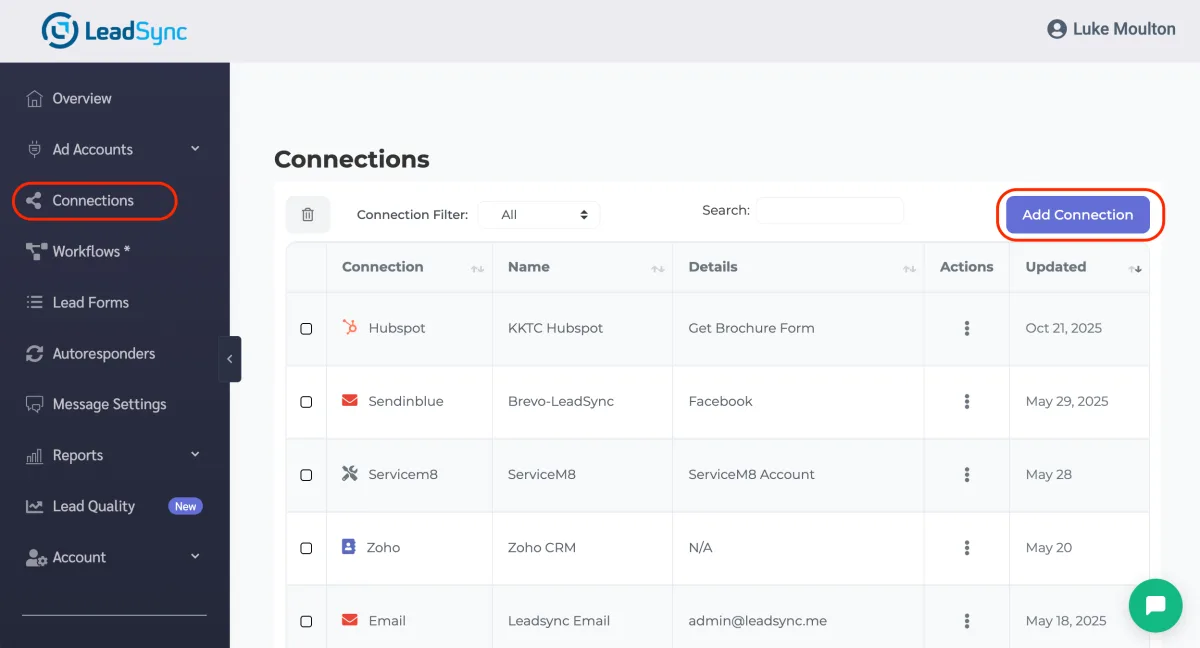
- In LeadSync, go to Connections and click Add Connection.
- Choose GoHighLevel from the connection dropdown and give the connection a name for your own reference.
- Click to connect. GoHighLevel opens an install screen showing exactly what LeadSync can access (read and write contacts, read locations and custom fields). Review it and confirm.
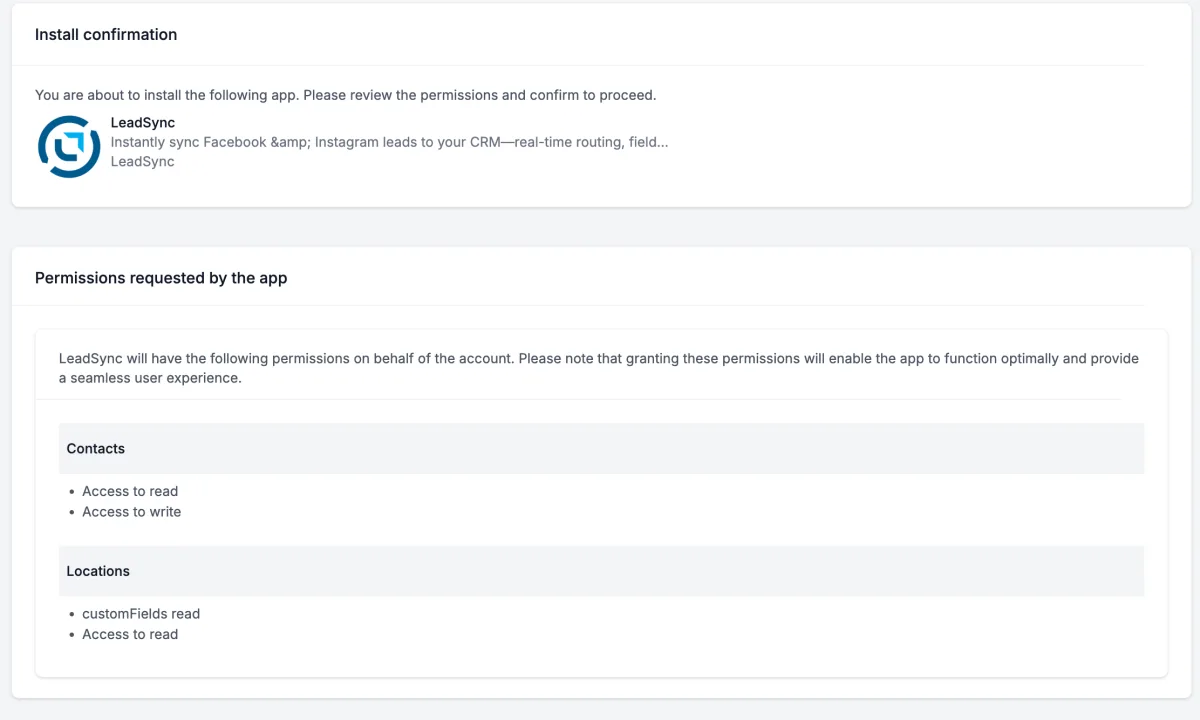
- Choose the sub-account (location) you want leads delivered into. GoHighLevel sends you back to LeadSync and the connection completes automatically, bound to that sub-account.
If your GoHighLevel account does not list any sub-account at this step, create one in GoHighLevel first (Sub-Accounts, then Create Sub-Account), then connect again.
Step 2: Connect your Meta lead form and map the fields
A connection tells LeadSync where to send leads. Now you tell it which form to listen to and how the fields line up.
- Click Lead Forms, then add your Facebook lead form.
- Select your Page, then Select the form you are using in your ad, and Select your GoHighLevel connection.
- A field mapping table appears. Map each Facebook form field to the matching GoHighLevel field. At a minimum, map the lead’s email to Email, since GoHighLevel needs an email or phone to create a contact. Map first name, phone, and any custom questions to the GoHighLevel fields you want them in.
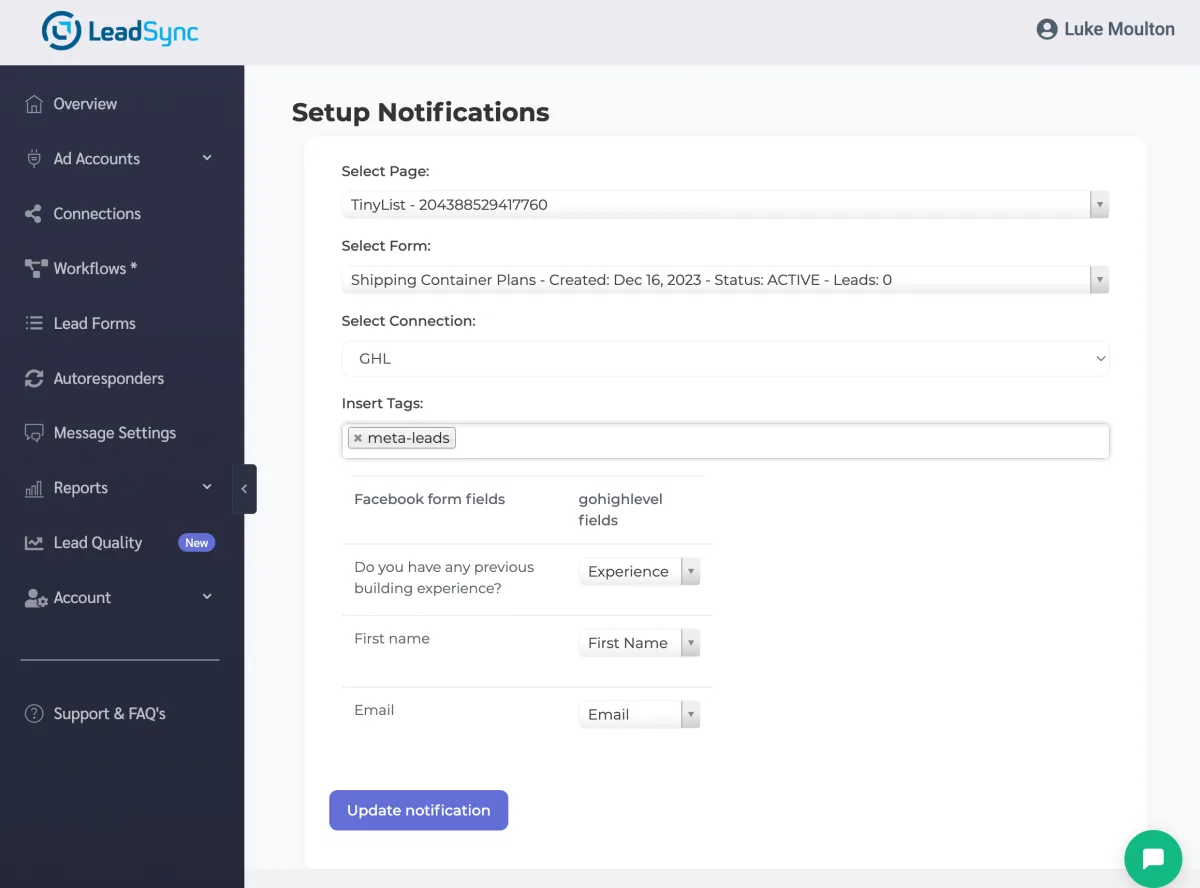
LeadSync lists your sub-account’s custom fields alongside the standard ones, so a question like “Do you have any previous building experience?” can flow into a custom field instead of getting lost.
Step 3: Add tags to trigger GoHighLevel workflows
This is the step that turns a contact record into an automation. In the Insert Tags field above the mapping table, type the tags you want applied to every lead from this form, for example facebook-lead or meta-leads. Press enter between each one.
You do not need to create the tags in GoHighLevel first. GoHighLevel adds any new tag automatically on the first lead, both to the contact and to your sub-account’s tag library. Once the tag exists, build a GoHighLevel workflow with the trigger Contact Tag set to your tag name, and every new Meta lead enters that automation within seconds of submitting your ad.
Step 4: Send a test lead
- Save your form connection.
- Send a test lead using Meta’s lead testing tool or LeadSync’s test feature.
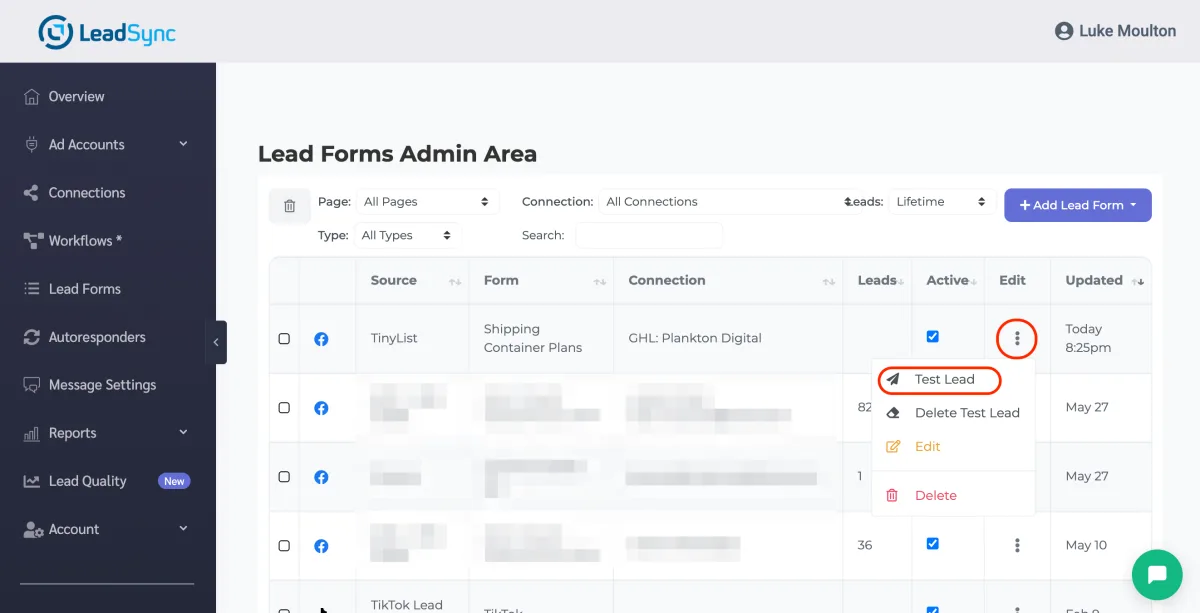
- Open Contacts in your GoHighLevel sub-account. The test lead appears as a new contact within seconds, with your mapped fields filled in and your tags applied.
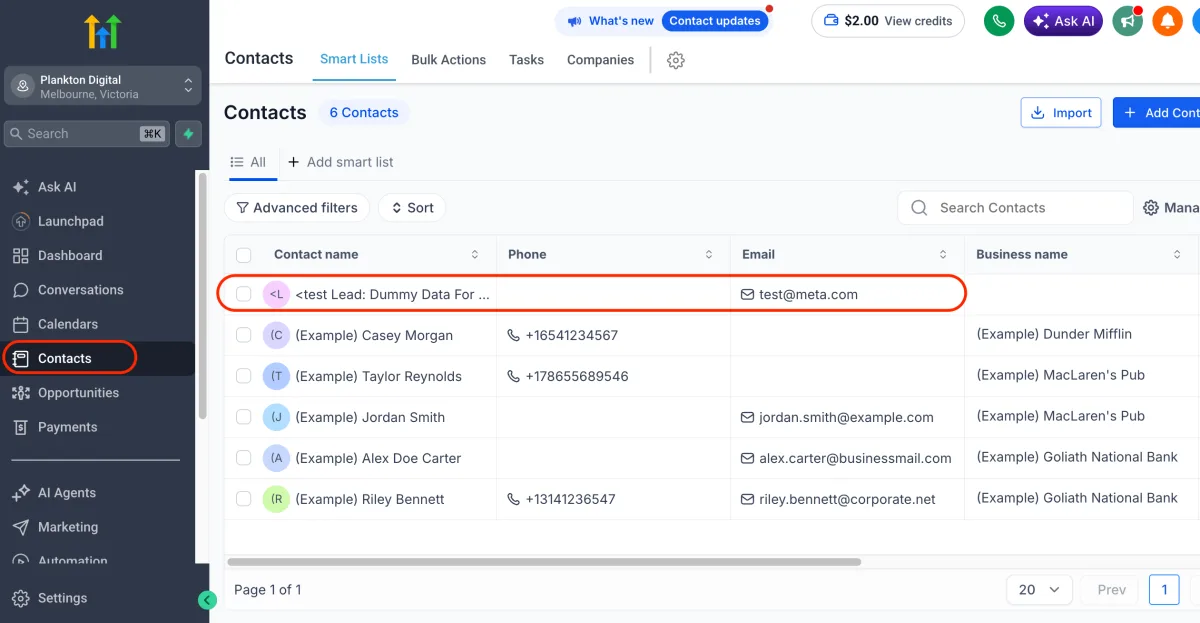
That is the full pipeline working: a Meta lead becomes a tagged GoHighLevel contact, ready for your follow-up automations.
How this compares to GoHighLevel’s native Facebook connection
GoHighLevel does have a built-in Facebook lead form connection, so it is fair to ask why you would use LeadSync. A few reasons come up again and again:
- Reliable delivery. The native connector is known to drop forms or silently stop syncing after token changes. LeadSync monitors the connection and retries, so leads do not quietly disappear.
- Full field control. Map any form question, including custom fields, to exactly the GoHighLevel field you want. Nothing is forced into a fixed shape.
- Multi-page and multi-account routing. Route any Facebook page to any sub-account from one LeadSync account. For agencies running ads for several clients, this is far cleaner than wiring each sub-account up by hand.
- The same pipe for every platform. LeadSync also delivers Google, LinkedIn, and TikTok lead forms, so your whole lead operation runs through one place.
If you are still weighing GoHighLevel itself against other tools, our GoHighLevel CRM review digs into where it shines and where it frustrates.
Troubleshooting
- Contact not appearing? Check that you mapped an email or phone field. GoHighLevel rejects a contact with neither.
- No sub-account to choose? Create one in GoHighLevel (Sub-Accounts, then Create Sub-Account) and reconnect.
- Form not listed? Refresh your page permissions in LeadSync, then reopen the Lead Forms screen.
- Still not receiving leads? Work through the Meta leads troubleshooting guide.
Quick wins after setup
- Build a workflow triggered by your
facebook-leadtag that sends an instant SMS, the fastest way to lift reply rates. - Create a pipeline opportunity automatically so new leads show up on your sales board.
- Route high-value forms to a separate sub-account or tag so your best leads get a different sequence.
Related integration guides
Sending Meta leads somewhere else as well? You can run several destinations at once. These guides walk through the setup step by step:
- How to send Facebook leads to HubSpot
- How to send Facebook leads to Pipedrive
- How to send Facebook leads to Salesforce
- The best CRM for Facebook leads
- Connecting Facebook lead ads with CRMs
- How to connect Gravity Forms to GoHighLevel (for the leads your website forms collect)
Frequently asked questions
Do I need a paid GoHighLevel plan to connect LeadSync?
No. Any GoHighLevel account with at least one sub-account (location) works, including trial accounts. LeadSync installs into the sub-account you choose during the connection step and sends contacts there.
Do tags need to exist in GoHighLevel before I use them in LeadSync?
No. GoHighLevel creates any tag automatically the first time a lead arrives with it. You can type any tag in LeadSync, like facebook-lead, and it appears on the contact and in your sub-account’s tag list on the first sync.
Will LeadSync create duplicate contacts in GoHighLevel?
No. LeadSync uses GoHighLevel’s upsert behaviour, which respects the Allow Duplicate Contact setting on each sub-account. A repeat submission updates the existing contact in place rather than creating a duplicate.
Can an agency route different lead forms to different GoHighLevel sub-accounts?
Yes. Create one LeadSync connection per sub-account, then map each Facebook page or form to the connection for the right client. Different forms can deliver to different sub-accounts from the same LeadSync account.
How is this different from GoHighLevel’s built-in Facebook lead form connection?
GoHighLevel’s native connection is set up per sub-account and can be fiddly with field mapping and routing multiple pages or clients. LeadSync gives you reliable delivery, full control over how each field maps, tag-based automation triggers, and the ability to route any Facebook page to any sub-account from one place.
Does this work with Instagram lead ads too?
Yes. Meta lead ads run across both Facebook and Instagram, and LeadSync delivers submissions from either platform into GoHighLevel the same way.
How fast do leads reach GoHighLevel?
In real time. LeadSync receives the submission from Meta the moment someone submits your form and creates the GoHighLevel contact within seconds, so your follow-up automations can fire while intent is highest.
Running Ads on Other Platforms?
LeadSync sends leads to GoHighLevel from every major lead ad platform: