Frequently Asked Questions
How do I connect LeadSquared to LeadSync?
Choose LeadSquared in the LeadSync destination list, then paste your Access Key and Secret Key from LeadSquared Settings and pick your region. LeadSync pulls your lead fields so you can map them. Setup takes about a minute.
Where do I find my LeadSquared API keys?
In LeadSquared, go to Settings, then API and Webhooks, and open LeadSquared API Credentials. Copy the Access Key and Secret Key and paste them into LeadSync.
How fast do leads reach LeadSquared?
In real time, typically within seconds of the form submission, so your sales team can act while the lead is still engaged.
Will I get duplicate leads in LeadSquared?
No. LeadSquared’s Lead.Capture de-duplicates automatically, matching on email and then phone. A returning prospect updates their existing lead rather than creating a second one.
Can I map custom LeadSquared fields?
Yes. The mapping screen lists every field on your lead, system fields and your custom mx_ fields, pulled live from your account. Map any form question to any field; unmapped questions are simply skipped.
Why are my API keys rejected?
Almost always a region mismatch. LeadSquared runs regional data centres and the wrong region returns a 401. Pick the region shown in your account’s API host URL, for example api-in21.leadsquared.com is India Mumbai.
Does this work with Instagram lead ads too?
Yes. Meta lead ads run across both Facebook and Instagram, and LeadSync delivers submissions from either platform into LeadSquared the same way.
Quick Start Summary
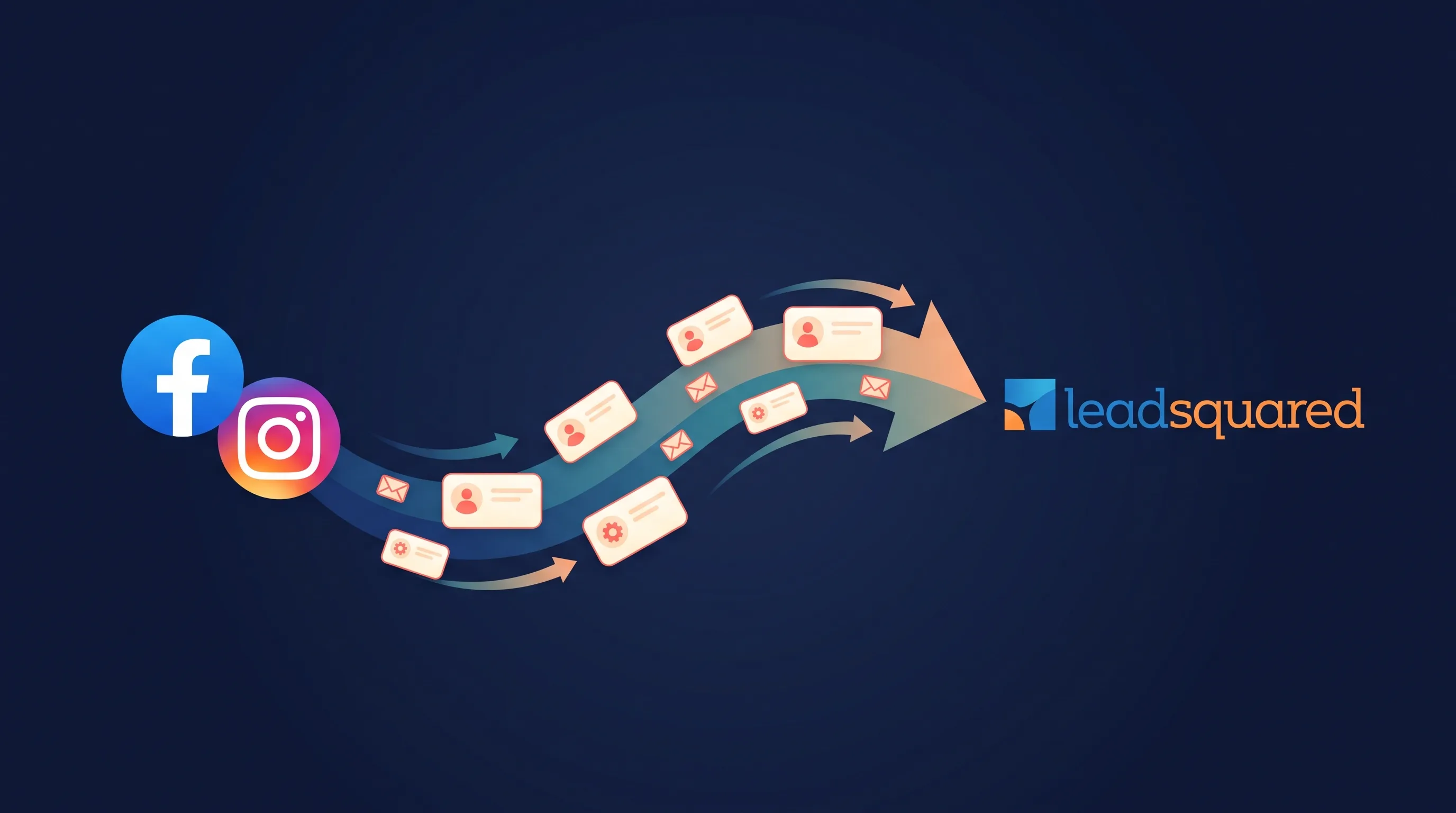
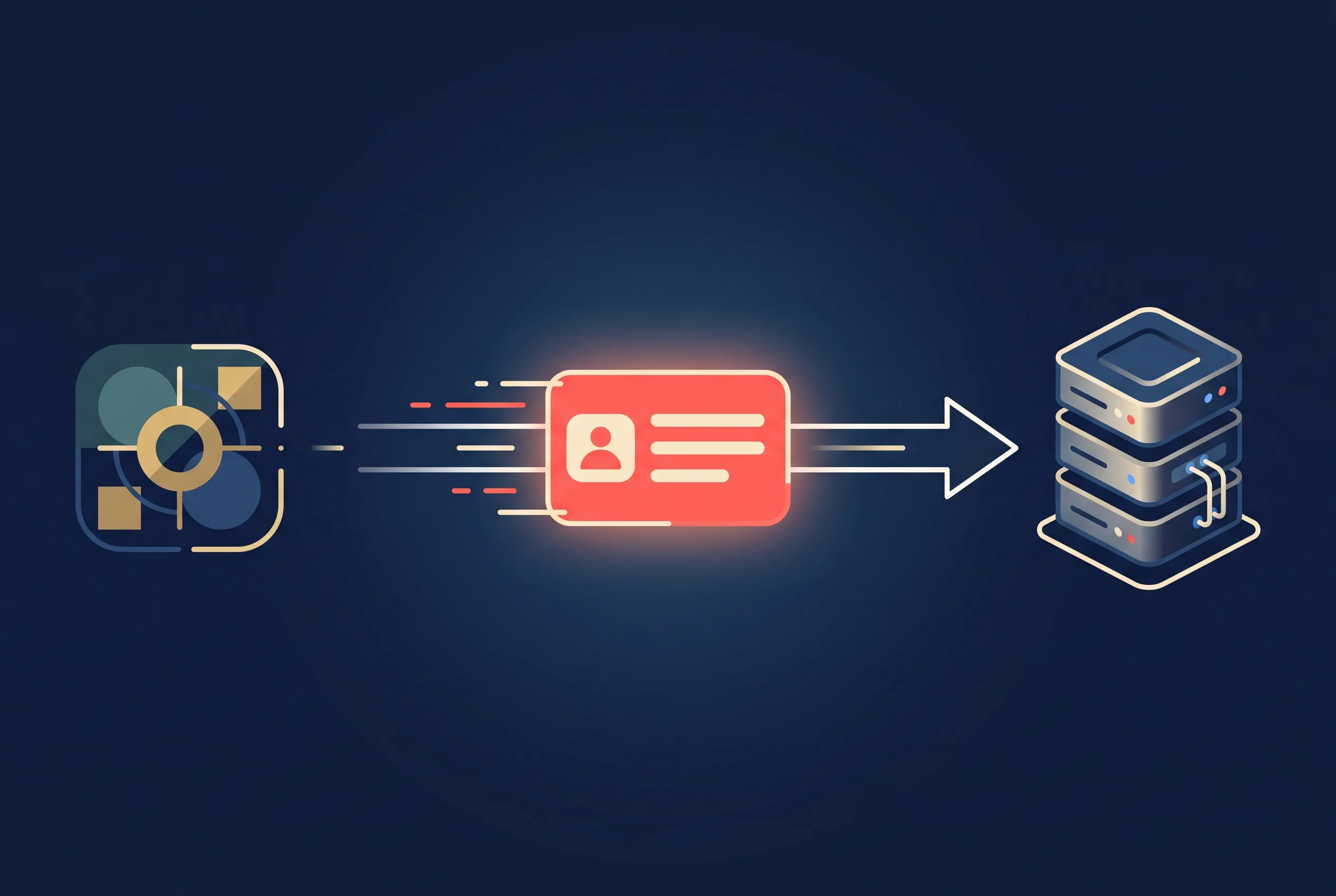
LeadSync sends your Meta lead ads into LeadSquared as new leads in real time. Connect LeadSquared to LeadSync with your Access Key and Secret Key, pick the lead form you want to sync, map your form fields to LeadSquared fields, and send a test lead. From then on, every Facebook and Instagram lead lands in LeadSquared within seconds, de-duplicated automatically. Setup takes about a minute and needs no code.
Why send Meta leads to LeadSquared with LeadSync?
LeadSquared is built for high-velocity sales teams in real estate, education, and financial services, where the first call often decides the deal. That makes the gap between a form submission and a lead landing in the CRM the whole ballgame. Three things matter here.
Speed. A lead that arrives in an hourly batch has already gone cold. In speed-to-lead terms, minutes matter, and hours are lost deals. LeadSync receives the submission from Meta the moment it happens and creates the LeadSquared lead within seconds, so your counsellors or agents call while the prospect is still on the page.
Complete data. A name and an email are not enough to route or score a lead. If your form asks which project, which course, or which loan amount, those answers are the difference between a good first call and a wasted one. LeadSync maps every question on your form to any LeadSquared field, including the custom mx_ fields you have built for your process.
Clean database. High ad volume means the same prospect often submits more than once. LeadSquared’s Lead.Capture matches on email then phone and updates the existing lead, so your team is not chasing three copies of the same person.
Prerequisites
- An active LeadSync account (start with a 7-day free trial)
- A LeadSquared account with API access, and your Access Key and Secret Key from Settings
- A published Meta lead ad form on your Facebook page
Step 1: Connect LeadSquared to LeadSync
LeadSync connects to LeadSquared with your API keys, so there is nothing to install and no browser redirect to complete.
In LeadSquared, go to Settings, then API and Webhooks, and open LeadSquared API Credentials. Copy your Access Key and Secret Key.
In LeadSync, go to Connections and click Add Connection.
Choose LeadSquared from the connection dropdown.
Paste your Access Key and Secret Key, then choose the region your LeadSquared account runs in. LeadSquared shards accounts across regional data centres, so this points LeadSync at the right host. Give the connection a name and click Update connection.
If the keys are rejected with a 401, the region is almost always the cause. Match it to the API host shown in your LeadSquared account (for example api-in21.leadsquared.com is India Mumbai).
Step 2: Pair your lead form and map the fields
A connection tells LeadSync where to send leads. Now you tell it which form to listen to and how the fields line up.
Click Lead Forms, then add your Facebook lead form.
Select your Page, then Select the form you are using in your ad, and Select your LeadSquared connection.
A field mapping table appears, with your form’s questions on the left and a dropdown of your LeadSquared fields on the right. The list is pulled live from your account, so your custom mx_ fields are all there. Map each question to the field you want it in.
Email, first name, last name, and phone are handled automatically. When a lead has no email, LeadSync tells LeadSquared to match on phone instead, so de-duplication still works.
Step 3: Send a test lead
- Save your form connection.
- Send a test lead using Meta’s lead testing tool or LeadSync’s built-in test feature.
- Open Manage Leads in LeadSquared. Your test lead appears within seconds, with the mapped fields filled in.
That is the full pipeline working: a Meta lead becomes a LeadSquared lead, complete and de-duplicated, before the prospect has closed the ad.
De-duplication and custom fields: what happens on arrival
Two LeadSquared behaviours are worth understanding, because LeadSync leans on both.
Create-or-update, automatically. Lead.Capture is a single call that either creates a new lead or updates a matching one. It matches on email first, then phone. So when the same prospect submits two ads, or re-enquires a month later, their existing lead is updated rather than duplicated. Your counsellors see one record with the full history, not three.
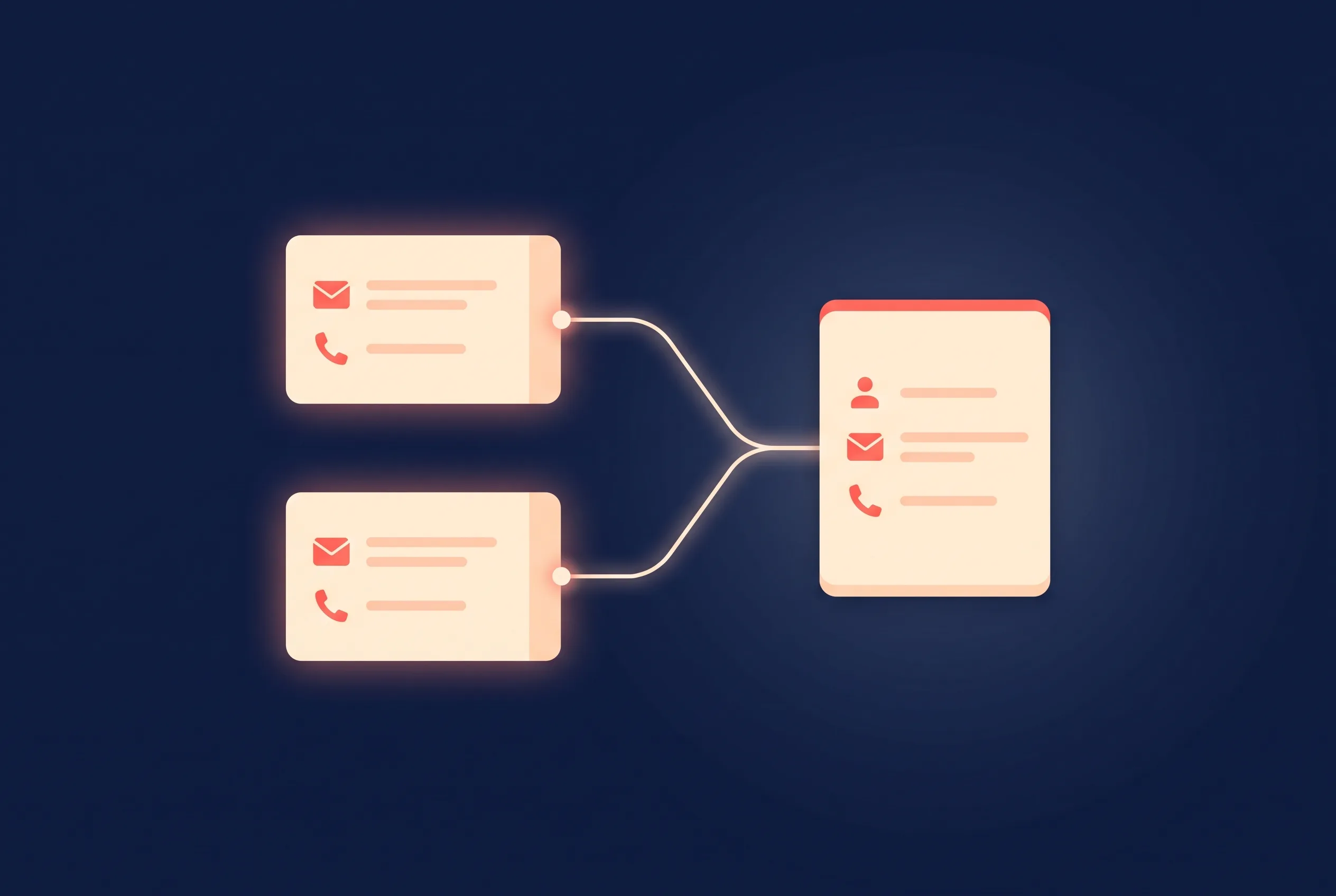
Your custom fields are populated. The fields you have built for your process, project interest, course, budget, source campaign, are the ones your lead-scoring and automation rules depend on. Because LeadSync maps to your live mx_ field list, those fields arrive filled in, so your rules fire on real data from the first second.
How this compares to a manual or batch setup
- Delivery time. CSV or batch import: minutes to hours, and manual. LeadSync: seconds, automatic.
- Field coverage. Manual: whatever you remember to include in the export. LeadSync: every form question, mapped to any LeadSquared field, system or custom.
- Duplicates. Manual imports stack duplicates. LeadSync uses Lead.Capture’s built-in matching so returning prospects update in place.
- Multi-platform. LeadSync delivers Google, LinkedIn, and TikTok lead forms through the same pipe, so your whole lead operation runs through one place.
If you are running Meta ads across several clients or brands on different CRMs, this is the real advantage: LeadSync gives you one place to manage every Meta connection and route each account to whichever CRM it uses, LeadSquared included.
Troubleshooting
- Keys rejected with a 401? Check the region first. LeadSquared runs regional data centres, and the wrong region is the most common cause. Match it to your account’s API host URL.
- Lead not appearing? Confirm the connection saved and the keys are still active, then check the Manage Leads list rather than a filtered view.
- A repeat test lead updated an existing record? That is Lead.Capture de-duplicating on email or phone, working as intended.
- Still not receiving leads? Work through the Meta leads troubleshooting guide.
Get started
LeadSquared rewards teams that call fast and keep a clean database, and both come down to how leads reach the CRM. Connect your account in about a minute, map your fields once, and every Meta lead flows in complete and de-duplicated from then on. Full setup steps live in the LeadSquared integration guide, and if you also run Salesforce you can wire it up the same way. Start your free LeadSync trial and send your first real-time lead today.