Quick Start Summary
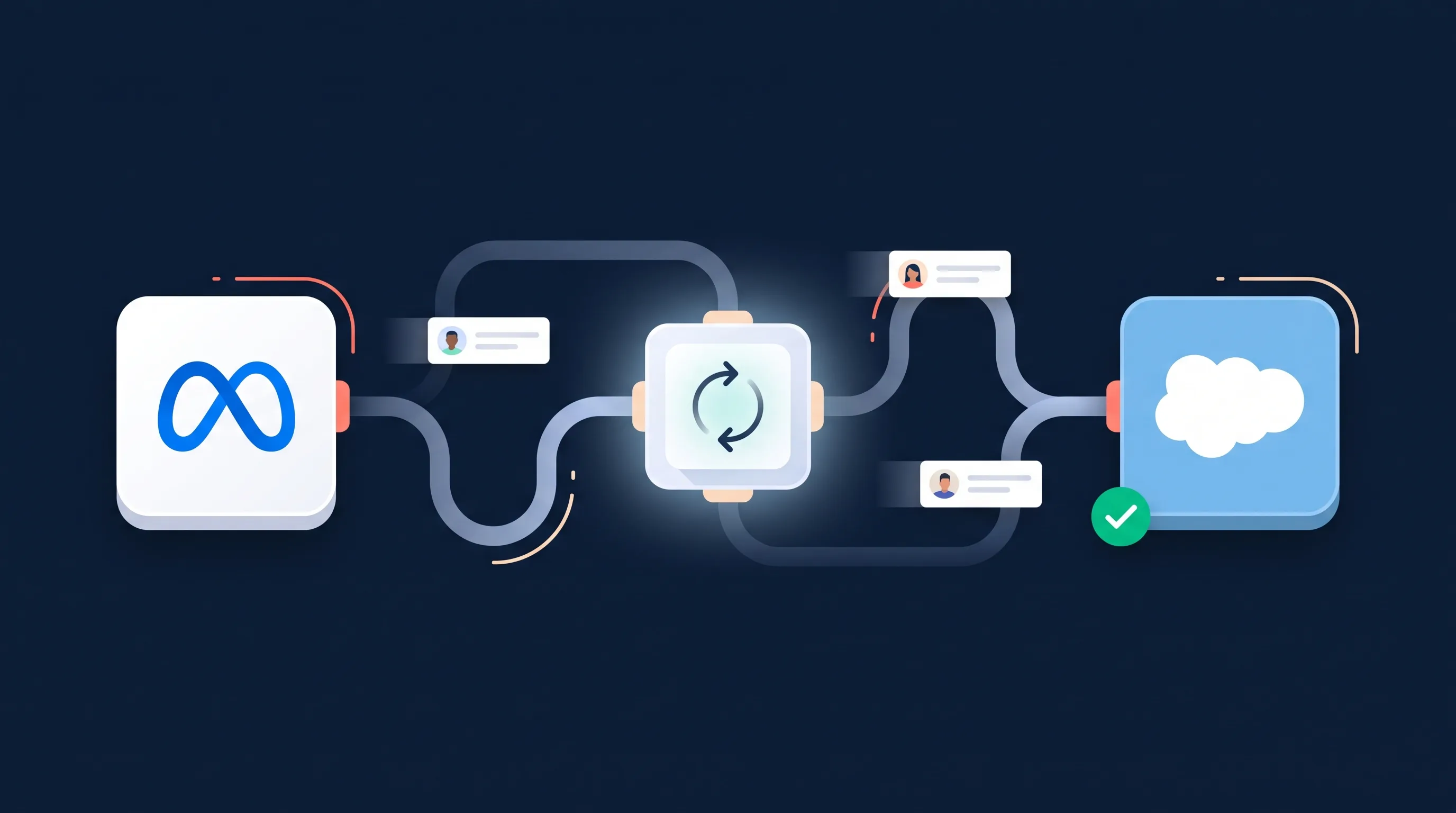
LeadSync sends your Meta lead ads into Salesforce as Lead records in real time. Connect Salesforce to LeadSync with one click, pick the lead form you want to sync, map your form fields to Salesforce Lead fields, and send a test lead. From then on, every Facebook and Instagram lead lands in Salesforce within seconds, routed by your assignment rules. Setup takes about five minutes and needs no code.
Why send Meta leads to Salesforce with LeadSync?
Salesforce has a native Facebook lead ads integration, so it is fair to ask why you would use anything else. Three reasons keep coming up.
Speed. The native sync runs on a schedule and can take up to two hours to deliver a lead. Two hours is a long time in speed-to-lead terms: by then your prospect has heard back from a competitor or forgotten they enquired. LeadSync receives the submission from Meta the moment it happens and creates the Salesforce Lead within seconds.
Complete data. The native integration captures the basics, name and email, and not much else. If your form asks qualifying questions, that answers your reps actually need, they get lost. LeadSync maps every question on your form to any field on your Lead object, custom fields included.
Routing. LeadSync creates each Lead with auto-assignment enabled, so your Salesforce assignment rules fire immediately. The right rep gets the right lead while the prospect is still thinking about you, with no one triaging a shared inbox.
Prerequisites
- An active LeadSync account (start with a 7-day free trial)
- A Salesforce org with REST API access: Enterprise, Unlimited, or Developer edition. Professional and Starter Suite need an API add-on from Salesforce.
- A published Meta lead ad form on your Facebook page
Step 1: Connect Salesforce to LeadSync
LeadSync uses a secure one-click connection (OAuth), so you never copy and paste API keys or tokens.
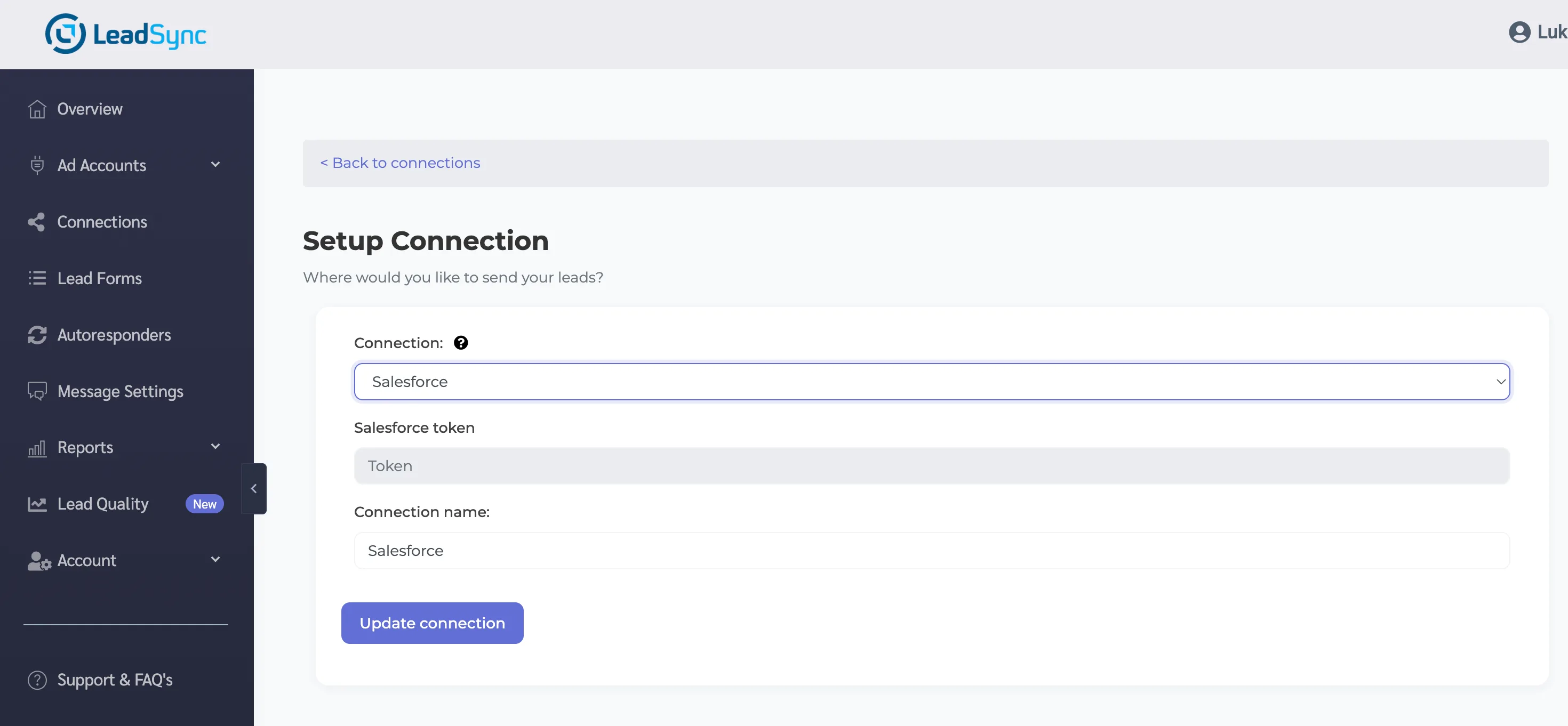
- In LeadSync, go to Connections and click Add Connection.
- Choose Salesforce from the connection dropdown.
- LeadSync redirects you to Salesforce to authorise the connection. Log in to your org and review the access screen. LeadSync asks to manage user data via APIs and to refresh its access in the background, which is what keeps the connection alive without you re-authenticating.
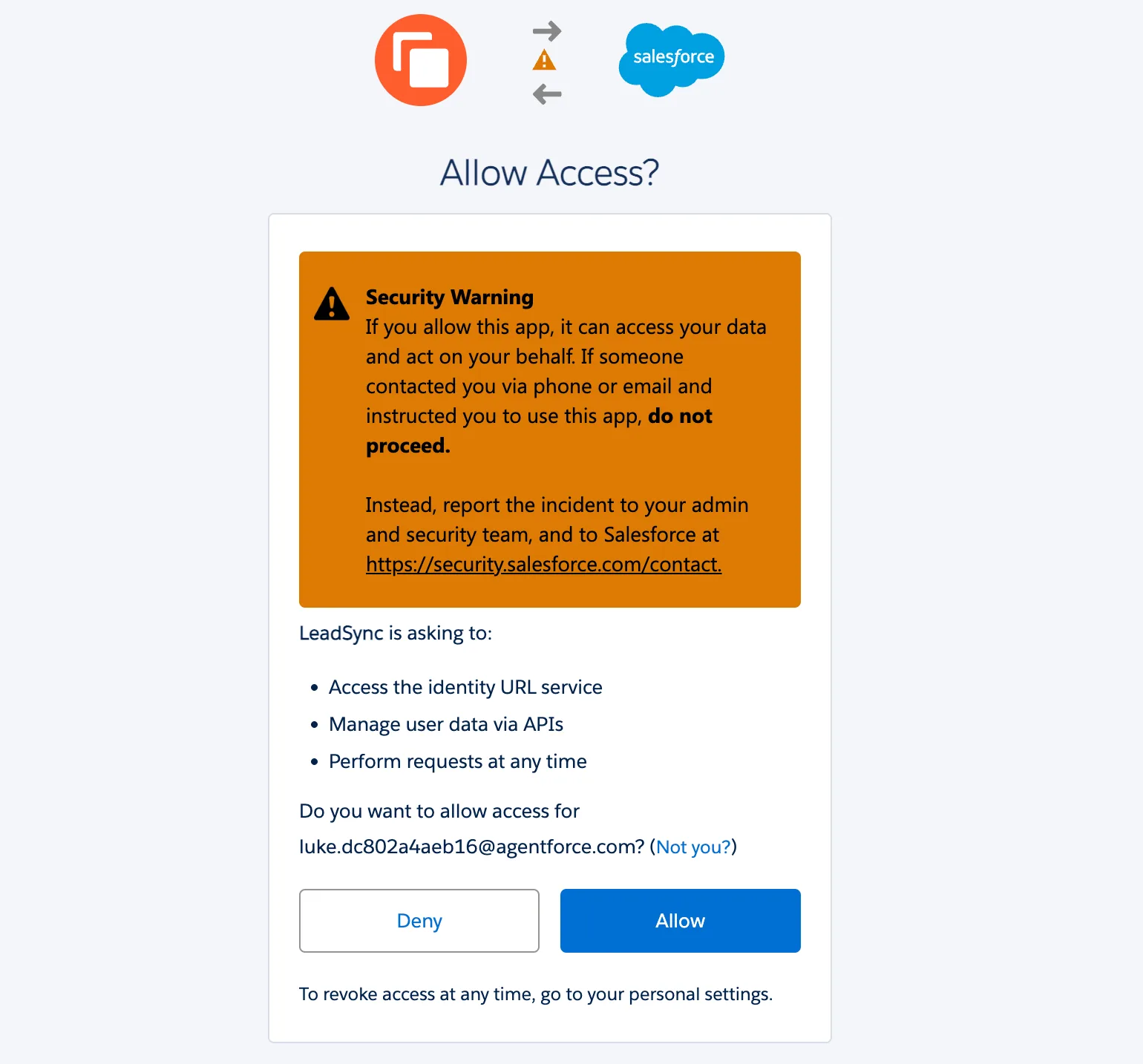
- Click Allow. Salesforce sends you back to LeadSync with the connection details filled in. Give the connection a name and click Update connection.
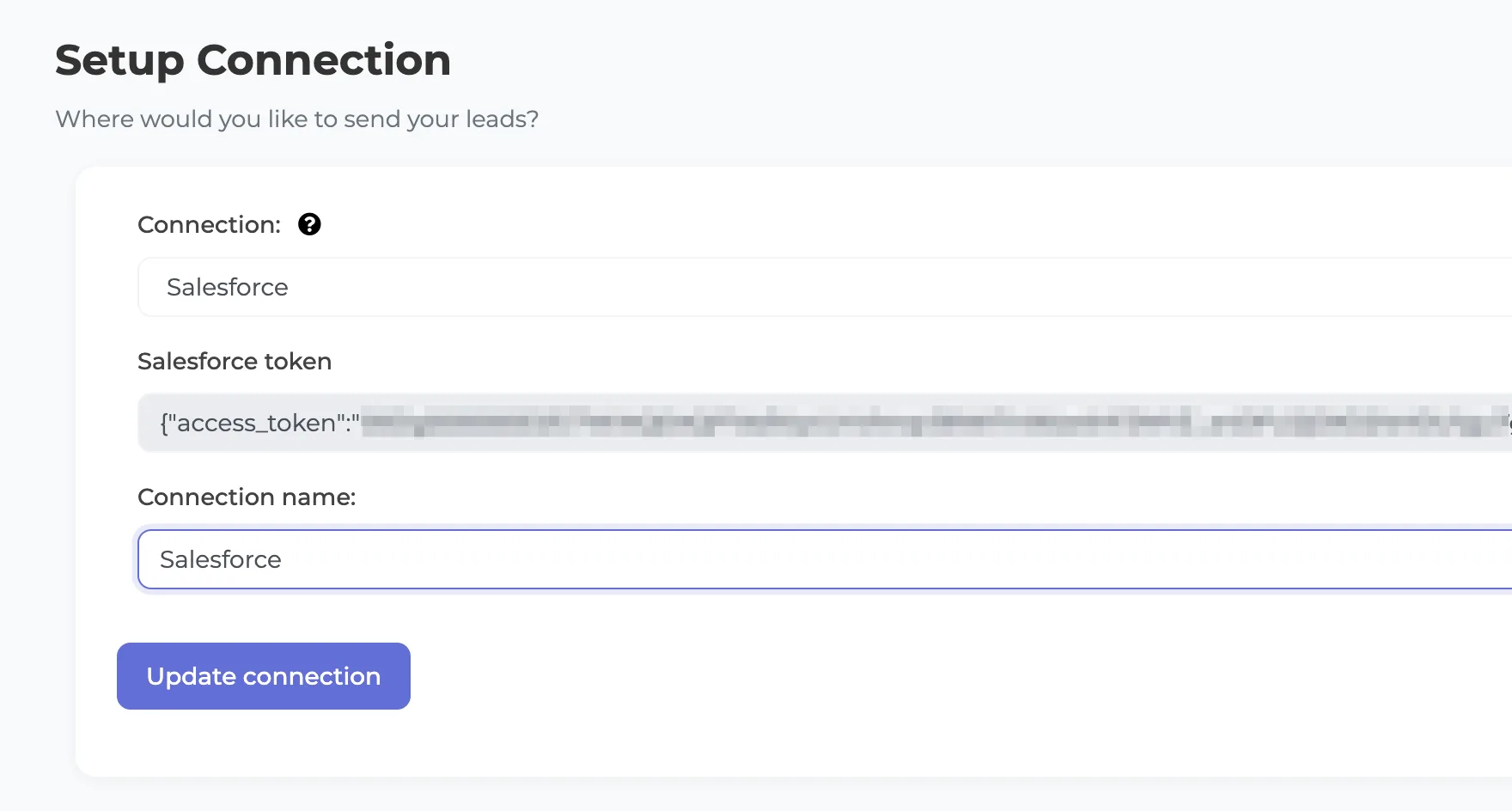
That is the whole connection. LeadSync refreshes its access token automatically from here on, so this is a one-time step.
Step 2: Pair your lead form and map the fields
A connection tells LeadSync where to send leads. Now you tell it which form to listen to and how the fields line up.
- Click Lead Forms, then add your Facebook lead form.
- Select your Page, then Select the form you are using in your ad, and Select your Salesforce connection.
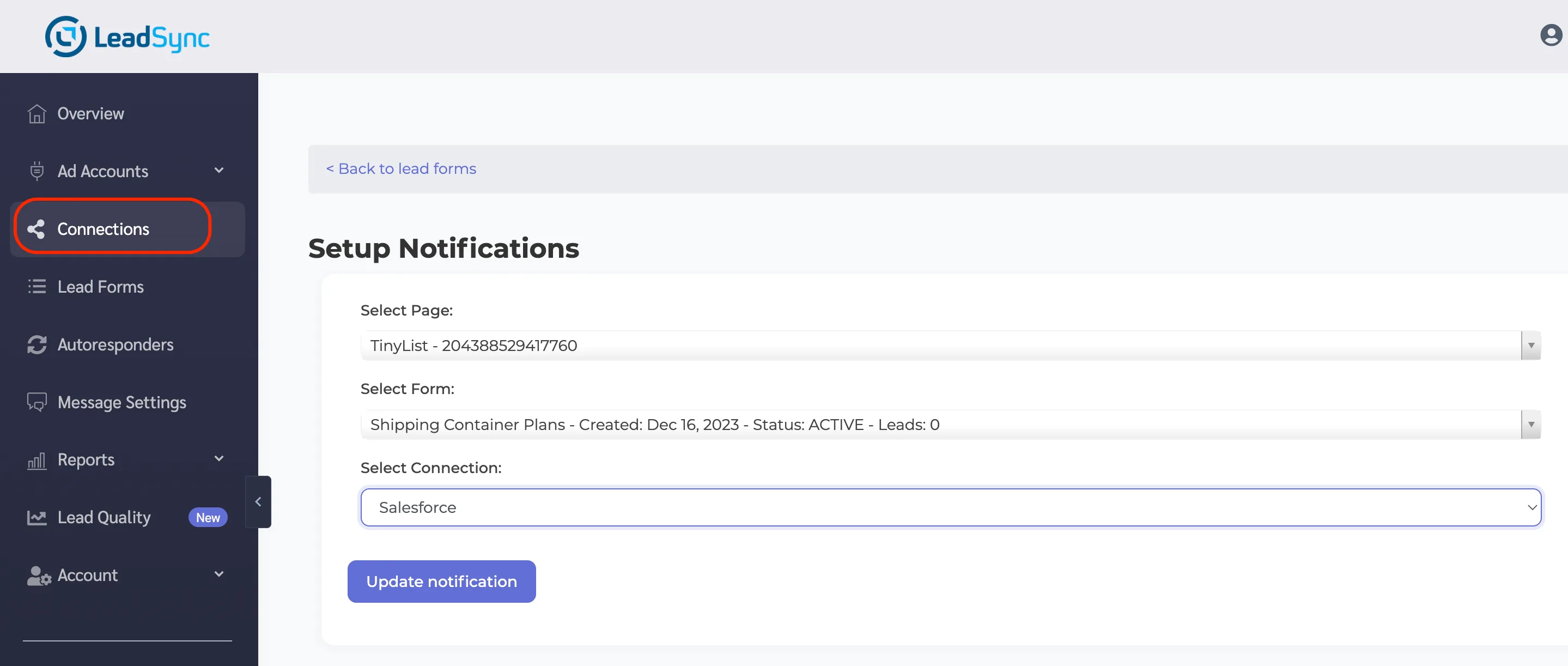
- A field mapping table appears, with your form’s questions on the left and a dropdown of your org’s Lead fields on the right. The list is pulled live from Salesforce, so your custom fields are all there. Map each question to the field you want it in.
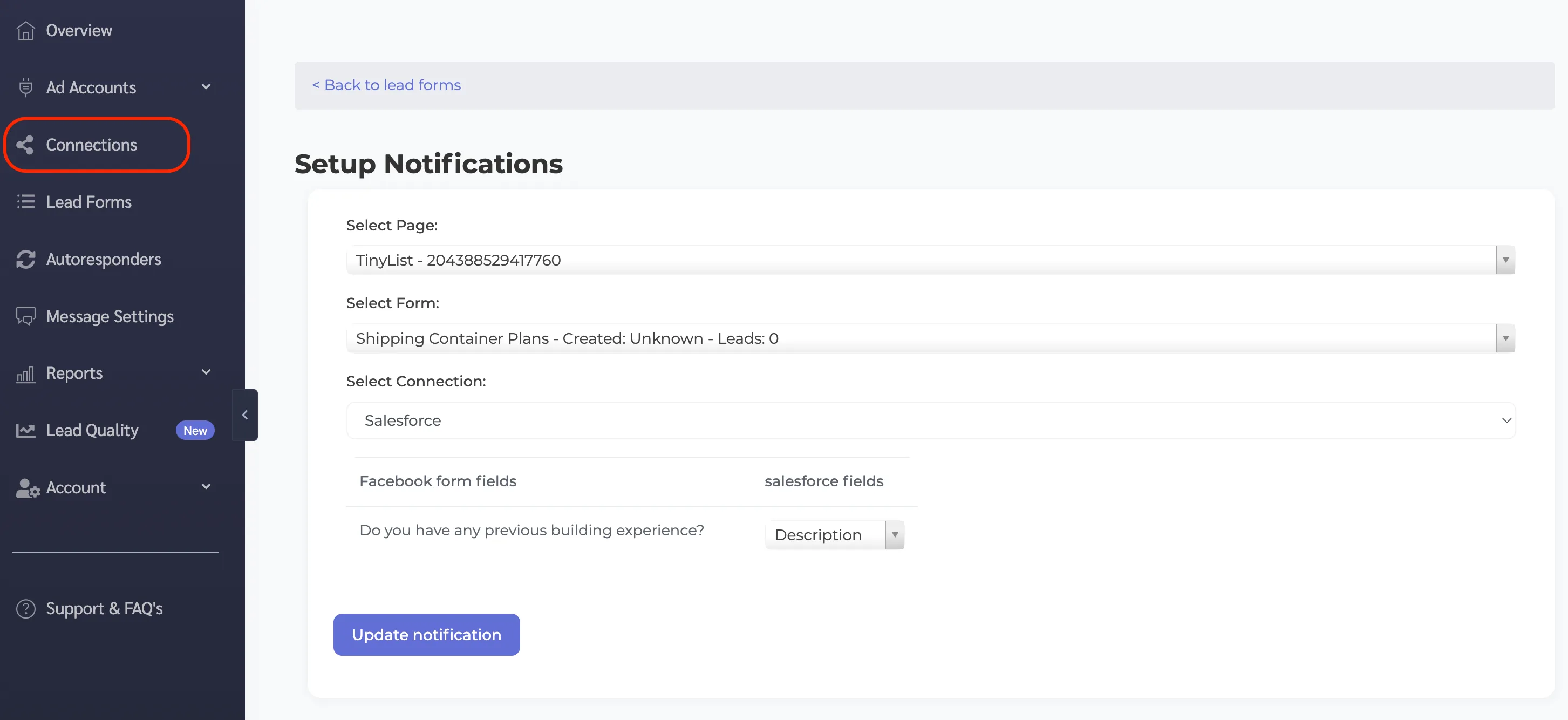
Name, email, and phone are handled automatically. And because Salesforce requires a Company on every Lead, LeadSync fills it with the lead’s name when your form does not ask for one, so no lead ever fails on a missing required field.
Step 3: Send a test lead
- Save your form connection.
- Send a test lead using Meta’s lead testing tool or LeadSync’s built-in test feature.
- Open Leads in Salesforce (App Launcher, then Leads). Your test lead appears within seconds, with mapped fields filled in and Lead Source set to Facebook.
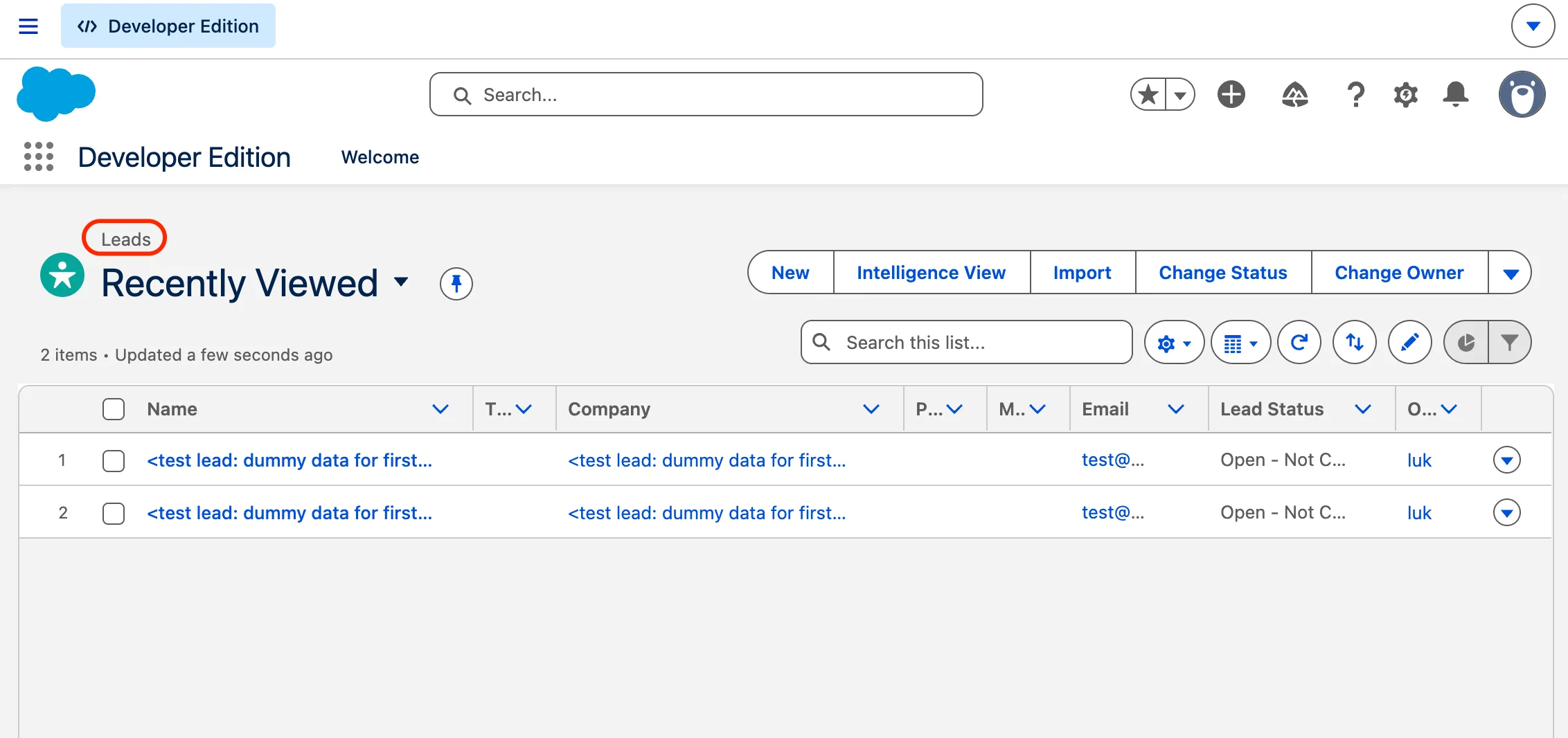
That is the full pipeline working: a Meta lead becomes a Salesforce Lead, routed by your assignment rules, before the prospect has closed the ad.
Assignment rules and duplicates: what happens on arrival
Two Salesforce behaviours are worth understanding, because LeadSync is deliberate about both.
Assignment rules fire. Every Lead is created with auto-assignment enabled. If you have an active assignment rule, the incoming lead is routed by it, to a rep, a queue, or a territory, exactly as if it had been entered by hand. Pair this with an email alert on the rule and your rep is notified seconds after the ad submission.
Duplicate rules are respected, not bypassed. If your org’s duplicate rule is set to allow with an alert, a repeat submission saves and the alert is recorded. If your rule blocks duplicates, the save is blocked. LeadSync does not force records past the rules your admin configured.
How this compares to Salesforce’s native Facebook integration
- Delivery time. Native: scheduled sync, up to two hours. LeadSync: seconds.
- Field coverage. Native: basic fields only. LeadSync: every form question, mapped to any standard or custom Lead field.
- Assignment. Native: leads arrive unrouted. LeadSync: your assignment rules fire on arrival.
- Multi-platform. LeadSync delivers Google, LinkedIn, and TikTok lead forms through the same pipe, so your whole lead operation runs through one place.
Many Salesforce teams end up on Zapier or LeadsBridge to work around the native integration. LeadSync does the same job with flat pricing, no per-task limits, and a setup measured in minutes.
Troubleshooting
- Connection warning about API access? Your Salesforce edition may not include the REST API. Enterprise, Unlimited, and Developer editions include it; Professional and Starter Suite need Salesforce’s API add-on.
- Lead not appearing? Check the Leads list view. The default “Recently Viewed” view can look empty; switch to “All Open Leads”.
- A repeat test lead didn’t save? That is likely your duplicate rule doing its job. Check the lead already exists from your earlier test.
- Still not receiving leads? Work through the Meta leads troubleshooting guide.
Quick wins after setup
- Add an email alert to your assignment rule so reps are pinged the moment a lead lands. Fast follow-up lifts conversion more than anything else.
- Map your qualifying questions to custom Lead fields and add them to your Lead page layout, so reps see the full picture before the first call.
- Create a “Facebook” Lead Source report to track ad-sourced pipeline separately.
Related integration guides
Sending Meta leads somewhere else as well? You can run several destinations at once. These guides walk through the setup step by step:
- How to send Facebook leads to HubSpot
- How to send Facebook leads to Odoo CRM
- How to send LinkedIn leads to Salesforce
- How to send Google Ads leads to Salesforce
- How to send Facebook leads to Pipedrive
- How to send Meta leads to GoHighLevel
- The best CRM for Facebook leads
Frequently asked questions
Which Salesforce editions work with LeadSync?
Any edition with REST API access: Enterprise, Unlimited, and Developer. Professional and Starter Suite orgs need an API add-on from Salesforce. LeadSync shows a warning at connect time if your edition does not include API access.
Does LeadSync create Leads or Contacts in Salesforce?
Leads. Each ad submission becomes a new Lead record, which means your assignment rules, workflows, and lead processes all fire exactly as they would for any other new lead.
Do my Salesforce assignment rules still run?
Yes. LeadSync creates each Lead with auto-assignment enabled, so your active assignment rule routes the new lead to the right owner automatically, within seconds of the form submission.
What happens with duplicate leads?
LeadSync respects your org’s duplicate rules as you configured them. If your rule allows duplicates with an alert, the lead saves and the alert is recorded. If your rule blocks duplicates, the save is blocked, exactly as it would be for manual entry.
What if my lead form doesn’t ask for a company?
Salesforce requires a Company on every Lead. When your form does not capture one, LeadSync fills it with the lead’s name so the record is always created. No lead fails over a missing required field.
Can I map custom Salesforce fields?
Yes. The mapping screen lists every createable field on your Lead object, standard and custom, pulled live from your org. Map any form question to any field; unmapped questions are simply skipped.
Does this work with Instagram lead ads too?
Yes. Meta lead ads run across both Facebook and Instagram, and LeadSync delivers submissions from either platform into Salesforce the same way.
How fast do leads reach Salesforce?
In real time, typically under 60 seconds from form submission. Salesforce’s native Facebook integration syncs on a schedule that can take up to two hours.