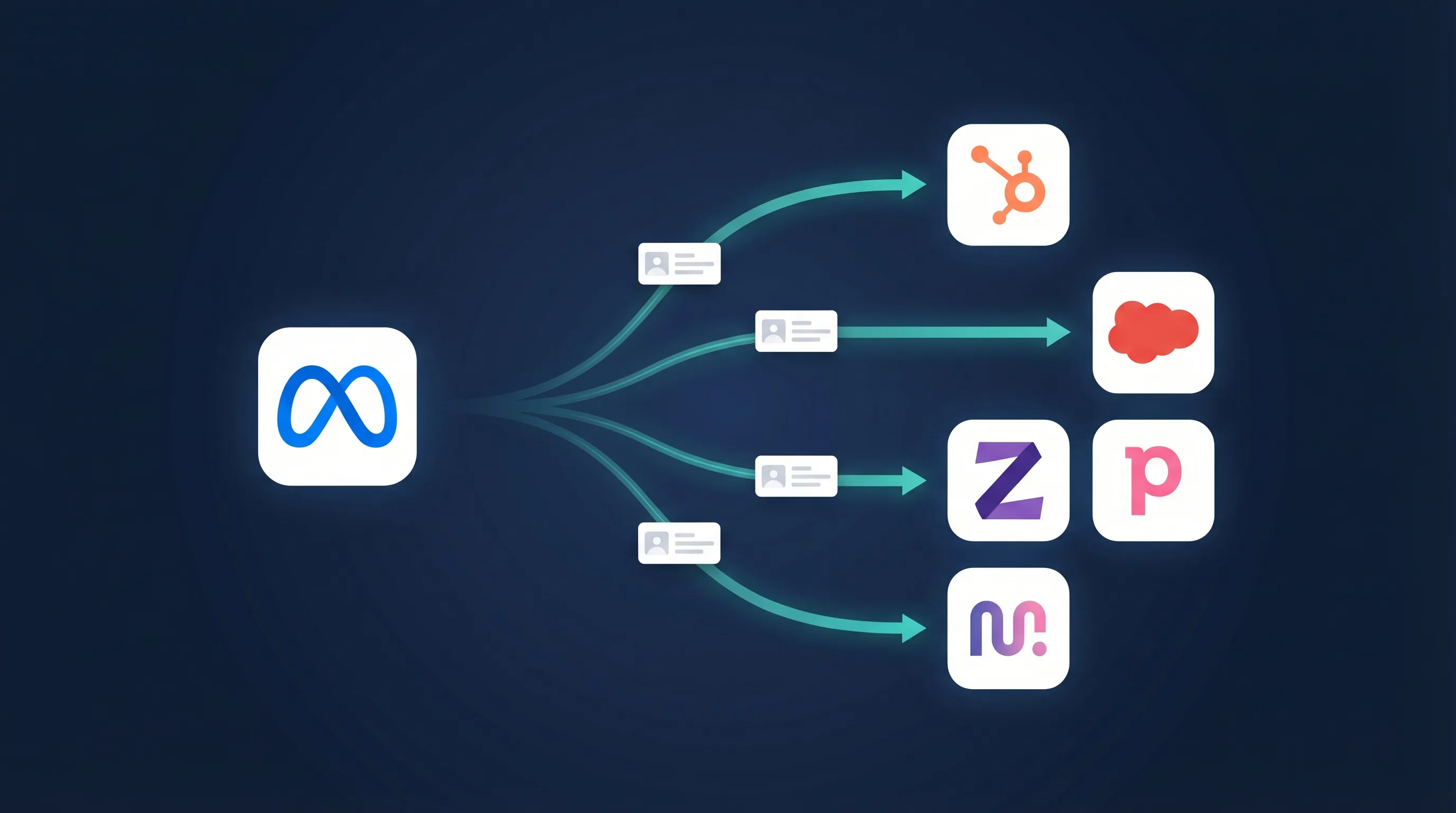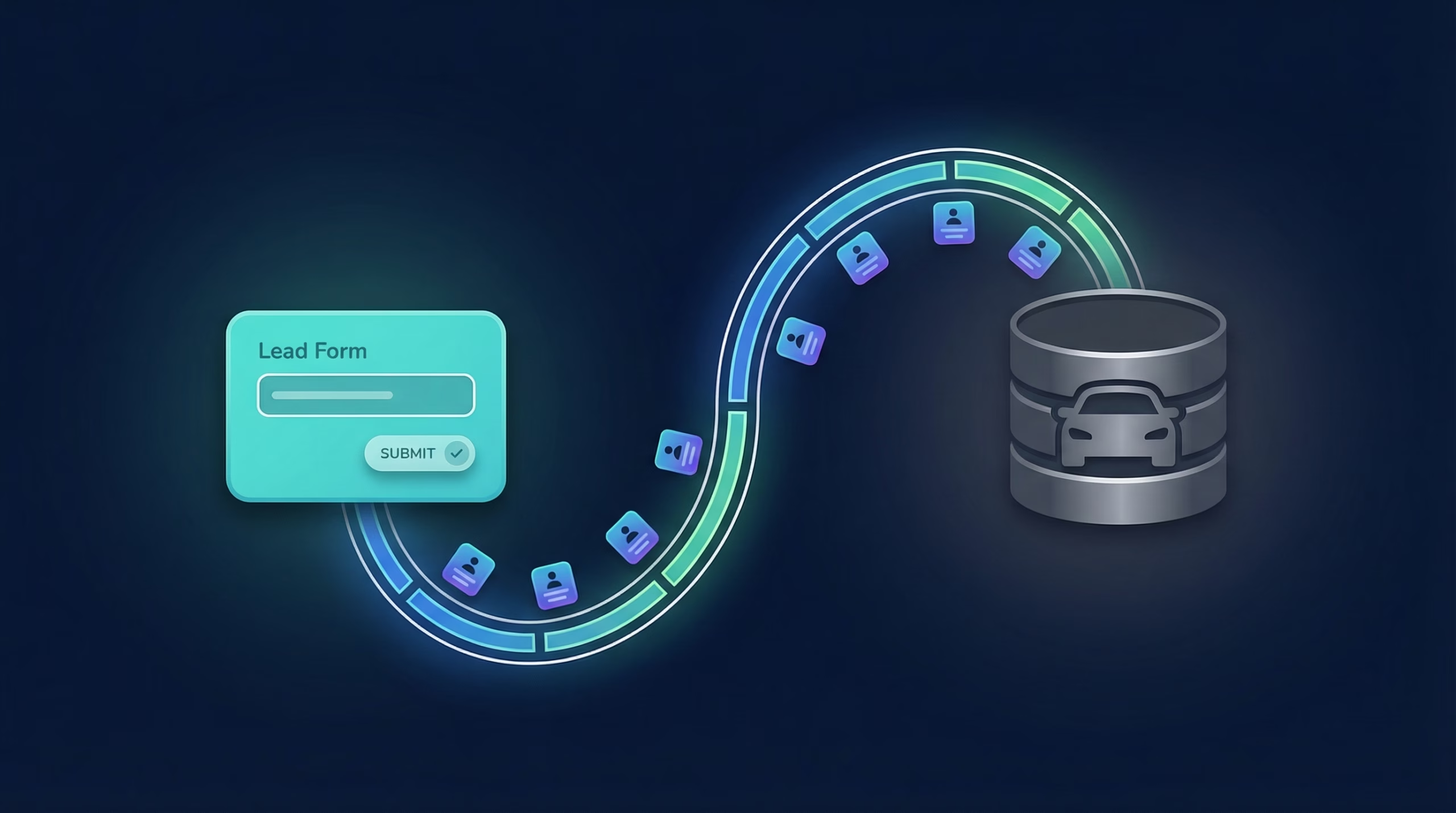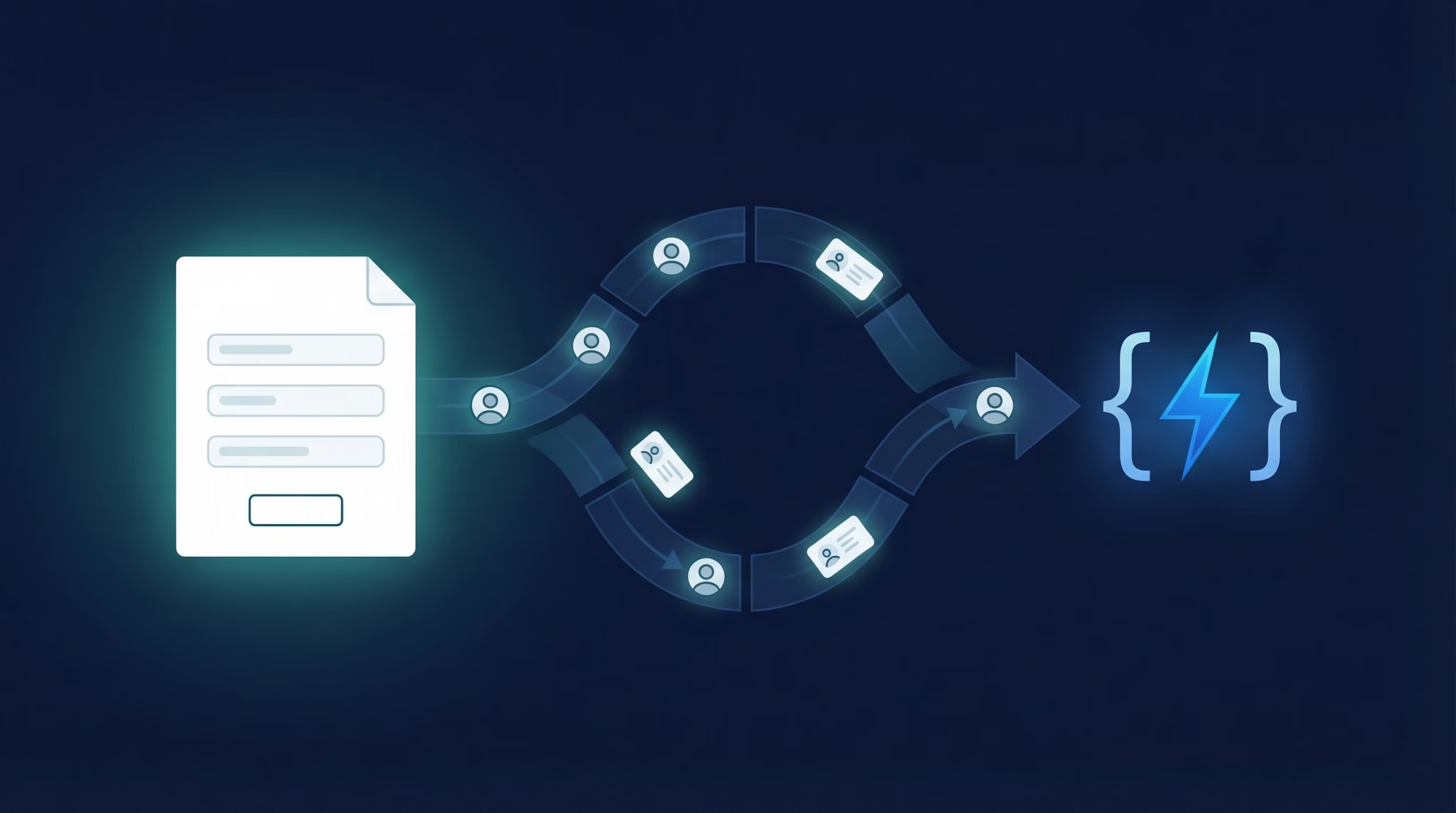
Not every tool has a native LeadSync integration, and that’s okay. Webhooks let you send Facebook leads to any system that accepts HTTP requests, from custom-built APIs to internal databases to third-party platforms. LeadSync handles the plumbing: it normalizes your Facebook lead data, transforms it into JSON, and POSTs it to your endpoint. You focus on processing the data your way.
Quick Start: Facebook Leads to Webhook in 5 Steps
- Prepare a webhook endpoint that accepts POST requests and returns HTTP 200
- Log in to LeadSync and create a new Webhook destination
- Add your endpoint URL and choose your authentication method (Bearer token, Basic auth, or API key)
- Connect your Facebook lead form and map fields to your JSON payload
- Test with a lead and monitor delivery in the LeadSync dashboard
Do You Actually Need a Webhook?
Many people searching for a “Facebook lead ads webhook integration” want their leads in an everyday app that already has a direct integration. If your destination is in the table below, skip the webhook: the native route is faster to set up and has nothing for you to build or host.
| You want leads in | Fastest route | Setup guide |
|---|---|---|
| Email or Gmail inbox | Native Email destination | Facebook lead ads email notifications |
| Google Sheets | Native Google Sheets sync | Facebook lead ads to Google Sheets |
| Excel | Download as XLS, or sync to Google Sheets and export | Download leads from Facebook |
| Mailchimp | Native Mailchimp integration | Facebook leads to Mailchimp |
| SendGrid | Native SendGrid integration | Facebook leads to SendGrid |
| ActiveCampaign | Native ActiveCampaign integration | Connect Facebook Lead Ads to ActiveCampaign |
| Slack | Native Slack integration | Facebook leads to Slack |
| Your own API, internal tool, or an app with no integration | Webhook | Keep reading |
One more Excel note: if you use Excel Online, a webhook pointed at a Microsoft Power Automate HTTP trigger can append each lead to a workbook row automatically.
Why Use a Webhook for Facebook Leads?
- Supports POST, PUT, PATCH, GET, and DELETE methods with Bearer, Basic, or API Key authentication. Pick the HTTP verb and auth type your endpoint expects.
- Define your own JSON payload template with placeholder tags that map to lead form fields. Send exactly what you need, nothing more.
- Connect to any API, CRM, or internal system that accepts HTTP requests. No native integration? Webhook is the answer.
- Works with lead forms from multiple platforms: Facebook, Google, LinkedIn, and TikTok all feed into the same webhook.
- No per-lead fees. Flat rate pricing means scale without surprise costs.
- 7-day free trial, no credit card required. Test webhook delivery risk-free before committing.
How Do You Connect Facebook Leads to a Webhook?
Step 1: Prepare Your Webhook Endpoint
Your webhook endpoint must be a publicly accessible URL that accepts POST requests. It should validate the incoming JSON payload, process the lead data (store in your database, trigger a workflow, etc.), and return an HTTP 200 response within 10 seconds. If your endpoint times out or returns a non-2xx status code, LeadSync will retry the delivery up to 3 times over 24 hours.
If you’re building a simple endpoint, here’s a minimal structure: accept the POST body, log the lead data, perform your business logic, and return 200. Most frameworks make this trivial; Express.js, Laravel, Django and Flask all handle webhook routing natively. Working in the other direction, sending WordPress form submissions into a CRM by webhook? See how to connect Gravity Forms to GoHighLevel, which includes a no-code webhook route.
Step 2: Add a Webhook Connection in LeadSync
In the LeadSync dashboard, navigate to Connections and click “Add New Destination.” From the integration list, select “Webhook.” You’ll see a configuration form with fields for URL, authentication, HTTP method, and payload template.
Step 3: Configure Your Webhook URL and Authentication
Enter your webhook endpoint URL (e.g., https://api.yourapp.com/leads/inbound). Select your HTTP method. Most webhooks use POST, but LeadSync also supports PUT, PATCH, GET, and DELETE if your endpoint requires a specific method.
If your endpoint requires authentication, choose one of three options:
- Bearer Token: Sends your token in the Authorization header as
Bearer YOUR_TOKEN. Use this for APIs that expect OAuth-style tokens. - Basic Auth: Encodes username and password in the Authorization header. Use this for HTTP Basic authentication.
- API Key: Sends your key as a custom header (you specify the header name). Use this for REST APIs that expect a key in a specific header like
X-API-Key.
Step 4: Connect Your Facebook Lead Form
Click “Connect Facebook” and authorize LeadSync to access your Facebook Business Account. Select the ad account and lead form you want to track. LeadSync will then start capturing leads from that form.
Step 5: Customize Your JSON Payload Template
This is where the flexibility of webhooks shines. LeadSync provides a JSON template editor where you define the exact structure of data sent to your endpoint. Use placeholder tags to reference lead form fields:
{{first_name}}, {{last_name}}, {{email}}, {{phone}}, {{company}}, {{message}}, and any custom fields from your form. LeadSync will replace these tags with actual lead values.
A simple example payload:
{"name": "{{first_name}} {{last_name}}", "email": "{{email}}", "phone": "{{phone}}", "source": "facebook_lead_form", "timestamp": "2026-03-01T10:30:00Z"}
You can nest fields, add static values, include metadata, or structure the payload however your API expects. The template is pure JSON; no special syntax required beyond the {{placeholder}} tags.
Step 6: Send a Test Lead
Before going live, test your webhook with a sample lead. LeadSync provides a “Send Test Lead” button that posts your template payload to your endpoint. Check your endpoint logs to confirm the request arrived, validate the JSON structure, and verify your business logic works. You can also create a test lead with Meta’s Lead Ads Testing Tool for a true end-to-end run. If the test passes, you’re ready to receive real leads.
Customizing Your Webhook Integration
Webhooks are infinitely flexible. Here are common customization patterns:
Payload Templates: Include only the fields you need to reduce payload size and simplify downstream processing. You can also nest fields, rename them, or add computed values (like a UUID or timestamp). The template editor supports any valid JSON structure.
Authentication Options: If your endpoint uses a rotating token, update the credentials in LeadSync with no code changes needed. For API keys stored in custom headers, specify the header name and value. For OAuth flows, use Bearer tokens refreshed by your API provider.
HTTP Methods: While POST is the standard, some APIs prefer PUT (idempotent updates), PATCH (partial updates), or even GET with query parameters. LeadSync supports all five HTTP verbs, so adapt to your endpoint’s requirements.
Error Handling: If your endpoint returns a non-2xx status code, LeadSync automatically retries the delivery (immediately, 1 hour later, 24 hours later). If all retries fail, the lead is marked as failed in the dashboard. You can manually retry from the UI or check your endpoint logs to debug the issue.
Monitoring: The LeadSync dashboard shows delivery status, timestamps, and response codes for every lead sent to your webhook. Click into a failed delivery to see the request payload and response body, helping you debug quickly.
Can You Send Leads to a Webhook and Other Apps at the Same Time?
Yes. LeadSync lets you combine a webhook with native integrations in a single workflow:
- Email: Forward leads to your sales team inbox with a notification template. See Facebook lead ads email notifications.
- Slack: Post leads to a dedicated Slack channel with formatted summaries. See Facebook leads to Slack.
- Google Sheets: Append leads to a spreadsheet for team visibility and analysis. See Facebook lead ads to Google Sheets.
- SMS: Send text notifications to your team the moment a lead arrives. See Facebook lead ads SMS notifications.
For example, you could send each lead to your webhook endpoint for CRM ingestion, simultaneously notify your sales team on Slack, and append to a Google Sheet for reporting. One Facebook form, three destinations, zero manual work.
Frequently Asked Questions
Do I need a webhook to send Facebook leads to email, Gmail or Google Sheets?
No. Email, Google Sheets, Mailchimp, Slack, SendGrid and 35+ other destinations have direct LeadSync integrations, so you just pick them from a dropdown with no endpoint to build. Use a webhook when your destination has no native integration: a custom API, an internal database, or a tool LeadSync doesn’t list.
What HTTP methods does LeadSync support for webhooks?
POST, PUT, PATCH, GET and DELETE. Most webhooks use POST, the HTTP standard for submitting data, but some APIs prefer other methods. Choose the method your endpoint expects and LeadSync sends requests accordingly.
Can I use Bearer tokens, Basic auth, or API keys?
Yes to all three. Bearer tokens go in the Authorization header as Bearer YOUR_TOKEN. Basic auth encodes username and password in the header. API keys can be sent as a custom header where you specify the header name and value.
How do I define my JSON payload format?
Use the JSON template editor in LeadSync. Write valid JSON and insert placeholder tags like {{first_name}}, {{email}} and {{phone}}. LeadSync replaces the tags with lead values before sending. You can nest fields, add static values, or structure the payload any way your API expects.
What happens if my webhook endpoint is slow, down, or times out?
LeadSync allows 10 seconds for your endpoint to respond. On a timeout or non-2xx status it retries three times over 24 hours: immediately, after 1 hour, and after 24 hours. If all retries fail the lead is marked failed in the dashboard, where you can inspect the response body and manually retry.
Can I send the same lead to multiple webhook endpoints?
Yes. Create a webhook destination for each endpoint URL and assign them all to the same Facebook lead form. LeadSync delivers each lead to every endpoint simultaneously, which is useful for syncing your internal API, a CRM and a data warehouse at once.
How does LeadSync compare to Zapier for webhook delivery?
Zapier is a general automation platform; LeadSync is purpose-built for lead routing, with built-in Facebook integration, faster delivery, stronger retry logic and flat-rate pricing instead of per-task fees. The two can coexist: many teams route leads through LeadSync and keep Zapier for other workflows. For a full comparison, see LeadSync vs Zapier.
Can I use webhooks for leads from Google, LinkedIn, and TikTok forms too?
Yes. Connect Google, LinkedIn or TikTok lead forms to LeadSync using the same process as Facebook. Every source delivers to your webhook with the same JSON structure, payload template and authentication, so one endpoint handles leads from every platform.
Related Integration Guides
Looking for a different destination for your Facebook leads? These integration guides walk you through setup step by step:
- How to Send Facebook Leads to ADF/XML (Dealer CRM)
- How to Send Facebook Leads to HubSpot
- How to Send Facebook Leads to Pipedrive
- How to Send Facebook Leads to Zoho CRM
- How to Send Facebook Leads to Keap
Start Sending Facebook Leads to Your Webhook Today
Webhooks unlock unlimited possibilities for lead routing. Whether you’re building a custom CRM, syncing to an internal tool, or connecting to a third-party API, LeadSync makes it simple: configure your endpoint, define your payload, and let us handle the delivery. No integration code required, just HTTP and JSON.
Ready to try it? Sign up for a 7-day free trial of LeadSync and start routing Facebook leads to your webhook today. No credit card required.