Without an integration, Google Ads lead form submissions stay in Google Ads until someone remembers to download them. If your team runs its pipeline on Monday.com, that’s the wrong place for a new lead to wait. LeadSync receives each Google Ads lead through a webhook and creates an item on the Monday.com board and group you choose, usually within a minute. This guide covers the full setup, from the Monday connection to Google’s Send test data button.
Quick Start
- Step 1: Pick a board and group and add a column for each answer
- Step 2: In LeadSync, add a Monday connection, click Authorize in Monday.com, then choose the board and group in List
- Step 3: Go to Lead Forms > Add Lead Form > Google Lead Form and copy the Webhook URL and KEY into a note
- Step 4: Name the form, pick your Monday connection, map your fields and click Create notification
- Step 5: In Google Ads, paste the Webhook URL and KEY into your lead form’s webhook integration
- Step 6: Click Send test data, check the item appears on your board, then click Save
Why Send Google Ads Leads to Monday.com?
Google lead form ads let a searcher send their details without visiting a landing page. The catch is that the lead ends up in Google Ads, not on the board where your team plans its day. If you’re new to the format, our guide to Google lead form ads explains how the forms work.
Sending leads to Monday.com with LeadSync gives you:
- An item for every lead, in the board group you pick, such as “New Leads”
- Answers written in the format each column type needs, so emails, phone numbers and dates arrive usable
- Board automations that run on item creation, for setting a status, notifying a teammate or assigning an owner
- One Monday connection that also works for Facebook, Instagram, LinkedIn and TikTok lead forms
- A 7-day free trial with no credit card
Step-by-Step: Send Google Ads Leads to Monday.com
Step 1: Get Your Monday.com Board Ready
Pick the board new leads should go to and the group they should land in. Then add a column for each answer you want to keep. LeadSync can fill text, long text, email, phone, link, numbers, status, date, dropdown and country columns. People, location and other types, such as checkbox and timeline, aren’t offered. People and location columns need Monday user IDs or map coordinates that a lead form can’t supply.
You don’t need a name column. LeadSync names each item after the lead.
Step 2: Connect Monday.com to LeadSync
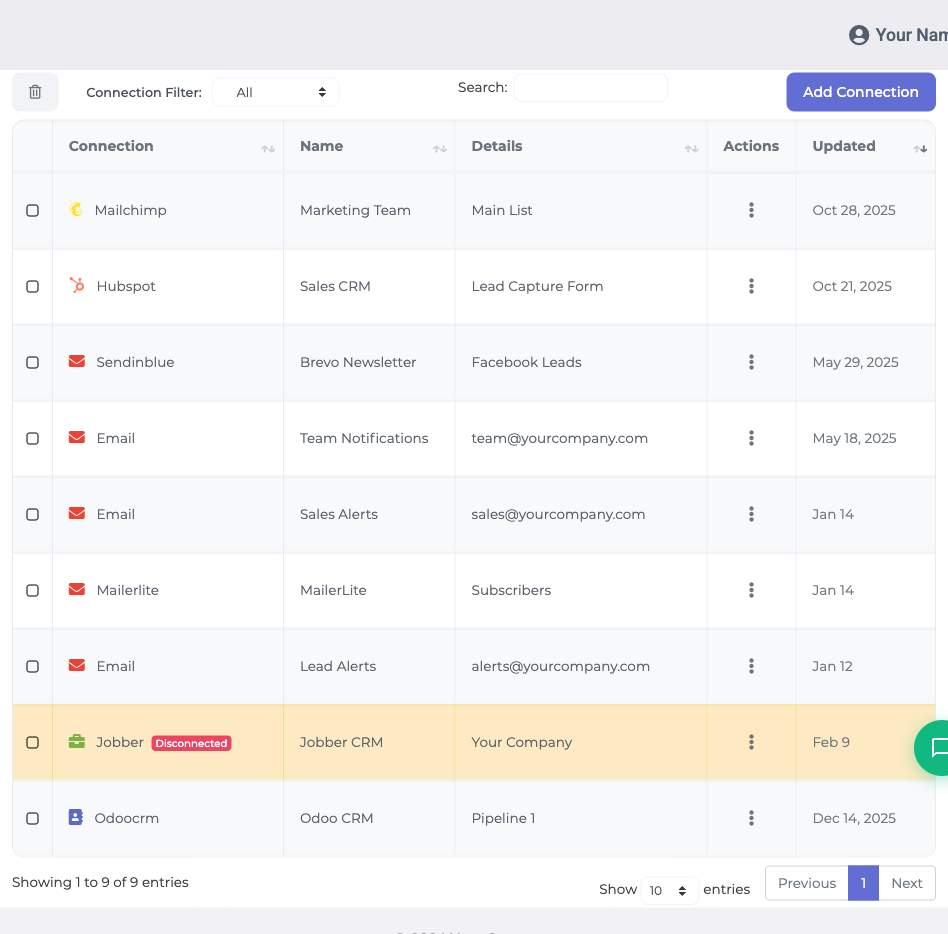
In the left sidebar, click Connections, then Add Connection. Choose Monday from the dropdown, enter a connection name you’ll recognise (such as “Google Ads leads”), and click Update connection.
LeadSync sends you to Monday.com. Log in and click Authorize. LeadSync asks for boards:read, to list your boards and columns, and boards:write, to create items. Nothing else.
Back in LeadSync, open the List dropdown, choose the board and group leads should go to, and click Update connection again. You only do this once: Monday tokens don’t expire until someone removes the LeadSync app from your Monday account.
Step 3: Add Your Google Lead Form in LeadSync
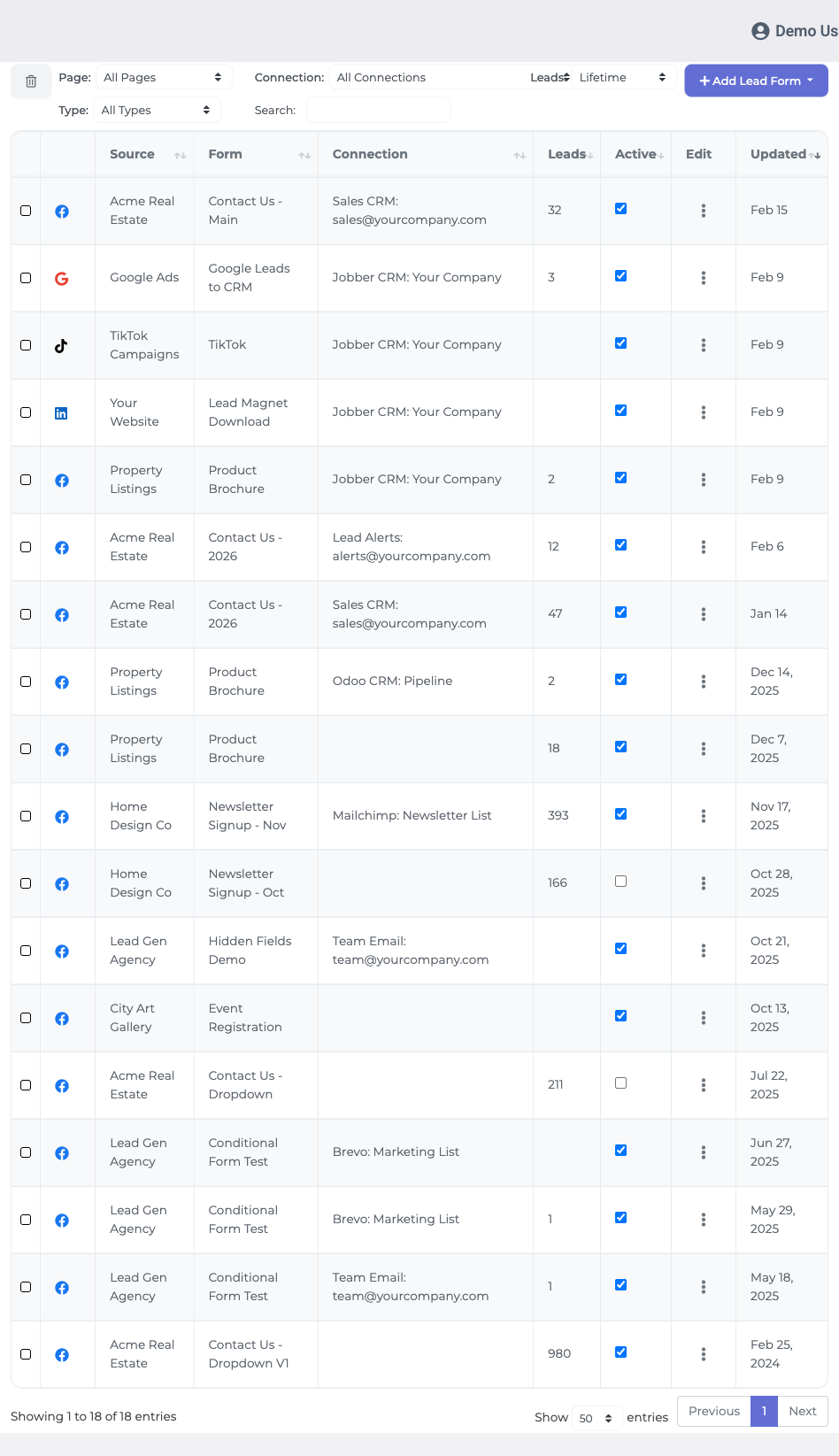
LeadSync doesn’t sign in to your Google Ads account. Google sends each new lead to LeadSync through a webhook instead, so all you need is a webhook URL and a key.
Click Lead Forms in the left sidebar, click Add Lead Form, then choose Google Lead Form. LeadSync shows a Webhook URL and a KEY that is unique to this form. Copy both into a note now, because LeadSync moves to a different page when you save. You can find the key again later under Ad Accounts > Google Ads.
Enter a Lead Form Name you’ll recognise (the name of your Google lead form works well), then select the Monday connection you just created.
Step 4: Map Your Google Ads Fields to Monday Columns
LeadSync’s mapping table lists the 14 standard contact fields from Google lead forms, such as phone number, company name, job title and city. Next to each one is a dropdown of the columns on the board you chose on the Monday connection. Pick the column each field should fill: email to your Email column, phone number to your Phone column, and the rest to text or other columns as you like.
Other questions, including qualifying questions picked from Google’s list and custom questions you write, don’t appear in the mapping table and can’t be mapped, so they don’t reach Monday. If an answer matters to your team, collect it with one of the standard contact fields.
When your mapping is done, click Create notification. LeadSync is now ready to receive leads sent with this form’s key.
Step 5: Paste the Webhook URL and KEY into Google Ads
In Google Ads, go to Campaigns > Assets, select Lead form, hover over your form and click the pencil icon to edit it. Expand Export leads from Google Ads, then Other data integration options. Under Webhook integration, paste the Webhook URL into the webhook URL field and the KEY into the key field. Don’t save yet: you’ll send test data first.
If several Google lead forms should go to the same Monday connection, you can paste the same Webhook URL and KEY into each of them. Add another Google Lead Form in LeadSync only when a form needs a different connection or field mapping.
Step 6: Send Test Data and Check Your Board
Still in the Google Ads lead form editor, click Send test data. Google sends a sample lead to LeadSync straight away. Open your Monday board: a new item should appear in the group you chose, usually within a minute. When it shows up, click Save in Google Ads.
If it doesn’t show up, check that you clicked Create notification in LeadSync, that the Webhook URL and KEY in Google Ads exactly match LeadSync, and that a board and group are chosen in List on your Monday connection. Google confirms the test as soon as LeadSync receives the request, so check for the item itself rather than relying on Google’s message. Fix the cause, click Send test data again, then click Save.
From here on, every lead from that Google lead form becomes an item on your board.
How Your Google Ads Leads Look on the Board
Item name. Each item is named with the lead’s full name, or the email address when there’s no name.
Column values. LeadSync sends each answer in the format its column needs. Email and link columns get a proper email or link value, numbers columns get the digits, and date columns get a parsed date. A status or dropdown answer that isn’t an existing label is added as a new label if your Monday user can change that board’s structure. Phone numbers get a country taken from their + prefix or, failing that, the lead’s country field.
A safety net for rejected values. If Monday rejects a column value, LeadSync retries the item with only its text, long text, email and numbers columns, so the lead still lands on your board.
Routing Leads and Running Automations
The board and group live on the Monday connection, not on the lead form. To send different Google lead forms to different boards, add a Monday connection per board (or per group), add a Google Lead Form in LeadSync for each connection, and paste each key into the matching Google lead form.
Automations that trigger when an item is created run on each new Google Ads lead, within your Monday plan’s automation limits, because LeadSync uses Monday’s standard create_item call. Build the automation that sets a status, notifies a teammate or assigns an owner once in Monday.
Running Meta ads as well? The same connection takes Facebook and Instagram leads, as our guide to sending Facebook lead ads to Monday.com shows.
Troubleshooting
- Nothing arrives after Send test data. Work through the checks in Step 6: Create notification clicked, an exact Webhook URL and KEY match, and a board and group chosen in List.
- A column is missing from the mapping dropdown. Check its type is supported. People, location and other types, such as checkbox and timeline, never appear.
- Lost the key. Find it again under Ad Accounts > Google Ads in LeadSync.
- Someone removed LeadSync from Monday.com. Add a new Monday connection, then select it on each lead form.
The Monday.com help article for Google lead forms covers the same setup.
Send Google Ads Leads to More Than One Place
Monday doesn’t have to be the only destination. You can also get email notifications for Google leads or keep a shared record in Google Sheets. If part of your team works in a sales CRM, the same webhook setup works for HubSpot and Pipedrive.
Frequently Asked Questions
Which Google lead form fields can I send to Monday.com?
The 14 standard contact fields in LeadSync’s mapping table, such as phone number, company name, job title and city. Other questions, including qualifying questions picked from Google’s list and custom questions you write, can’t be mapped, so they don’t reach your board.
Does LeadSync need access to my Google Ads account?
No. LeadSync doesn’t sign in to Google Ads. Google sends each lead to LeadSync through the webhook URL and key you paste into your lead form, and the key tells LeadSync which lead form settings to use.
Can several Google lead forms send to the same board?
Yes. If they should use the same Monday connection and field mapping, paste the same webhook URL and key into each Google lead form. Add another Google Lead Form in LeadSync only when a form needs a different connection or mapping.
Can different Google lead forms go to different boards?
Yes. The board and group are set on the Monday connection, so add a Monday connection for each board or group. Then add a Google Lead Form in LeadSync for each connection and paste its key into the matching Google lead form.
Will my Monday.com automations run on Google Ads leads?
Yes, within your Monday plan’s automation limits. LeadSync creates items with Monday’s standard create_item call, so automations that trigger when an item is created run on each new lead, for example to set a status, notify a teammate or assign an owner.
Will repeat submissions create duplicate items?
Yes. LeadSync doesn’t look for an existing item before creating one, so every submission creates a new item.
Google said the test worked, so why is my board empty?
Google confirms the test as soon as LeadSync receives the request, which happens before the item is created. Check that you clicked Create notification in LeadSync, that the webhook URL and key in Google Ads match LeadSync exactly, and that a board and group are chosen in List on your Monday connection.
Is there a free trial?
Yes. LeadSync has a 7-day free trial with no credit card required. Paid plans start at $24 a month on the Business plan, which includes 1,500 leads a month.
Start Sending Google Ads Leads to Monday.com
Try LeadSync free for 7 days. No credit card required.