Google Sheets is the first CRM most small businesses use, and for good reason: it is free, everyone already knows it, and a well-built sheet covers most of what a small team needs. What most people lack is a good starting template. So we built one.
Download the free lead tracker CRM template (.xlsx)
It opens in Google Sheets and Excel. It has a Leads tab with status and source dropdowns, rows that highlight when a follow-up is due, and a Dashboard that counts leads, follow-ups and pipeline value on its own. It is designed for leads that come from ads and forms, and it can fill itself from Facebook, Google, LinkedIn and TikTok lead ads.
This guide covers what’s in the template, how to open it in Google Sheets, how to use it day to day, how to fill it automatically, and when you have outgrown it.
What’s in the template

The Leads tab, with the Ad set and Ad columns hidden to fit.
| Tab | What it does |
|---|---|
| How to use | A one-page guide to the template. |
| Leads | One row per lead. Columns A to I (navy) hold the lead’s details: date received, full name, email, phone, source, campaign, ad set, ad and form. Columns J to O (yellow) are for you: status, owner, next follow-up, last contacted, deal value and notes. |
| Dashboard | Totals that update themselves: total leads, leads this month, follow-ups due today or overdue, won, win rate, open pipeline value and won value, plus pipeline by status and leads by source. |
| Lists | The options for the Status and Source dropdowns. Edit them to match your process. |
Built-in behaviour:
- Status dropdown: New, Contacted, Qualified, Appointment set, Won, Lost.
- Source dropdown: Facebook, Instagram, Google, LinkedIn, TikTok, Website, Referral, Other.
- Follow-up highlighting: a row turns amber when its next follow-up date is today or earlier and the lead is not Won or Lost. Won rows turn green; Lost rows fade to grey.
- Frozen header and name columns, so you can scroll across without losing track of who you’re looking at.
- Three example rows showing the format. Delete them before you start.
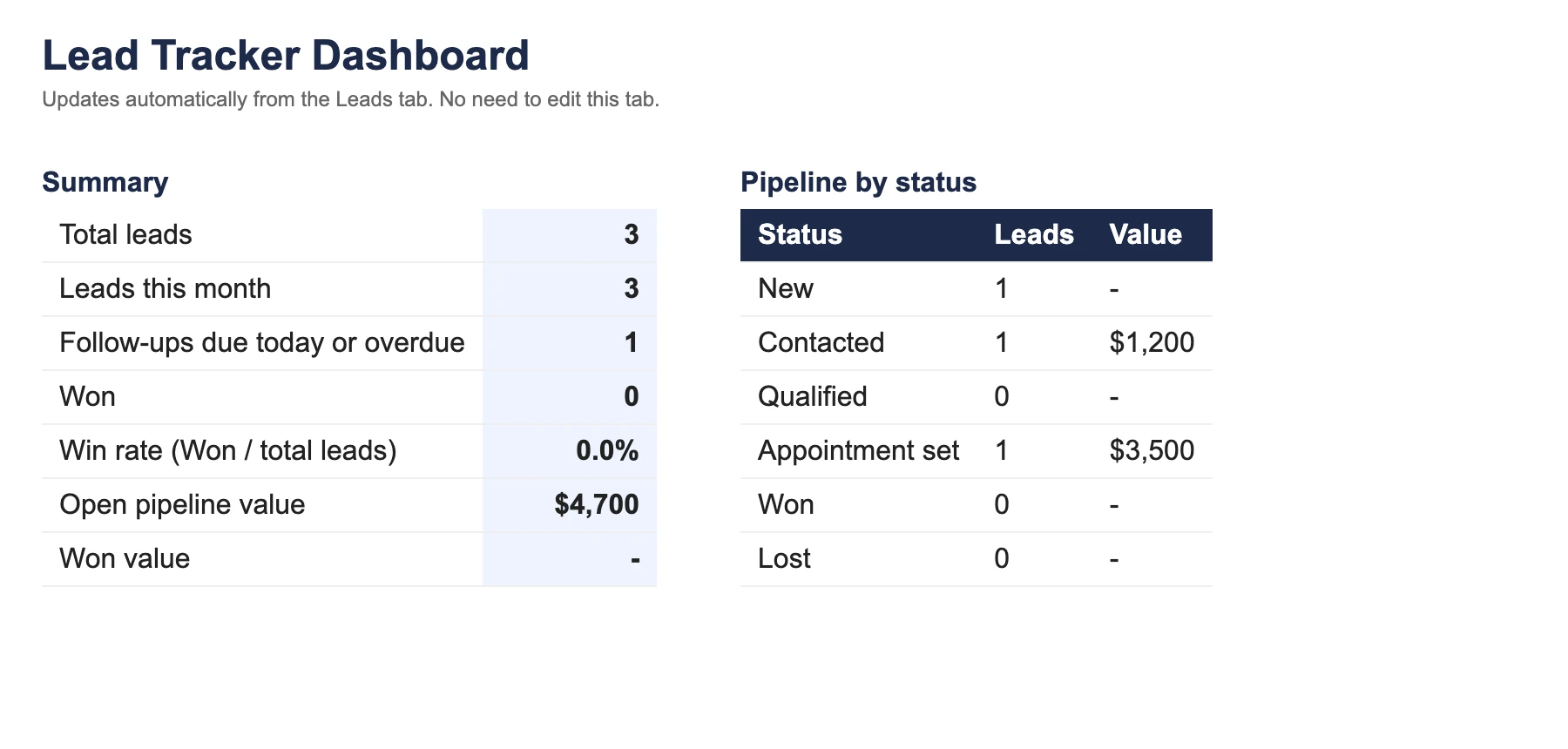
The Dashboard uses only standard functions (COUNTIF, COUNTIFS, SUMIFS and SUMPRODUCT), so it works the same in Google Sheets and Excel. “Leads this month” counts dates whether they are real dates or text like 2026-09-24 08:41, which is how many lead sync tools write them.
How to open it in Google Sheets
- Download the template file.
- In Google Drive, click New, then File upload, and choose the file.
- Open it. Google Sheets opens .xlsx files directly.
- Click File, then Save as Google Sheets, so you are working in a native Google Sheet that you can share and connect to other tools.
- Delete the three example rows on the Leads tab, and edit the Lists tab if your statuses or sources are different.
Prefer Excel? Open the file as it is. Everything, including the dashboard and highlighting, works there too.
Using it day to day
A spreadsheet CRM only works if the team uses it the same way. A simple routine:
- Every new lead gets a row the moment it arrives, with the source filled in. (Or let it fill itself, below.)
- Assign an owner and set a next follow-up date straight away, even if it’s today. A lead with no follow-up date is a lead nobody will call.
- Start each day on the amber rows. They are the calls and emails due today or overdue. Sort or filter by Owner if the team is sharing the sheet.
- Update Status and Last contacted after every touch, and push the next follow-up date forward. Our guide to how often to follow up leads has a cadence that works for most businesses.
- Mark leads Won or Lost rather than deleting them. Lost leads still tell you which sources and campaigns don’t convert.
- Check the Dashboard weekly: follow-ups due should be near zero, and the leads-by-source table tells you where to spend next month’s budget.
Speed matters more than anything else in that list. A lead contacted within five minutes is far more likely to turn into a conversation than one contacted an hour later, which is why the next section exists. More on that in our speed to lead guide.
Fill it automatically from lead ads
Typing leads into a sheet is where spreadsheet CRMs usually break. It is slow, it happens in batches, and the lead is cold by the time anyone calls.
The template is built to be filled by LeadSync. Connect your Facebook Page (or Google Ads, LinkedIn or TikTok account) and this Google Sheet, choose the Leads tab, and map each lead form field to a column: name to Full name, email to Email, and so on. LeadSync can also fill Campaign, Ad set and Ad for Facebook leads, so you can see which campaigns produce customers. From then on, every new lead is added as a new row within seconds of the form being submitted.
A few details that make this work cleanly:
- LeadSync reads the column names in row 1, so keep row 1 as the header row and don’t insert blank columns between A and O.
- Columns you don’t map stay blank on new rows, so Status, Owner, Next follow-up and Notes are left for you to fill in.
- Notes you type to the right of column O are never touched, because LeadSync only writes across the header columns.
Step-by-step setup for each source:
- Facebook lead ads to Google Sheets
- Google Ads lead forms to Google Sheets
- LinkedIn lead gen forms to Google Sheets
- TikTok leads to Google Sheets
LeadSync can also text or email the lead’s owner the moment a lead lands, which closes the gap between “row added” and “someone called”.
Capturing website leads with Google Forms
If some of your leads come from your own website, a Google Form is the free way to capture them. Build the form with the same fields as the Leads tab, then in the form’s Responses tab click Link to Sheets and choose your CRM spreadsheet. Google adds the responses on their own tab (“Form responses 1”). Copy new responses into the Leads tab each day, or treat that tab as a second inbox and set the Source to Website when you move them across. Our guide to Google Forms for lead generation covers form design.
What should a lead tracker spreadsheet include?
Whatever you call it, a lead tracker needs to answer four questions for every lead: where did it come from, who owns it, what is its status, and when is the next touch. The template’s columns map to those four questions, and they are worth keeping even if you build your own sheet.
| Column | Why it earns its place |
|---|---|
| Date received | Speed to first contact is the number that predicts conversion. You cannot measure it without the timestamp. |
| Source, campaign, ad set, ad, form | These are what turn a list of names into a cost-per-won-lead by source. Ad leads arrive with them attached; keep them. |
| Name, email, phone | The contact itself. Phone matters more than email for ad leads, because the first touch should be a text or a call. |
| Status | New, Contacted, Qualified, Appointment set, Won, Lost. Six states is enough; more than ten and nobody updates them. |
| Owner | One name per lead. Leads shared between two people are leads nobody calls. |
| Next follow-up and last contacted | The two dates that drive the amber highlighting and the follow-up cadence. |
| Deal value and notes | Value feeds the pipeline totals; notes hold what the person said, so the next call starts where the last one ended. |
The thing a lead tracker does not need is a column for every stage of your sales process. Keep the status list short and put the detail in Notes. If you want a cadence to run against the follow-up column, our real estate lead follow-up plan is a 30-day schedule that works for most ad leads, and the speed to lead research explains why the date-received column matters so much.
Is Google Sheets good enough as a CRM?
For a lot of small businesses, yes, at least for the first year. Here is where it holds up and where it doesn’t:
| Google Sheets CRM | Dedicated CRM | |
|---|---|---|
| Cost | Free | Usually a monthly fee per user |
| Setup time | Minutes with a template | Hours to days |
| Shared access | Yes, anyone you share with | Yes, with per-person permissions |
| Follow-up reminders | You check the sheet (amber rows) | Reminders and tasks come to you |
| Email and call history | Typed into Notes | Logged automatically |
| Automated sequences | No | Yes |
| Lead capture from ads | Yes, with a sync tool | Yes, with a sync tool or native integration |
| Capacity | 10 million cells per file (20 million in beta) | Effectively unlimited |
Capacity: Google Workspace Updates, April 2026.
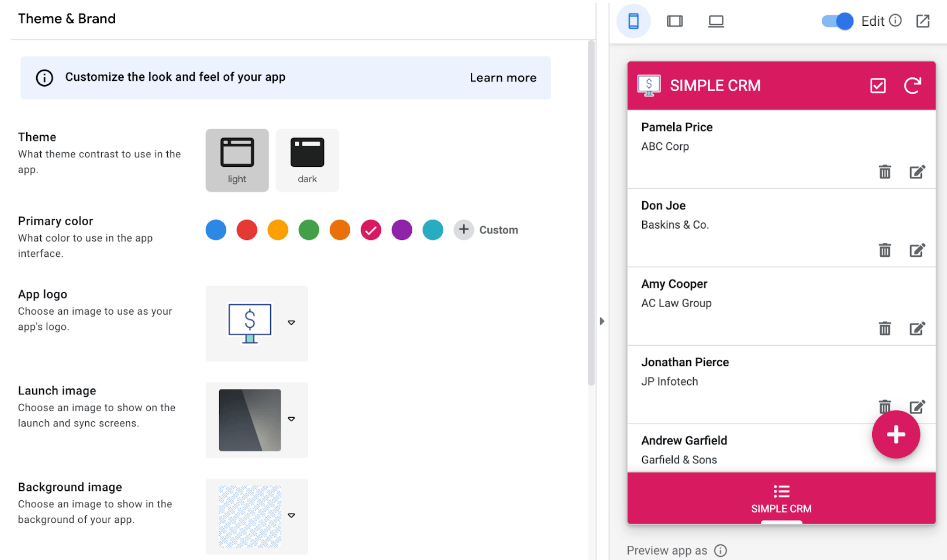
The signs you’ve outgrown it are practical ones: leads falling between two people, follow-ups missed because nobody opened the sheet, or wanting to email a hundred leads in sequence. When that happens, the move is easy because your data is already structured. Export the Leads tab to CSV and import it. Our guides to the best CRM for Facebook leads and the best CRMs for small businesses compare the next step up, and if you want a sheet with an app on top of it first, see building a simple CRM with AppSheet.
Frequently Asked Questions
Is this a lead tracker or a CRM?
Both, at the size most small teams need. A lead tracker records each lead, where it came from, its status and the next follow-up. A CRM adds reminders, sequences and permissions on top. The template is a lead tracker with the pipeline totals a CRM would give you; when you need the reminders and sequences, move the sheet into a dedicated CRM.
Is there a free CRM template for Google Sheets?
Yes. The LeadSync lead tracker template is free to download as an .xlsx file that opens in Google Sheets or Excel. It has a Leads tab with status and source dropdowns, a Dashboard that counts leads, follow-ups due and pipeline value, and a Lists tab to change the dropdown options.
How do I open the template in Google Sheets?
Download the .xlsx file, then in Google Drive click New, File upload, and choose it. Open it with Google Sheets, then use File, Save as Google Sheets to keep a native copy. Alternatively open a blank Google Sheet and use File, Import, Upload.
Can Google Sheets be used as a CRM?
Yes, for a small team with a simple sales process. A shared sheet with one row per lead, a status column, an owner and a next follow-up date covers what most small businesses need in their first months. It lacks automatic reminders, email tracking and granular permissions, which is when a dedicated CRM makes sense.
What columns should a Google Sheets CRM have?
At minimum: date received, name, email, phone, source, status, owner, next follow-up date and notes. If your leads come from ads, add campaign, ad set, ad and form so you can see which campaigns produce customers. Add a deal value column if you want pipeline totals.
How do I get Facebook lead ads into a Google Sheets CRM automatically?
Use a lead sync tool. LeadSync connects your Facebook Page and your Google Sheet, lets you map each lead form field to a column, and adds a new row within seconds of every submission. The same works for Instagram, Google Ads lead forms, LinkedIn Lead Gen Forms and TikTok.
How many leads can a Google Sheets CRM hold?
A Google Sheets file is limited to 10 million cells, with a beta that raises it to 20 million. At 15 columns that is hundreds of thousands of leads, far more than a small team will reach. Speed, not size, is usually what pushes a team to a real CRM.
When should I move from Google Sheets to a real CRM?
When you need follow-up reminders that come to you rather than you checking a sheet, automated email or SMS sequences, per-person access to records, or reporting across many months. Most teams notice it when leads start slipping between people or when follow-ups are missed.