Meta Business Suite is where you run a business on Facebook and Instagram: your Page, your Instagram account, your inbox, your scheduled posts and the settings that control who can touch your ad account. It replaced the old Facebook Business Manager, and if you have not opened it for a year or two, the menus have moved.
This guide covers what Business Suite is, how it differs from Business Manager and Ads Manager, and the exact clicks for the jobs most businesses need: setting up a business portfolio, adding Pages, ad accounts and people, scheduling posts, and finding the leads your ads generate. Every step was checked against Meta’s current Business Help Centre in October 2026.
What Is Meta Business Suite?
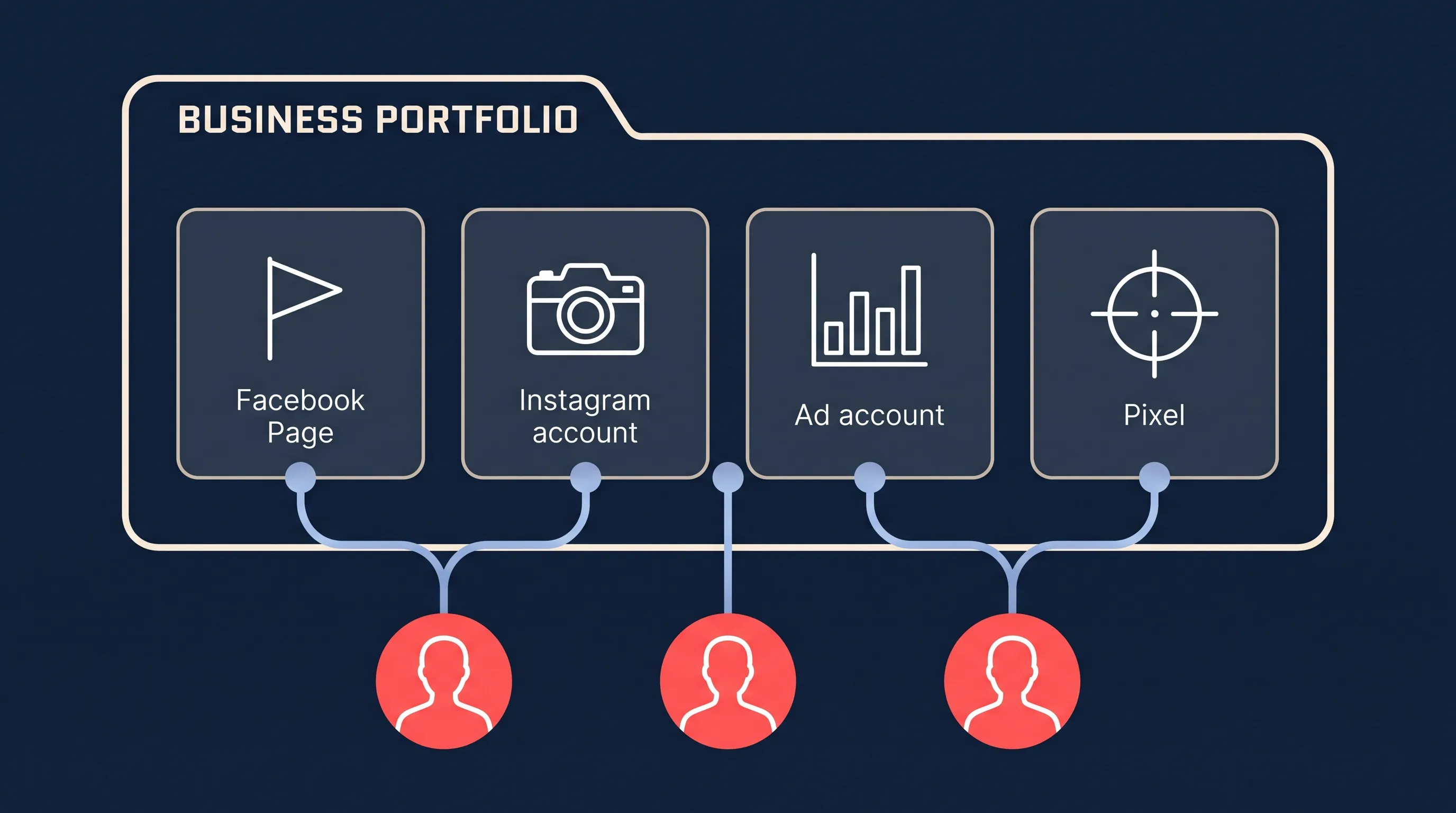
Meta Business Suite is a free dashboard that lets a business manage its presence across Facebook, Instagram, Threads and WhatsApp from one place. It handles posting and scheduling, a shared inbox for messages and comments, performance insights, simple ad creation, and the settings for your business portfolio: the container that holds your Pages, ad accounts, pixels and the people who have access to them (Meta Business Help Centre, 2026).
It runs on desktop at business.facebook.com and in the Meta Business Suite app for iOS and Android. The desktop version has an All tools menu that opens everything else Meta offers a business, including Ads Manager, Events Manager, Billing and payments and Page settings.
Business Suite vs Business Manager vs Ads Manager
These three names cause most of the confusion, so here is how they fit together.
| Meta Business Suite | Business Manager | Meta Ads Manager | |
|---|---|---|---|
| What it is | The all-in-one dashboard | The settings area inside Business Suite (formerly a separate tool) | The campaign builder |
| Use it for | Scheduling posts, stories and reels; the shared inbox; insights; quick ads and boosts | Adding Pages, ad accounts, Instagram accounts, pixels, people and partners to your portfolio | Full campaigns with ad sets, custom audiences, A/B tests, retargeting and detailed reporting |
| Where | Desktop and mobile app | Desktop, under Settings | Desktop, under All tools (plus the Ads Manager app) |
| Lead ads | View leads in Leads Center | Control who can see leads | Build and run the campaign |
Meta’s own rule of thumb: use Business Suite to schedule organic content, manage communications in one inbox, read insights and create simple ads or boosts; use Ads Manager for campaigns with multiple ad sets, custom audiences, A/B tests and retargeting (Meta, 2026). If you run Meta lead ads, you will build them in Ads Manager and check on them in Business Suite.
How to Set Up Meta Business Suite
Setup is a sequence: create a business portfolio, add your assets to it, then add the people who need access. Do it in that order and you will never hit the “you don’t have permission” wall later.
Step 1: Create a Business Portfolio
A business portfolio (the new name for a Business Manager account) holds your organisation’s assets and the people who work on them. An asset can belong to only one portfolio, and you can personally create up to two (Meta, 2026).
- Go to business.facebook.com and log in with your Facebook profile.
- Click the drop-down menu below Home in the top left.
- Click Create a business portfolio.
- Enter your business name exactly as customers know it (no special characters), your name and your business email address.
- Click Create, then confirm the email Meta sends you.
Use a work email you will still have access to in five years. Meta uses it for every important notice about the portfolio.
Step 2: Add Your Facebook Page
- In Business Suite, click Settings in the left menu.
- Under Accounts, click Pages, then Add.
- Choose Claim an existing Facebook Page (if you already run the Page) or Create a new Facebook Page.
- Enter the Page name or URL and confirm.
You need to be an admin of the Page to claim it. If the Page does not show up, or you see two Pages for the same business, our guides on adding a Page to Meta Business Suite, fixing missing Page roles and merging duplicate business Pages cover the fixes.
Step 3: Add or Request an Ad Account
Under Accounts, click Ad accounts, then Add. You have three options:
- Add an ad account you already own. It moves into the portfolio permanently.
- Request access to an ad account owned by someone else, such as a client. They approve the request and keep ownership.
- Create a new ad account, which Meta attaches to the portfolio with your chosen currency and time zone.
Agencies should almost always request access rather than add a client’s account, so the client keeps ownership when the engagement ends. See how to request access to Facebook ad accounts for the full walkthrough, or use a tool like Leadsie to collect client access with one link.
Step 4: Connect Your Instagram Account
Under Accounts, click Instagram accounts, then Add, and log in to the Instagram account when prompted. Make sure the account is a professional (business or creator) account first. Once connected, Business Suite will show your Instagram grid, inbox and insights alongside Facebook, and you can post to both at once. Our Instagram to Meta Business Manager guide has screenshots of each screen.
Step 5: Add Your Pixel
Under Data sources, click Pixels (Meta now calls these datasets). Create one if you do not have one and install it on your website. The pixel feeds standard events back to Meta for conversion tracking and retargeting. If you run lead ads on Meta’s own forms you do not need a pixel to capture leads, but you do need one to retarget website visitors.
Step 6: Add People
Meta’s advice here is worth repeating: give each person only the access they need, and no more (Meta, 2026). By default, new people get basic access.
- In Settings, click People in the left menu. If you cannot see People, you do not have full control of the portfolio.
- Click Invite people in the top right.
- Enter the person’s email address. It must match the email on their Facebook account.
- Click Next, choose their business portfolio permissions (full control or basic), then Next.
- Tick the assets they need (Pages, ad accounts, Instagram accounts) and the level of access on each, then click Invite.
The person accepts the invitation by email. Meta notes that some features can take a few days to become available after someone joins. Portfolio permissions override every other permission, so someone with full control of the portfolio can reach everything in it.
Step 7: Add Partners (Agencies and Freelancers)
Partners are other businesses, such as an agency, rather than individual people. Under Users, click Partners, then Add. You can either share your assets with the partner’s portfolio (enter their business portfolio ID) or ask the partner to share assets with you (Meta, 2026). The partner then assigns their own staff inside their portfolio, so you never manage their team members individually.
One catch: when a partner shares an asset with you, you are limited to the permissions they granted. You cannot give someone on your side full control of an asset you only have partial access to.
How to Schedule Posts in Meta Business Suite
Scheduling is the feature most small businesses use every week, and it works the same for Facebook and Instagram.

Create and Schedule a Post
You need either full control of the Page or Instagram account, or Content permission for it (Meta, 2026).
- Open Meta Business Suite and click Create post. The button is on the Home page and in the Content tab.
- Under Post to, tick the Facebook Page, Instagram account or Facebook group you want to publish to.
- Under Media, add your photos or video. Instagram allows up to ten photos in one post.
- Under Post details, write your text. You can customise the text separately for Facebook and Instagram, and add hashtags, a location or a feeling using the icons under the text box.
- Under Scheduling options, set the date and time. Click Active times to see suggested slots based on when your followers were most active over the past seven days.
- Click Schedule. (Or Publish to post now, or Finish later to save a draft.)
Edit, Reschedule or Delete a Scheduled Post
- Click Content in the left menu.
- On the Posts and reels tab, open the Scheduled tab.
- Select the post, click the … icon, then Manage post.
- Choose Edit post, Reschedule post, Move to drafts or Delete post.
The Planner tab shows every scheduled and published post in a calendar view, so you can spot gaps in the week and drag posts to new slots. Business Suite also supports A/B content tests, which publish two versions of the same post and report which performed better.
When a Third-Party Scheduler Makes Sense
Business Suite covers Facebook, Instagram and Threads. If you also post to LinkedIn, TikTok, X or Pinterest, or you want bulk CSV uploads and approval workflows for a team, a dedicated tool such as Buffer, Hootsuite, Planable or Metricool saves time. Our guide to social media posting planner tools compares them. For a single business on Facebook and Instagram, Business Suite is usually enough.
A few habits that help whichever tool you use:
- Post at active times. Business Suite’s Active times suggestion is based on your own followers, which beats any generic “best time to post” chart.
- Check scheduled posts weekly. A post written two weeks ago can land badly after news events or a stock-out. Review the Scheduled tab every Monday.
- Mix scheduled and live content. Scheduled posts keep the page consistent; replying to comments and posting in the moment keeps it human.
- If a scheduled post fails, it is almost always a permission change on the Page or an expired Instagram login. Reconnect the Instagram account under Settings and republish from Drafts.
Inbox, Insights and Ads in Business Suite
Three more areas are worth knowing before you go hunting for them in Ads Manager.
- Inbox brings together Facebook Page messages, Messenger, Instagram DMs, comments and WhatsApp Business messages in one list. You can set up automations for common questions, such as an instant reply with your opening hours.
- Insights reports reach, engagement, follower growth and content performance across Facebook and Instagram, plus ad results for ads created in Business Suite. For lead ad campaigns, the number that matters most is cost per lead and what happens after the lead arrives, which we cover in lead ad reporting.
- Ads lets you boost a post or build a simple ad with a goal, audience and budget. It is fine for a quick boost. For anything you will spend real money on, open All tools and use Ads Manager, where you can split test lead forms, set up retargeting and see full reporting.
How to Find and Download Your Lead Ad Leads
If you run lead ads, the leads do not arrive in your inbox. They sit in Meta’s Leads Center until you fetch them, and Meta deletes them after 90 days.
To see them in Business Suite, open All tools, then Leads Center. You can view each lead, add notes and labels, and download a CSV. The Leads Center can work as a very basic CRM, which we cover in using the Meta Leads Center. You can also download leads from your Page’s Instant Forms library, or from Ads Manager under the Results column. All four routes, and the permission fixes when leads are missing, are in how to view leads in Facebook Ads Manager.
Downloading a CSV once a day is how most businesses lose leads: a 9pm enquiry sits unanswered until the next morning, and by then the prospect has spoken to a competitor. The fix is to have each lead sent to you the moment it arrives. LeadSync connects to your Page through Business Suite permissions and delivers every new lead to your CRM, email, SMS or WhatsApp within seconds. Setup takes about five minutes and starts with a free trial.
Keep Your Business Portfolio Secure
Two settings protect everything above.
Two-factor authentication. Meta recommends enabling it to protect your business portfolio and assets from unauthorised access. In Settings, open Security Centre and turn on the requirement for everyone in the portfolio. Each person can use an authentication app, a security key or SMS codes.
Business verification. Verifying your business in Security Centre (with a document such as a business registration or utility bill) unlocks features that Meta restricts for new advertisers and makes account recovery far easier if something goes wrong. Meta states that new portfolios and ad accounts may not have access to all advertising features until certain requirements are met, and Business Support Home shows what you currently have access to.
Also review People and Partners every few months. Remove staff who have left and agencies you no longer work with. An ex-contractor with full control of your portfolio is the most common way businesses lose their ad accounts.
Common Problems and Fixes
| Problem | Likely cause | Fix |
|---|---|---|
| Can’t see People or Pages in Settings | You have basic access, not full control | Ask the portfolio owner to give you full control, or submit a request to Meta if nobody has it |
| Page is missing from the Page list | You are not an admin of the Page, or it belongs to another portfolio | Check your Page roles; an asset can only belong to one portfolio |
| Can’t add someone | Your business email is unconfirmed, or either account is restricted | Confirm your email under Business info; check Account Quality for restrictions |
| Can’t give a colleague full control of a client asset | The client shared it with partial permissions | Only the owner can raise the permission level |
| Scheduled post didn’t publish | Instagram login expired or Page permission changed | Reconnect the Instagram account under Settings, republish from Drafts |
| Leads not showing | Lead access is restricted, or you are looking in the wrong place | Check Leads Access Manager under Page settings; see how to view leads |
Wrapping Up
Meta Business Suite is three tools in one: the settings that used to be Business Manager, a content and inbox dashboard for day-to-day work, and a door into Ads Manager for real campaigns. Set the portfolio up once, in order, with the least access each person needs, and the rest of the platform behaves.
If the reason you are here is lead ads, the next step is making sure every lead reaches you instantly. See the complete guide to Meta lead ads for the campaign side, and instant lead notifications for the follow-up side.
Frequently Asked Questions
What is Meta Business Suite?
Meta Business Suite is Meta’s free tool for managing a business presence across Facebook, Instagram, Threads and WhatsApp from one dashboard. It covers posting and scheduling, a shared inbox for messages and comments, insights, simple ad creation and the settings for your business portfolio (Pages, ad accounts, people and partners). It runs on desktop at business.facebook.com and in the Meta Business Suite mobile app.
What is the difference between Meta Business Suite and Business Manager?
Business Manager was the original desktop tool for holding Pages, ad accounts and people in one business account. Meta folded it into Meta Business Suite, where it now appears as the Settings area for your business portfolio. Business Suite adds the day-to-day tools on top: content scheduling, the inbox, insights and ad creation, on desktop and mobile.
What is the difference between Meta Business Suite and Ads Manager?
Meta Business Suite is for organic content, messaging, insights and quick, simple ads or boosts. Ads Manager is for full ad campaigns with multiple ad sets, custom audiences, A/B tests, retargeting and detailed reporting. Lead ad campaigns belong in Ads Manager. You can use both at the same time, and Ads Manager is one click away under All tools in Business Suite.
How do I add a Facebook Page to Meta Business Suite?
Open Meta Business Suite, go to Settings, click Pages under Accounts, then click Add. Choose Claim an existing Facebook Page if you already own the Page, or Create a new Facebook Page. Enter the Page name or URL and confirm. You need to be an admin of the Page to claim it.
How do I schedule a post in Meta Business Suite?
Click Create post from the Home or Content tab, choose the Facebook Page and Instagram account under Post to, add your media and text, then under Scheduling options set the date and time. Click Active times to see when your followers were most active over the past seven days. Click Schedule. Scheduled posts appear under Content, in the Scheduled tab, and in Planner.
Where do I find my lead ad leads in Meta Business Suite?
In Meta Business Suite open All tools, then Leads Center, or go to your Page’s Instant Forms library and download the CSV. Meta keeps lead data for 90 days only. Tools such as LeadSync send each new lead to your CRM, email or phone within seconds so you never need to download anything.
Is Meta Business Suite free?
Yes. Meta Business Suite is free on desktop and mobile. You only pay for the ads you run through it or through Ads Manager.