LinkedIn Lead Gen Forms are one of the most effective ways to capture B2B leads directly within the LinkedIn platform. LinkedIn will email you when someone fills in your form, but that email doesn’t contain the lead. It tells you which form got a submission and when, then asks you to click Download leads. This guide shows you how to get a LinkedIn lead email notification with the lead’s details in it (name, email, phone, company and answers), so you can reply the moment it lands.
What LinkedIn’s Own Lead Notification Email Looks Like
Here is the email LinkedIn sends when a Lead Gen Form is submitted. We’ve hidden the account and form names, but nothing else has been removed.
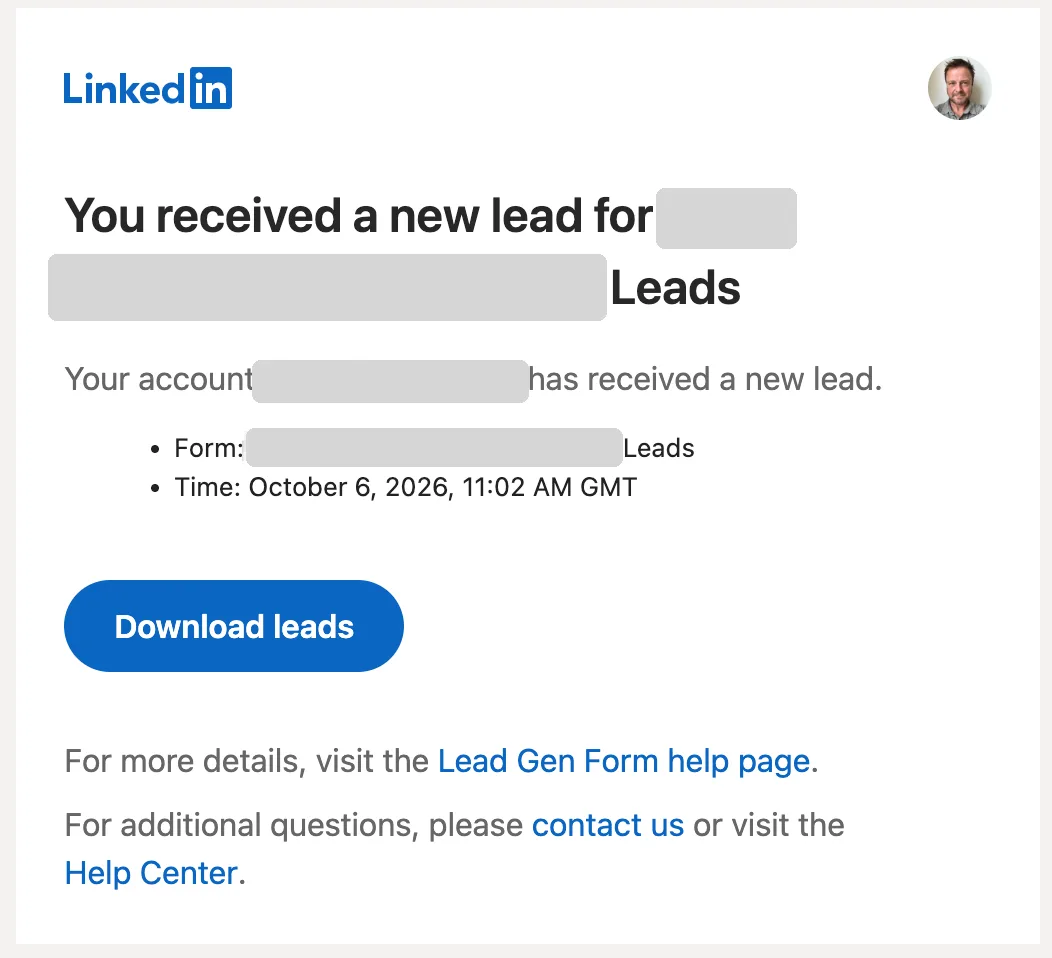
That’s the whole message. To find out who the lead is, you have to:
- Click Download leads
- Sign in to LinkedIn, if you aren’t already
- Download the CSV file of leads
- Open it and find the newest row
- Copy the lead’s email or phone number into whatever you use to reply
On a laptop that’s a minute or two of friction. On a phone, between meetings, it’s usually where follow-up gets put off until later.
LinkedIn’s alert has two other limits worth knowing. According to LinkedIn’s notification help pages, Campaign Manager notifications go to the email address on each user’s LinkedIn profile, and lead alerts only reach people who have a Campaign Manager role on the ad account and Lead Gen Form access on the Company Page. You can’t point it at a shared sales@ inbox, a client’s sales rep or anyone else without a LinkedIn login and the right permissions.
LinkedIn’s Lead Alert vs a LeadSync Lead Email
| LinkedIn’s notification | LeadSync email notification | |
|---|---|---|
| Lead’s name, email and phone | Not included. Click Download leads and open the CSV | In the email body |
| Company, job title and custom answers | Not included | In the email body |
| Replying to the lead | Copy their address out of the CSV first | Hit Reply: it goes straight to the lead |
| Who can receive it | LinkedIn members with a Campaign Manager role and Lead Gen Form access | Any email address, including shared inboxes and clients |
| Sending to a team | Each person turns on their own notifications | Several recipients per connection, sent to all or round-robin |
| Cost | Free | Paid plans from $24/month, with a 7-day free trial |
If you’re the only person following up and you’re happy to download a CSV for each lead, LinkedIn’s alert works. If you want to call or email the lead within minutes, especially from your phone, you need the details in the email itself.
Why Lead Details in the Email Matter
Speed matters in LinkedIn lead generation. Research shows that responding to leads within 5 minutes makes you 21x more likely to qualify them compared to waiting 30 minutes. LinkedIn’s alert tells you a lead exists. It doesn’t tell you who they are, and every step between the alert and your first reply adds delay.
With LeadSync, the email is the lead. The name, email, phone, company and answers are in the message, so you can call or reply from your inbox the moment someone submits your lead gen form on LinkedIn.
What You’ll Need
- A LeadSync account (Business plan or higher)
- LinkedIn account with access to Lead Gen Forms
- An active LinkedIn Lead Gen Form campaign
How to Set Up LinkedIn Lead Gen Form Email Notifications
Follow these four steps to start receiving instant email notifications for your LinkedIn lead gen forms.
Step 1: Connect Your LinkedIn Account
- Log in to your LeadSync account
- Go to Ad Accounts > LinkedIn from the left menu
- Click Add LinkedIn Account
- Sign in to LinkedIn and authorize LeadSync to access your lead data
- Your account will appear in the table once connected
LeadSync uses OAuth to securely connect to your LinkedIn account. We only request the permissions needed to access your lead gen form submissions – nothing more.
Step 2: Set Up an Email Connection
- Go to Connections from the left menu
- Click Add Connection
- Select Email from the dropdown
- Enter the email address(es) where you want to receive lead notifications
- Name your connection (e.g., “Sales Team Notifications”)
- Click Update Connection
Pro tip: You can add multiple email addresses separated by commas to notify your entire sales team simultaneously, or switch the connection to round-robin so each new lead rotates to the next rep on the list.
Step 3: Connect Your Lead Gen Form
- Go to Lead Forms from the left menu
- Click Add LinkedIn Lead Form
- Select your Ad Account from the dropdown
- Select your Lead Gen Form
- Select your Email Connection
- Click Update Notification
That’s it! LeadSync will now monitor your LinkedIn Lead Gen Form and send you an email notification every time someone submits it.
Step 4: Test Your Setup
Submit a test lead through your LinkedIn campaign. You should receive an email notification within 1-2 minutes containing all the lead’s information.
What’s Included in the Email Notification?
Here’s what a LeadSync email for a LinkedIn lead looks like, compared with LinkedIn’s alert above:
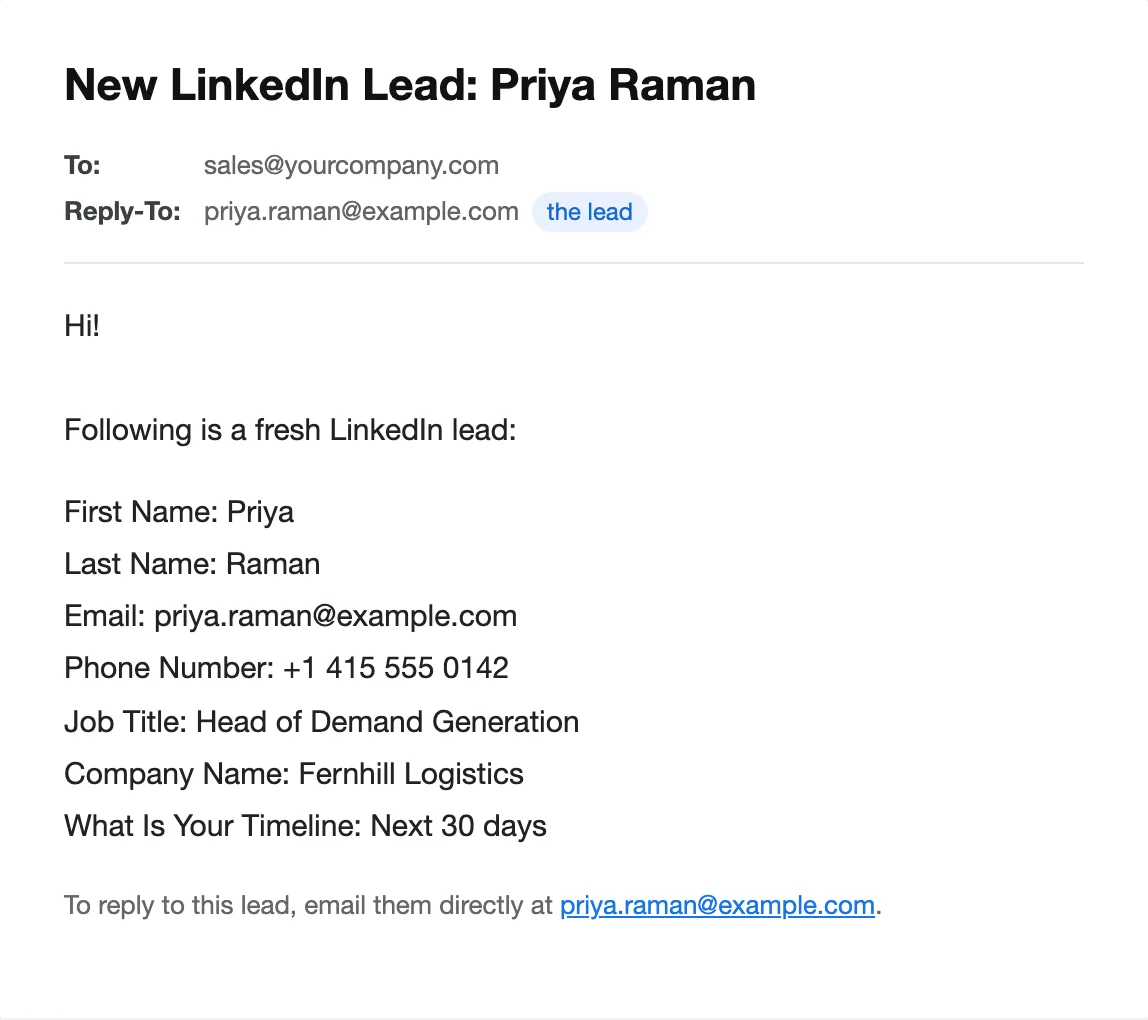
Each email notification includes the data from your LinkedIn Lead Gen Form submission:
- Lead’s name and email address
- Phone number (if collected)
- Company name and job title
- LinkedIn profile URL (if your form asks for it)
- The answer to every custom question on your form
- A reply line with the lead’s email address, and a Reply-To set to the lead, so hitting Reply emails them directly
You can also:
- Put the lead’s name or the form name in the subject line with placeholders like
#full_nameand#form, so you can triage from your inbox without opening anything - Show the submission date and time in the email body (they’re hidden by default to keep the email short, but one tick turns them on)
- Attach the lead as a CSV by ticking Send CSV on the lead form, if someone on your team prefers a file
Subject line, introduction, signature and visible fields are all set under Message Settings in LeadSync. See how to customise LeadSync email notifications for the full walkthrough.
Sharing LinkedIn Leads Across Your Sales Team
If more than one person follows up on your LinkedIn leads, you don’t need to forward emails around. Enter each recipient in your Email Connection, separated by commas, then choose how leads are shared:
- Send to all recipients (the default): every lead goes to everyone on the list.
- Round-robin: rotate one recipient per lead: each new lead goes to the next person on the list, and the rotation cycles back to the start. With three reps, the first lead goes to rep one, the second to rep two, the third to rep three, and the fourth back to rep one.
Round-robin is a simple way to share inbound LinkedIn leads evenly across a sales team without paying for a CRM or maintaining routing rules. See our multiple email addresses guide for details.
Beyond Email: LinkedIn CRM Integration
Email notifications are just the beginning. LeadSync also supports LinkedIn CRM integration with popular platforms including:
- HubSpot
- Salesforce
- Mailchimp
- ActiveCampaign
- Google Sheets
- And 30+ more integrations
This means you can automatically add LinkedIn leads to your CRM, trigger email sequences, and build automated follow-up workflows, all without manual data entry.
Troubleshooting Common Issues
Can’t See Your Ad Account?
Make sure your LinkedIn account has access to the ad account you’re trying to connect. You need to be an admin or have Lead Gen Form access in LinkedIn Campaign Manager.
Not Receiving Email Notifications?
Check your spam folder first. Then verify that the email address in your connection settings is correct. If issues persist, try disconnecting and reconnecting your LinkedIn account.
Lead Gen Form Not Showing?
Your Lead Gen Form must be part of an active or paused campaign to appear in LeadSync. Draft forms that haven’t been used in a campaign won’t be visible.
Frequently Asked Questions
Doesn’t LinkedIn already email me when I get a new lead?
Yes, but the email only tells you that a lead arrived, which form it came from and when. It has no name, email, phone or answers. To see who the lead is you click Download leads, sign in to LinkedIn and open a CSV file. LeadSync sends an email with the lead’s details in the body, so you can reply straight away.
Can LinkedIn’s lead notifications go to a shared inbox or a client?
Not directly. LinkedIn sends Campaign Manager notifications to the email address on each user’s LinkedIn profile, and only to members who have a Campaign Manager role on the ad account plus Lead Gen Form access on the Company Page. LeadSync can send LinkedIn leads to any email address, including shared inboxes like sales@ and people who don’t have a LinkedIn login.
How fast are the email notifications?
Most notifications arrive within 1-2 minutes of the lead submitting your LinkedIn Lead Gen Form, with the lead’s details already in the email. There’s nothing to download and no need to sign in to Campaign Manager.
Can I send notifications to multiple email addresses?
Yes! Add multiple email addresses to a single connection by separating them with commas, then choose how leads are shared: send every lead to all recipients, or round-robin so each new lead rotates to the next person on the list. You can also create multiple email connections for different teams.
Does this work with LinkedIn’s native Lead Gen Forms?
Yes, LeadSync works with all LinkedIn Lead Gen Forms created through LinkedIn Campaign Manager, including Sponsored Content and Message Ads with lead forms.
Is my LinkedIn data secure?
Absolutely. LeadSync uses OAuth for authentication (we never see your LinkedIn password) and only requests the minimum permissions needed to access lead data. Your data is encrypted in transit and at rest.
Start Getting LinkedIn Lead Notifications Today
LinkedIn’s alert tells you that you have a lead. LeadSync tells you who it is. Every LinkedIn Lead Gen Form submission lands in your inbox with the name, email, phone, company and answers already in the email, so the first reply can go out before the prospect has scrolled past your ad.
Prefer your leads in a CRM or email tool instead of (or alongside) your inbox? LeadSync can also send them straight to Follow Up Boss, Mailchimp, GetResponse, Brevo, or Constant Contact. New to the format? See our LinkedIn Lead Gen Forms guide.
Questions? Check out our support documentation or contact our team.