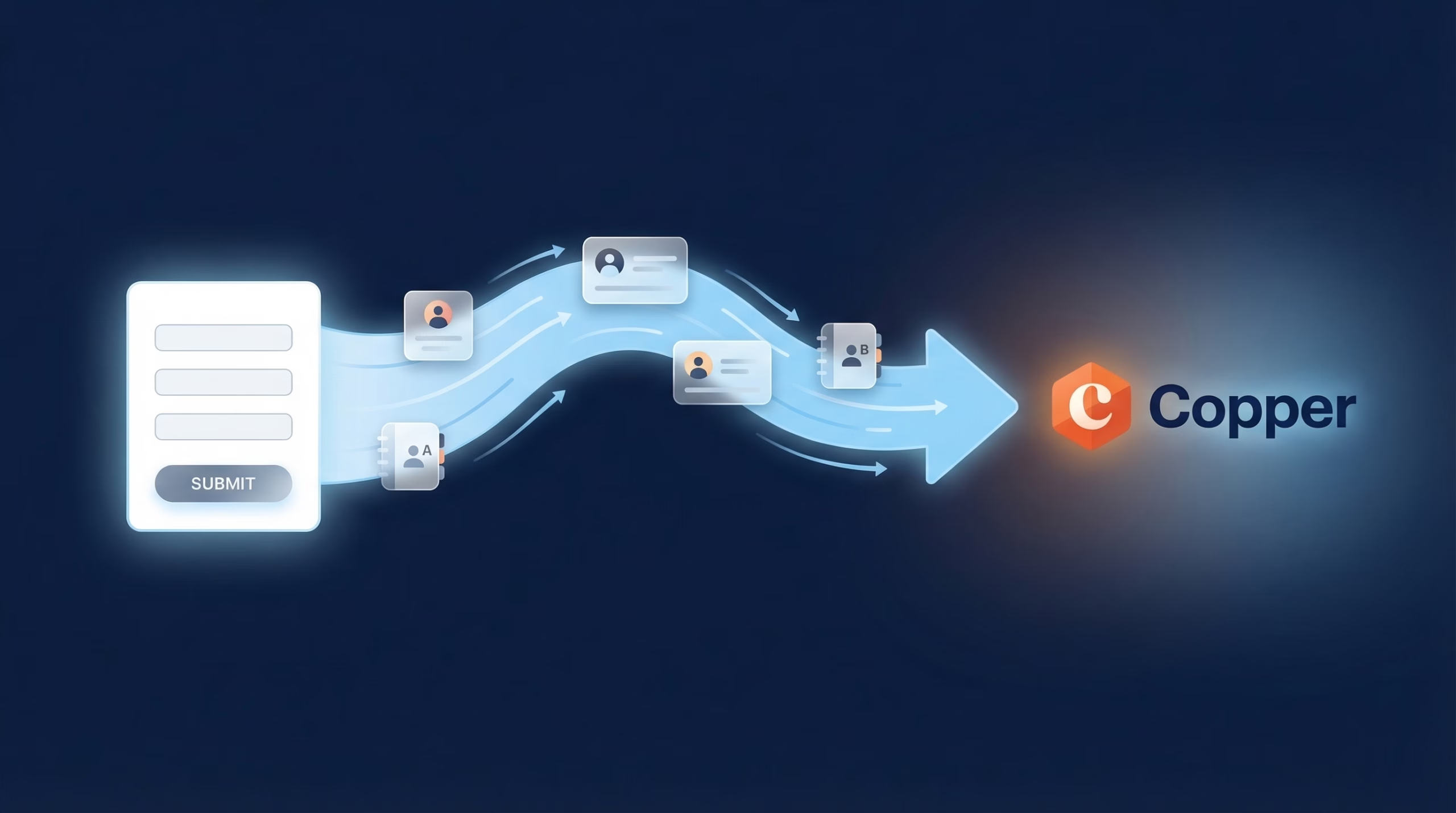
If you are running LinkedIn Lead Gen Forms, the leads land in LinkedIn Campaign Manager and then they sit. There is no native LinkedIn Copper integration to move them into your CRM automatically, so most teams fall back on manual exports, which means slow follow-up and missed deals.
This guide shows you how to connect LinkedIn Lead Gen Forms to Copper so every submission becomes a new lead in real time, with full field mapping.
Key point: Copper uses one Name field, not two. Map LinkedIn first and last name together so the full name lands.
Why You Need a LinkedIn Copper Integration
LinkedIn Lead Gen Forms convert well because they are pre-filled and reach professionals in a business mindset. Without a LinkedIn CRM integration, the advantage erodes:
- Speed to lead matters. Responding within 5 minutes makes you far more likely to qualify a lead. Manual exports take hours or days.
- No re-keying. Copying from LinkedIn into Copper wastes time and creates errors in your pipeline data.
- Workflow automation fires instantly. A lead that lands in Copper immediately can be assigned and action-tracked.
- Accurate attribution. Every LinkedIn lead is tracked through your pipeline back to the campaign that produced it.
What You Will Need
- A LeadSync account
- A LinkedIn account with Lead Gen Form access in Campaign Manager
- An active LinkedIn Lead Gen Form campaign
- A Copper account
How to Set Up Your LinkedIn Copper Integration
The whole setup takes about five minutes.
Step 1: Connect Your LinkedIn Account
- Log in to your LeadSync account
- Go to Ad Accounts > LinkedIn from the left menu
- Click Add LinkedIn Account
- Sign in to LinkedIn and authorize LeadSync to access your lead data
- Your account appears in the table once connected
LeadSync uses OAuth, so we never see your LinkedIn password. We request only the permissions needed to read Lead Gen Form submissions.
Step 2: Connect Your Copper Account
- Go to Connections from the left menu
- Click Add Connection
- Select Copper from the dropdown
- Enter your Copper API key and the email associated with your Copper account (found under Settings > Integrations > API Keys in Copper)
- Name your connection (for example, “LinkedIn Leads to Copper”)
- Click Update Connection
Step 3: Connect Your Lead Gen Form With Field Mapping
- Go to Lead Forms from the left menu
- Click Add LinkedIn Lead Form
- Select your Ad Account
- Select your Lead Gen Form
- Select your Copper Connection
- Map your fields (see the guide below)
- Click Update Notification
Step 4: Test Your Integration
Submit a test lead through your LinkedIn campaign. Within a minute or two the new lead should appear in Copper with the mapped fields populated. Search by the test email to confirm.
LinkedIn to Copper Field Mapping Guide
Copper uses a single Name field, so mapping the name correctly matters here:
| LinkedIn Field | Copper Field | Notes |
|---|---|---|
| Required. Copper uses email to match and de-duplicate records. | ||
| First Name + Last Name | Name | Copper stores name in one field, so map both LinkedIn fields here. |
| Phone Number | Phone | May be pre-filled from the LinkedIn profile. |
| Company Name | Company Name | Maps to the company on the lead or person. |
| Job Title | Title | Copper's field for job title. |
| Custom Questions | Custom fields | Create matching custom fields in Copper before mapping. |
Important: Email is the field Copper uses to avoid duplicates, so always include it in your Lead Gen Form and map it.
What Happens After Leads Sync to Copper
Once the Copper LinkedIn integration is live, you can automate the rest of the follow-up:
- Assign an owner automatically based on territory or round robin.
- Create an activity or task so no lead slips through the cracks.
- Trigger a workflow automation when a new lead is created.
- Score B2B leads higher, since LinkedIn submissions come from people actively engaging with your sponsored content.
Troubleshooting Common Issues
Can’t See Your LinkedIn Ad Account?
Make sure your LinkedIn account has admin access to the ad account and Lead Gen Form access in Campaign Manager.
Leads Not Appearing in Copper?
- Email not mapped: Without email, Copper cannot reliably create or match a record. Confirm the mapping.
- Wrong API credentials: Copper needs both the API key and the associated email. Re-check both.
- Custom field missing: If you mapped a custom question to a field that does not exist, create it first.
Lead Gen Form Not Showing in LeadSync?
Your form must belong to an active or paused campaign to appear. Draft forms that have never run will not show up.
Frequently Asked Questions
Does LinkedIn have a native Copper integration?
No. LinkedIn does not push Lead Gen Form submissions into Copper on its own. You need a third-party tool like LeadSync to connect the two and create a lead automatically for every submission.
How fast do LinkedIn leads reach Copper?
Most leads appear in Copper within 60 seconds of submission, far faster than the manual CSV exports many teams run only daily or weekly.
How does LinkedIn name data map to Copper?
Copper stores a name in a single Name field, while LinkedIn provides separate first and last name. Map both LinkedIn fields into the Copper Name field so the full name is captured. Email, phone, company, and title map directly.
Can I create a lead instead of a person in Copper?
Yes. You can target Copper’s Leads object so new LinkedIn submissions land as leads to be qualified, then convert them to people, companies, and opportunities as they progress.
Is my lead data secure?
Yes. LeadSync uses OAuth for LinkedIn and a secure API connection to Copper, so your LinkedIn password is never stored. Data is encrypted in transit and at rest, and only the permissions needed to sync leads are used.
Start Your LinkedIn Copper Integration Today
Stop letting LinkedIn leads cool off in Campaign Manager while competitors follow up first. With LeadSync, every Lead Gen Form submission flows into Copper the moment it happens.
Running Copper on other ad platforms too? Here is how to send Facebook, Google Ads, and TikTok leads to Copper.
New to LinkedIn ads? Start with our LinkedIn Lead Gen Ads guide and our take on speed to lead, or contact support if you need a hand.