Run LinkedIn Lead Gen Forms for long enough and you will notice the pattern: the forms convert beautifully because they are pre-filled from the member’s profile, and then the submissions just sit there in Campaign Manager. Someone on your team exports a CSV every few days, imports it somewhere, and the follow-up lands long after the prospect has moved on.
This guide fixes that. You will connect LinkedIn Lead Gen Forms to GoHighLevel with LeadSync so every submission becomes a GoHighLevel contact in real time, complete with field mapping, tags, and a workflow trigger ready to fire.
Key point: GoHighLevel needs an email or phone number to create a contact. Decide which your LinkedIn form collects and make sure it is mapped before you go live.
Why Connect LinkedIn Lead Gen Forms to GoHighLevel?
LinkedIn leads are usually the most expensive leads a business buys, which makes slow follow-up doubly painful. Getting them into GoHighLevel automatically pays off four ways:
- Speed. The case for responding within minutes rather than hours is well documented, and a real-time sync is the only way to get there consistently.
- Automation on arrival. A Contact Tag is a native workflow trigger in GoHighLevel. Tag incoming leads
linkedin-leadand a workflow can send an SMS, create a pipeline opportunity, or start a nurture sequence the moment they land. - No CSV ritual. Exports get forgotten. A sync does not.
- Clean segmentation. Tagging at the source keeps LinkedIn leads separate from every other channel feeding your CRM.
What You Will Need
- A LeadSync account (7-day free trial, no credit card required)
- A LinkedIn account with Lead Gen Form access in Campaign Manager
- An active LinkedIn Lead Gen Form campaign
- A GoHighLevel account with at least one sub-account (location)
How to Set Up the LinkedIn GoHighLevel Integration
The whole setup takes about five minutes.
Step 1: Connect Your LinkedIn Account
- Log in to LeadSync
- Go to Ad Accounts > LinkedIn in the left menu
- Click Add LinkedIn Account
- Sign in to LinkedIn and authorize LeadSync to access your lead data
- Your account appears in the table once connected
LeadSync uses OAuth, so your LinkedIn password is never seen or stored. Only the permissions needed to read Lead Gen Form submissions are requested.
Step 2: Connect GoHighLevel
- Go to Connections in the left menu
- Click Add Connection and select GoHighLevel from the dropdown
- Name the connection (for example, “LinkedIn Leads to GHL”) and click to connect
- GoHighLevel opens an install screen listing what LeadSync can access: read and write contacts, read locations and custom fields. Review and confirm
- Choose the sub-account (location) you want leads delivered into. GoHighLevel returns you to LeadSync and the connection completes, bound to that sub-account
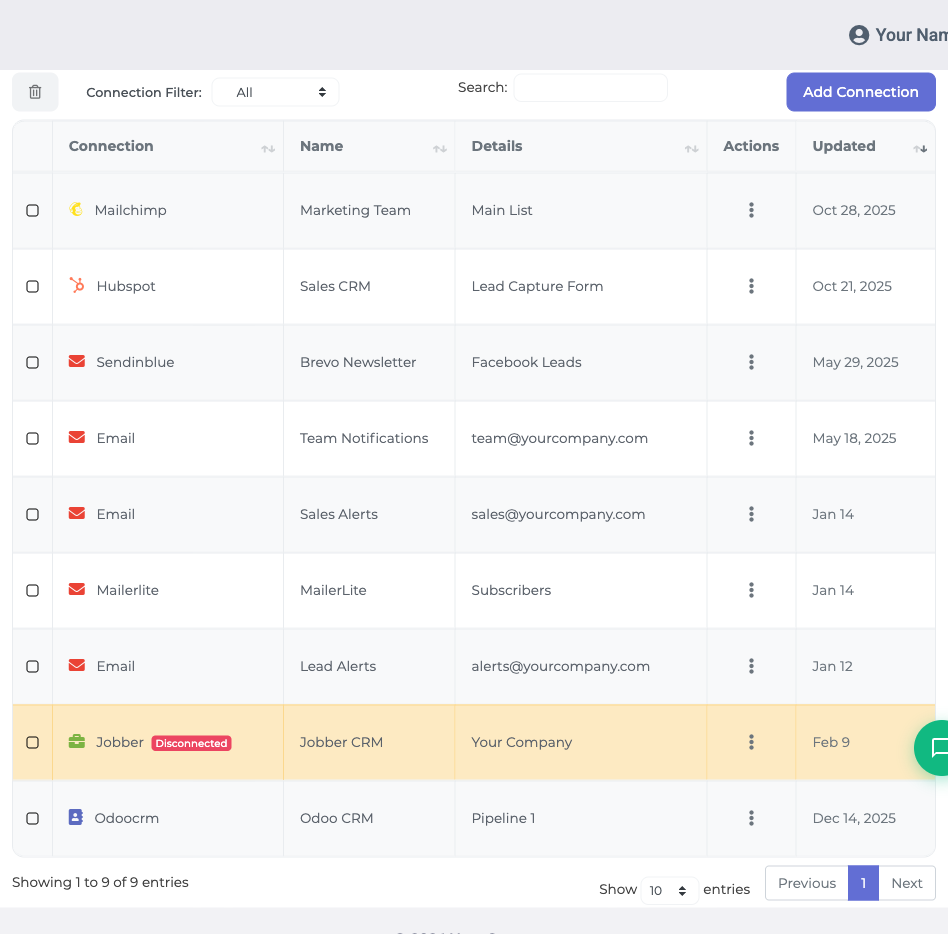
There are no API keys to hunt down; the whole thing is one click plus a sub-account choice. If no sub-account appears, create one in GoHighLevel first (Sub-Accounts, then Create Sub-Account) and reconnect.
Step 3: Add Your Lead Gen Form and Map Fields
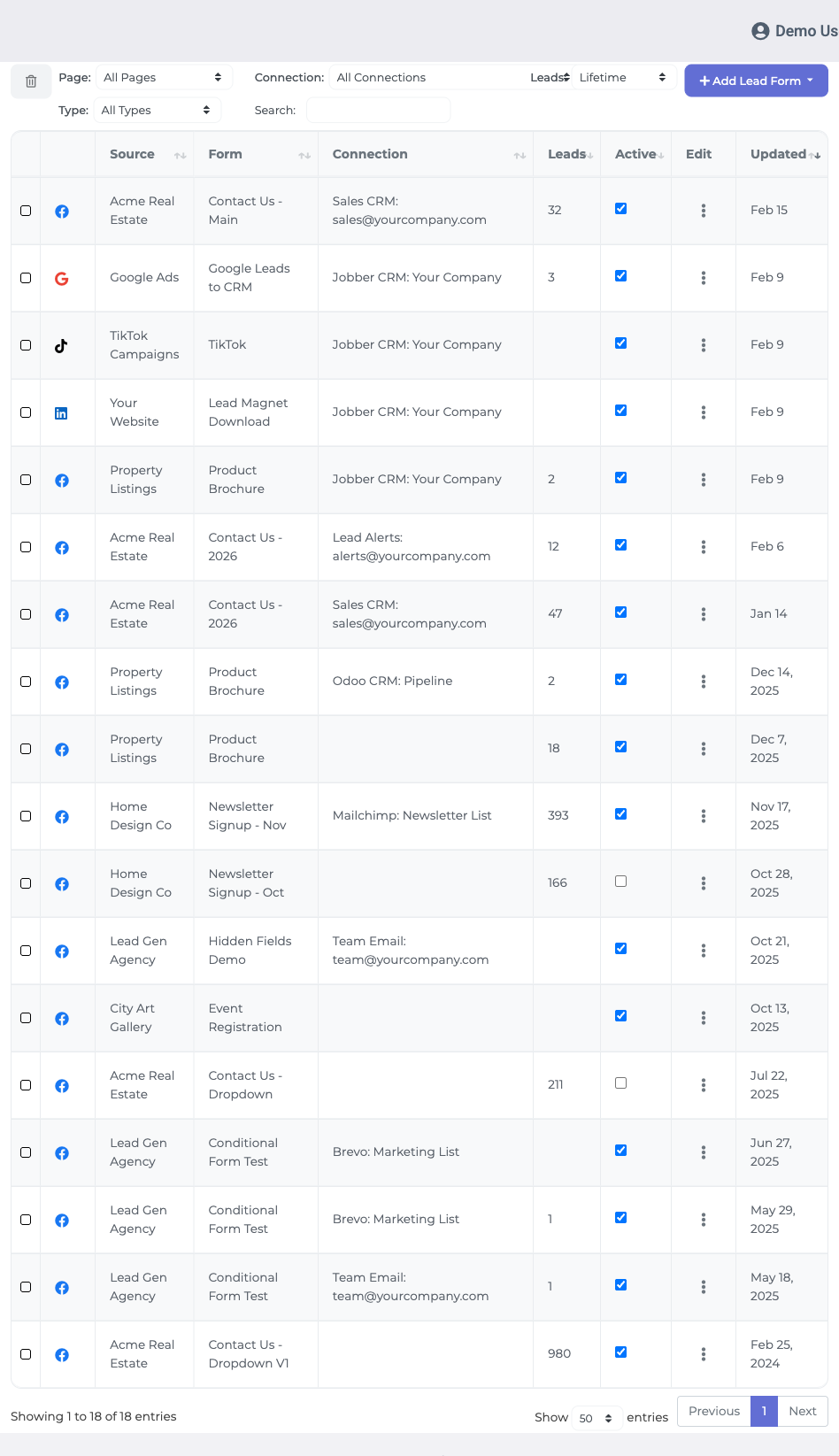
- Go to Lead Forms in the left menu
- Click Add LinkedIn Lead Form
- Select your Ad Account, your Lead Gen Form, and your GoHighLevel connection
- Map each LinkedIn field to the matching GoHighLevel contact field (see the guide below)
- Click Update Notification to save
Step 4: Add Tags and Send a Test Lead
In the Insert Tags field above the mapping table, type the tags you want applied to every lead from this form, such as linkedin-lead, pressing enter between each. GoHighLevel creates any new tag automatically on the first lead, so nothing needs to exist in advance. Pair the tag with a workflow using the Contact Tag trigger and follow-up becomes hands-free.
Then submit a test lead through your LinkedIn campaign. Within about a minute the contact should appear in your GoHighLevel sub-account with fields populated and tags applied.
LinkedIn to GoHighLevel Field Mapping Guide
Here is how the common pre-filled LinkedIn fields line up with GoHighLevel contact fields:
| LinkedIn Field | GoHighLevel Field | Notes |
|---|---|---|
| Map this at a minimum. GoHighLevel needs email or phone to create a contact. | ||
| First Name | First Name | Pre-filled from the LinkedIn profile. |
| Last Name | Last Name | Pre-filled from the LinkedIn profile. |
| Phone Number | Phone | The alternative unique identifier if your form skips email. |
| Company Name | Custom field | LeadSync lists your sub-account custom fields alongside the standard ones. |
| Job Title | Custom field | Map to a custom field so the data is usable in workflows. |
| Custom Questions | Custom fields | Each question can flow into its own custom field. |
What Happens After Leads Sync
Once the integration is live, the interesting work happens inside GoHighLevel:
- Trigger a workflow from your tag so every LinkedIn lead gets an immediate SMS or email.
- Create a pipeline opportunity automatically and watch new leads appear on the sales board.
- Assign leads to a rep as part of the same workflow.
- Segment by custom field, for example by company size or job title captured on the form.
Troubleshooting Common Issues
Can’t See Your LinkedIn Ad Account?
Make sure your LinkedIn account has admin access to the ad account and Lead Gen Form access in Campaign Manager.
Lead Gen Form Not Listed?
Forms only appear once they belong to an active or paused campaign. A draft form that has never run will not show.
Contact Not Created in GoHighLevel?
Check the mapping: GoHighLevel rejects a contact that has neither email nor phone. Confirm at least one of the two is mapped.
No Sub-Account to Choose?
Create one in GoHighLevel (Sub-Accounts, then Create Sub-Account), then run the connection again.
Frequently Asked Questions
Do I need a paid GoHighLevel plan to connect LinkedIn Lead Gen Forms?
No. Any GoHighLevel account with at least one sub-account (location) works, including trial accounts. LeadSync installs into the sub-account you select during the connection step and creates contacts there.
Why is my LinkedIn Lead Gen Form not showing in LeadSync?
Your form must belong to an active or paused campaign to appear. Draft forms that have never run will not show up. Also check that your LinkedIn account has admin access to the ad account and Lead Gen Form access in Campaign Manager.
Do tags need to exist in GoHighLevel before I use them?
No. GoHighLevel creates any new tag automatically when the first tagged lead arrives, adding it to both the contact and your sub-account tag library.
Will repeat submissions create duplicate contacts in GoHighLevel?
No. LeadSync relies on GoHighLevel upsert behaviour, which follows the Allow Duplicate Contact setting on the sub-account. A repeat submission updates the existing contact instead of creating a second record.
How fast do LinkedIn leads reach GoHighLevel?
Most leads appear as GoHighLevel contacts within 60 seconds of submission, which means a tag-triggered workflow can respond while your prospect is still at their desk.
Can an agency route different LinkedIn forms to different sub-accounts?
Yes. Set up one GoHighLevel connection per sub-account, then map each Lead Gen Form to the connection for the right client. Everything runs from a single LeadSync account.
Is my lead data secure?
Yes. LeadSync connects to both LinkedIn and GoHighLevel with OAuth, so your passwords are never stored, and lead data is encrypted in transit. Only the permissions needed to read form submissions and write contacts are requested.
Start Your LinkedIn GoHighLevel Integration Today
Stop paying premium LinkedIn CPLs and then letting the leads age in Campaign Manager. With LeadSync, every Lead Gen Form submission becomes a tagged GoHighLevel contact with a workflow already running.
Start your 7-day free trial. No credit card required.
New to advertising on the platform? Start with our LinkedIn Lead Gen Ads guide. Also running Meta campaigns? Here is how to send Facebook leads to GoHighLevel, and if you are still choosing a CRM, our GoHighLevel review gives you the unvarnished picture.
Running GoHighLevel with other ad platforms? Here is how to send TikTok leads and Google Ads leads to GoHighLevel.