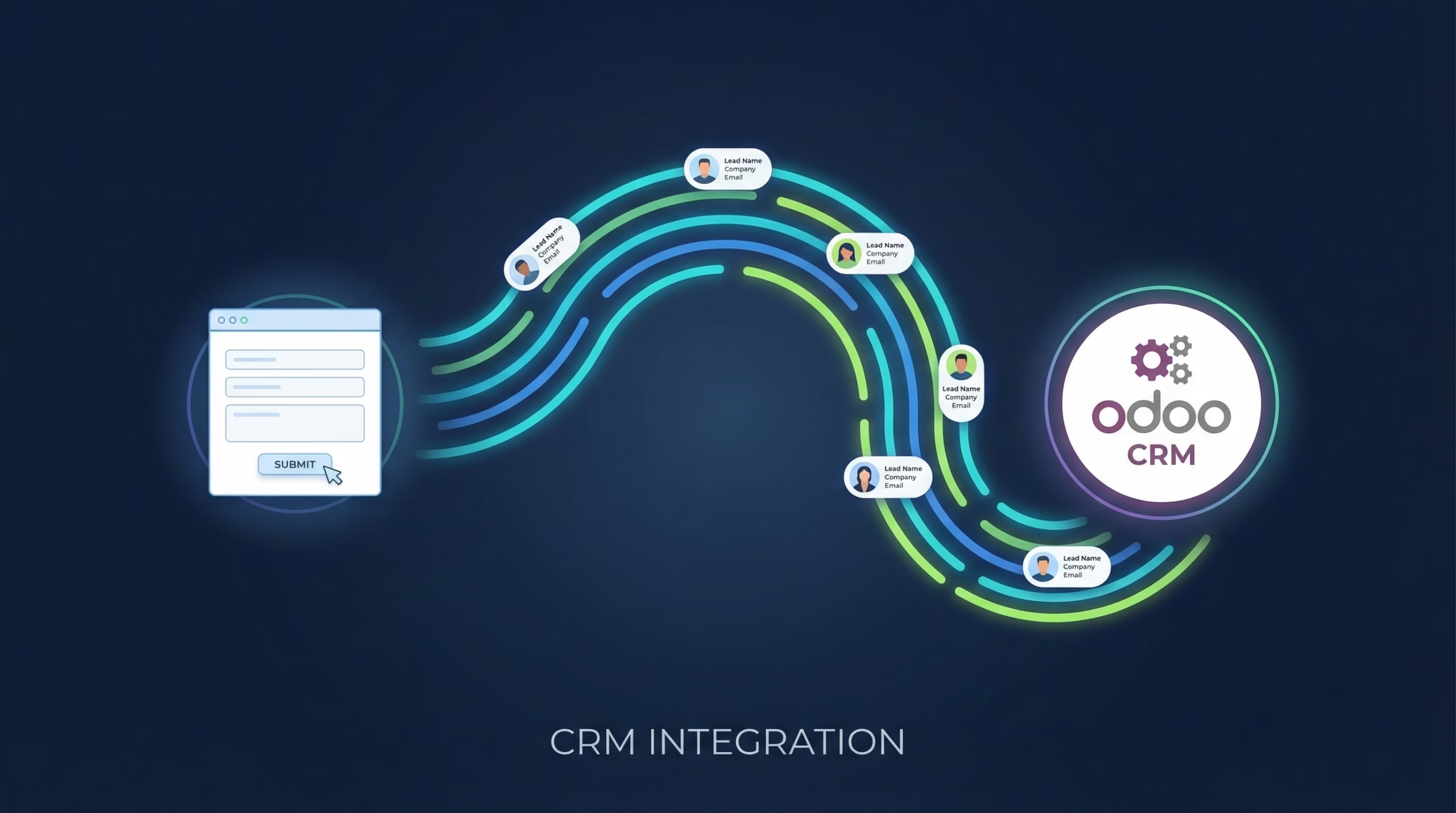
LinkedIn Lead Gen Forms convert brilliantly, thanks to profile pre-fill, and then hold your leads hostage in Campaign Manager. There’s no native sync to Google Sheets: your options are manual CSV exports, or leads quietly expiring after 90 days.
This guide shows you how to send LinkedIn leads to Google Sheets automatically with LeadSync. Every submission lands in your sheet as a new row within a minute or two, and the setup is about five minutes with no code.
Why Send LinkedIn Leads to a Google Sheet?
- A permanent, shareable record. LinkedIn deletes lead data after 90 days. Your sheet keeps every lead forever, and anyone with the link can work from it.
- No more export ritual. Downloading CSVs from Campaign Manager and pasting them into a tracker is exactly the kind of job that gets skipped the week it matters.
- B2B teams live in spreadsheets. Qualify, annotate, assign, and report without forcing anyone into new software.
- It stacks with other destinations. Route the same leads to HubSpot or email notifications at the same time.
What You’ll Need
- A LeadSync account (free 7-day trial)
- A LinkedIn account with access to the ad account and an active Lead Gen Form campaign
- A Google Sheet with a header row for the fields you want to capture
Step 1: Connect Your LinkedIn Account to LeadSync
- Log in to your LeadSync account
- Go to Ad Accounts > LinkedIn from the left menu
- Click Add LinkedIn Account
- Sign in to LinkedIn and authorize LeadSync to access your lead data
- Your account appears in the table once connected
LeadSync uses OAuth for secure authentication, so we never see your LinkedIn password, and we only request the permissions needed to read Lead Gen Form submissions.
Step 2: Create Your Google Sheet
Set up the sheet that will receive your leads. Add a header row with a column per form field: First Name, Last Name, Email, Job Title, Company, plus any custom questions from your Lead Gen Form.
Once leads start flowing, treat the header row as read-only. Renaming or deleting header cells can misalign incoming data.
Step 3: Add a Google Sheets Connection
- In LeadSync, go to Connections → Add Connection
- Select Google Sheets from the connection dropdown
- Log in to your Google account and approve LeadSync’s access
- Select the spreadsheet and the tab you want leads written to
- Name the connection descriptively (e.g. “LinkedIn Leads Sheet”) and click Update Connection
Step 4: Pair Your Lead Gen Form with the Sheet
- Go to Lead Forms → Add LinkedIn Lead Form
- Select your Ad Account from the dropdown
- Select your Lead Gen Form
- Select the Google Sheets connection you created in Step 3
- Map each LinkedIn field to the matching sheet column
- Click Update Notification
LinkedIn pre-fills most fields from the member’s profile, so mapped columns like Job Title and Company arrive populated far more often than with other ad platforms.
Step 5: Test the Integration
Submit a test lead through your LinkedIn campaign preview, then watch the sheet. The lead should appear as a new row within 1-2 minutes with every mapped column filled.
If nothing arrives, check that the form you paired is the one used in your live campaign and that your LinkedIn user still has access to the ad account. Still stuck? Work through the troubleshooting guide.
Make the Sheet Work Harder
- Add Status and Owner columns so your team can claim and track leads without a CRM
- Filter by custom question answers to prioritize high-intent submissions
- Feed the sheet into Looker Studio for an always-current campaign dashboard
- When the spreadsheet stops scaling, our guide to using Google Sheets as a CRM covers the upgrade path
Frequently Asked Questions
Can LinkedIn send leads to Google Sheets natively?
No. LinkedIn Campaign Manager only offers manual CSV downloads of Lead Gen Form submissions, and it deletes lead data after 90 days. To get leads into a Google Sheet automatically you need a sync tool like LeadSync.
How fast do LinkedIn leads appear in the sheet?
Within 1-2 minutes of submission. LeadSync receives each lead from LinkedIn’s API in near real time and appends it to your sheet immediately.
Which LinkedIn fields can I send to the sheet?
Everything the Lead Gen Form captures: first name, last name, email, phone, job title, company name, plus any custom questions. LinkedIn pre-fills profile fields, so data quality is typically high.
Do I need admin access to the LinkedIn ad account?
You need a LinkedIn user with access to the ad account and its Lead Gen Forms. LeadSync connects via OAuth, so you authorize once and the connection refreshes automatically.
Can I send LinkedIn leads to my CRM and the sheet at the same time?
Yes. LeadSync supports multiple destinations per form, so one submission can go to Google Sheets, HubSpot or another CRM, and an email notification simultaneously.
What happens if I change the sheet’s header row later?
Avoid editing headers after setup. LeadSync writes rows against your column headers, so renaming or removing them can misalign new leads. If you must restructure, update the field mapping in LeadSync afterwards.
Related Integration Guides
Sending LinkedIn leads somewhere else as well? These guides walk through it step by step:
- How to send LinkedIn leads to HubSpot
- How to send LinkedIn leads to Salesforce
- How to set up LinkedIn Lead Gen Form email notifications
- How to send LinkedIn leads to Zoho CRM
- How to send TikTok leads to Google Sheets
Ready to retire the CSV export? Start your free 7-day LeadSync trial and have LinkedIn leads flowing into your sheet today.