Run LinkedIn Lead Gen Forms for long enough and you will notice the pattern: submissions collect in Campaign Manager, someone eventually remembers to export the CSV, and by the time those contacts reach your email list the moment has passed. LinkedIn offers no native integration with Kit (formerly ConvertKit), so the gap has to be bridged by a sync tool.
This guide shows you how to connect LinkedIn Lead Gen Forms to Kit with LeadSync, so every submission becomes a tagged Kit subscriber within a minute or two of hitting your form.
Key point: Subscribers added through Kit’s API land as Unconfirmed and are typically held until they confirm. Decide before launch whether to enable auto-confirm in your Kit form settings.
Why Connect LinkedIn Lead Gen Forms to Kit?
LinkedIn Lead Gen Forms convert well because they are pre-filled and reach professionals in a work mindset. Without an automated route into Kit, that advantage leaks away:
- Speed to lead wins. A welcome email inside two minutes beats a CSV import next Friday. Here is why speed to lead matters.
- Tags trigger sequences. The tag applied during sync becomes the trigger for your Kit automation, so nurture starts without anyone touching a spreadsheet.
- Professional data, properly segmented. Company name, job title, and custom questions map to Kit custom fields for sharper segmentation.
- One direct connection. No workflow builder to maintain and no extra automation fees on top of Kit.
What You Will Need
- A LeadSync account (Business plan or higher; the Kit integration is not on the free tier)
- A LinkedIn account with Lead Gen Form access in Campaign Manager
- An active or paused LinkedIn Lead Gen Form campaign
- A Kit (ConvertKit) account
How to Set Up the LinkedIn to Kit Integration
Expect the whole setup to take about ten minutes.
Step 1: Connect Your LinkedIn Account
- Log in to LeadSync
- Go to Ad Accounts > LinkedIn in the left menu
- Click Add LinkedIn Account
- Sign in to LinkedIn and authorize LeadSync to access your lead data
- Your account appears in the table once connected
LeadSync uses OAuth, so your LinkedIn password is never stored. Only the permissions needed to read Lead Gen Form submissions are requested.
Step 2: Copy Your Kit API Key
Kit authenticates integrations with an API key rather than a password. In your Kit account, click the account icon in the top right and choose Account, then locate the API Key section and copy the key.
Guard the key carefully, since anyone who has it can manage your subscribers. You can regenerate it from the same page at any time; just remember to update LeadSync afterwards.
Step 3: Add the Kit Connection
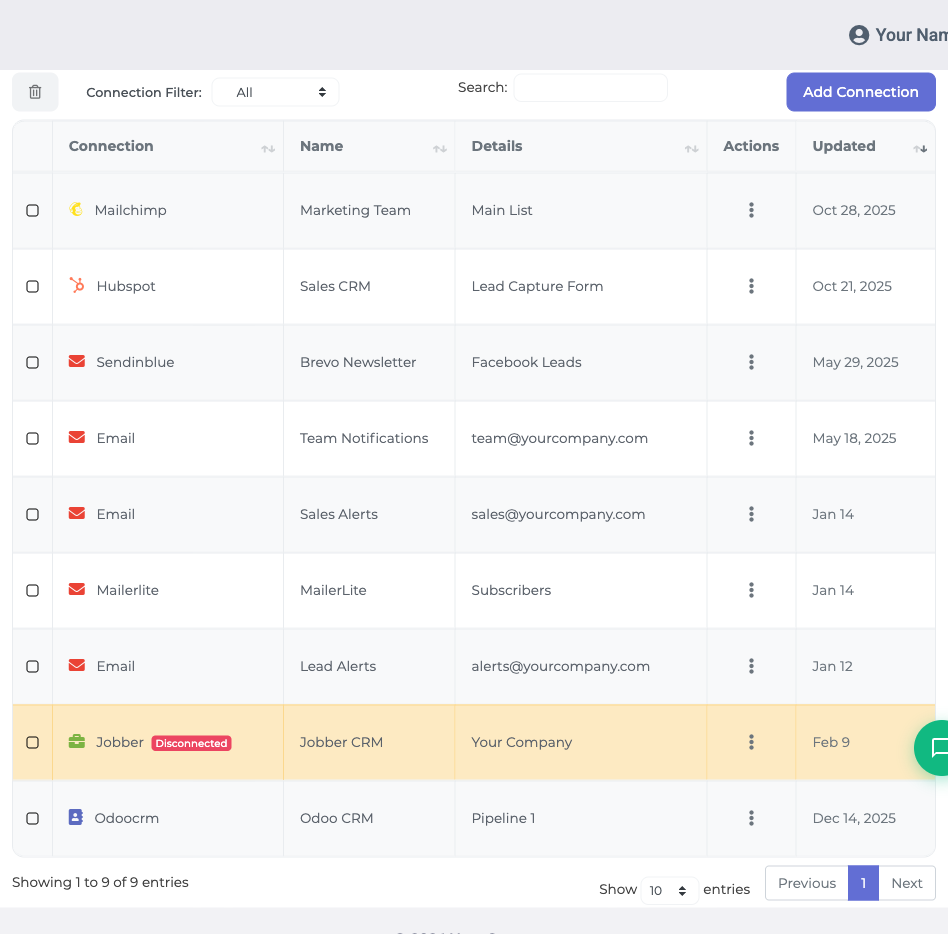
- Go to Connections and click Add Connections
- Select ConvertKit/Kit from the dropdown (it appears under both names)
- Paste your API key and name the connection, for example “Kit - LinkedIn Leads”
- Click Update Connection
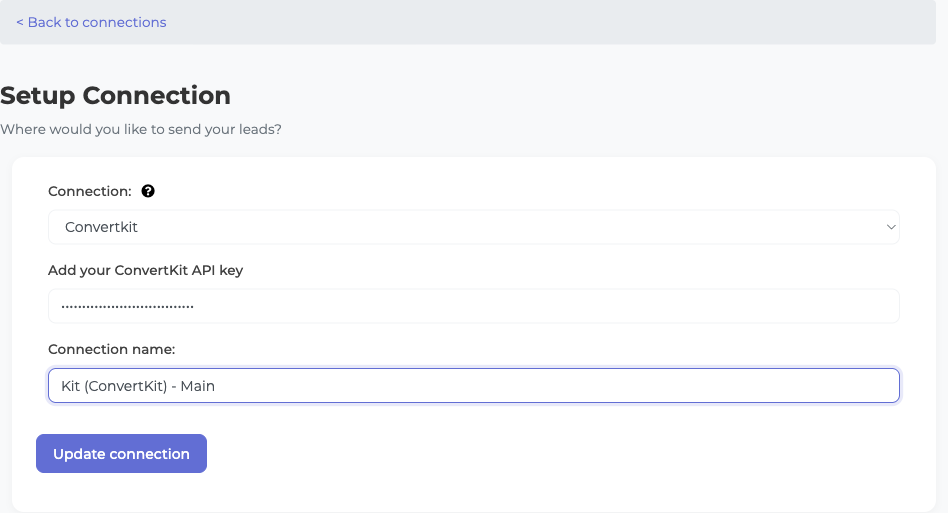
The key is validated on the spot. A green checkmark confirms the connection; an error usually means an extra space or line break crept in when you copied it.
Once validated, LeadSync reads your Kit account and shows your lists. Choose the list new subscribers should join, then pick or create a tag such as “linkedin-lead”. Save with Update Connection.
Step 4: Connect Your Lead Gen Form
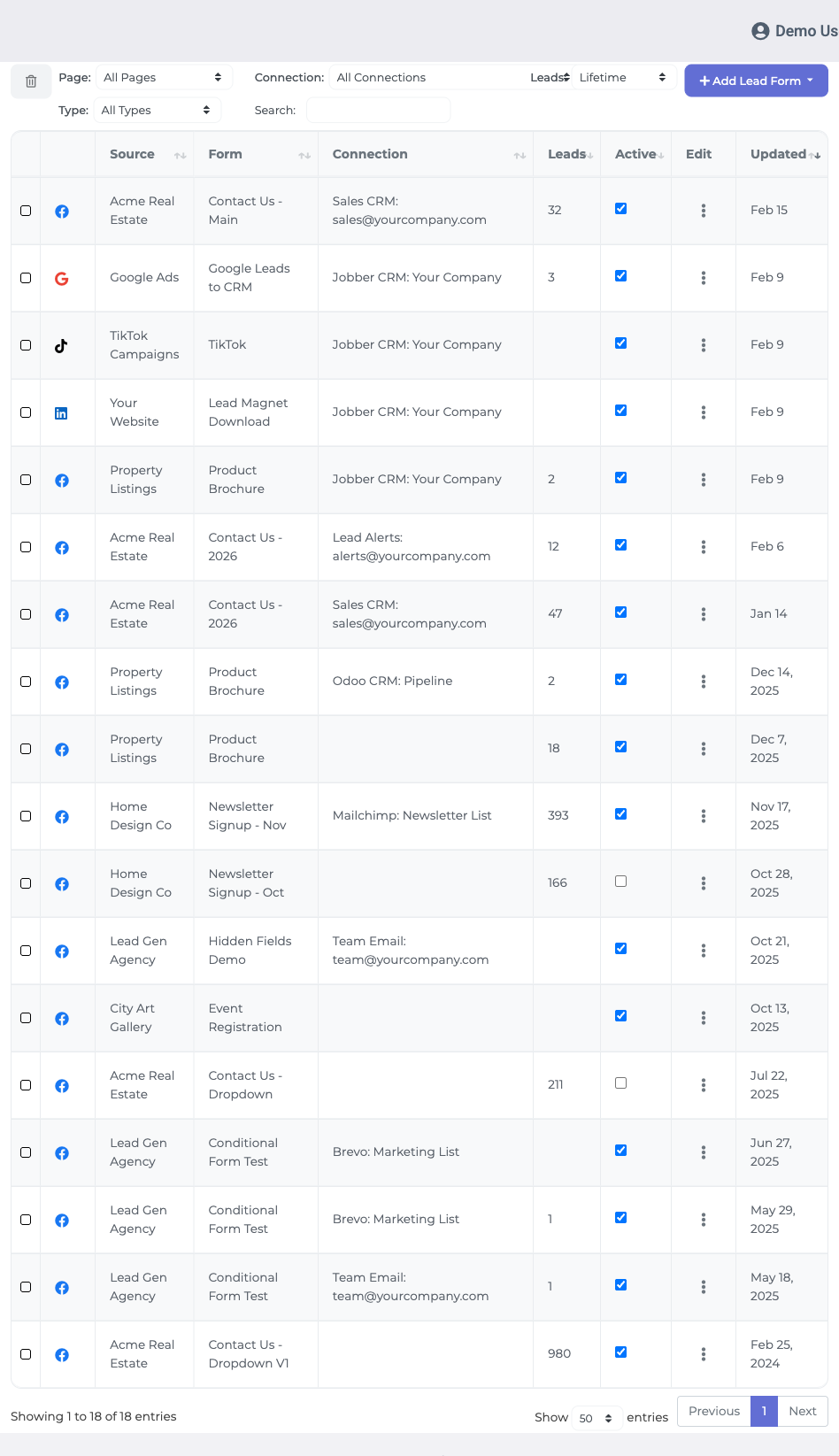
- Go to Lead Forms and click Add LinkedIn Lead Form
- Select your Ad Account
- Select the Lead Gen Form you want to sync
- Choose your Kit connection as the destination
- Map your fields (see the guide below)
- Click Update Notification
Step 5: Test the Sync
Submit a test lead through your LinkedIn campaign. Within a minute or two the subscriber should be in Kit with your tag applied. New subscribers may show as Unconfirmed; that is expected and covered below. If nothing arrives, LeadSync’s Activity log records every sync attempt with full error details.
LinkedIn to Kit Field Mapping Guide
LinkedIn forms typically send email and first name straight to Kit’s standard subscriber fields. Everything else maps to a Kit custom field, and each custom field must exist in Kit before you map to it. Create them under Kit’s Subscriber settings, then refresh LeadSync and finish the mapping.
| LinkedIn Field | Kit Field | Notes |
|---|---|---|
| Email address | Required. Kit matches on email and updates existing subscribers rather than creating duplicates. | |
| First Name | First name | Pre-filled from the LinkedIn profile. |
| Last Name | Custom field | Create it in Kit first, then map. |
| Phone Number | Custom field | Create it in Kit first, then map. |
| Company Name | Custom field | Useful for B2B segmentation. |
| Job Title | Custom field | Useful for role-based sequences. |
| Custom Questions | Custom fields | Each question needs its own Kit custom field. |
What Happens After Leads Reach Kit
Handling Double Opt-In
By default, API-added subscribers sit as “Unconfirmed” in Kit until they click a confirmation email, and unconfirmed subscribers are typically held from your sends. If you would rather they go straight into your sequences, open your Kit form settings, find the Incentive section, and tick Auto-confirm new subscribers. They opted in on your LinkedIn form, so auto-confirming is a reasonable call for most B2B lists.
Triggering Automation Sequences
The tag applied at sync time is your automation hook. Build a Kit sequence that starts when the “linkedin-lead” tag is added and every new lead receives your welcome series the same day they convert, not after the next CSV import.
Syncing Multiple Forms
Running several Lead Gen Forms across different campaigns? Point them all at the same Kit connection and list, with a distinct tag per form. Each tag tells you which campaign produced the subscriber and can trigger its own sequence.
Troubleshooting Common Issues
Can’t See Your LinkedIn Ad Account?
Make sure your LinkedIn account has admin access to the ad account and Lead Gen Form access in Campaign Manager.
Form Not Showing in LeadSync?
Your form must belong to an active or paused campaign to appear. Draft forms that have never run will not show up.
Subscribers Stuck as Unconfirmed?
That is Kit’s double opt-in protection. Enable Auto-confirm new subscribers in your Kit form settings (under Incentive) if you want leads added without the confirmation step.
Leads Not Appearing in Kit?
- Email not mapped: Kit requires an email address for every subscriber. Confirm the mapping.
- Custom field missing: If you mapped to a Kit custom field that does not exist, create it in Kit first.
- API key changed: If you regenerated your Kit API key, paste the new one into the connection settings and click Update Connection.
Frequently Asked Questions
Does LinkedIn have a native Kit (ConvertKit) integration?
No. LinkedIn does not push Lead Gen Form submissions to Kit on its own. A sync tool like LeadSync connects the two and subscribes each lead automatically, tagged for your automations.
Is it Kit or ConvertKit?
Both. The company rebranded from ConvertKit to Kit in 2024, but the product and API are unchanged. LeadSync lists the integration under both names, so search for either one.
How fast do LinkedIn leads reach Kit?
Most subscribers appear in Kit within a minute or two of submitting the form, tagged and ready for your automation sequences.
Why are my new subscribers Unconfirmed?
Kit marks API-added subscribers as Unconfirmed until they click a confirmation link, and unconfirmed subscribers are typically held from your emails. Enable Auto-confirm new subscribers in your Kit form settings, under the Incentive section, to skip that step.
Can I map company name and job title to Kit?
Yes. Create matching custom fields in Kit’s Subscriber settings first, then map the LinkedIn fields to them in LeadSync. Custom fields must exist in Kit before you can map to them.
Which LeadSync plan do I need?
The Kit integration requires at least a Business account in LeadSync; it is not available on the free tier. Every paid plan starts with a 7-day free trial, no credit card required.
What if I regenerate my Kit API key?
Paste the new key into your Kit connection settings in LeadSync and click Update Connection. The key validates immediately and syncing resumes.
Start Sending LinkedIn Leads to Kit Today
Stop exporting CSVs a week after the lead came in. With LeadSync, every LinkedIn Lead Gen Form submission lands in your Kit list in real time, tagged and already moving through your welcome sequence.
Start your 7-day free trial, no credit card required.
Running Kit alongside other ad channels? Here is how to send Google Ads leads to Kit.
New to LinkedIn advertising? Start with our LinkedIn Lead Gen Ads guide and our B2B lead generation playbook.
Advertising on TikTok as well? Here is how to send TikTok leads to Kit.