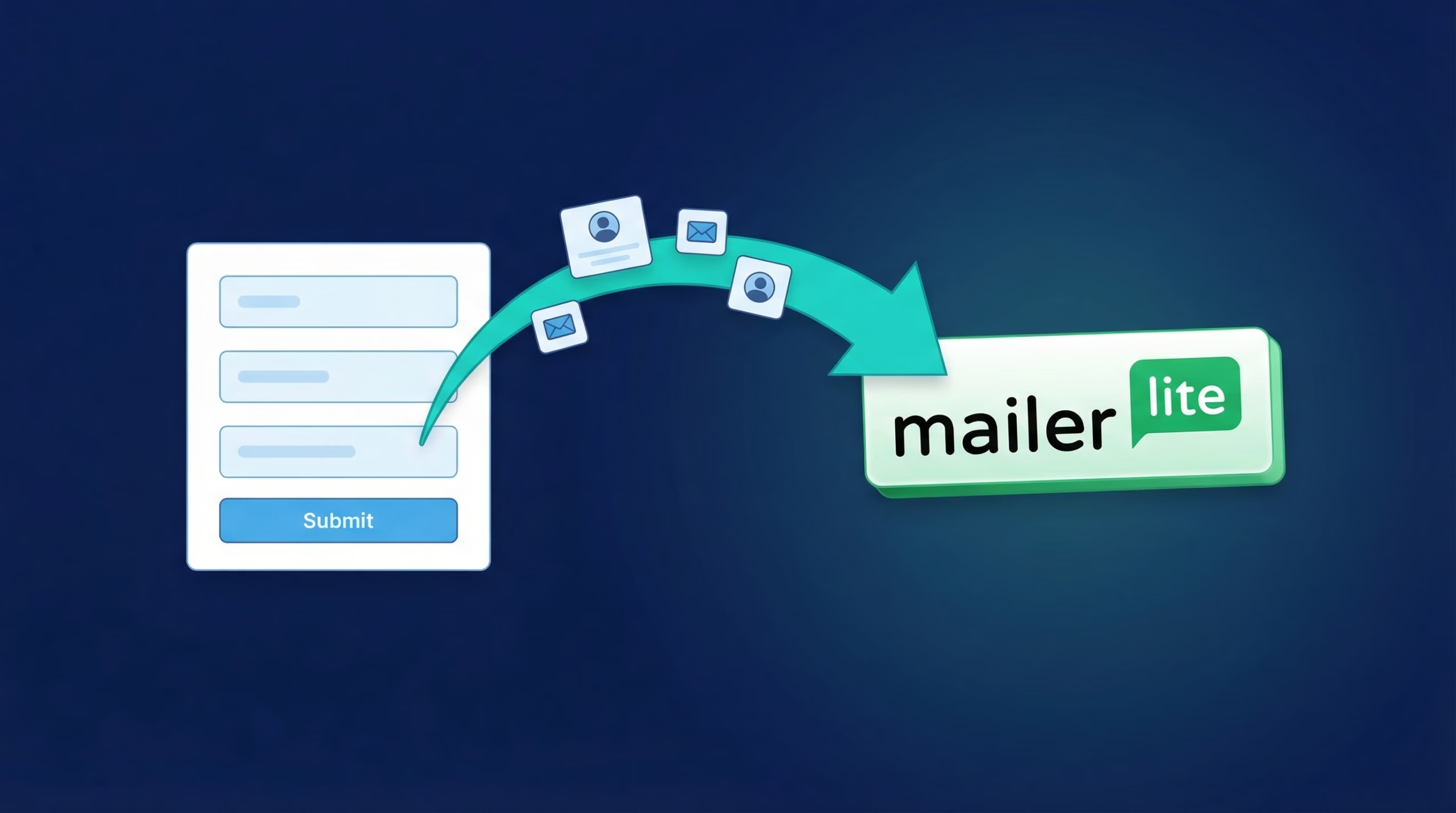
LinkedIn Lead Gen Forms convert well because they’re pre-filled with accurate professional data. What they don’t do is talk to your email platform. Every submission stays parked in Campaign Manager, and unless someone remembers to export a CSV, your MailerLite list never hears about it.
This guide walks through connecting LinkedIn Lead Gen Forms to MailerLite with LeadSync, so each new lead is added to your chosen group in near real time and your welcome automation starts the same day the lead came in.
Get LinkedIn leads into MailerLite automatically. Start your 7-day free trial, no credit card required.
Why Sync LinkedIn Leads to MailerLite?
MailerLite handles the follow-up side beautifully: automation workflows, a drag-and-drop editor, segmentation, landing pages, and clear reporting. The missing piece is a live feed of leads, and that gap costs you:
- Response time drives conversions. Speed to lead matters, and a welcome email sent minutes after submission beats one sent after Friday’s CSV export.
- Manual imports get skipped. Busy weeks happen, and every skipped export is a batch of cold leads.
- Automation needs a trigger. Your MailerLite workflows can only fire when the contact actually reaches your account.
- Segmentation starts at intake. Routing LinkedIn leads into their own group keeps them separate from every other sign-up source.
What You’ll Need
- A LinkedIn account with access to Lead Gen Forms in Campaign Manager
- An active or paused LinkedIn campaign using a Lead Gen Form
- A MailerLite account
- A LeadSync account
Step 1: Connect Your LinkedIn Account
- Log in to LeadSync
- Go to Ad Accounts in the left menu and choose LinkedIn
- Click Add LinkedIn Account
- Sign in to LinkedIn and authorize LeadSync
LeadSync uses OAuth, which means your LinkedIn password is never stored. Only the permissions needed to read Lead Gen Form submissions are requested. Once authorized, your ad account shows up in the Ad Accounts table.
Step 2: Create a MailerLite Connection
- Navigate to Connections and click Add Connection
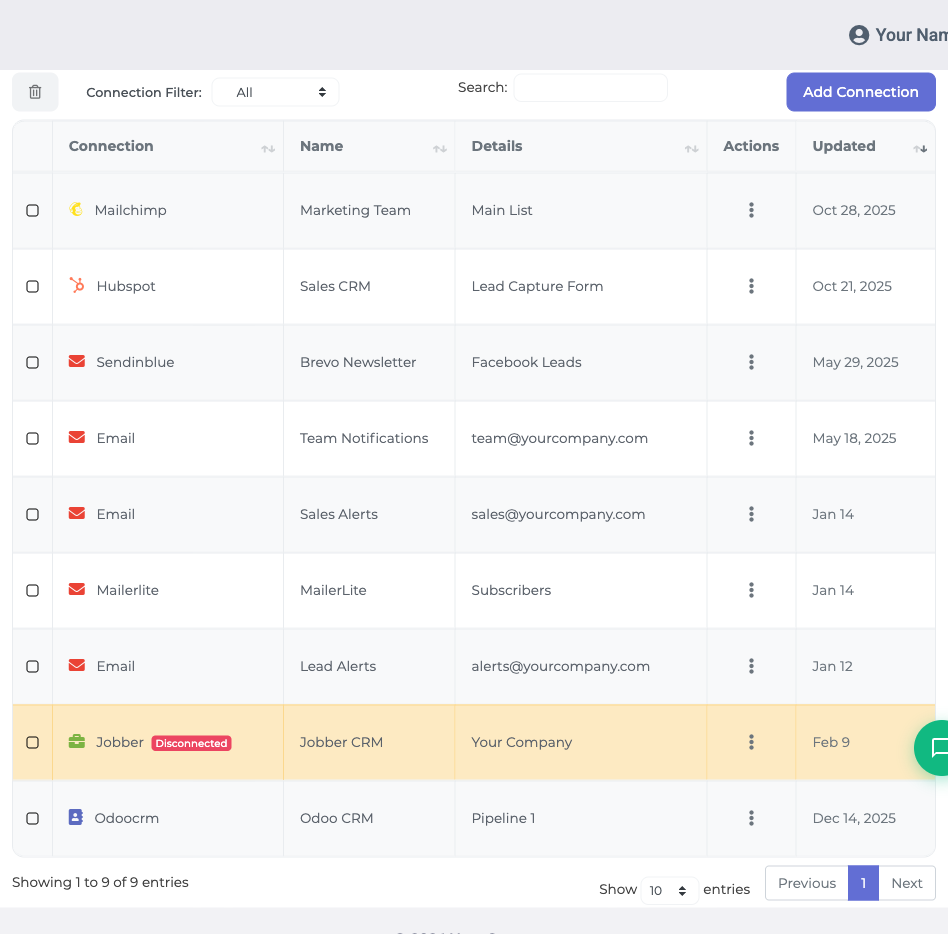
- Choose MailerLite from the dropdown
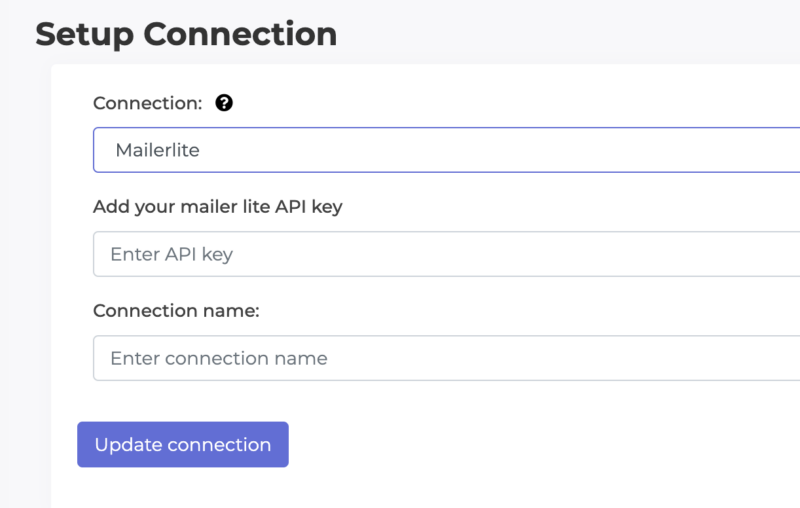
Grab an API token from MailerLite. In your MailerLite account, head to Integrations and open the API section (Developer API). Generate a new token for LeadSync and copy it.
Paste the token into the connection form in LeadSync and click Update Connection. If you’ve set up groups in MailerLite, select the group new LinkedIn leads should join from the List dropdown.
Step 3: Pair Your Lead Gen Form and Map Fields
- Go to Lead Forms and click Add LinkedIn Lead Form
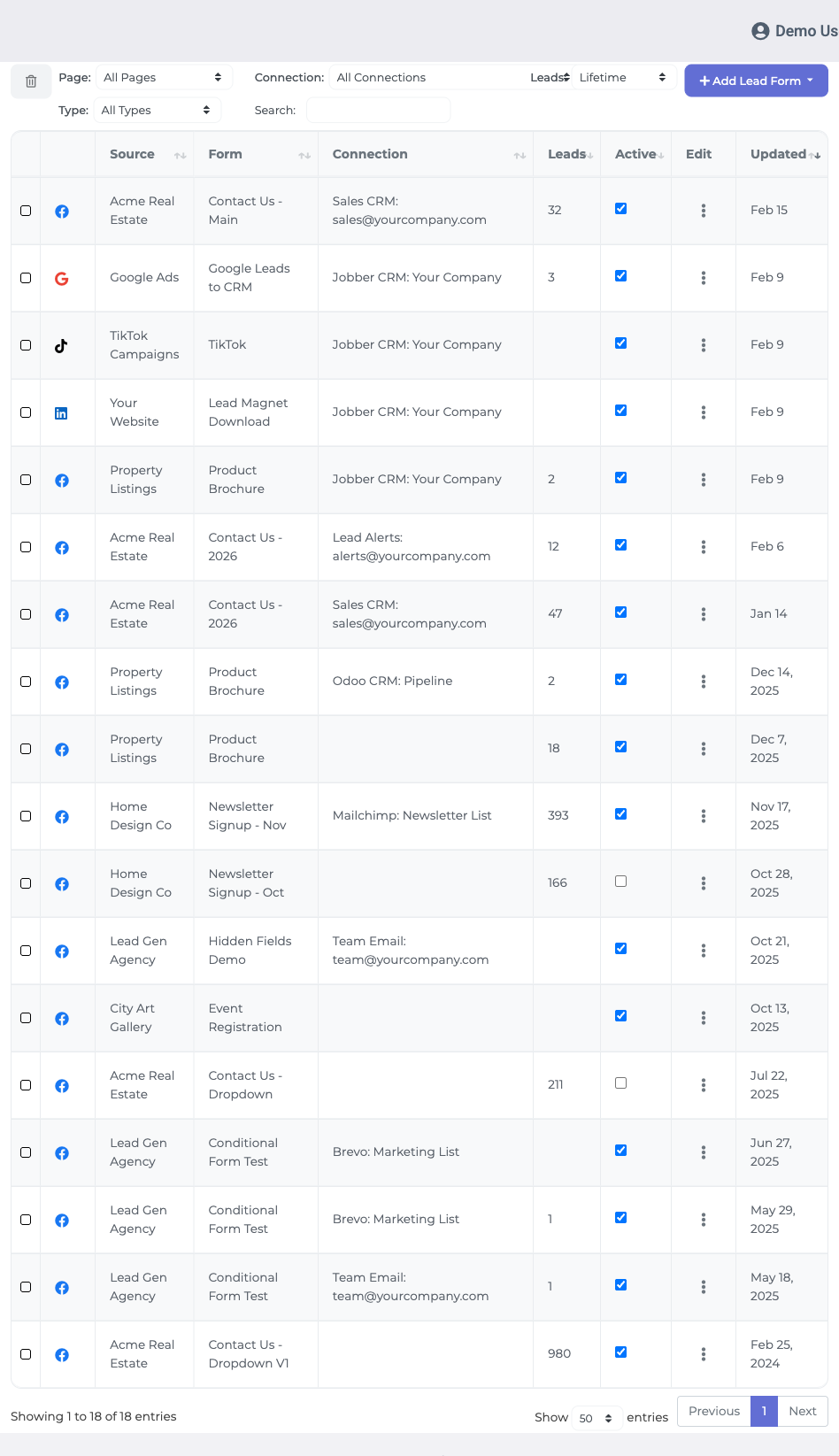
Select your LinkedIn ad account, your Lead Gen Form, and the MailerLite connection you created in Step 2.
Map your LinkedIn form fields to MailerLite fields. Here’s how the common ones line up:
| LinkedIn field | MailerLite field | Notes |
|---|---|---|
| Required. Leads can’t be added without it. | ||
| First name | First name | Pre-filled from the LinkedIn profile |
| Last name | Last name | Pre-filled from the LinkedIn profile |
| Phone number | Phone | Map if your form collects it |
| Other fields | Available MailerLite fields | Match during setup as needed |
- Click Update Notification to finish.
Step 4: Test the Integration
Run a test submission through your LinkedIn campaign, then check your MailerLite account. The contact should appear in the group you selected within 1-2 minutes, with every mapped field populated. Once the test lead lands cleanly, the sync is live and every future submission follows the same path.
What to Do Once Leads Are Flowing
- Trigger a welcome automation so every LinkedIn lead gets a same-day first touch.
- Segment by group to keep LinkedIn contacts separate from your newsletter subscribers and other sources.
- Personalise with mapped fields like first name to lift open and reply rates.
- Watch your MailerLite reporting to see which LinkedIn campaigns produce engaged subscribers, not just form fills.
Troubleshooting
- Leads not arriving? Confirm the email field is mapped, since MailerLite requires it, and check that your LinkedIn account still shows as connected under Ad Accounts.
- Authentication errors? Generate a fresh API token in MailerLite and update your LeadSync connection.
- Form missing from the dropdown? Forms only appear when they belong to an active or paused campaign. Drafts that have never run won’t show.
- Wrong group? Edit the connection and reselect the group from the List dropdown.
Frequently Asked Questions
Does LinkedIn have a native MailerLite integration?
No. LinkedIn Lead Gen Form submissions stay in Campaign Manager until you export them. A sync tool like LeadSync connects the two platforms and adds each new lead to your MailerLite account automatically.
How fast do LinkedIn leads reach MailerLite?
New leads typically land in your MailerLite account within 1-2 minutes of someone submitting your Lead Gen Form.
Where do I generate the MailerLite API token?
In MailerLite, go to Integrations and open the API section (Developer API). Create a token for LeadSync, copy it, and paste it into the connection form in LeadSync.
Can I send LinkedIn leads to a specific MailerLite group?
Yes. If you have groups set up in MailerLite, choose the one new leads should join from the List dropdown when creating your connection.
Why is my Lead Gen Form not showing in LeadSync?
Your form needs to belong to an active or paused campaign to appear. Draft forms that have never run will not show up in the dropdown.
Is my lead data secure?
Yes. LeadSync connects to LinkedIn with OAuth, so your password is never stored, and your MailerLite API token is kept securely. Lead data is encrypted in transit.
Put Your LinkedIn Follow-Up on Autopilot
Five minutes of setup replaces every future CSV export. Connect your LinkedIn account, add a MailerLite API token, map your fields, and let your automations do the nurturing from there.
New to LinkedIn advertising? Our LinkedIn Lead Gen Ads guide covers campaign setup from scratch. Also running Google Ads? Here’s how to send Google Ads leads to MailerLite.
Start your free 7-day trial, no credit card required.
Advertising on TikTok as well? Here is how to send TikTok leads to MailerLite.