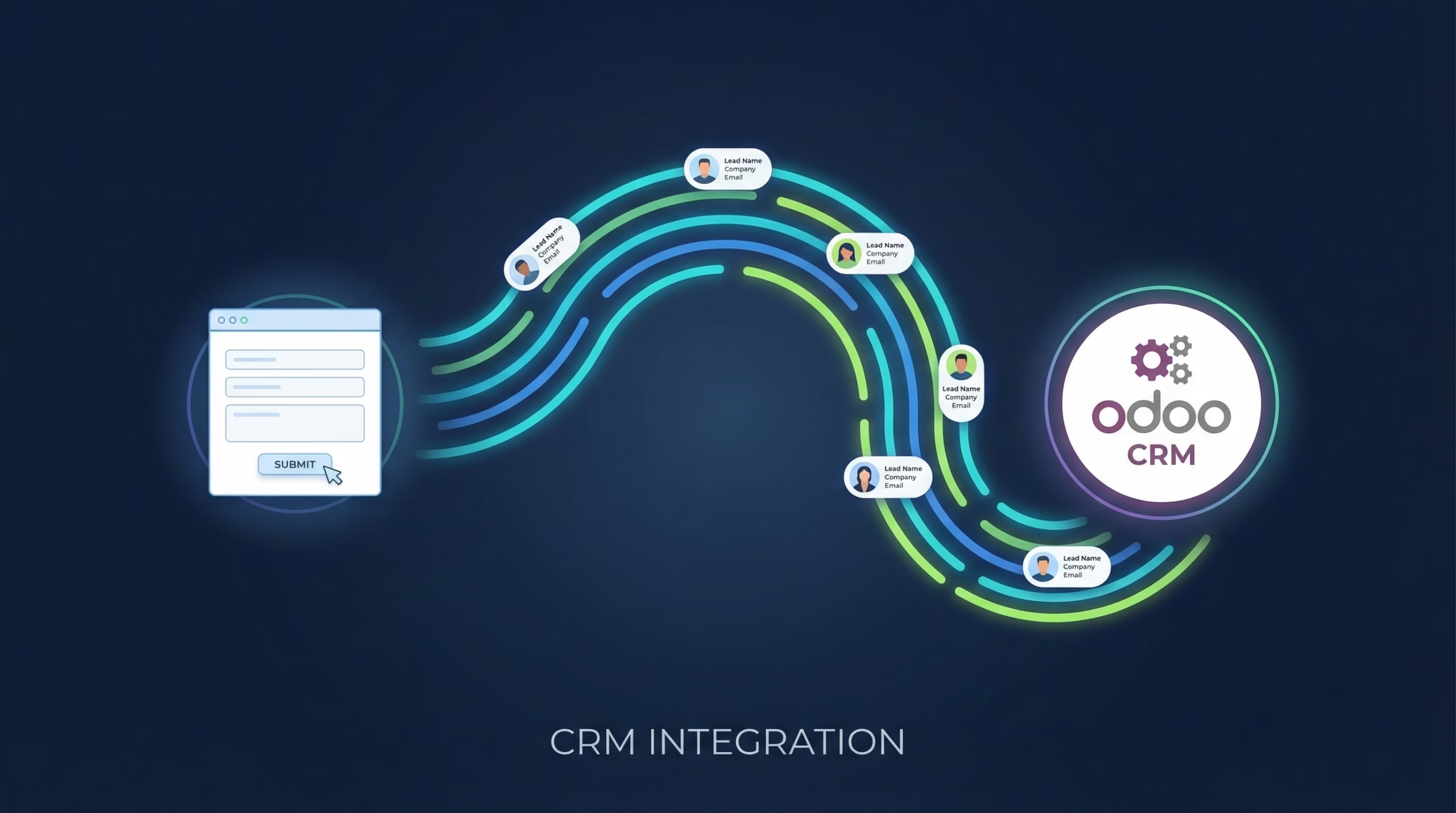
B2B leads from LinkedIn are among the most expensive you can buy, which makes what happens next so frustrating: LinkedIn Lead Gen Forms collect the submission, then it sits in Campaign Manager. There is no native LinkedIn to Odoo integration, so unless someone exports a CSV, your Odoo pipeline stays empty while paid-for prospects go cold.
This guide walks through connecting Lead Gen Forms to Odoo CRM with LeadSync, so every submission becomes a new lead in your pipeline within 1-2 minutes, fields mapped and source tagged.
Key point: You paid a premium to reach professionals in a buying mindset. Letting those submissions age in Campaign Manager is the most avoidable way to waste that spend.
Why You Need a LinkedIn Odoo Integration
Lead Gen Forms convert well because they are pre-filled from the member’s profile. Without a CRM sync, that advantage leaks away:
- Speed to lead is the whole point. Responding within minutes makes you far more likely to qualify a lead than waiting for a weekly export.
- No re-keying. Copying leads from Campaign Manager into Odoo wastes time and introduces typos into the data your reps sell against.
- Automation fires instantly. When a lead is created in Odoo the moment the form is submitted, assignment rules and scheduled activities kick in straight away.
- Clean attribution. A source tag on every LinkedIn lead lets you report LinkedIn-sourced pipeline and revenue separately from your other channels.
What You Will Need
- A LeadSync account with a Business or Marketer plan, which includes the Odoo integration (7-day free trial, no credit card required)
- A LinkedIn account with access to Lead Gen Forms in Campaign Manager
- An active LinkedIn Lead Gen Form campaign
- An Odoo instance with CRM installed, plus your Odoo URL, database name, and username
How to Set Up Your LinkedIn Odoo Integration
The whole setup takes about five minutes.
Step 1: Connect Your LinkedIn Account
- Log in to LeadSync
- Go to Ad Accounts > LinkedIn from the left menu
- Click Add LinkedIn Account
- Sign in to LinkedIn and authorize LeadSync to access your lead data
- Your account appears in the table once connected
LeadSync uses OAuth, so your LinkedIn password is never stored. Only the permissions needed to read Lead Gen Form submissions are requested.
Step 2: Generate an API Key in Odoo
Click your profile icon at the top right of Odoo, open Preferences, switch to the Account Security tab, and click New API Key. Copy the key. This is what authorizes LeadSync to create leads in your database.
Step 3: Add the Odoo Connection in LeadSync
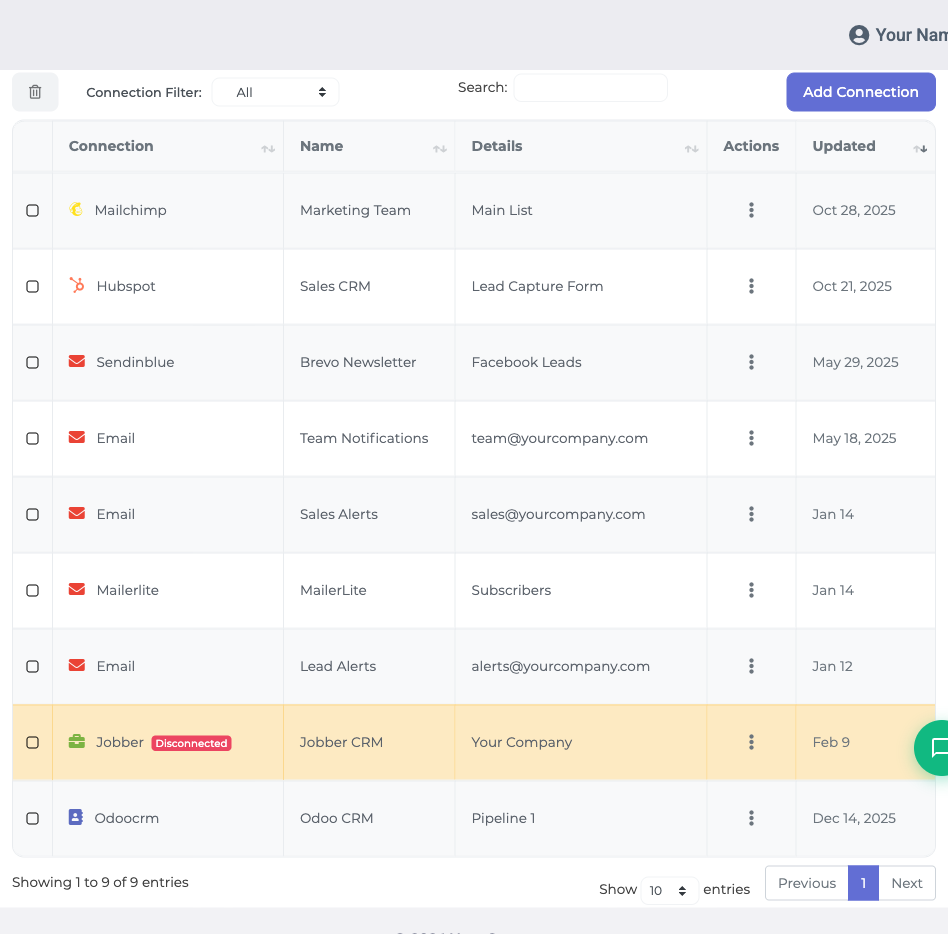
- Go to Connections from the left menu
- Click Add Connection and choose Odoo CRM from the dropdown
- Fill in your details:
- Odoo URL: your instance URL (e.g. https://yourcompany.odoo.com)
- Database: your Odoo database name
- Username: your Odoo login
- API Key: the key from Step 2
- Name the connection (for example, “LinkedIn Leads to Odoo”) and click Update Connection
- Add at least one tag. Tags must already exist in Odoo, so create one there first (e.g. “LinkedIn Lead Gen”) if needed
Step 4: Pair Your Lead Gen Form and Map Fields
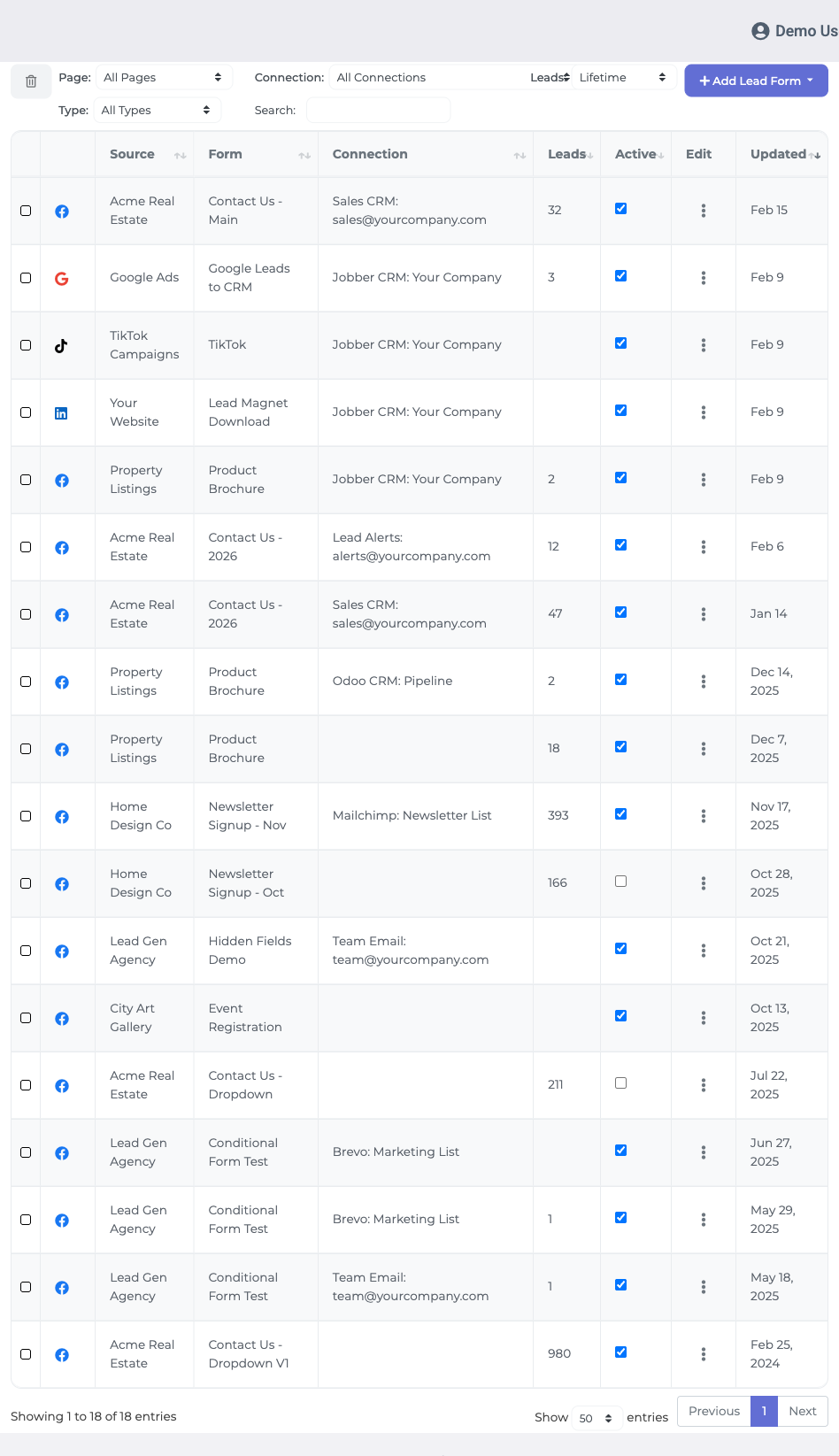
- Go to Lead Forms from the left menu
- Click Add LinkedIn Lead Form
- Select your Ad Account, then your Lead Gen Form
- Select the Odoo CRM connection you created in Step 3
- Map your fields (see the guide below)
- Click Update Notification
Step 5: Test the Integration
Submit a test lead through your LinkedIn campaign. Within 1-2 minutes the lead should appear in the New stage of your Odoo CRM pipeline with the mapped fields populated. Search for the test email address to confirm everything landed.
LinkedIn to Odoo Field Mapping Guide
LinkedIn provides separate first and last name fields, most of them pre-filled from the member’s profile. Here is how common Lead Gen Form fields map across:
| LinkedIn Field | Odoo Field | Notes |
|---|---|---|
| Always map this one. It is the field your reps will act on first. | ||
| First Name | First Name | Pre-filled from the LinkedIn profile. |
| Last Name | Last Name | Pre-filled from the LinkedIn profile. |
| Phone Number | Phone | May be pre-filled if the member has a phone on file. |
| Company Name | Company Name | Useful for routing and B2B qualification. |
| Custom questions | Custom Odoo fields | Create the matching field in Odoo CRM first, then map it in LeadSync. |
Your custom qualifying questions are often the most valuable data on the form, so take the extra minute to build matching Odoo fields before you go live.
What Happens After Leads Sync to Odoo
Once the integration is live, each LinkedIn lead arrives in Odoo ready to work:
- Assign leads automatically using Odoo’s sales team rules
- Schedule a follow-up activity the moment the lead is created
- Filter your pipeline by the connection tag to see LinkedIn leads in one view
- Report on LinkedIn-sourced revenue separately, so you can defend the ad spend with closed-won numbers
Troubleshooting Common Issues
Can’t see your LinkedIn ad account?
Make sure your LinkedIn account has admin access to the ad account and Lead Gen Form access in Campaign Manager. On a company ad account, ask the admin to grant you access.
Leads not appearing in Odoo?
- Email not mapped: confirm the email field mapping first
- Wrong credentials: double-check your Odoo URL, database name, username, and API key
- Missing tag: the tag you selected must still exist in Odoo
- Missing custom field: if you mapped a question to a field that doesn’t exist yet, create it in Odoo first
Lead Gen Form not showing in LeadSync?
Your form must belong to an active or paused campaign to appear. Draft forms that have never run in a campaign will not show up.
Frequently Asked Questions
Does LinkedIn have a native Odoo integration?
No. LinkedIn does not push Lead Gen Form submissions into Odoo on its own. Without a sync tool, leads sit in Campaign Manager until someone exports a CSV. LeadSync connects the two and creates each lead in Odoo automatically.
How fast do LinkedIn leads reach Odoo?
Within 1-2 minutes of submission. LeadSync picks up the lead from LinkedIn and creates it in the New stage of your Odoo CRM pipeline, fast enough to follow up while the prospect is still at their desk.
How do I get the Odoo API key?
Inside Odoo, click your profile icon at the top right, open Preferences, go to the Account Security tab, and click New API Key. Copy the key and paste it into your LeadSync connection along with your Odoo URL, database name, and username.
Which Odoo versions work with LeadSync?
Any Odoo instance with API access, including Odoo Online (yourcompany.odoo.com), Odoo.sh, and self-hosted installs. All you need is your instance URL, database name, username, and an API key.
What about custom Lead Gen Form questions?
Create a matching field in Odoo CRM first, then map each LinkedIn question to that field in LeadSync. Fields that don’t exist in Odoo can’t receive data.
Why isn’t my Lead Gen Form showing in LeadSync?
Your form must belong to an active or paused campaign to appear. Draft forms that have never run in a campaign will not show up. Also confirm your LinkedIn account has admin access to the ad account.
Can I send LinkedIn leads to Odoo and my email at the same time?
Yes. LeadSync supports multiple destinations per lead form, so a single submission can create the Odoo lead and send an instant email or SMS notification to your sales rep simultaneously.
Start Your LinkedIn Odoo Integration Today
Every hour a LinkedIn lead sits unworked in Campaign Manager, it gets cheaper for your competitor to win them. Connect the pipe once and follow up while the interest is real. Start your 7-day free trial, no credit card required.
Running Odoo across more platforms? Here is how to send Facebook leads to Odoo and Google Ads leads to Odoo. New to LinkedIn advertising? Start with our LinkedIn Lead Gen Ads guide.
Advertising on TikTok as well? Here is how to send TikTok leads to Odoo.