ServiceM8 is one of the most popular field service management platforms for home services businesses, trusted by plumbers, electricians, HVAC techs, locksmiths, and trade contractors to manage jobs, scheduling, and invoicing. But ServiceM8 does not natively integrate with Facebook Lead Ads or Google Lead Form Extensions, which means contractors running paid lead campaigns have to manually copy leads into their system.
That is where LeadSync comes in. By connecting your Facebook, Google, LinkedIn, and TikTok lead ads to ServiceM8 through LeadSync, every new lead automatically becomes a Company, Contact, and Quote-status Job ready for your dispatch team. This guide walks you through the complete setup, from connecting your accounts through to field mapping, testing, and troubleshooting.
What You Need Before Getting Started
Before setting up your ServiceM8 lead ads integration, make sure you have the following in place:
- A LeadSync account (free trial or paid subscription)
- A ServiceM8 account with API access (any plan that supports add-ons from the ServiceM8 store)
- A Facebook Business Page with Lead Ads enabled, and/or Google Ads with Lead Form Extensions, LinkedIn Lead Gen Forms, or TikTok Lead Generation
- At least one active lead form on Facebook, Instagram, Google, LinkedIn, or TikTok
If you are running lead generation campaigns through Meta Ads Manager or Google Ads, you most likely already have everything you need. The integration works with any lead form that collects customer information.
Which Field Service Businesses Use This Integration?
The ServiceM8 plus LeadSync integration is used by trade and field service contractors across every vertical who run paid lead ads. Common use cases include:
- Plumbers: Emergency plumbing leads go cold within minutes. Automatic sync means your team can call back before the homeowner contacts a competitor.
- HVAC companies: Seasonal campaigns ("$79 AC tune-up" in spring, “Free furnace inspection” in autumn) generate spikes that need leads in ServiceM8 instantly so dispatchers can book the call. See our full HVAC lead generation guide.
- Electricians: Service-call leads are time sensitive. Faster response means more booked jobs.
- Locksmiths and security installers: Inquiries skew toward urgent same-day callouts. Automated lead delivery is the difference between booking the job and losing it.
- Roofers: Storm season generates high lead volumes. Manually entering 20+ leads per day during peak season is not sustainable. See our roofing lead generation strategies.
- Landscapers, pest control, cleaning, and solar: Any trade running paid social or search ads benefits from eliminating manual data entry.
The common thread: speed to lead matters in field service. When a homeowner submits a lead form, they expect a fast response. Companies that respond within 5 minutes are 21x more likely to convert than those who wait 30 minutes. Automating lead delivery to ServiceM8 ensures your team can follow up while the lead is still warm.
Connecting Your ServiceM8 Account to LeadSync
The first step is authorising LeadSync to communicate with your ServiceM8 account. This is a one-time setup that takes about 30 seconds.
Step-by-Step Connection Process
- Log in to LeadSync and navigate to Connections
- Click Add Connection
- Select ServiceM8 from the dropdown menu
- Enter a name for this connection (for example, “My ServiceM8 Account”)
- Click Save. You will be redirected to ServiceM8’s authorisation page
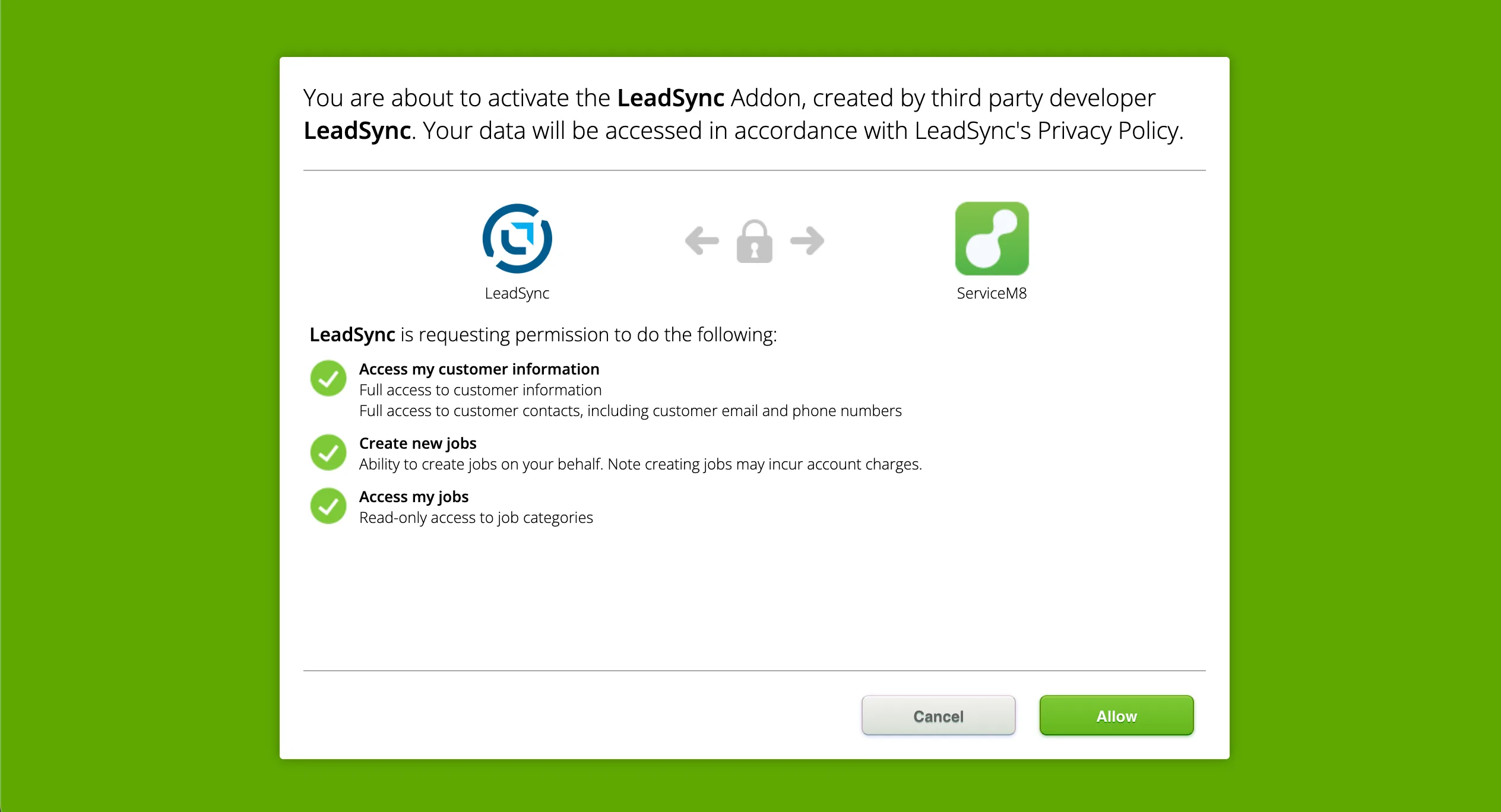
- Log in to ServiceM8 and click Allow to grant LeadSync access
- You will be returned to LeadSync with your connection now active
About the “This Addon isn’t verified” Warning
When you authorise the integration today, you will see a “This Addon isn’t verified” warning page in ServiceM8 before reaching the permissions consent screen. This warning is about ServiceM8’s marketplace verification status, not the security of the connection. The LeadSync add-on is currently in ServiceM8’s review queue. Click Proceed to continue with the authorisation. The warning disappears once ServiceM8 completes their review.
What Permissions Does LeadSync Need?
LeadSync requests only the permissions required to create the three records per lead:
- Access my customer information (full access to customer information and contacts): so LeadSync can check for existing contacts before creating duplicates, then create the Company and CompanyContact records
- Create new jobs (with a note that creating jobs may incur account charges): so LeadSync can create the Quote-status Job that lands on your Dispatch Board
- Access my jobs (read-only access to job categories): used to read the available job categories in case you choose to route different lead sources into different categories in a future update
LeadSync cannot access your invoices, payments, schedules, staff records, or financial data. Your business information remains private and secure.
Connection Troubleshooting
If your ServiceM8 connection fails during setup, check these common causes:
- Pop-up blocker active: Disable pop-up blockers for LeadSync in your browser settings
- Browser cookies: Clear your cookies and try the connection again
- ServiceM8 login issues: Verify you can log in to ServiceM8 directly before attempting the connection
- Multiple ServiceM8 accounts: If you manage several ServiceM8 accounts, ensure you are authorising the correct one
What Gets Created in ServiceM8 for Each Lead
This is where the ServiceM8 integration differs from most CRM connections. ServiceM8’s data model splits a customer record across three linked objects, so LeadSync creates all three in one round trip for every lead:
- Company: Named after the lead’s business or full name, with structured address fields (street, city, state, postcode, country) populated for geocoding
- CompanyContact: Attached to the Company by
company_uuid, with email, phone, and the contact’s name. This is where ServiceM8 stores the email and phone (the Company record itself does not have those fields) - Job: Created with status set to Quote, attached to the Company, with
job_descriptioncontaining the lead form name, submission timestamp, and any extra questions you captured on the form (preferred service window, project description, equipment details, etc.). Thejob_addressis geocoded so the pin appears on the Dispatch Board map
The Quote-status Job is the key piece. It lands on your Dispatch Board ready for scheduling or follow up. Your team sees the new lead in their queue without needing to convert anything manually.
Creating Your First Automation (Facebook Lead Ads)
With your ServiceM8 account connected, you can now create an automation that sends Facebook leads directly to ServiceM8 as new records.
Setting Up the Lead Flow
- Go to Lead Forms in LeadSync
- Click Add New
- Select your Facebook Page from the dropdown
- Select your Lead Ad Form. Choose the specific form you want to connect
- Select your ServiceM8 connection from the destination dropdown
- Map your fields. Match Facebook form fields to ServiceM8 fields
- Click Save
Your automation is now active. Every new lead submission will automatically create the Company, Contact, and Job records in ServiceM8 within seconds.
Choosing the Right Facebook Form
When selecting a form, LeadSync displays helpful information to ensure you are connecting the correct one:
- Form name
- Date created
- Number of leads received
- Status (Active/Inactive)
Choose the form showing recent leads to confirm you are connecting an active campaign. If a form shows zero leads, double check that it is currently running in Ads Manager.
Connecting Multiple Forms
Yes, you can connect multiple Facebook forms to ServiceM8. Simply create a separate automation for each form you want to sync. Each automation can have its own unique field mapping, which is useful if different campaigns collect different information (for example, an emergency callout form versus a quote request form).
Connecting Google, LinkedIn, and TikTok Lead Forms to ServiceM8
In addition to Facebook Lead Ads, LeadSync supports Google Lead Form Extensions, LinkedIn Lead Gen Forms, and TikTok Lead Generation. The setup is nearly identical to Facebook:
- In LeadSync, go to Lead Forms and click Add New
- Select your ad source (Google Ads, LinkedIn, or TikTok)
- Connect your ad account if you have not already done so
- Select the campaign and lead form you want to sync
- Choose your ServiceM8 connection as the destination
- Map fields and click Save
Google leads tend to be higher intent (they are actively searching for your service) but cost more per lead than Facebook. LinkedIn works for higher-value commercial trade leads. Many field service businesses run multiple ad platforms and use LeadSync to funnel every lead into ServiceM8 regardless of source.
Field Mapping: Getting Your Data Into ServiceM8 Correctly
Field mapping tells LeadSync which lead form fields should populate which ServiceM8 fields. Getting this right ensures your lead data flows accurately into your Company, Contact, and Job records.
Available ServiceM8 Fields
LeadSync supports mapping to these ServiceM8 fields:
| Field | Where it goes | Description |
|---|---|---|
| First Name | Contact | Contact’s first name |
| Last Name | Contact | Contact’s last name |
| Contact | Primary email address (used for duplicate detection) | |
| Phone | Contact | Primary phone number |
| Mobile | Contact | Mobile number (separate field for SMS-capable contacts) |
| Company Name | Company | Company record name |
| Street Address | Company + Job | Street address (used in address_street and job_address) |
| City | Company + Job | City |
| State/Province | Company + Job | State or province |
| Postcode/Zip | Company + Job | Postcode or zip code |
| Country | Company + Job | Country |
| Notes | Job | Appended to job_description |
How Name Splitting Works
If your lead form collects Full Name as a single field, LeadSync automatically splits it into first and last name for the Contact record:
- “John Smith” becomes First Name: John, Last Name: Smith
- “Mary Jane Watson” becomes First Name: Mary Jane, Last Name: Watson
For best results, use separate First Name and Last Name fields on your lead form. This gives you cleaner data and avoids edge cases with unusual name formats.
Address Handling
For field service work, the address is the single most important field on a lead. Without it, you cannot schedule, route, or quote. LeadSync maps street, city, state, postcode, and country independently to the matching ServiceM8 address fields, so your team gets a properly structured address rather than a single concatenated string they need to parse before scheduling. ServiceM8 geocodes the address automatically and the Job pin appears on the Dispatch Board map ready for routing.
Unmapped Fields Go to the Job Description
Anything else captured on your lead form (preferred service time, project description, equipment make and model, square footage, urgency level) is appended to the Job’s job_description field along with the form name and submission timestamp. Your dispatch team sees the full job context the moment they open the Quote. Unmapped fields do not get silently dropped.
Testing Your Integration
Before relying on your automation for real leads, run a test to confirm everything works correctly.
How to Test Your Automation
- Submit a test lead on your Facebook form using Facebook Ads Manager’s preview feature
- Wait 30 to 60 seconds for the lead to process
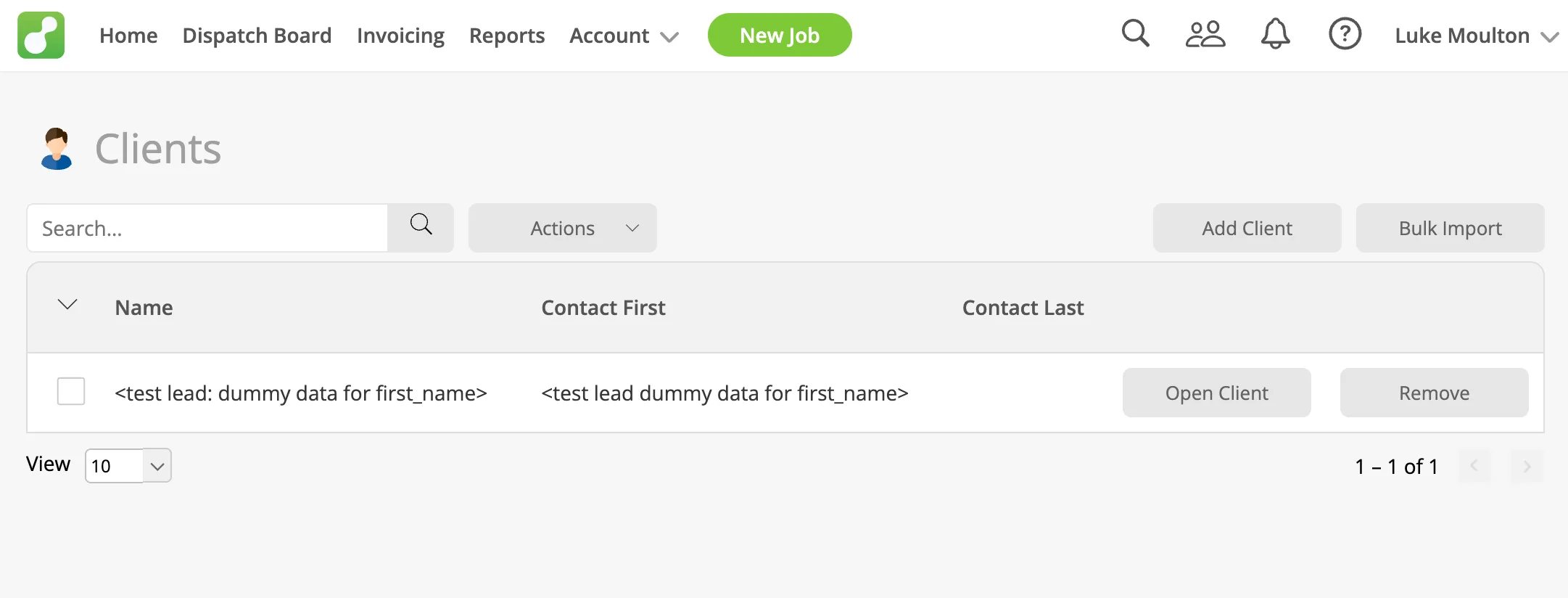
- Check ServiceM8 for the new Company, Contact, and Quote-status Job
- Review LeadSync logs under your account to see the lead activity
Sending a Test Lead Through Facebook
- Go to Facebook Ads Manager
- Find your Lead Ad campaign
- Click on the ad containing your lead form
- Click Preview on the lead form
- Fill out the form with test data and submit
Your test lead should appear in ServiceM8 within a couple of minutes. The Company should be visible under Clients, the contact should be attached, and the Quote-status Job should appear on the Dispatch Board with the address pin geocoded.
Troubleshooting Common Issues
Leads Are Not Appearing in ServiceM8
If leads are not syncing to ServiceM8, work through this checklist:
- Is the automation active? Go to Lead Forms and verify it is enabled
- Is the ServiceM8 connection working? Go to Connections and check the status shows as Connected
- Is the correct form selected? Confirm you connected the right lead form
- Check the logs: LeadSync logs show if leads were received and any errors that occurred
For more lead sync troubleshooting tips, see our guide on fixing Facebook leads not syncing.
Token Expired or Reconnect Required
ServiceM8 access tokens are valid for one hour and LeadSync refreshes them automatically when an API call returns 401. If the underlying refresh token becomes permanently invalid (usually because the LeadSync add-on was removed from inside ServiceM8 or the connection sat idle long enough for the OAuth server to time it out), LeadSync detects this on the next lead, marks the connection as needing reconnection, and sends you a one-time email with a direct reconnect link. Any leads that arrived while the connection was dead are automatically re-queued the moment you reconnect.
Records Created But Some Fields Are Missing
If records appear in ServiceM8 but some information is blank, go to Lead Forms, edit your automation, and verify each form field is mapped to the correct ServiceM8 field. A field can only sync if your lead form actually collects that information. If your form does not request a phone number, LeadSync cannot populate the phone field on the Contact.
Duplicate Companies Not Appearing
LeadSync deduplicates by email. Before creating a new Company, it searches your existing ServiceM8 contacts by email. If a matching contact already exists, the new Job is created under that existing Company rather than forking a parallel record. If you are not seeing the dedupe behaviour, confirm that the original Contact in ServiceM8 has the same email address you are testing with (the match is case insensitive but does require an exact email string).
“This Addon isn’t verified” Warning Won’t Go Away
This warning displays during OAuth authorisation until ServiceM8 completes the verification of the LeadSync add-on. It does not affect the integration’s function. Click Proceed on that screen each time you reconnect. The warning will disappear automatically once ServiceM8 approves the listing in their store.
Managing Your Integration
Editing Field Mappings
Need to change how fields are mapped? Go to Lead Forms, click on the automation you want to modify, update your field mappings, and click Save. Changes apply to future leads only. Records already in ServiceM8 are not updated retroactively.
Pausing an Automation
You can pause an automation without deleting it. Go to Lead Forms, find your automation, and toggle it off. Turn it back on anytime. Your settings and field mappings are preserved.
Disconnecting ServiceM8 from LeadSync
To remove the ServiceM8 integration, go to Connections, find your ServiceM8 connection, and click Delete. This removes the connection from LeadSync. Your existing Companies, Contacts, and Jobs in ServiceM8 are not affected. Only future lead syncing stops.
Why Automate Lead Ads to ServiceM8?
For field service businesses running Facebook Lead Ads or Google Lead Forms, manual lead entry creates real problems. Leads go cold while you are copying data. Typos lead to missed follow-ups. The time spent on data entry is time not spent serving customers.
Automating your lead ads to ServiceM8 integration solves these issues:
- Instant lead delivery: New leads appear in ServiceM8 within seconds of form submission
- Zero data entry: No more copying and pasting between platforms
- Accurate information: Automated syncing eliminates typos and missed fields
- Workable Quote on the Dispatch Board: Each lead arrives as a Quote-status Job ready for scheduling, not just a contact record
- Geocoded address pins: Your team sees the job location on the map without manually entering an address
- Faster response times: Contact leads while they are still warm, within the critical 5-minute window
Whether you are running plumbing, HVAC, electrical, locksmith, landscaping, roofing, or any other field service business, getting leads into ServiceM8 faster means more booked jobs and less wasted ad spend.
ServiceM8 Integration vs Zapier: Which Should You Use?
Some contractors use Zapier to connect Facebook leads to ServiceM8. While Zapier works, there are key differences:
- Speed: LeadSync delivers leads in seconds. Zapier’s free plan checks for new leads every 15 minutes, meaning leads can sit uncontacted for up to a quarter hour. Even paid Zapier plans have 2-minute delays.
- Records created: LeadSync creates the full Company, Contact, and Job chain in one round trip. With Zapier you would need to chain multiple Zaps or zaps with multiple actions, each consuming task quota.
- Simplicity: LeadSync is purpose-built for lead ads, so setup takes under 5 minutes with no Zap configuration needed. Zapier requires building a workflow with triggers, actions, and field mapping.
- Price: LeadSync starts at $19/month with unlimited lead syncing. Zapier’s pricing is task-based and a three-record-per-lead flow burns through tasks quickly.
- Support: LeadSync specialises in lead ad integrations, so troubleshooting is faster and more targeted.
For a detailed comparison, see our LeadSync vs Zapier comparison.
Frequently Asked Questions
Does ServiceM8 integrate with Facebook Lead Ads?
ServiceM8 does not have a native Facebook Lead Ads integration. LeadSync fills that gap. Every Facebook or Instagram lead becomes a Company, Contact, and Quote-status Job in ServiceM8 within seconds of the form submission, with no manual data entry.
Can I send Google Ads leads to ServiceM8 too?
Yes. LeadSync supports Google Ads lead form extensions alongside Facebook, LinkedIn, and TikTok. Each ad source becomes its own LeadSync connection but they all create records in the same ServiceM8 account.
How fast do leads appear in ServiceM8?
Leads typically appear in ServiceM8 within 30 to 60 seconds of form submission. LeadSync receives the webhook from Meta or Google in real time, builds the three ServiceM8 records, and the new Job lands on your Dispatch Board ready for scheduling.
Does ServiceM8 charge me for jobs created by LeadSync?
Job creation may incur charges depending on your ServiceM8 subscription plan. Check your account billing tier before turning on lead automation if you are on a metered plan. The Company and Contact records do not carry a per-record charge on standard plans.
What plan do I need in ServiceM8?
Any ServiceM8 plan with API access works. The integration uses OAuth2, so no API key configuration is required on the ServiceM8 side. If your plan supports add-ons from the ServiceM8 add-on store, LeadSync will work.
What happens if someone fills out my lead form twice?
LeadSync searches your existing ServiceM8 contacts by email before creating a new Company. If a returning client fills out another ad form, the new Job is created under their existing Company record. Your customer list stays clean even at high lead volume.
How does the address from my lead form map to ServiceM8?
Street, city, state, postcode, and country map independently to ServiceM8’s structured address fields. They populate the Company record and are mirrored onto the Job’s job_address field, which ServiceM8 geocodes automatically so the pin appears on the Dispatch Board map.
Why do I see a ‘This Addon isn’t verified’ warning when I connect?
The LeadSync add-on is currently in the ServiceM8 review queue. The warning is purely about ServiceM8’s marketplace verification status, not the security of the integration. Click Proceed to continue. The warning disappears once ServiceM8 completes its review.
Can I run multiple ServiceM8 accounts through LeadSync?
Yes. Create one LeadSync connection per ServiceM8 account. Each connection has its own OAuth authorization, field mapping, and lead routing. This is the right setup for franchise groups, multi-brand operators, or any business with separate ServiceM8 instances per service line.
Get Started with LeadSync
Ready to connect your Facebook and Google Lead Ads to ServiceM8? Start your free LeadSync trial and have your first automation running in under five minutes. No credit card required, and you can sync leads immediately.
If you run into any issues not covered in this guide, contact LeadSync support with your account email, connection name, and a description of the problem. Include any error messages you are seeing for faster troubleshooting.