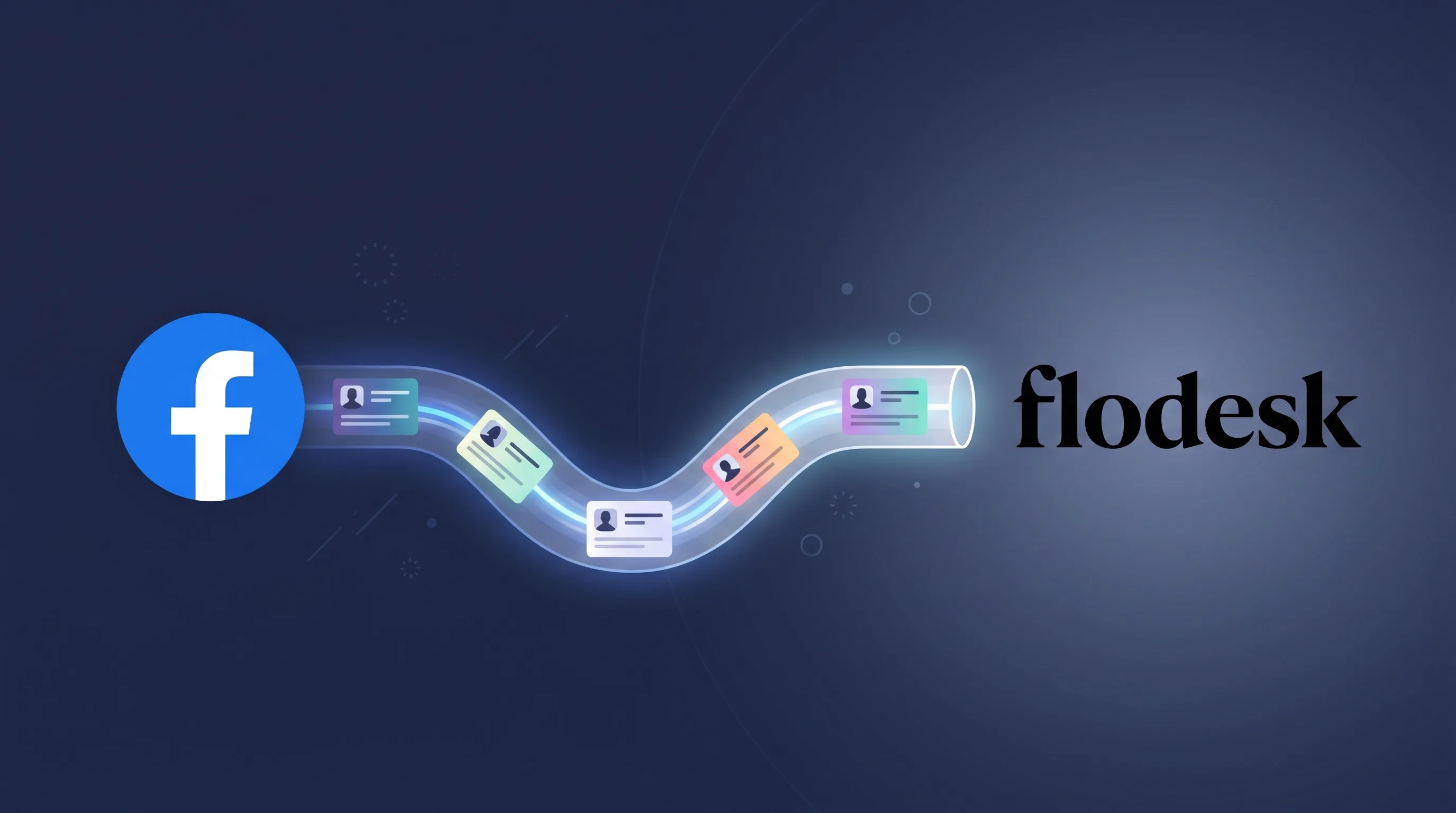
Flodesk is a favourite of creators, coaches, and small-team service businesses for a reason – it makes beautiful, on-brand email feel effortless. What it doesn’t do is pull leads out of Facebook for you. There’s no native Facebook Lead Ads integration inside Flodesk, so most people end up bolting on Zapier at $20+ a month just to get a new lead from a Meta form into a Flodesk segment.
LeadSync does that job directly – one connection, real-time sync, and no Zaps in the middle.
Key Takeaways
- Flodesk has no built-in Facebook Lead Ads integration – leads have to be pushed in from outside.
- LeadSync syncs new Facebook and Instagram leads into Flodesk in under a minute using Flodesk’s official API.
- You’ll need a paid Flodesk plan; API keys aren’t available on trial or free accounts.
- New subscribers are added directly to the segment you choose, so any Flodesk workflow triggered by that segment runs automatically.
- You can map any field on your Facebook lead form – email, name, phone, custom questions – into Flodesk’s standard or custom fields.
What is Flodesk?
Flodesk is an email marketing and automation platform built for people who care about how their emails look and feel. Instead of the template-heavy, form-first UX of older tools, Flodesk leans into drag-and-drop design, clean typography, and segment-based audiences. It’s particularly popular with photographers, course creators, wellness coaches, interior designers, and other visually-driven small businesses.
Key features worth knowing before you start:
- Segments: Flodesk’s version of lists. You add subscribers to one or more segments, and segments drive your sending and automation targeting.
- Workflows: visual automation sequences (welcome series, lead magnet delivery, abandoned-cart follow-ups) that fire when someone joins a segment or meets other criteria.
- Custom fields: any key/value you want to store on a subscriber, usable in personalisation and conditional content.
- Flat pricing: you pay the same whether you have 100 subscribers or 100,000, which is part of why the tool punches above its weight with solo operators.
Why sync Facebook leads with Flodesk?
Running Facebook lead ads without an automated sync means either manually downloading the CSV from Meta Business Suite every few days, or wiring up Zapier as a relay. Both cost you speed and – in the case of Zapier – actual money every month.
Pushing leads straight to Flodesk the moment they submit the form gets you three things:
- Speed-to-welcome. Your Flodesk welcome workflow fires within a minute of the form submission, while your offer is still top-of-mind.
- No lost leads. Daily CSV exports from Meta leak leads – people forget, Meta throttles the download, the file gets mis-imported. A direct API push skips the spreadsheet entirely.
- Clean segmentation. Each Facebook form can feed a different Flodesk segment, so a lead magnet for “5 Brand Photography Tips” and a waitlist for “Fall 2026 Retreat” stay separate and get different follow-up.
If email notifications are all you need, no actual Flodesk sync – our Facebook lead ads email notifications guide covers the simpler setup.
Prerequisites
Before you start, make sure you have:
- A Facebook page with an active lead ad or at least one published lead form.
- A paid Flodesk account. The Flodesk API is not available on trial or free plans – you’ll need Lite, Pro, or Everything to generate an API key.
- Admin access to both Flodesk and your Facebook page.
- A LeadSync account. A free 7-day trial is enough to get set up and send a test lead end-to-end.
Step 1: Set up your Facebook lead ad
If you already have a live Facebook lead ad campaign, skip to Step 2. Otherwise:
- In Meta Ads Manager, create a new campaign with the Lead Generation objective.
- Build your lead form – at a minimum, capture email and first name (those are the fields Flodesk uses for personalisation). Phone, last name, or custom questions are fine to add, and you’ll be able to map them into Flodesk custom fields in a later step.
- Publish the form and assign it to a live ad, or save it in draft if you’re just setting up the plumbing first.
LeadSync can sync leads from any Facebook page you have admin access to, even from old forms you published months ago.
Step 2: Create the Flodesk segment that will receive new leads
Each Facebook form should map to a single Flodesk segment. That makes it easy to target different welcome workflows at different lead sources.
- In Flodesk, go to Audience → Segments.
- Click Create new segment and give it a descriptive name – for example,
Facebook – Brand Photography Lead MagnetorFB Ads – 2026 Retreat Waitlist. - You don’t need to add any subscribers or filters. LeadSync will populate it as leads come in.
If you want Flodesk to send a welcome email the moment a lead lands, go to Workflows, create a new workflow triggered by “Subscriber is added to segment”, and point it at this segment.
Step 3: Generate a Flodesk API key
This is the credential LeadSync uses to authenticate.
- In Flodesk, click your profile avatar and choose My account.
- Open Integrations in the left nav, then switch to the API Keys tab.
- Click Create API key. Give it a label like
LeadSyncso you remember where it’s used. - Copy the generated key. Flodesk shows this once: if you lose it, revoke and regenerate.
If the “Create API key” button is hidden behind a pricing modal, your Flodesk account is on trial or free. You’ll need to upgrade to any paid plan before the API is available.
Step 4: Connect Flodesk to LeadSync
- Log in to LeadSync and go to Connections → Add Connection.
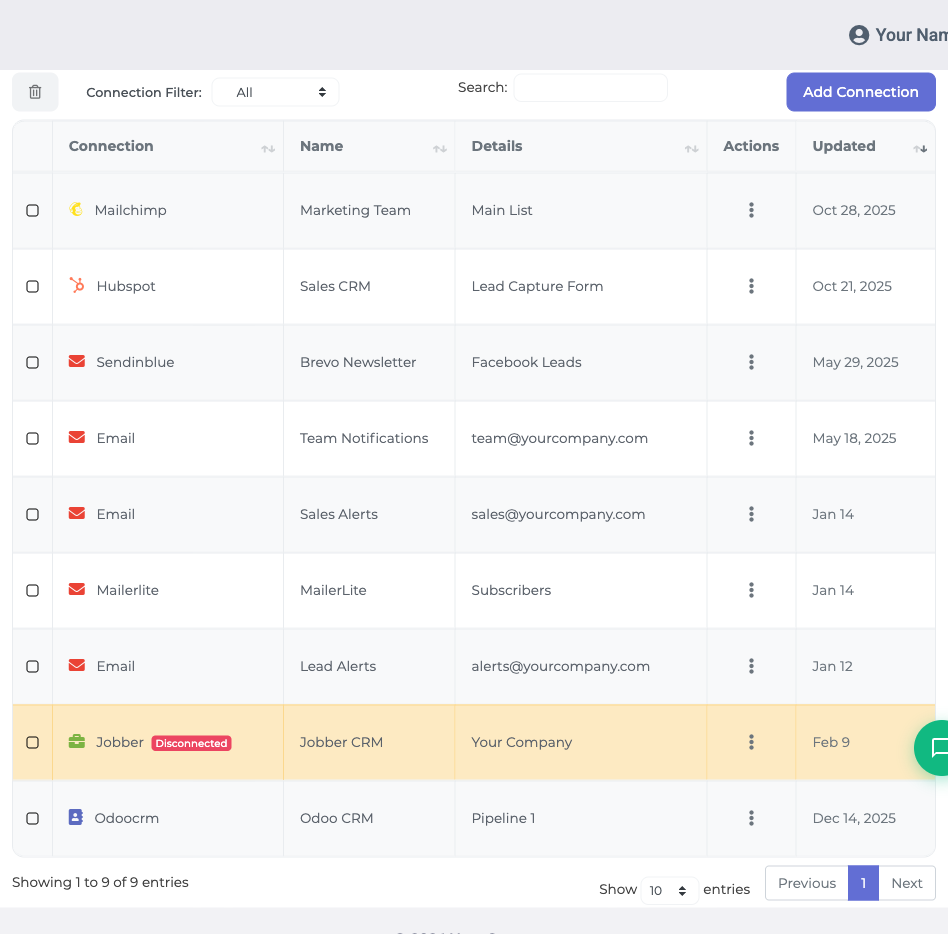
- In the destination dropdown, select Flodesk.
- Paste your Flodesk API key into the field, give the connection a recognisable name (e.g.
Flodesk – main account), and click Update Connection. - LeadSync will fetch your Flodesk segments. Choose the segment you created in Step 2 from the list and click Update again.
That’s the connection set up. LeadSync now has permission to push subscribers into your Flodesk account and knows which segment to default them to.
Step 5: Pair a Facebook lead form to your Flodesk connection
- In LeadSync, go to Lead Forms → Add Facebook Lead Form.
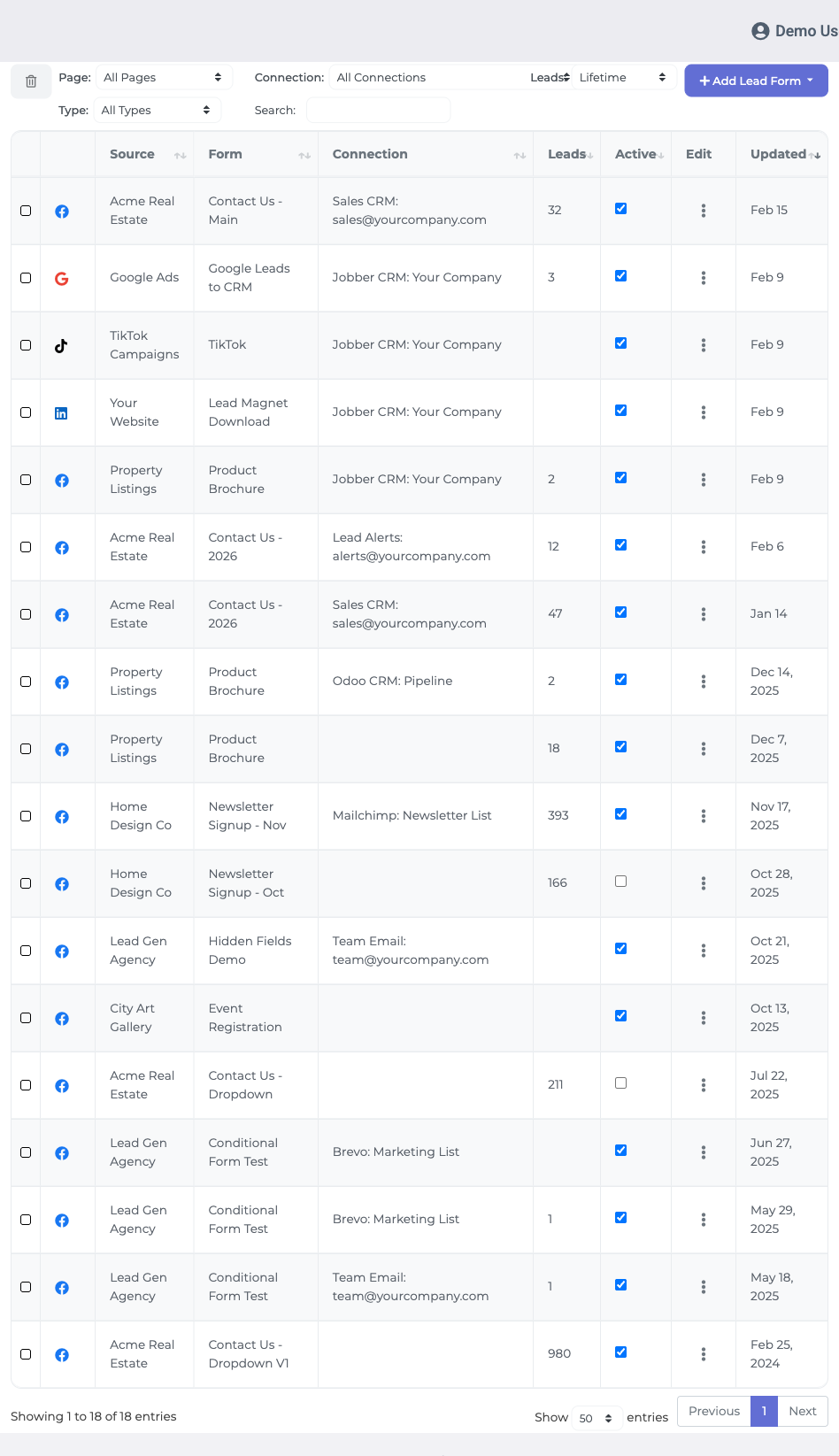
- Pick the Facebook page the leads come from.
- Pick the form you published in Step 1.
- Pick the Flodesk connection you just set up.
- Map each Facebook form field to a Flodesk field. At minimum, map email → Email, first name → First name. Any custom Facebook fields can be mapped to Flodesk custom fields, just type the Flodesk custom field key (e.g.
phone,city,booking_interest) in the mapping. - Click Update Notifications.
Leads submitted through that Facebook form will now arrive in the chosen Flodesk segment within seconds, with the fields you mapped populated.
Testing your setup
Don’t wait for a real lead to find out something’s broken. Here’s how to send a test through:
- Follow our test lead form connection guide to fire a synthetic lead through the full pipeline.
- In Flodesk, go to Audience → Subscribers and search the test email address. It should appear with the correct first name and custom fields, assigned to the segment you chose.
- If you set up a workflow in Step 2, check that it’s processed the test subscriber – look under Workflows → [your workflow] → Activity.
If the test lead doesn’t appear in Flodesk, check your user log in LeadSync under Account → Logs for a Flodesk Error: line. The most common causes are an invalid API key (copy/paste error) or a Facebook form field not being mapped to Flodesk’s Email field.
Common questions
Does Flodesk have a native Facebook Lead Ads integration?
No. Flodesk has Instagram, Shopify, Squarespace, and a handful of other direct integrations, but nothing for Facebook Lead Ads specifically. You need a third-party tool like LeadSync (or Zapier, Make, Pabbly) to bridge the two.
How fast does LeadSync push Facebook leads to Flodesk?
Typically under 60 seconds from form submission to subscriber appearing in the Flodesk segment. LeadSync listens for Meta’s lead webhook in real time and calls Flodesk’s POST /subscribers endpoint immediately. There’s no polling delay.
Does Flodesk’s free or trial plan work?
No. Flodesk gates API key creation behind paid plans only. If you’re still on trial, you’ll need to upgrade to Lite ($19/mo) or higher before LeadSync can connect.
Can I add a Facebook lead straight into a Flodesk workflow?
Yes – indirectly. LeadSync adds the lead to a segment, and you set up a Flodesk workflow triggered by “Subscriber is added to segment.” The workflow fires the moment LeadSync inserts the subscriber. This is how most Flodesk users handle automated welcome series and nurture sequences anyway.
Which Facebook lead form fields can I sync?
Any field on your Facebook form. Standard ones (email, first name, last name) map to Flodesk’s built-in fields. Custom questions, phone numbers, and prefilled fields all map to Flodesk custom fields – you type the Flodesk key you want in the mapping UI in LeadSync.
What happens if the same person submits the form twice?
Flodesk treats the email address as the primary key. A second submission updates the existing subscriber rather than creating a duplicate, and the subscriber stays assigned to the segment you chose. Any updated field values on the second submission overwrite the first.
Can I sync leads from multiple Facebook forms into the same Flodesk segment?
Yes – pair each Facebook form to the same Flodesk connection in Step 5. You can also split them across different segments if you want different nurture paths.
That’s the whole pipeline: Facebook lead form → LeadSync → Flodesk segment → workflow. Once the connection is live you can leave it alone; every new lead shows up where it’s supposed to, without CSVs, Zaps, or overnight delays.
If you’re weighing up which email platform fits your workflow before committing, our Facebook lead ads integration guide walks through the options side-by-side.