If you run Facebook lead ads for a home services business, you already know the uncomfortable truth: the lead you paid for at 10:04am is shopping your competitors by 10:20. Hatch exists to fix exactly that. It’s a speed-to-lead platform built for contractors, and it fires off text, email, and call outreach the moment a new lead arrives.
The catch: Hatch has no native Facebook Lead Ads integration. Its first-class sources are Angi, Yelp, Google Local Services Ads, and Thumbtack. For Facebook, Hatch’s own docs send you to Zapier, which means another subscription, per-task fees, and a Zap that breaks the week you forget about it.
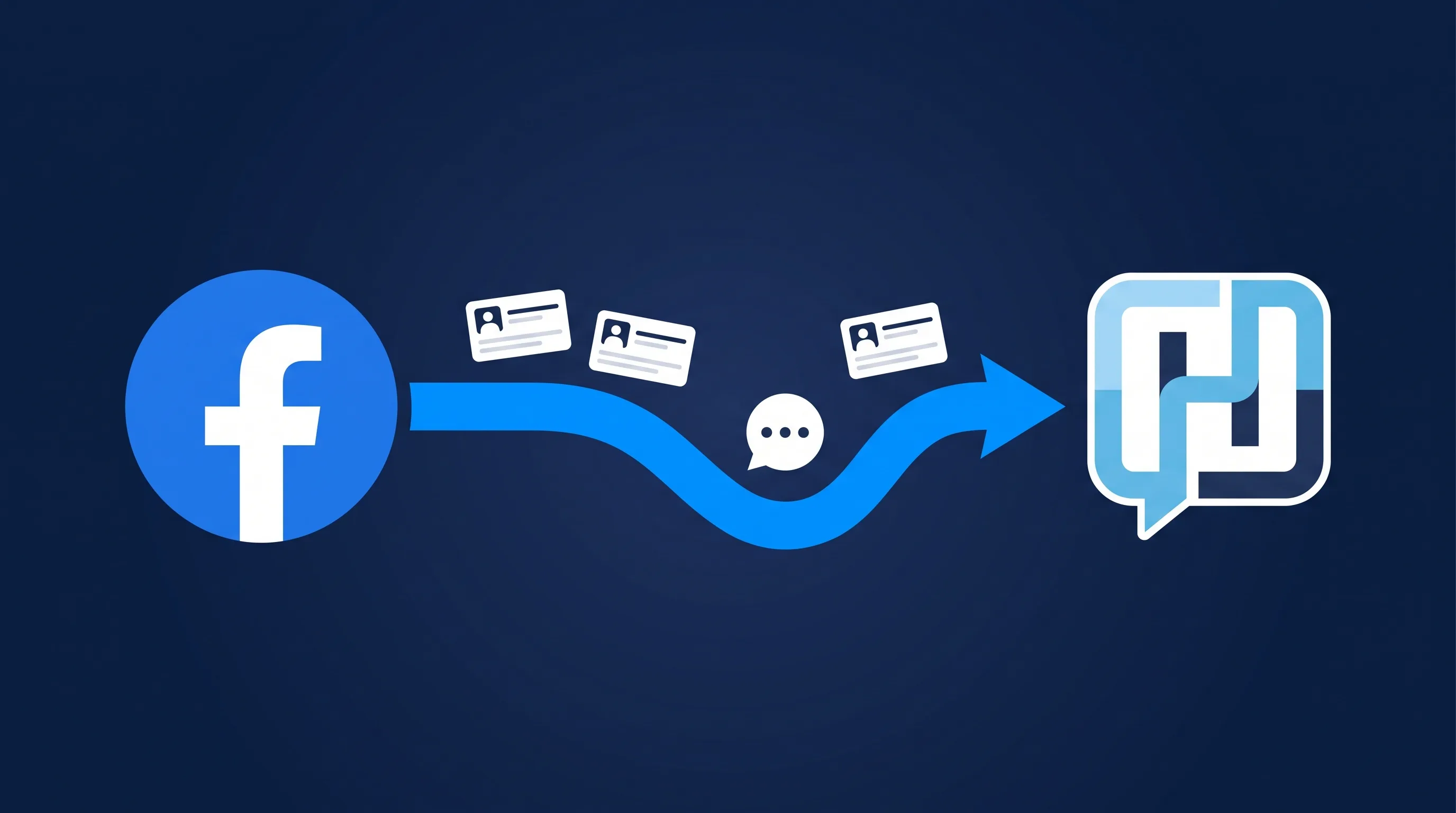
LeadSync now connects the two directly. One connection, real-time sync, and your Hatch campaigns treat Facebook leads exactly like the Angi leads they already chase within seconds.
What is Hatch?
Hatch is a contact and messaging platform for home services and home improvement companies, from single-location shops through multi-location franchises. Instead of being a CRM you check, it’s an outbound engine that acts on new leads immediately.
Features worth knowing before you connect it:
- Speed-to-lead campaigns. Automated text, email, and voicemail sequences that trigger when a contact enters Hatch from a given source.
- Source-based routing. Every contact carries a source (Angi, Yelp, or a custom source like
custom:leadsync), and campaigns watch sources to decide who to chase. - Two-way texting inbox. When a lead replies, the conversation lands with your team in one shared inbox.
- AI agents. Hatch can run AI-driven conversations for speed-to-lead, estimate follow-up, and recurring service reminders.
Why Does Speed-to-Lead Matter So Much for Facebook Leads?
Because Facebook leads are impulse leads. Someone scrolling Instagram taps your ad, autofill hands over their details in two taps, and their attention moves on. The research here is brutal: firms that contacted a web lead within an hour were about 7 times more likely to qualify it than those that reached out even an hour later, and more than 60 times more likely than those that waited a day (Harvard Business Review, 2011).
That’s the entire premise Hatch is built on, and it’s why pushing your Facebook leads through a nightly CSV export, or even a batched Zapier run, undercuts the tool you’re paying for. If you’d like the deeper numbers, our speed to lead guide walks through the response-time research.
Syncing directly gets you three things:
- Campaigns fire in seconds. The lead hits Hatch while your ad is still open on their phone.
- No lost leads. Manual CSV downloads from Meta leak leads through forgetfulness and expiry windows. An API push doesn’t.
- No Zapier tax. No per-task fees, no Zap maintenance, no silent failures between three tools.
Prerequisites
- A Hatch account. Hatch doesn’t offer a self-serve trial; if you’re not a customer yet, you’ll need to book a demo with them first.
- A Facebook lead ad campaign, or at least one published lead form.
- Admin access to the Facebook page.
- A LeadSync account. The free trial covers everything you need to set up and test.
Step 1: Create a Custom Source in Hatch
Hatch routes contacts into campaigns based on their source, so your Facebook leads need one of their own.
- In Hatch, open the App Marketplace.
- Go to the Custom Sources tab.
- Create a source and name it something obvious, like
LeadSync. - Copy the source value exactly as Hatch displays it (for example
custom:leadsync).
If you want speed-to-lead outreach to start automatically, point a Hatch campaign at this source now. Any contact arriving with it will enter that campaign.
Step 2: Create Your Hatch API Key
- Still in the App Marketplace, switch to the API Keys tab.
- Create a new key and label it
LeadSync. - Copy the key.
Step 3: Add the Hatch Connection in LeadSync
- Log in to LeadSync and go to Connections → Add Connection.
- Pick Hatch from the dropdown.
- Paste your API key into the Hatch API key field.
- Paste the source value into the Hatch source value field, exactly as Hatch showed it.
- Name the connection and click Update Connection.
Both fields matter. If the source value doesn’t match a custom source in your Hatch account, Hatch will reject every lead, and you’ll see the rejection spelled out in your LeadSync logs.
Step 4: Pair Your Facebook Lead Form and Map Fields
- Go to Lead Forms → Add Facebook Lead Form.
- Select the Page and the Form you want to sync.
- Select your new Hatch connection.
- Map your form fields:
| Facebook form field | Hatch field |
|---|---|
phone_number | Phone number (map this - Hatch is text and call first) |
email | |
first_name | First name |
last_name | Last name |
| Custom questions | Any label you choose, stored as a custom detail on the contact |
Then click Update Notifications.
A lead needs at least a phone number or an email to enter Hatch. For a texting platform, phone number is the one that matters; make sure your lead form asks for it.
Step 5: Send a Test Lead
Use Meta’s Lead Ads Testing Tool to submit a test lead through your form. Within a few seconds you should see it in Hatch as a new contact, tagged with your custom source. If a campaign is watching that source, you’ll see the first outreach queue up too.
If nothing arrives, open Account → Logs in LeadSync. Every failed push is logged with the exact reason, most commonly a mistyped API key or a source value that doesn’t match Hatch’s Custom Sources tab.
Frequently Asked Questions
Does Hatch have a native Facebook Lead Ads integration?
No. Hatch’s first-class lead sources are Angi, Yelp, Google Local Services Ads, and Thumbtack. For Facebook Lead Ads, Hatch’s documentation points you at Zapier. LeadSync replaces that Zapier step with a direct, real-time sync.
Do I still need Zapier to connect Facebook Lead Ads to Hatch?
No. LeadSync talks to Hatch’s contacts API directly. One connection handles the sync in real time, with no per-task Zapier fees and no multi-step Zap to maintain.
Will repeat form submissions create duplicate contacts in Hatch?
No. Hatch deduplicates by phone number first, then by email. A repeat submission updates the existing contact, so your conversation history and campaign state stay on one record.
What happens if a lead doesn’t include an email address?
That’s fine, as long as there’s a phone number. Hatch accepts a contact with a phone number or an email. Leads with neither are skipped and logged in your LeadSync account so nothing fails silently.
How fast do leads arrive in Hatch?
Within seconds of the form submission. Meta sends LeadSync a webhook the moment someone submits your lead form, and LeadSync pushes the contact straight to Hatch’s API.
Which ad platforms can I sync into Hatch?
LeadSync supports Hatch as a destination for Facebook and Instagram lead ads, Google Ads lead form extensions, LinkedIn Lead Gen Forms, and TikTok Lead Generation.
How do Hatch campaigns know these leads came from Facebook?
Every lead arrives tagged with the custom source you create in Hatch’s App Marketplace, for example custom:leadsync. Point any Hatch campaign at that source and it picks up your Facebook leads automatically.
Wrapping Up
Hatch’s whole pitch is that the fastest contractor wins the job. Feeding it Facebook leads through a Zapier relay, or worse, a weekly CSV, gives away the head start you’re paying Meta for. With the native LeadSync connection, a Facebook lead becomes a Hatch contact in seconds and your speed-to-lead campaign is already texting them while your competitors are still refreshing their inbox.
If you’re running lead ads for a home services business, this pairing is about as close to set-and-forget as lead follow-up gets. Start a free LeadSync trial and send your first test lead through in the next ten minutes.