
Frequently Asked Questions
Does TikTok integrate with Salesforce natively?
No. TikTok Ads Manager offers CSV downloads and a developer API, but no built-in Salesforce connector. LeadSync bridges the two with a no-code connection that takes about five minutes to set up.
Which Salesforce editions work with LeadSync?
Any edition with REST API access: Enterprise, Unlimited, and Developer. Professional and Starter Suite orgs need an API add-on from Salesforce. LeadSync shows a warning at connect time if your edition does not include API access.
Does LeadSync create Leads or Contacts in Salesforce?
Leads. Each TikTok Instant Form submission becomes a new Lead record, so your assignment rules, workflows, and lead processes fire exactly as they would for any other new lead.
Do my Salesforce assignment rules still run?
Yes. LeadSync creates each Lead with auto-assignment enabled, so your active assignment rule routes the new lead to the right owner automatically.
What happens with duplicate leads?
LeadSync respects your org’s duplicate rules as configured. Rules that allow with an alert save the lead and record the alert; rules that block duplicates block the save.
What if my TikTok form doesn’t ask for a company?
Most don’t: TikTok lead gen skews consumer. Salesforce requires a Company on every Lead, so LeadSync fills it with the lead’s name when your form doesn’t capture one. No lead fails over a missing required field.
How fast do leads reach Salesforce?
Typically under a minute from form submission, versus hours or days for manual CSV downloads from TikTok Ads Manager.
Quick Start Summary
LeadSync sends your TikTok Instant Form submissions into Salesforce as Lead records in real time. Connect your TikTok Ad Account and Salesforce to LeadSync, pick the Instant Form you want to sync, map your form fields to Salesforce Lead fields, and send a test lead. Every TikTok lead then lands in Salesforce within a minute, routed by your assignment rules. About five minutes of setup, no code.
Why send TikTok leads to Salesforce with LeadSync?
TikTok lead ads move fast: impulse-driven audiences filling out pre-populated Instant Forms mid-scroll. The follow-up needs to match that speed, and a CSV download workflow never will.
There’s no native option. TikTok Ads Manager has no built-in Salesforce integration. Your choices are manual CSV exports, a developer project against TikTok’s API, or a sync tool.
Speed. A TikTok lead who hears from you while they’re still on the couch converts; one who hears from you tomorrow doesn’t remember filling out the form. Speed-to-lead data says leads contacted within 5 minutes are 21x more likely to qualify. LeadSync creates the Salesforce Lead within a minute of submission.
Complete data and routing. Every form question maps to any standard or custom Lead field, and each Lead is created with auto-assignment enabled so your Salesforce assignment rules route it instantly.
Prerequisites
- An active LeadSync account (start with a 7-day free trial)
- A Salesforce org with REST API access: Enterprise, Unlimited, or Developer edition. Professional and Starter Suite need an API add-on from Salesforce.
- A TikTok Ads account with an active Instant Form lead campaign
Step 1: Connect your TikTok Ad Account
- In LeadSync, go to the TikTok Ads Accounts section and click Add Account.
- Log in to TikTok for Business and click Confirm on the authorization screen so LeadSync can receive your lead data.
- Your ad account appears in the table once connected.
Step 2: Connect Salesforce to LeadSync
- Go to Connections and click Add Connection.
- Choose Salesforce from the connection dropdown.
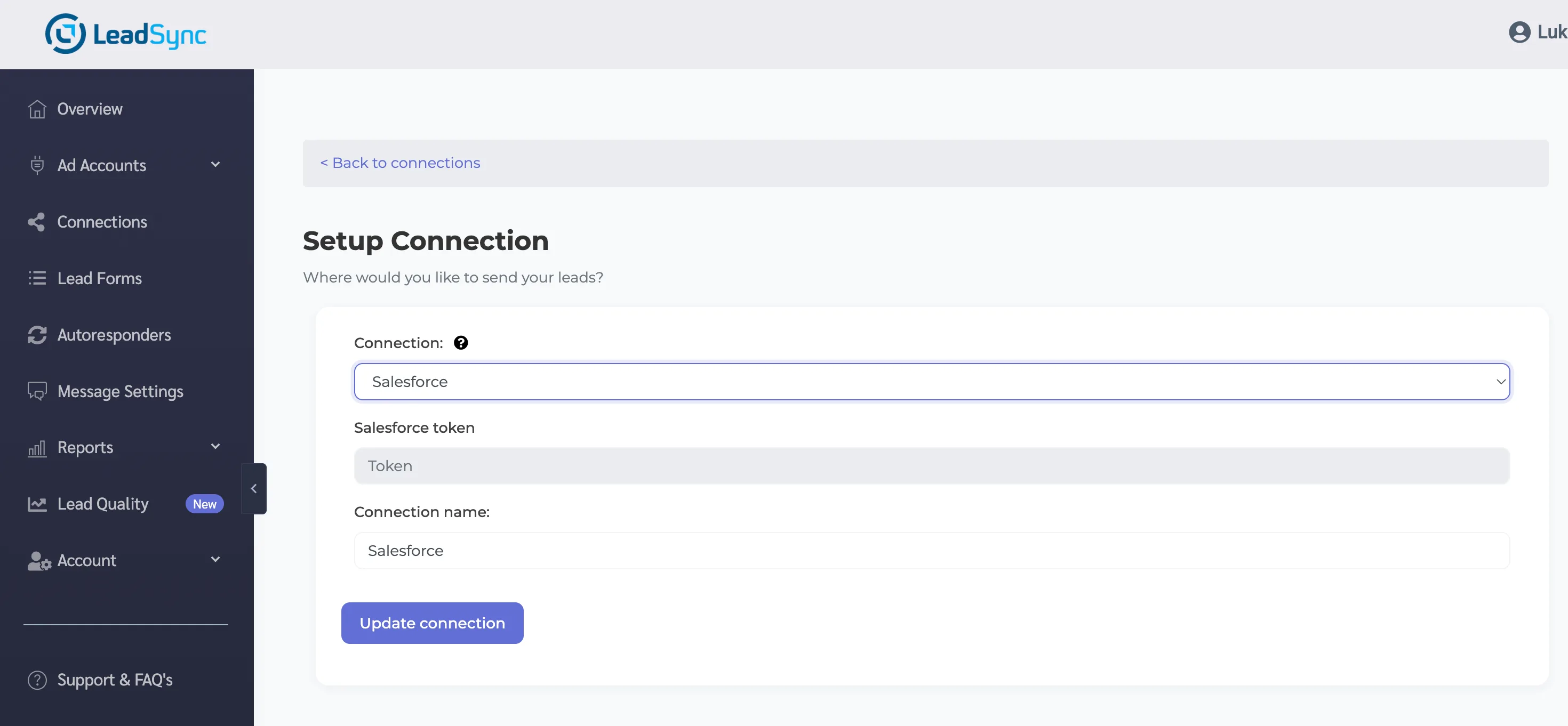
- LeadSync redirects you to Salesforce to authorise the connection. Log in to your org and review the access screen.
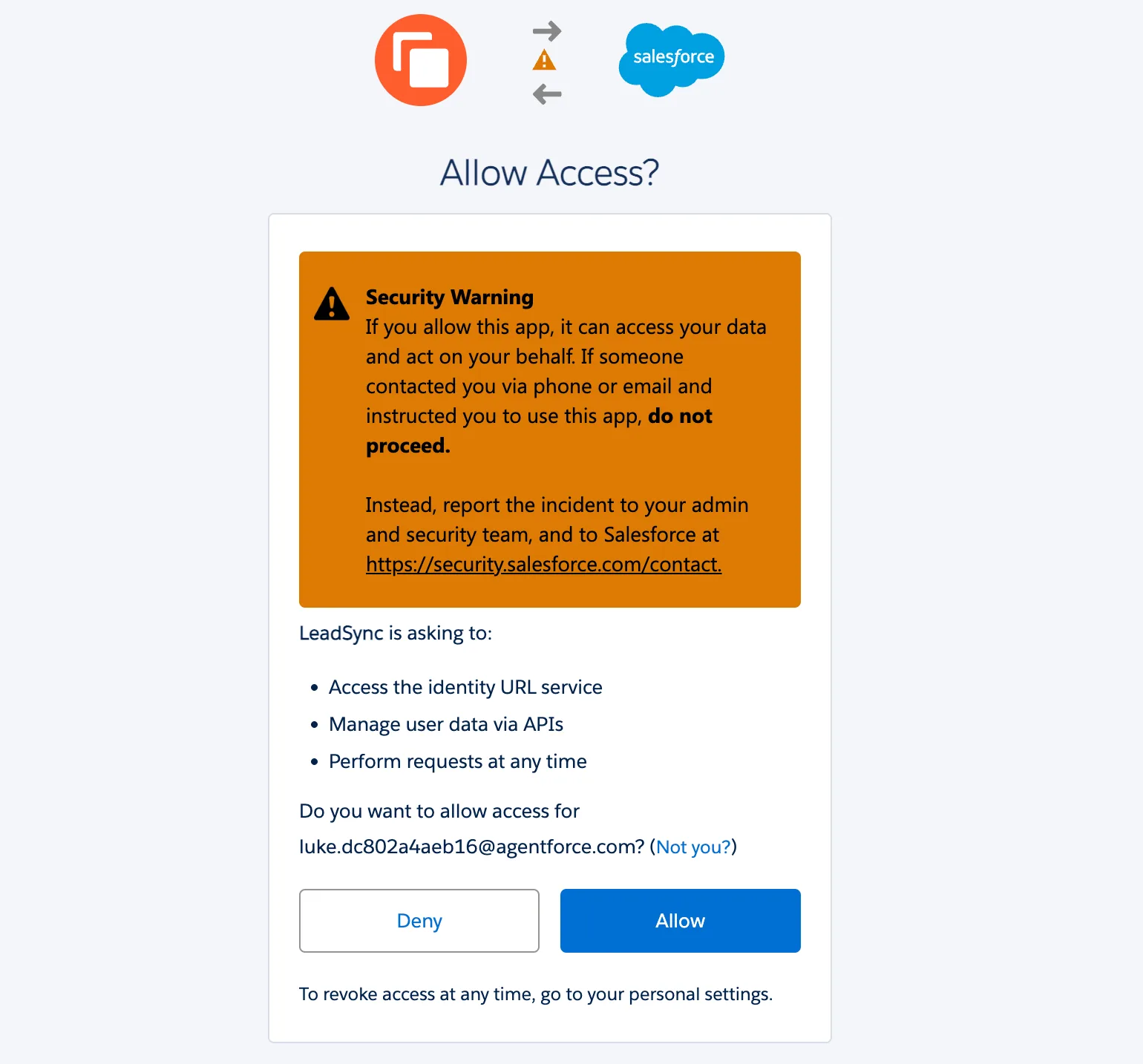
- Click Allow. Back in LeadSync, name the connection and click Update connection.
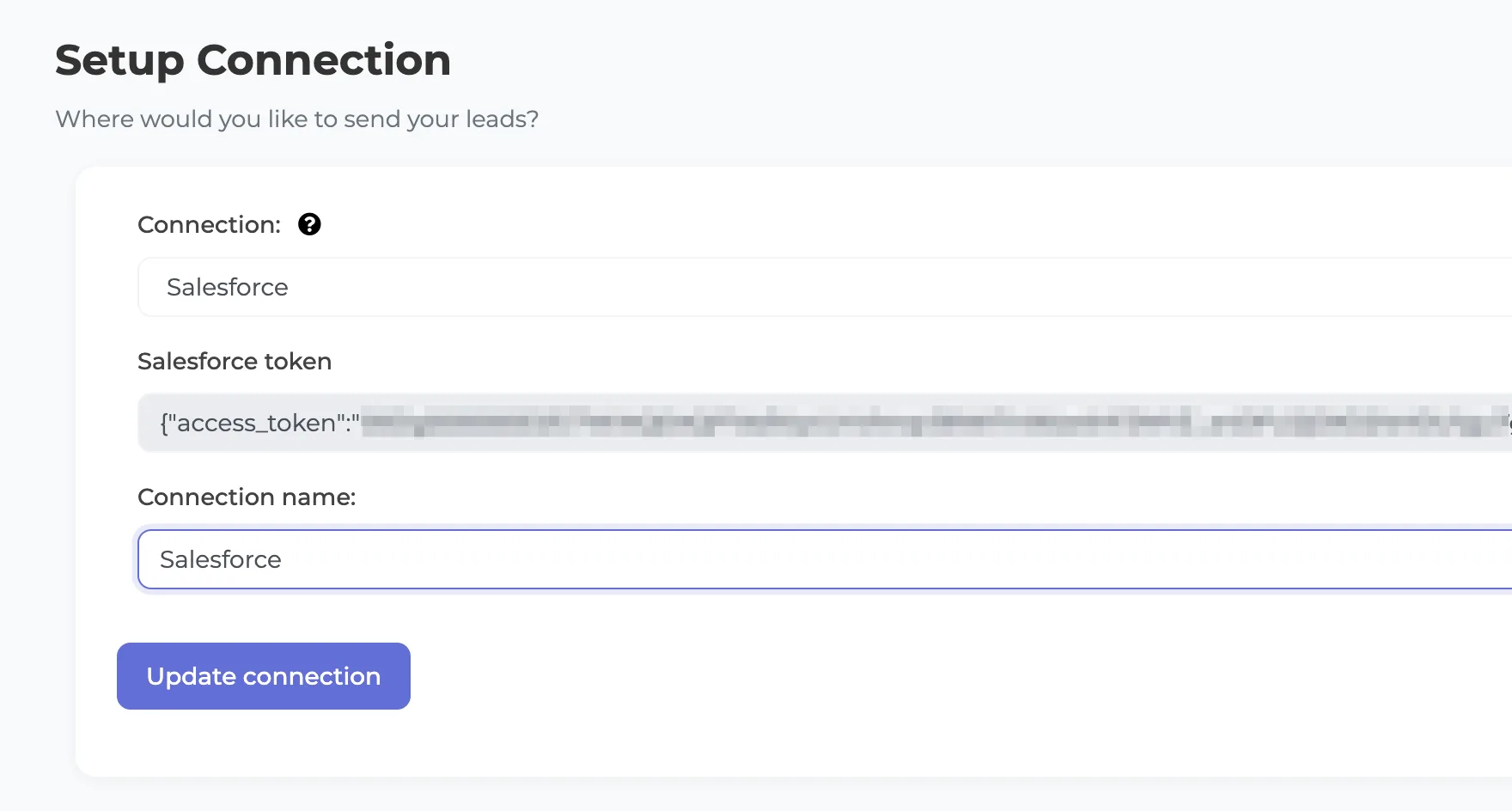
LeadSync refreshes its access token automatically from here on.
Step 3: Pair your TikTok Instant Form and map the fields
- Click Lead Forms, then Add TikTok Lead Form.
- Select your TikTok form and your Salesforce connection.
- Map each form field to a Salesforce Lead field in the mapping table. The field list is pulled live from your org, custom fields included.
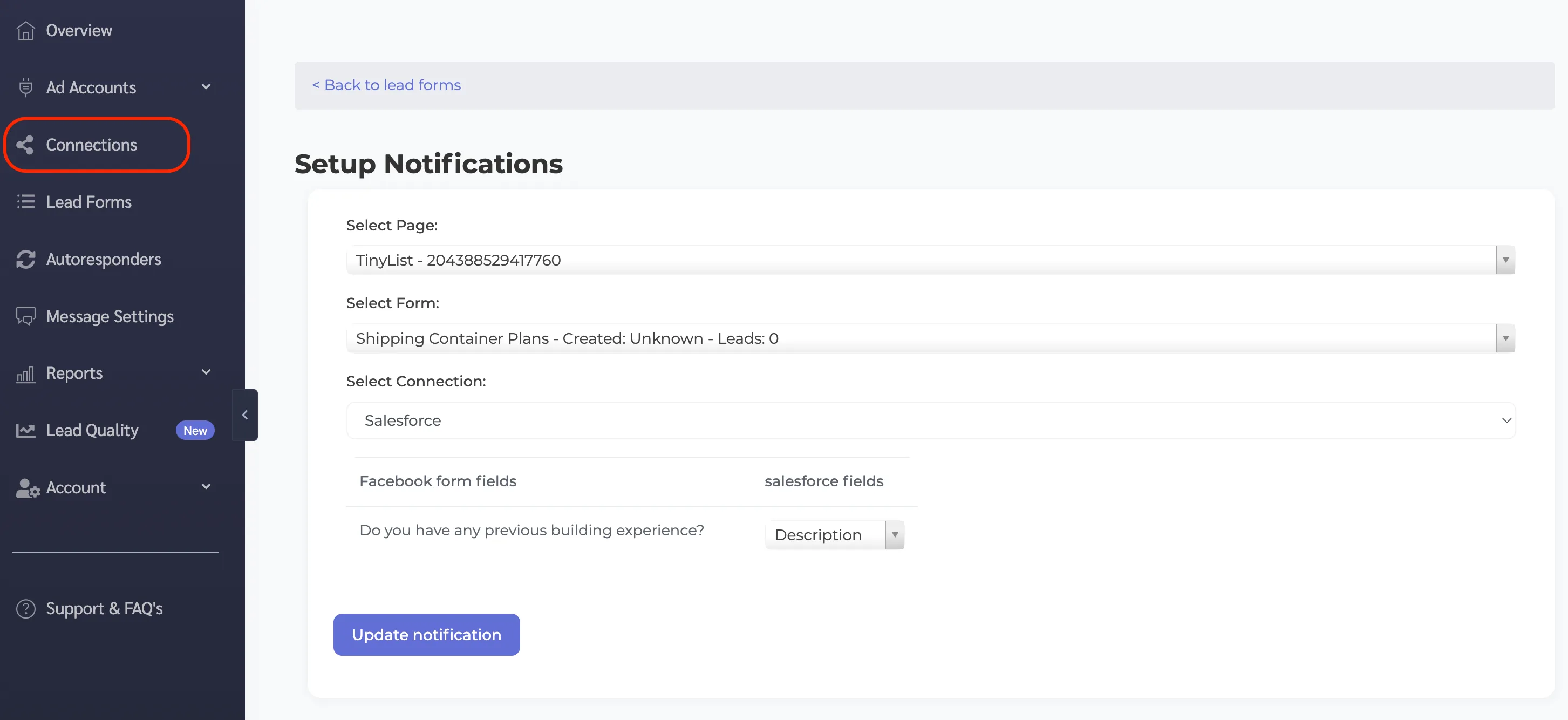
Because Salesforce requires a Company on every Lead and most TikTok forms don’t ask for one, LeadSync fills Company with the lead’s name automatically, so no lead ever fails on a missing required field.
If you need to double-check which form your ad uses, the form ID lives under Tools > Instant Page in TikTok Ads Manager.
Step 4: Send a test lead
- Save your form connection.
- In TikTok Ads Manager, go to Tools > Instant Page > Instant Form, click Preview next to your form, fill it in, and submit.
- Open Leads in Salesforce. Your test lead appears within a minute with mapped fields filled in.
If the list looks empty, switch from “Recently Viewed” to “All Open Leads”.
Assignment rules and duplicates: what happens on arrival
Assignment rules fire. Each Lead is created with auto-assignment enabled, so your active rule routes it to a rep, queue, or territory immediately. Add an email alert to the rule and your rep gets pinged while the lead is still scrolling.
Duplicate rules are respected. Repeat submissions behave exactly as your admin configured: allowed with an alert, or blocked. LeadSync never forces records past your org’s rules.
Troubleshooting
- Connection warning about API access? Your Salesforce edition may not include the REST API; Professional and Starter Suite need Salesforce’s API add-on.
- Lead not appearing? Confirm you paired the exact Instant Form used in your live ad (check the form ID under Tools > Instant Page), and check the “All Open Leads” view.
- A repeat test lead didn’t save? That’s your duplicate rule working.
- Still not receiving leads? Work through the troubleshooting guide.
Quick wins after setup
- Add an email alert to your assignment rule so reps respond while the lead is still in-app
- Map your custom qualifying questions to Lead fields so reps can prioritize before dialing
- Create a “TikTok” Lead Source report to see how TikTok pipeline compares with your other channels
Related integration guides
Running lead ads on more than one platform? LeadSync routes them all into Salesforce through the same pipe:
- How to send Facebook leads to Salesforce
- How to send LinkedIn leads to Salesforce
- How to send TikTok leads to email
- How to send TikTok leads to Google Sheets
- How to send TikTok leads to HubSpot
Ready to get TikTok leads in front of your sales team in real time? Start your free 7-day LeadSync trial.