“I’m Not Getting My Leads” – Sound Familiar?
If you run a digital marketing agency, you’ve heard this from clients. You’re generating leads, the campaigns are working, but your client insists they’re not receiving notifications.
Is it your system? Their spam filter? A typo in their email address? You end up playing detective instead of doing what you do best – running campaigns.
Today we’re announcing Email Log – a feature that gives you and your clients complete visibility into every Meta email lead notification LeadSync sends.
What You Can Show Clients
The Email Log tracks every lead notification with detailed delivery status:
- Delivered – Email was accepted by the client’s mail server
- Opened – Client (or their team) opened the notification
- Clicked – Someone clicked the lead details link
- Bounced – Email couldn’t be delivered (typo in address or full mailbox)
- Dropped – Blocked due to previous bounces or unsubscribes
Why Agencies Love This
1. End the “Where Are My Leads?” Conversations
When a client claims they’re not getting leads, pull up the Email Log. Show them the exact timestamp when each notification was delivered – and whether they opened it.
No more guessing. No more blame games. Just data.
2. Catch Client Email Issues Before They Escalate
Spot bounced emails immediately. If a client gave you a bad email address or their mailbox is full, you’ll know right away – not after they’ve missed a week of leads and blamed your campaigns.
3. Prove Your Value
“Are these leads even real?” Some clients question whether the leads you’re generating are legitimate. The Email Log shows notifications being delivered and opened, adding another layer of proof that your campaigns are working.
4. Onboard New Clients With Confidence
When setting up a new client, verify their notifications are actually being delivered before you scale up their campaigns. No more launching big ad spends only to find out notifications were going to spam.
5. Manage Multiple Team Members
Many clients have multiple people who receive lead notifications – sales teams, receptionists, business owners. See who’s actually opening and engaging with notifications, and identify if certain team members aren’t receiving them.
How to Use It
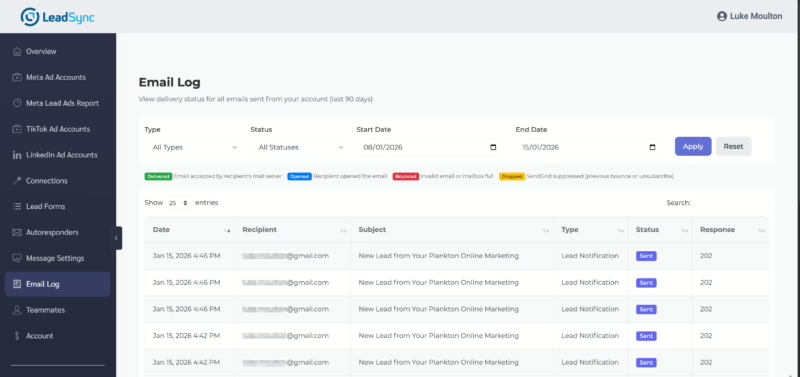
- Log into LeadSync
- Click Email Log in the sidebar
- Filter by date range, email type, or status
Share your screen with clients during calls, or take screenshots to include in your reporting.
Filter Options

- Type: Lead Notifications, Autoresponders, or All
- Status: Delivered, Opened, Clicked, Bounced, Dropped
- Date Range: Any custom period (data retained for 90 days)
Stop Playing Email Detective
The Email Log is available now for all LeadSync users. Next time a client says “I’m not getting my leads,” you’ll have the answer in seconds.