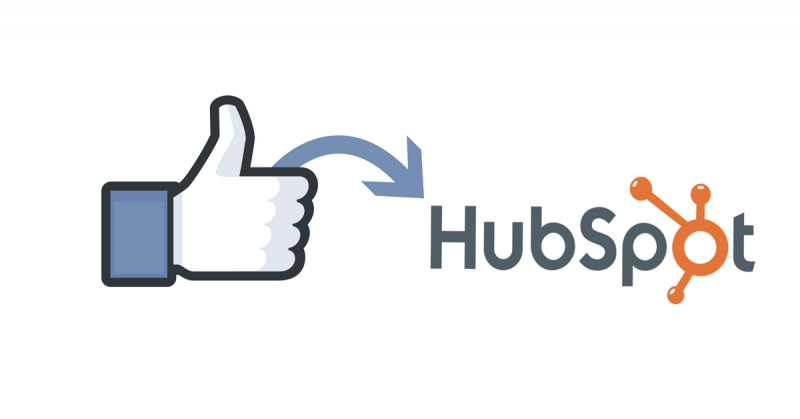
Google Ads lead form extensions are one of the most effective ways to capture high-intent leads directly within the Google search experience. When combined with HubSpot, a powerful and versatile CRM platform, you can automate your entire lead management workflow. HubSpot makes it easy to organize, track, and nurture your leads and customers all in one place. Some of the standout features include:
• Comprehensive CRM: HubSpot’s CRM allows you to organize, track, and nurture your leads and customers.
• Marketing Automation: Create automated marketing campaigns to engage your audience and drive conversions.
• Sales Tools: Equip your sales team with the tools they need to close deals faster.
• Analytics and Reporting: Get detailed insights into your marketing and sales performance.
By integrating Google Ads lead form extensions with HubSpot, you can streamline your lead management process, ensuring that no potential customer slips through the cracks.
Why Connect Google Ads Lead Forms to HubSpot?
If you’re running Google Ads campaigns with lead form extensions, connecting them to HubSpot can significantly enhance your marketing and sales processes. Here’s why:
1. Automated Lead Capture: Automatically capture leads from Google Ads lead forms and send them directly to HubSpot, reducing manual data entry and errors.
2. Immediate Follow-Up: Trigger automated workflows in HubSpot to engage new leads instantly, improving your chances of conversion.
3. Enhanced Segmentation: Use HubSpot’s powerful segmentation tools to categorize and nurture leads based on their interests and behaviors.
4. Comprehensive Analytics: Track the performance of your Google Ads campaigns and see how they contribute to your overall sales funnel within HubSpot.
How to Synchronize Google Ads Leads with HubSpot
Step 1: Connect Your Google Ads Account to LeadSync
Before you can sync leads from Google Ads to HubSpot, you’ll need to connect your Google Ads account to LeadSync. This process authorizes LeadSync to access your Google Ads lead form data.
Log in to your LeadSync account and navigate to the Ad Accounts section from the left menu. Click on Google to access your Google Ads configuration. Next, click the Add Google Account button. You’ll be prompted to sign in to your Google account and authorize LeadSync for access to your Google Ads data. Once authorized, your Google Ads account will appear in the accounts table, confirming the connection is active.
Step 2: Set Up a HubSpot Connection in LeadSync
Now that your Google Ads account is connected, you’ll need to create a HubSpot connection in LeadSync. This connection tells LeadSync where to send your Google Ads leads.
Go to the Connections section in LeadSync and click Add Connection. From the connection type dropdown, select HubSpot. You’ll be automatically prompted to log in to HubSpot and approve LeadSync for access to your HubSpot account. After granting access, you’ll return to LeadSync’s connection setup page. Give your connection a descriptive name (for example, “Google Ads to HubSpot”) in the Connection Name field and click Update Connection.
Once you’ve updated the connection, a new dropdown field will appear allowing you to select the HubSpot form where leads should be sent. Select the appropriate form from the list and click Update Connection again to confirm your selection.
Step 3: Pair Your Google Lead Form with Your HubSpot Connection
The final step is to connect your specific Google Ads lead form to your HubSpot connection. This creates the actual sync between your lead source and your CRM.
Navigate to the Lead Forms section in LeadSync and click the Add Google Lead Form button. You’ll see a form with several dropdown fields to configure. First, select your Ad Account from the dropdown—this should be the Google Ads account you connected in Step 1. Next, select your Lead Form Extension from the available forms in your account. Then, select the HubSpot Connection you created in Step 2.
The most important part of this process is the field mapping. This is where you match the fields in your Google lead form to the corresponding fields in HubSpot. For example, if your Google form collects an “Email” field, map it to the “Email” field in HubSpot. Common fields to map include email address (required), first name, last name, and phone number. Take time to ensure each field is correctly mapped, as this determines what information gets sent to HubSpot for each lead.
Once you’ve completed the field mapping, click Update Notification to save your configuration and activate the sync.
Testing Your Google Ads to HubSpot Connection
We recommend you test your new connection before relying on it for production leads. You can do this by submitting a test lead through your Google Ads campaign. Fill out your Google lead form with test information and submit it. Within 1-2 minutes, the contact should appear in your HubSpot account. Check that all the field data has been correctly transferred and matches the mapping you configured. This ensures everything is working as expected before your real customers start submitting leads.
Frequently Asked Questions
How often does LeadSync synchronize leads from Google Ads to HubSpot?
LeadSync typically sends leads from Google Ads lead form extensions to HubSpot in under 60 seconds, ensuring your sales team can follow up with prospects quickly.
Can I sync multiple Google lead form extensions to HubSpot?
Yes, you can create multiple syncs in LeadSync to connect different Google lead form extensions to HubSpot. This is useful if you’re running multiple campaigns or have different forms for different products or services.
What if I encounter an issue with the sync?
Check our common lead syncing issues FAQ which usually covers most issues. If that doesn’t solve the problem, contact LeadSync support.
Is there a limit to the number of leads I can sync?
The limit depends on your LeadSync subscription plan. Check the plan details for specific limits on the number of leads you can sync per month.
Can I use LeadSync to sync leads from other sources?
Yes, LeadSync works with Google, Facebook, LinkedIn, and TikTok lead sources. You can also sync leads to various CRMs and email marketing platforms. Visit the LeadSync home page for a full list of supported integrations.
What happens if a contact already exists in HubSpot?
HubSpot automatically deduplicates contacts by email address. If a lead submits your form and they already exist as a contact in HubSpot, HubSpot will update their existing record rather than creating a duplicate.
Go Beyond: Connect Multiple Lead Sources to HubSpot
Google Ads is powerful, but why stop there? LeadSync allows you to consolidate leads from multiple channels into HubSpot, creating a unified lead management system. Here are some additional integrations you can set up:
Email Integration: Forward leads captured through email campaigns directly to HubSpot. Every subscriber becomes a trackable contact in your CRM, making it easy to nurture them through automated workflows.
Slack Integration: Get real-time notifications in Slack whenever a new lead comes in from Google Ads or other sources. Your team stays informed instantly, enabling faster response times and better customer service.
Google Sheets Integration: Automatically log all incoming leads in a shared Google Sheet for team visibility and analysis. This creates a transparent record of lead volume and quality across all your campaigns.
SMS Integration: Send automated SMS messages to new leads immediately after they submit your form. A quick text message can set expectations and increase engagement before your sales team reaches out.
Start Syncing Google Ads Leads Today
Connecting your Google Ads lead forms to HubSpot eliminates manual data entry, accelerates your sales cycle, and ensures no lead falls through the cracks. With LeadSync, the entire setup takes just minutes.
Ready to get started? Try LeadSync free for 14 days and see how easily you can sync Google Ads leads directly to HubSpot. No credit card required.
Related Integration Guides
Looking for a different destination for your Google Ads leads? These integration guides walk you through setup step by step:
- How to Send Google Ads Leads to Pipedrive
- How to Send Google Ads Leads to Odoo
- How to Send Google Ads Leads to Zoho CRM
- How to Send Google Ads Leads to Agile CRM
- How to Send Google Ads Leads to Keap