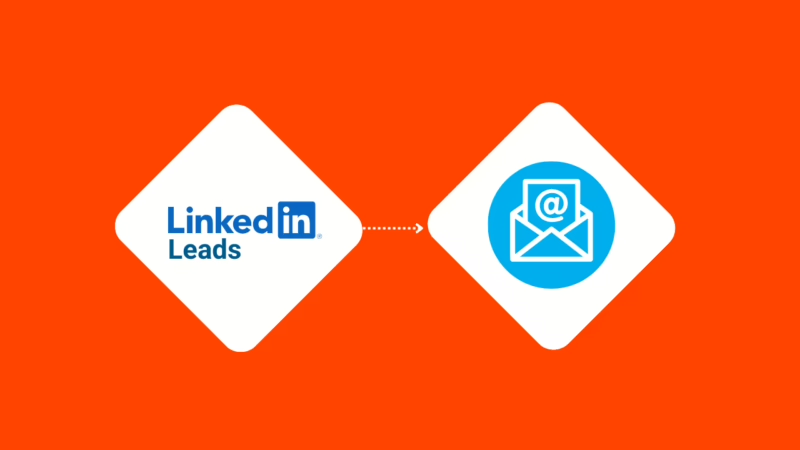
LinkedIn Lead Gen Forms are one of the most effective ways to capture B2B leads directly within the LinkedIn platform. But there’s a problem: LinkedIn doesn’t send you instant notifications when someone submits your form. This guide shows you how to get real-time email notifications for every LinkedIn lead, so you can follow up fast and close more deals.
Why You Need LinkedIn Lead Gen Form Notifications
Speed matters in LinkedIn lead generation. Research shows that responding to leads within 5 minutes makes you 21x more likely to qualify them compared to waiting 30 minutes. But without instant notifications, most businesses don’t even know they have a new lead until they manually check LinkedIn Campaign Manager.
With LeadSync, you get instant email notifications the moment someone submits your lead gen form on LinkedIn. No more missed opportunities. No more delayed follow-ups.
What You’ll Need
- A LeadSync account (Business plan or higher)
- LinkedIn account with access to Lead Gen Forms
- An active LinkedIn Lead Gen Form campaign
How to Set Up LinkedIn Lead Gen Form Email Notifications
Follow these four steps to start receiving instant email notifications for your LinkedIn lead gen forms.
Step 1: Connect Your LinkedIn Account
- Log in to your LeadSync account
- Go to Ad Accounts > LinkedIn from the left menu
- Click Add LinkedIn Account
- Sign in to LinkedIn and authorize LeadSync to access your lead data
- Your account will appear in the table once connected
LeadSync uses OAuth to securely connect to your LinkedIn account. We only request the permissions needed to access your lead gen form submissions—nothing more.
Step 2: Set Up an Email Connection
- Go to Connections from the left menu
- Click Add Connection
- Select Email from the dropdown
- Enter the email address(es) where you want to receive lead notifications
- Name your connection (e.g., “Sales Team Notifications”)
- Click Update Connection
Pro tip: You can add multiple email addresses separated by commas to notify your entire sales team simultaneously.
Step 3: Connect Your Lead Gen Form
- Go to Lead Forms from the left menu
- Click Add LinkedIn Lead Form
- Select your Ad Account from the dropdown
- Select your Lead Gen Form
- Select your Email Connection
- Click Update Notification
That’s it! LeadSync will now monitor your LinkedIn Lead Gen Form and send you an email notification every time someone submits it.
Step 4: Test Your Setup
Submit a test lead through your LinkedIn campaign. You should receive an email notification within 1-2 minutes containing all the lead’s information.
What’s Included in the Email Notification?
Each email notification includes all the data from your LinkedIn Lead Gen Form submission:
- Lead’s name and email address
- Phone number (if collected)
- Company name and job title
- All custom questions from your form
- Timestamp of when the lead was submitted
- Which campaign and form generated the lead
Beyond Email: LinkedIn CRM Integration
Email notifications are just the beginning. LeadSync also supports LinkedIn CRM integration with popular platforms including:
- HubSpot
- Salesforce
- Mailchimp
- ActiveCampaign
- Google Sheets
- And 30+ more integrations
This means you can automatically add LinkedIn leads to your CRM, trigger email sequences, and build automated follow-up workflows—all without manual data entry.
Troubleshooting Common Issues
Can’t See Your Ad Account?
Make sure your LinkedIn account has access to the ad account you’re trying to connect. You need to be an admin or have Lead Gen Form access in LinkedIn Campaign Manager.
Not Receiving Email Notifications?
Check your spam folder first. Then verify that the email address in your connection settings is correct. If issues persist, try disconnecting and reconnecting your LinkedIn account.
Lead Gen Form Not Showing?
Your Lead Gen Form must be part of an active or paused campaign to appear in LeadSync. Draft forms that haven’t been used in a campaign won’t be visible.
Frequently Asked Questions
How fast are the email notifications?
Most notifications arrive within 1-2 minutes of the lead submitting your LinkedIn Lead Gen Form. This is significantly faster than manually checking LinkedIn Campaign Manager.
Can I send notifications to multiple email addresses?
Yes! You can add multiple email addresses to a single connection by separating them with commas. You can also create multiple email connections for different teams.
Does this work with LinkedIn’s native Lead Gen Forms?
Yes, LeadSync works with all LinkedIn Lead Gen Forms created through LinkedIn Campaign Manager, including Sponsored Content and Message Ads with lead forms.
Is my LinkedIn data secure?
Absolutely. LeadSync uses OAuth for authentication (we never see your LinkedIn password) and only requests the minimum permissions needed to access lead data. Your data is encrypted in transit and at rest.
Start Getting LinkedIn Lead Notifications Today
Stop missing out on valuable B2B leads. With LeadSync, you’ll know the moment someone submits your LinkedIn Lead Gen Form, giving you the speed advantage you need to convert more leads into customers.
Questions? Check out our support documentation or contact our team.