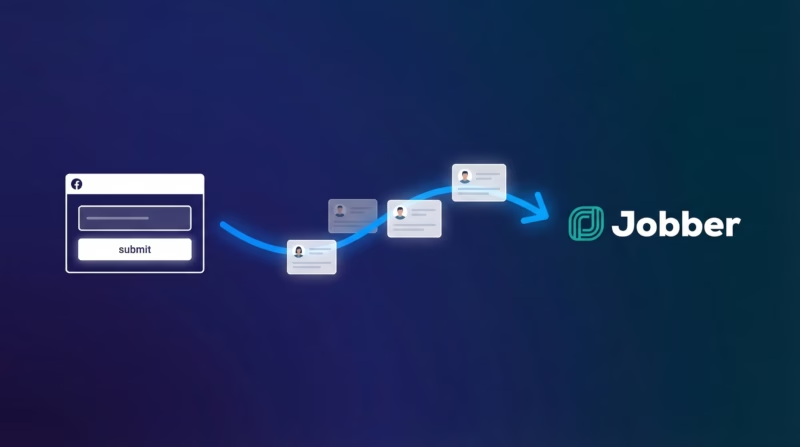
Jobber is one of the most popular field service management platforms for home services businesses — used by HVAC techs, plumbers, roofers, landscapers, and electricians to manage clients, scheduling, and invoicing. But Jobber doesn’t natively integrate with Facebook Lead Ads or Google Lead Form Extensions, which means contractors running paid lead campaigns have to manually copy leads into their CRM.
That’s where LeadSync comes in. By connecting your Facebook and Google Lead Ads to Jobber through LeadSync, every new lead automatically becomes a client in Jobber — instantly, with no manual data entry. This guide walks you through the complete setup, from connecting your accounts to mapping fields and troubleshooting common issues.
What You Need Before Getting Started
Before setting up your Jobber Lead Ads integration, make sure you have the following in place:
- A LeadSync account (free trial or paid subscription)
- A Jobber account with API access (most Jobber plans include this)
- A Facebook Business Page with Lead Ads enabled, and/or Google Ads with Lead Form Extensions
- At least one active lead form on Facebook, Instagram, or Google
If you’re running lead generation campaigns through Meta Ads Manager or Google Ads, you likely already have everything you need. The integration works with any Facebook, Instagram, or Google Lead Form that collects customer information.
Quick Start Video Guide
Which Home Services Businesses Use This Integration?
The Jobber + LeadSync integration is used by home services contractors across every trade who run Facebook or Google Lead Ads to generate new business. Common use cases include:
- HVAC companies — Running seasonal campaigns (“$79 AC tune-up” in spring, “Free furnace inspection” in fall) and need leads in Jobber instantly so dispatchers can book the call. See our full HVAC lead generation guide.
- Plumbers — Emergency plumbing leads go cold within minutes. Automatic sync means your team can call back before the homeowner contacts a competitor.
- Roofers — Storm season generates high lead volumes. Manually entering 20+ leads per day during peak season isn’t sustainable. See our roofing lead generation strategies.
- Landscapers — Spring cleanup and lawn care campaigns drive seasonal spikes that need fast follow-up. See our landscaping lead generation guide.
- Pest control, cleaning, electrical, and solar — Any trade running Facebook ads to generate leads benefits from eliminating manual data entry.
The common thread: speed to lead matters in home services. When a homeowner submits a lead form, they expect a fast response. Companies that respond within 5 minutes are 21x more likely to convert than those who wait 30 minutes. Automating lead delivery to Jobber ensures your team can follow up immediately.
Connecting Your Jobber Account to LeadSync
The first step is authorizing LeadSync to communicate with your Jobber account. This is a one-time setup that takes about two minutes.
Step-by-Step Connection Process
- Log in to LeadSync and navigate to Connections
- Click Add Connection
- Select Jobber from the dropdown menu
- Enter a name for this connection (for example, “My Jobber Account”)
- Click Save—you’ll be redirected to Jobber’s authorization page
- Log in to Jobber and click Authorize to grant LeadSync access
- You’ll be returned to LeadSync with your connection now active
What Permissions Does LeadSync Need?
LeadSync requests only the minimum permissions required to create new clients from your leads:
- Read clients — to check for existing clients
- Create clients — to add new leads as clients
LeadSync cannot access your invoices, quotes, jobs, or financial data. Your business information remains private and secure.
Connection Troubleshooting
If your Jobber connection fails during setup, check these common causes:
- Pop-up blocker active — Disable pop-up blockers for LeadSync in your browser settings
- Browser cookies — Clear your cookies and try the connection again
- Jobber login issues — Verify you can log in to Jobber directly before attempting the connection
- Multiple Jobber accounts — If you manage several Jobber accounts, ensure you’re authorizing the correct one
Creating Your First Automation (Facebook Lead Ads)
With your Jobber account connected, you can now create an automation that sends Facebook leads directly to Jobber as new clients.
Setting Up the Lead Flow
- Go to Automations (or Lists) in LeadSync
- Click Add New
- Select your Facebook Page from the dropdown
- Select your Lead Ad Form—choose the specific form you want to connect
- Select your Jobber connection from the destination dropdown
- Map your fields—match Facebook form fields to Jobber client fields
- Click Save
Your automation is now active. Every new lead submission will automatically appear as a client in Jobber within seconds.
Choosing the Right Facebook Form
When selecting a form, LeadSync displays helpful information to ensure you’re connecting the correct one:
- Form name
- Date created
- Number of leads received
- Status (Active/Inactive)
Choose the form showing recent leads to confirm you’re connecting an active campaign. If a form shows zero leads, double-check that it’s currently running in Ads Manager.
Connecting Multiple Forms
Yes, you can connect multiple Facebook forms to Jobber. Simply create a separate automation for each form you want to sync. Each automation can have its own unique field mapping, which is useful if different campaigns collect different information.
Connecting Google Lead Form Extensions to Jobber
In addition to Facebook Lead Ads, LeadSync also supports Google Lead Form Extensions. These allow homeowners searching for services on Google (e.g., “AC repair near me”) to submit their contact information directly from the search results page.
The setup is nearly identical to Facebook:
- In LeadSync, go to Automations and click Add New
- Select Google Ads as your lead source
- Connect your Google Ads account if you haven’t already
- Select the campaign and lead form you want to sync
- Choose your Jobber connection as the destination
- Map fields and click Save
Google leads tend to be higher intent (they’re actively searching for your service) but cost more per lead than Facebook. Many home services businesses run both platforms and use LeadSync to funnel all leads into Jobber regardless of source.
Field Mapping: Getting Your Data Into Jobber Correctly
Field mapping tells LeadSync which lead form fields should populate which Jobber client fields. Getting this right ensures your lead data flows accurately into your CRM.
Available Jobber Client Fields
LeadSync supports mapping to these Jobber client fields:
| Field | Description |
|---|---|
| First Name | Client’s first name |
| Last Name | Client’s last name |
| Primary email address | |
| Phone Number | Primary phone number |
| Company Name | Business or company name |
| Street Address | Billing address line 1 |
| City | Billing city |
| State/Province | Billing state or province |
| Postal/Zip Code | Billing postal code |
| Country | Billing country |
How Name Splitting Works
If your lead form collects Full Name as a single field, LeadSync automatically splits it into first and last name:
- “John Smith” → First Name: John, Last Name: Smith
- “Mary Jane Watson” → First Name: Mary Jane, Last Name: Watson
For best results, use separate First Name and Last Name fields in your lead form. This gives you cleaner data and avoids edge cases with unusual name formats.
Phone Number Formatting
LeadSync automatically formats phone numbers for Jobber regardless of how leads enter them. Whether someone types (555) 123-4567, 555-123-4567, or 5551234567, LeadSync converts it to the proper format Jobber expects. No manual cleanup required.
Testing Your Integration
Before relying on your automation for real leads, run a test to confirm everything works correctly.
How to Test Your Automation
- Submit a test lead on your Facebook form using Facebook Ads Manager’s preview feature
- Wait 1-2 minutes for the lead to process
- Check Jobber for a new client with your test information
- Review LeadSync logs under your account to see the lead activity
Sending a Test Lead Through Facebook
- Go to Facebook Ads Manager
- Find your Lead Ad campaign
- Click on the ad containing your lead form
- Click Preview on the lead form
- Fill out the form with test data and submit
Your test lead should appear in Jobber within a couple of minutes. If it doesn’t, check the troubleshooting section below.
Troubleshooting Common Issues
Leads Aren’t Appearing in Jobber
If leads aren’t syncing to Jobber, work through this checklist:
- Is the automation active? Go to Automations and verify it’s enabled (toggle should be on)
- Is the Jobber connection working? Go to Connections and check the status shows as connected
- Is the correct form selected? Confirm you connected the right lead form
- Check the logs — LeadSync logs show if leads were received and any errors that occurred
For more lead sync troubleshooting tips, see our guide on fixing Facebook leads not syncing.
Token Expired or Authentication Errors
Jobber authorization tokens can expire after extended periods. To reconnect:
- Go to Connections in LeadSync
- Find your Jobber connection and click Edit
- Click Reconnect or delete and create a new connection
- Re-authorize in Jobber when prompted
Leads Created But Fields Are Missing
If clients appear in Jobber but some information is blank, go to Automations, edit your automation, and verify each form field is mapped to the correct Jobber field. A field can only sync if your lead form actually collects that information — if your form doesn’t request a phone number, LeadSync can’t populate the phone field in Jobber.
Duplicate Clients in Jobber
LeadSync creates a new client for each lead submission. If someone submits your form multiple times, multiple clients will be created. This is by design — it ensures no leads are missed. You can merge duplicate clients directly within Jobber.
Managing Your Integration
Editing Field Mappings
Need to change how fields are mapped? Go to Automations, click on the automation you want to modify, update your field mappings, and click Save. Changes apply to future leads only — existing clients in Jobber are not updated retroactively.
Pausing an Automation
You can pause an automation without deleting it. Go to Automations, find your automation, and toggle it off. Turn it back on anytime — your settings and field mappings are preserved.
Disconnecting Jobber from LeadSync
To remove the Jobber integration, go to Connections, find your Jobber connection, and click Delete. This removes the connection from LeadSync. Your existing clients in Jobber are not affected — only future lead syncing stops.
Why Automate Lead Ads to Jobber?
For home services businesses running Facebook Lead Ads or Google Lead Forms, manual lead entry creates real problems. Leads go cold while you’re copying data. Typos lead to missed follow-ups. And the time spent on data entry is time not spent serving customers.
Automating your lead ads to Jobber integration solves these issues:
- Instant lead delivery — New leads appear in Jobber within seconds of form submission
- Zero data entry — No more copying and pasting between platforms
- Accurate information — Automated syncing eliminates typos and missed fields
- Faster response times — Contact leads while they’re still warm, within the critical 5-minute window
- Better conversion rates — Speed to lead directly impacts close rates for home services
Whether you’re running HVAC, plumbing, electrical, landscaping, roofing, or any other home services business, getting leads into Jobber faster means more booked jobs and less wasted ad spend.
Jobber Integration vs Zapier: Which Should You Use?
Some contractors use Zapier to connect Facebook leads to Jobber. While Zapier works, there are key differences:
- Speed — LeadSync delivers leads in seconds. Zapier’s free plan checks for new leads every 15 minutes, meaning leads can sit uncontacted for up to a quarter hour. Even paid Zapier plans have 2-minute delays.
- Simplicity — LeadSync is purpose-built for lead ads, so setup takes under 5 minutes with no “zap” configuration needed. Zapier requires building a workflow with triggers, actions, and field mapping.
- Price — LeadSync starts at $19/mo with unlimited lead syncing. Zapier’s pricing is task-based, which gets expensive as your lead volume grows.
- Support — LeadSync specializes in lead ad integrations, so troubleshooting is faster and more targeted.
For a detailed comparison, see our LeadSync vs Zapier comparison.
Get Started with LeadSync
Ready to connect your Facebook and Google Lead Ads to Jobber? Start your free LeadSync trial and have your first automation running in under five minutes. No credit card required, and you can sync leads immediately.
If you run into any issues not covered in this guide, contact LeadSync support with your account email, connection name, and a description of the problem. Include any error messages you’re seeing for faster troubleshooting.
Frequently Asked Questions
Does Jobber integrate with Facebook Lead Ads?
Jobber doesn’t have a native Facebook Lead Ads integration. However, you can connect them using LeadSync, which automatically syncs every new Facebook or Instagram lead to Jobber as a new client — in real time, with no manual data entry.
Can I send Google Ads leads to Jobber too?
Yes. LeadSync supports both Facebook Lead Ads and Google Lead Form Extensions. You can create separate automations for each platform, and all leads flow into Jobber as new clients regardless of source.
How fast do leads appear in Jobber?
Leads typically appear in Jobber within 30-60 seconds of form submission. This is significantly faster than Zapier (2-15 minute delays) or manual CSV downloads from Facebook.
What does the Jobber integration cost?
LeadSync plans start at $19/month with unlimited lead syncing. There are no per-lead fees or task-based pricing. You can try it free with a 14-day trial — no credit card required.
Can I connect multiple Facebook pages to one Jobber account?
Yes. This is common for home services franchises or agencies managing leads across multiple locations. Create a separate automation for each Facebook page/form combination, all pointing to the same Jobber connection.