Your Facebook lead form just collected contact information from a hot prospect, but it’s sitting in Facebook’s data silo—disconnected from your email sequences, SMS follow-ups, and lead scoring in Ontraport. Every hour that lead waits is an hour your competitor could be nurturing them. LeadSync closes that gap by syncing Facebook leads directly to Ontraport in seconds, automatically enrolling contacts in your sequences, adding tags, and capturing SMS numbers for multi-channel campaigns. No Zapier. No custom code. No delays.
Quick Start: 5-Minute Setup
- Get your Ontraport App ID and API Key from Integrations > API Key Manager
- Log in to LeadSync and connect your Ontraport account
- Select your Ontraport list and tags
- Connect your Facebook lead form and map fields
- Test with a lead—your contact appears in Ontraport within seconds
Why Sync Facebook Leads to Ontraport?
Facebook Lead Ads are one of the highest-converting lead sources available—no redirects, no friction, just a native form on the platform where your audience spends hours every day. But the conversion ends the moment the lead is captured. Without an automated bridge to your CRM, those leads go cold. They don’t enter your email sequences. They don’t get tagged for follow-up. They don’t trigger SMS reminders. They just sit in Facebook’s dashboard.
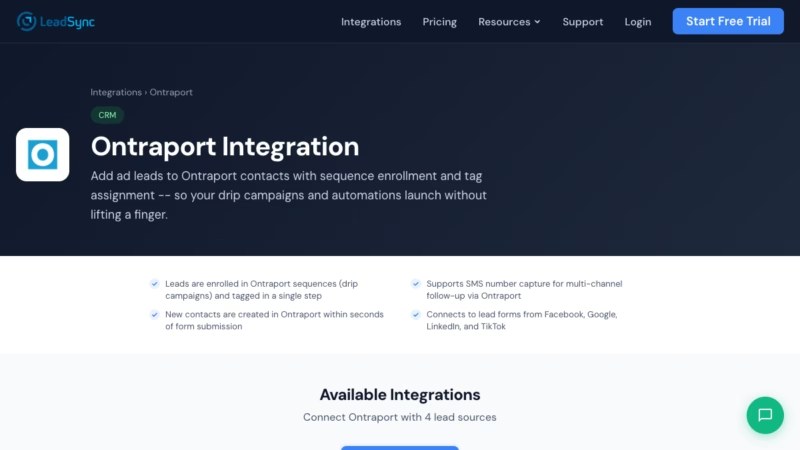
Ontraport is purpose-built for this: advanced segmentation, multi-step sequences, SMS integration, and sophisticated tagging. LeadSync connects Facebook directly to Ontraport, and here’s what happens instantly:
- Leads enrolled in sequences – Your new Facebook contact is added to your welcome email sequence, SMS drip, or re-engagement campaign the moment their form submits
- Supports SMS number capture – If your Facebook form collects phone numbers, LeadSync syncs them to Ontraport for SMS-based follow-up and multi-channel campaigns
- New contacts created within seconds – No waiting hours for batch jobs; your lead is in Ontraport and ready to be nurtured immediately
- Connects to multiple lead sources – Set up Facebook, Google, LinkedIn, and TikTok lead forms with LeadSync, and route them all to Ontraport in a unified flow
- 14-day free trial – Test the full integration with no credit card required; no need for Zapier middleman or complex automation platforms
Step-by-Step: Connect Facebook Leads to Ontraport
Step 1: Get Your Ontraport API Credentials
Ontraport requires two pieces of information to authenticate: your App ID and API Key. These are unique to your account and keep your lead data secure.
- Log in to Ontraport and navigate to Settings > Integrations > API Key Manager
- Copy your App ID (a numeric identifier for your app)
- Copy your API Key (a long alphanumeric string used to authorize API requests)
- Keep these safe—you’ll paste them into LeadSync in the next step
Step 2: Log in to LeadSync and Add a New Connection
LeadSync is where you’ll manage all your Facebook lead flows. If you haven’t signed up yet, create a free trial account at leadsync.me—no credit card required.
- Go to Integrations in the LeadSync dashboard
- Click Add New Destination
- Search for and select Ontraport from the list of destinations
Step 3: Enter Your App ID and API Key
LeadSync will ask you to authenticate with Ontraport. This is a one-time process—once connected, LeadSync can send leads securely to your account.
- Paste your App ID into the first field
- Paste your API Key into the second field
- Click Connect—LeadSync verifies your credentials and establishes the connection
Step 4: Select Your List and Tags
Every lead needs a home in Ontraport. You’ll choose which list to add contacts to and what tags to apply automatically.
- Select the Ontraport list where Facebook leads should be added (e.g., “Facebook Leads,” “Hot Prospects”)
- Choose tags to auto-apply to every incoming lead (e.g., “Facebook,” “Lead Form,” “2026 Q1”)
- Tags help you segment leads for targeted sequences and reporting
- You can add multiple tags—they’re comma-separated for easy organization
Step 5: Set Up Your Facebook Lead Form Connection
Now you’ll connect your Facebook Lead Ad. LeadSync supports multiple lead sources in a single account, so you can manage Facebook, Google, LinkedIn, and TikTok leads all in one place.
- Go to Connections in LeadSync and click Add New Source
- Select Facebook Lead Ads as your source
- Choose the Facebook page where your lead form is published
- Select the specific form that should trigger Ontraport syncs
- Choose your Ontraport destination (the one you just set up)
Step 6: Map Your Fields
Field mapping is where the magic happens. This tells LeadSync which Facebook form fields correspond to which Ontraport contact fields.
- Email – Usually the most important field; matches Facebook’s email field to Ontraport’s email field
- First Name – Maps to Ontraport’s first name field
- Last Name – Maps to Ontraport’s last name field
- Phone – If your form captures phone numbers, map to Ontraport’s phone field for SMS campaigns
- Custom fields – Any other data from your Facebook form (company, location, interest level, etc.) can be synced to Ontraport custom fields
LeadSync intelligently matches fields based on names, but you can manually adjust any mapping if needed. Once configured, every new lead from Facebook will populate Ontraport with complete, accurate data.
Step 7: Test with a Lead
Before you go live, test the integration with a real (or test) lead submission.
- Submit a test lead through your Facebook form (use your own email or a test account)
- Check your Ontraport account within 30 seconds—the contact should appear in your selected list with tags applied
- Verify that all fields are correctly mapped (name, email, phone, custom fields)
- If everything looks good, you’re live—all future leads will automatically sync to Ontraport
Customizing Your Ontraport Integration
Once Facebook leads are flowing into Ontraport, you can build sophisticated nurture campaigns. Here’s what you can do with synced leads:
Enroll in sequences. In Ontraport, create a multi-step email sequence for new Facebook leads. Tag them with “Facebook” in LeadSync, then set your Ontraport sequence to trigger automatically when that tag is applied. Your welcome email goes out within minutes of the form submission.
Segment by tags. LeadSync can apply different tags based on form answers. For example, if your Facebook form asks “What’s your biggest challenge?”—marketing, sales, operations—you could configure LeadSync to auto-tag accordingly. Then in Ontraport, create segment-specific sequences for each group.
Trigger SMS campaigns. If your form captures phone numbers, those numbers sync to Ontraport’s phone field. Build SMS sequences that fire automatically when a lead is tagged—a text message within 5 minutes of form submission is far more effective than email alone at converting warm leads.
Use Ontraport’s Campaign Builder. Combine email, SMS, and timing rules in Ontraport’s visual workflow. Add delays between messages, branch based on opens/clicks, and re-engage non-responders—all without touching code or Zapier.
Track ROI per source. Tag all Facebook leads with “Source: Facebook” and leads from other sources with their own tags. In Ontraport’s reporting, filter by tag to see which lead sources convert best, how many close, and what revenue they generate. This data helps you decide where to spend your ad budget.
Go Beyond Ontraport: Multi-Channel Lead Routing
LeadSync isn’t just for Ontraport. One Facebook lead form can power multiple downstream tools. Send leads to Ontraport for nurture sequences, while also:
- Email your team instantly – Get real-time email notifications with lead details so your sales team can reach out while the lead is hot. Read more: How to Set Up Facebook Lead Ads Email Notifications
- Post to Slack – Send every new lead to a Slack channel with a one-click call-to-action button so your team sees it immediately. Learn more: Synchronized Facebook Leads to Slack
- Log to Google Sheets – Keep a simple spreadsheet backup of all incoming leads for quick reference and analysis. Set up: Facebook Lead Ads to Google Sheets
- Send SMS reminders – Text new leads immediately with a special offer or calendar link to book a call. Guide: Facebook Lead Ads SMS Notifications
With LeadSync, you’re not locked into one tool. Route the same Facebook lead to Ontraport, your team’s email, Slack, and a spreadsheet—all at the same time, with zero code.
Frequently Asked Questions
How long does it take for a lead to appear in Ontraport after submitting my Facebook form?
Usually within 30 seconds. LeadSync checks for new leads in real-time and pushes them to Ontraport immediately. In rare cases (high volume, network delays), it may take up to 2 minutes.
What happens if a lead already exists in Ontraport?
LeadSync checks Ontraport’s database for duplicate emails before creating a new contact. If the email already exists, LeadSync updates the contact with new information (like phone number) but doesn’t re-enroll them in sequences—that prevents email fatigue and duplicate subscriptions.
Can I map Facebook form fields to Ontraport custom fields?
Yes. If your Facebook form asks custom questions and you’ve created custom fields in Ontraport to store the answers, LeadSync can map them. During setup, you’ll see all available custom fields and can match them to Facebook form fields.
What if my Facebook form collects phone numbers but Ontraport doesn’t have a phone field in my list?
You can create a phone custom field in Ontraport, and LeadSync will map to it. Or, if your Ontraport account has a standard phone field, LeadSync will use that automatically.
Can I use LeadSync if I don’t have a Zapier or advanced automation platform?
Absolutely. In fact, that’s the entire point. Zapier adds cost, complexity, and an extra middleman. LeadSync connects Facebook directly to Ontraport, eliminating the middleman and reducing monthly software costs. Set it up once and it works automatically.
Is my lead data secure when syncing through LeadSync?
Yes. LeadSync uses OAuth to authenticate with both Facebook and Ontraport, meaning LeadSync never stores your passwords. Data in transit is encrypted, and we follow industry standards for data security. Your lead information stays between Facebook, LeadSync, and Ontraport—no third parties.
Can I set up multiple Facebook forms with different Ontraport lists?
Yes. You can create multiple connections in LeadSync, each routing to a different Ontraport list or tag. For example, leads from your “Cold Outreach” form go to one list with a “Cold” tag, while leads from your “Webinar” form go to another list with a “Webinar” tag. All managed from one LeadSync account.
What if I want to stop syncing leads for a moment?
You can pause any connection in LeadSync with a single click. New leads from that Facebook form won’t sync to Ontraport until you resume. This is useful if you’re testing, updating your Ontraport sequences, or temporarily pausing campaigns.
Ready to Close More Sales with Ontraport and Facebook Leads?
Stop leaving leads to sit in Facebook’s silo. Start your 14-day free trial of LeadSync today—no credit card required—and watch your Facebook leads flow directly into Ontraport sequences. Automate your follow-up, capture SMS numbers, and let your drip campaigns do the heavy lifting.
Start your free trial of LeadSync and connect Facebook to Ontraport in minutes.