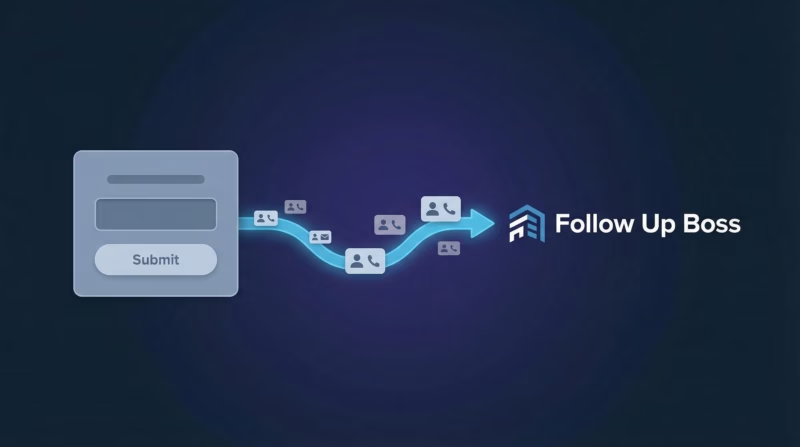
Real estate teams lose deals when leads sit in Facebook for hours. By the time you manually export and import contacts into Follow Up Boss, your competition has already called. LeadSync automates this entirely — Facebook leads land in Follow Up Boss instantly, complete with address data, phone, email, and custom tags for agent routing.
Quick Start — 5 Steps to Sync Facebook Leads
No technical setup required. This takes 10 minutes from start to finish.
- Log into LeadSync with your Business or Agency account.
- Go to Connections and add Follow Up Boss (requires your API key from FUB Admin settings).
- Select your Follow Up Boss list and add custom tags for lead routing.
- Connect your Facebook page and lead form to this Follow Up Boss connection.
- Save. Leads now flow automatically.
Why Sync Facebook Leads to Follow Up Boss?
Speed wins real estate deals. The first agent to call closes the deal. Here’s what LeadSync delivers:
- Zero manual work: Leads appear in Follow Up Boss seconds after form submission.
- Complete address data: Street, city, state, zip, and country auto-populate from your ad form. No data entry.
- Smart routing: Custom tags ensure leads go to the right agent or action plan instantly.
- Phone and email parsed: All contact details formatted to Follow Up Boss standards automatically.
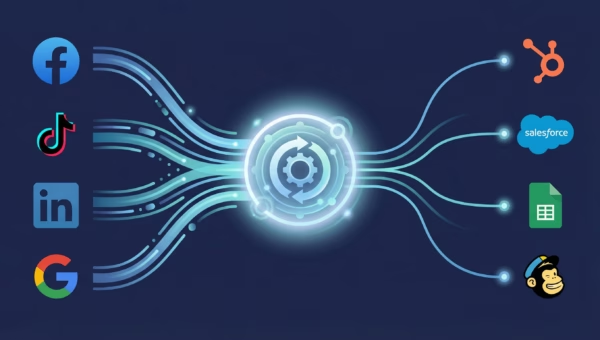
- Multi-channel support: Works with Facebook, Google, LinkedIn, and TikTok lead ads in the same account.
- No Zapier or integrations: One connection. No workflow builder. No recurring monthly fees.
- Free 14-day trial: Test with your real campaigns at zero cost.
Step-by-Step: Connect Facebook Leads to Follow Up Boss
Step 1: Get Your Follow Up Boss API Key
Follow Up Boss handles authentication via API key. This is more secure than storing your password and lets you revoke access anytime.
Log into your Follow Up Boss account as an Admin. Go to Settings > More > API. Click the box to reveal your API key and copy it — you’ll paste this into LeadSync next.
Step 2: Add Follow Up Boss Connection in LeadSync
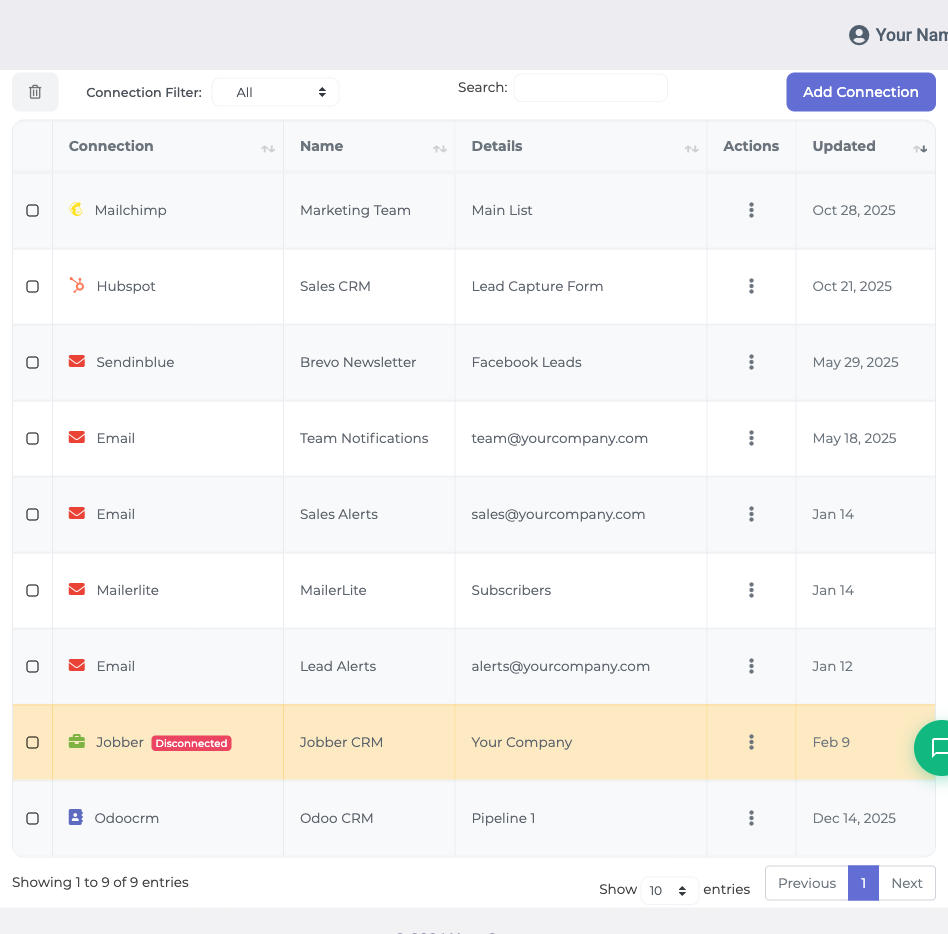
Log into LeadSync. Click Connections in the top menu, then “Add Connections.”
Find Follow Up Boss in the dropdown list. Paste your API key into the field and name this connection (example: “Follow Up Boss – Main Team”). Click “Update Connection.”
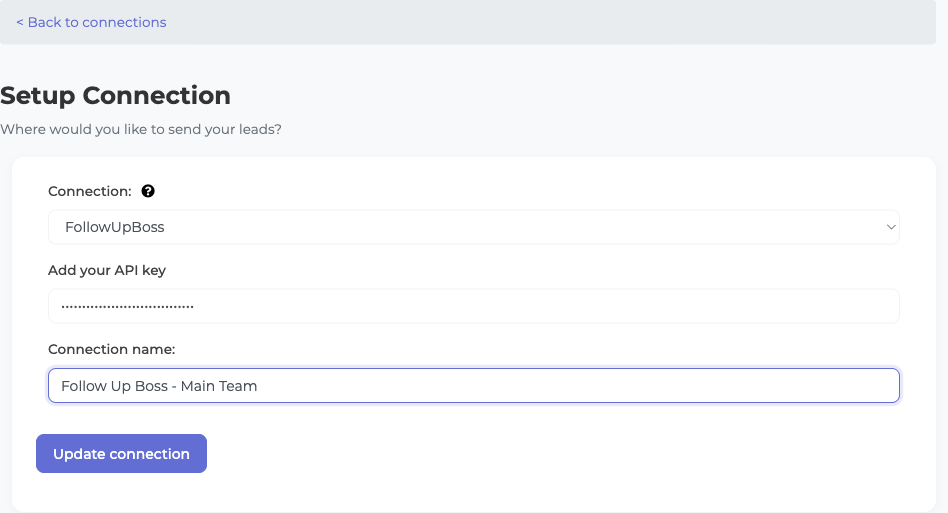
LeadSync validates the connection immediately. If you see a green checkmark, you’re connected. If you see an error, double-check that you copied the entire API key with no extra spaces.
Step 3: Select Your Follow Up Boss List and Tags
After connecting, LeadSync reads your Follow Up Boss account and shows all available lists. Select the list where new leads should land.
Next, add custom tags. These tags route each lead to the right agent or action. For example, you might tag leads as “facebook-ad-new” or “real-estate-buyers” so your Follow Up Boss automation can assign them correctly.
You can add multiple tags per lead. Click “Add Tag” to add each one. When done, click “Update Connection.”
Step 4: Connect Your Facebook Lead Form
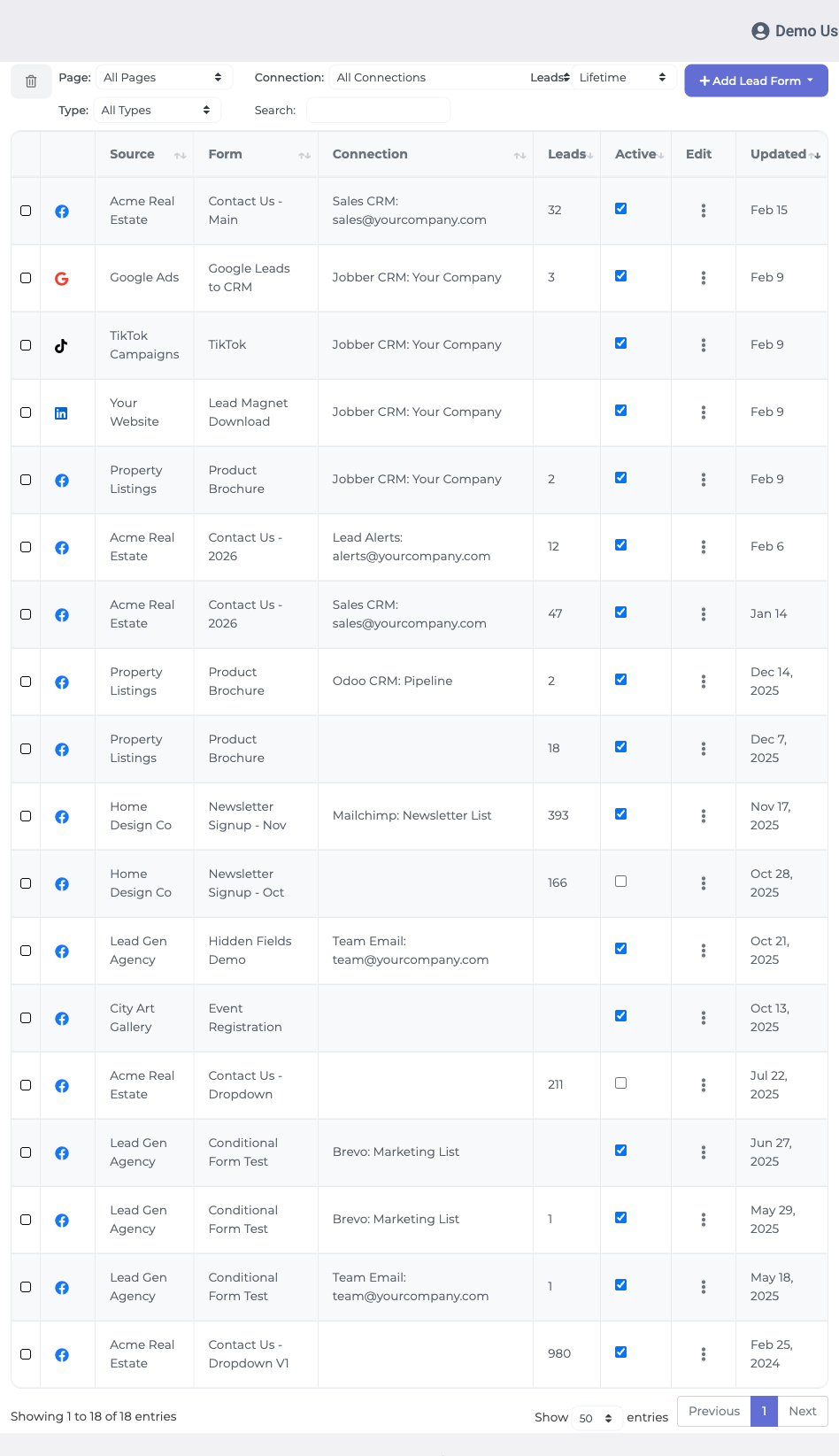
Now tell LeadSync which Facebook page and lead form to watch. Go to “Lead Forms” (or “Add Lead Form”) and select “Facebook” as the source.
You’ll need Admin access to the Facebook page where your lead form lives. LeadSync will prompt you to log into Facebook and grant permission. After that, select your lead form from the dropdown.
In the “Destination” section, select your Follow Up Boss connection from the dropdown. Click “Update Notifications.”
That’s it. From now on, every lead submitted to this Facebook form will automatically sync to Follow Up Boss with all fields and tags intact.
Step 5: Test and Monitor
Submit a test lead to your Facebook form and check Follow Up Boss within 10 seconds. You should see the contact appear in your selected list with all fields and tags applied.
If leads aren’t syncing, go to LeadSync’s Activity log (on your dashboard) to see error details. Most issues are API key typos or Facebook permission problems — both are fixable in 2 minutes.
Customizing Your Follow Up Boss Integration
LeadSync maps your Facebook form fields to Follow Up Boss automatically. Here’s how to fine-tune the mapping for your workflow.
Field Mapping and Custom Fields
When you first connect, LeadSync matches common fields: name, email, phone, and address components. If your Facebook form includes custom questions (like “Property Type?” or “Budget?”), you can map those to Follow Up Boss custom fields.
Go back to your lead form connection and click “Edit Field Mapping.” You’ll see all form fields on the left and Follow Up Boss fields on the right. Drag to match them, or use the dropdown to select manually.
Custom fields in Follow Up Boss will appear if you’ve created them in your FUB account. Make sure the custom field exists before mapping — LeadSync can’t create custom fields for you.
Using Address Data for Location-Based Routing
One of Follow Up Boss’s biggest wins is that LeadSync parses and syncs complete address information: street address, city, state, zip code, and country. This is particularly powerful for real estate teams managing multiple territories.
You can use address data to create Follow Up Boss automations. For example, route all leads from a specific city to the corresponding team agent using conditional logic or tags combined with LeadSync’s city field.
Combine address tags with Follow Up Boss’s own routing rules for even more precision.
Multiple Forms and Multiple Teams
If you run multiple lead forms (Facebook, Google, LinkedIn, TikTok), you can point all of them at the same Follow Up Boss connection — they’ll all land in the same list with consistent tag-based routing.
Or, create separate connections if you want to route different campaigns to different Follow Up Boss lists. For example, “Buyers” to one list and “Sellers” to another.
Go Beyond Follow Up Boss: Multi-Channel Lead Routing
Follow Up Boss is just one part of your lead tech stack. LeadSync also syncs your leads to email, SMS, Slack, and Google Sheets — all from the same Facebook form.
- Email notifications: Send instant email alerts when new leads arrive.
- SMS alerts: Get text messages for hot leads.
- Slack notifications: Post leads to team Slack channels in real-time.
- Google Sheets: Backup all leads to a spreadsheet for reporting.
Most teams use Follow Up Boss + Email + Slack. This gives you CRM routing, agent notifications, and a team alert in seconds.
Frequently Asked Questions
Do I need a Business or Agency account in LeadSync?
Yes. Follow Up Boss requires a paid LeadSync account (Business or Agency tier). Free accounts don’t support Follow Up Boss integration. Start your free 14-day trial of any paid plan to test.
What if I already have leads in Follow Up Boss? Will LeadSync overwrite them?
No. LeadSync only adds new leads. Existing contacts are never touched. If the same email arrives twice, Follow Up Boss’s deduplication handles it (it creates one contact or updates fields, depending on your FUB settings).
How fast do leads sync?
Most leads appear in Follow Up Boss within 10 seconds of form submission. Real estate deals are won on the first call, so this speed is critical. LeadSync is optimized for the 5-minute rule.
Can I sync leads from multiple Facebook forms to the same Follow Up Boss list?
Yes. Connect all forms to the same Follow Up Boss connection. They’ll all feed into the same list. Use tags to differentiate them (e.g., “facebook-buyers” vs. “facebook-sellers”).
What if a lead is missing address data?
LeadSync syncs whatever Facebook provides. If someone doesn’t fill out the address field on your form, it will be blank in Follow Up Boss. No errors, no failed syncs — the lead still goes through with available data.
Can I update tags in Follow Up Boss after a lead syncs?
Yes. Tags applied by LeadSync are just regular Follow Up Boss tags. You can add, remove, or change them manually anytime. LeadSync never overwrites tags — it only adds them on initial sync.
What happens if my API key expires?
LeadSync will show a connection error in your dashboard. Go back to Follow Up Boss, generate a new API key, and update it in LeadSync. Syncing resumes immediately.
Can I use this with Google Ads, LinkedIn, or TikTok leads too?
Yes. Set up the same Follow Up Boss connection, then add separate lead forms for Google Ads, LinkedIn, and TikTok. All leads route to the same Follow Up Boss list with consistent tagging.
What if something breaks? How do I troubleshoot?
Check your Activity log in LeadSync — it shows every sync attempt with error messages. Most issues are API key problems or Facebook permission misconfigurations. Our support team also responds within 1 hour if you email support@leadsync.me with your connection name.
Related Integration Guides
Looking for a different destination for your Facebook leads? These integration guides walk you through setup step by step:
- How to Send Facebook Leads to Copper
- How to Send Facebook Leads to Keap
- How to Send Facebook Leads to LionDesk
- How to Send Facebook Leads to Zoho CRM
- How to Send Facebook Leads to Agile CRM
Start Syncing Facebook Leads to Follow Up Boss Today
Stop losing real estate deals to slow lead data entry. LeadSync puts Follow Up Boss in front of your team the moment a lead arrives.
Start your free 14-day trial → No credit card. No setup fees. Cancel anytime.