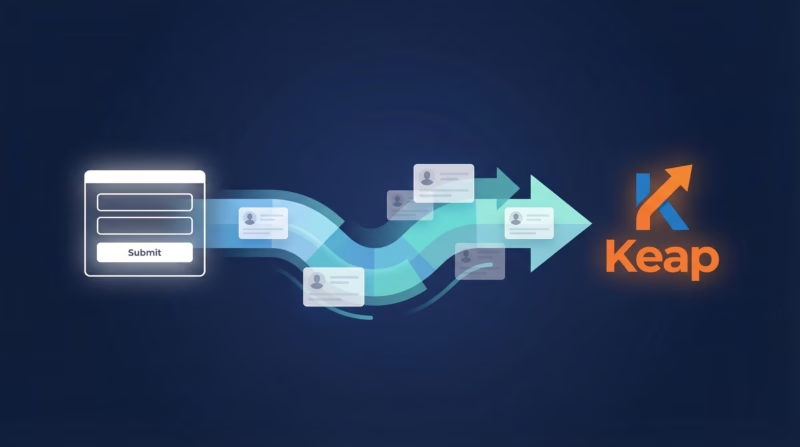
Keap (formerly Infusionsoft) is designed to automate your entire customer journey, but only if leads arrive on time. Most teams download Facebook leads manually or use sluggish integrations that create duplicate records and lose contact information. Your leads get tagged wrong, enter the wrong campaign sequence, and waste your automation investment. LeadSync sends Facebook leads to Keap in real-time, automatically tags them so they enter the correct campaign, and updates existing contacts instead of creating duplicates. No manual tagging. No wasted automation. No lost leads.
Quick Start
Get Facebook leads into Keap in 5 minutes:
- Step 1: Log in to LeadSync and click “Connect a Service”
- Step 2: Select Keap (Infusionsoft) from the connection menu
- Step 3: Approve the OAuth connection between LeadSync and Keap
- Step 4: Name your Keap connection and confirm
- Step 5: Add your Facebook Lead Form, set your tags, and start syncing
Why Sync Facebook Leads to Keap?
Keap’s power comes from automation. Tags trigger sequences, sequences nurture leads into customers, and everything happens without you lifting a finger. But that only works if leads arrive in Keap with the right tags at the right time. Manual syncing means leads arrive late and get tagged wrong. Real-time sync with automatic tagging means your automation actually works.
- Leads arrive in Keap in seconds, not hours—so they enter the right campaign immediately
- Automatically tagged by source (Facebook, Google, LinkedIn, TikTok) to trigger the correct sequences
- Existing contacts are updated instead of duplicated when the same email submits again
- Supports 70+ Keap contact fields including address, company, phone, and custom fields
- Works with lead forms from Facebook, Google, LinkedIn, and TikTok using one Keap connection
- 14-day free trial. No credit card required. No Zapier. No complexity.
Step-by-Step: Connect Facebook Leads to Keap
Step 1: Log in to LeadSync and Start a New Connection
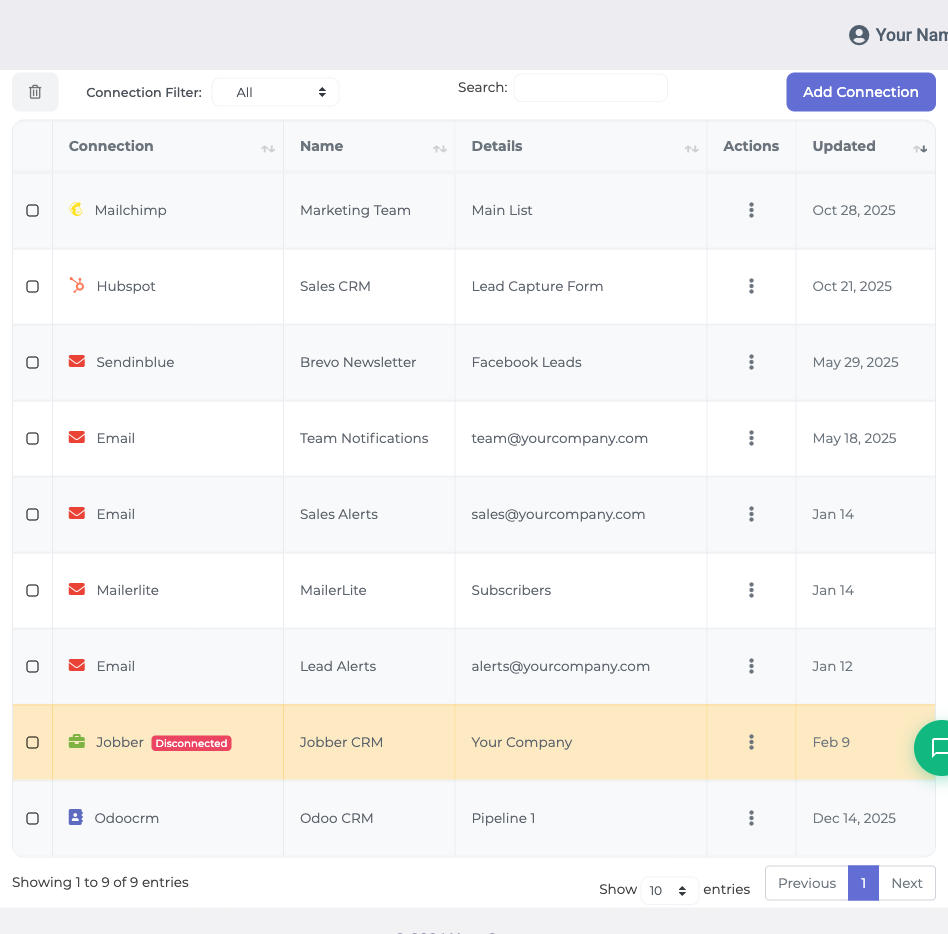
LeadSync uses OAuth to connect to Keap, which means one-time approval and automatic token management. No API keys to track down. Start by logging in to your LeadSync account.
Click “Connections” in the left sidebar, then click “Add Connection” (or “Connect a Service” if this is your first time). A dropdown menu appears. Look for “Keap” or “Infusionsoft” in the list—both names work since Keap is the newer name for Infusionsoft—and select it.
Step 2: Approve LeadSync in Your Keap Account
A new window opens asking you to log in to (or confirm access in) your Keap account. This is Keap’s OAuth approval screen. It shows that LeadSync is asking permission to create and update contacts in your Keap account. Review the permissions, then click “Accept” or “Approve” to confirm.
LeadSync will only access contact and automation features. It won’t touch your campaigns, sequences, or other settings. Your data is secure, and you can revoke access anytime from your Keap settings.
Step 3: The Token Populates Automatically
After you click “Approve,” the browser returns to LeadSync and the OAuth token fills automatically. No copying. No pasting. The connection is live.
Give this connection a name—something like “Keap Main” or “Infusionsoft Sales”—so you can identify it if you add more connections later. Then click “Update Connection” to save it.
Step 4: Add Your Facebook Lead Form
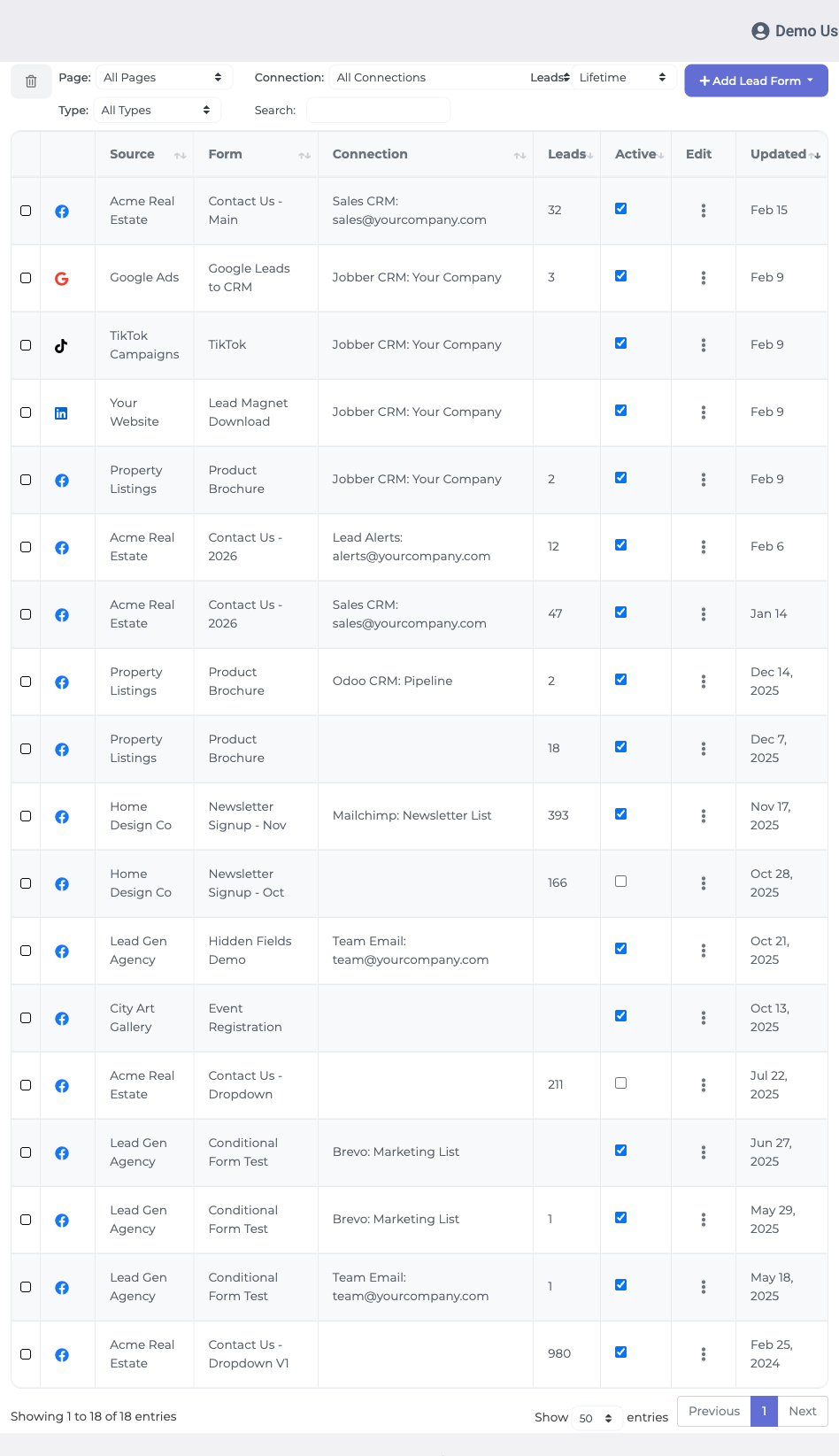
Now tell LeadSync which Facebook lead form to sync. Click “Lead Forms” in the left sidebar, then click “Add Facebook Lead Form.”
LeadSync will ask you to select your Facebook Page (you need admin rights), your specific Lead Form, and the Keap connection you just created. Choose all three from the dropdowns.
Step 5: Map Facebook Fields to Keap Contact Fields
This is where your Facebook form data becomes Keap contact data. LeadSync shows you each field from your Facebook form alongside all available Keap fields (both standard fields like address, phone, company, and any custom fields you’ve created).
For each Facebook field, select where it should go in Keap. Email maps to “Email,” phone to “Phone,” company to “Company,” and so on. Keap supports 70+ fields, so if you have custom fields for things like “Budget” or “Project Timeline,” map those too. LeadSync won’t drop your data.
Step 6: Select Your Keap Tags
Here’s where LeadSync and Keap automation become powerful. In Keap, tags trigger sequences. LeadSync lets you automatically apply tags to each incoming Facebook lead so it enters your automation right away.
Select which Keap tags you want applied to Facebook leads. For example, you might tag them “Facebook Lead” so they enter a “Facebook Lead Nurture” sequence, or tag them with a specific campaign name like “Winter Sale.” You can select multiple tags. LeadSync will apply all of them automatically to each new lead.
Step 7: Activate and Test
Review your field mappings and tags one more time. Then click “Update Notifications” to activate the connection. LeadSync will confirm your setup is live and start listening for new Facebook leads.
To test, submit a lead through your Facebook form and wait 10-15 seconds. Log in to Keap and check your contacts. Your test lead should appear with all mapped fields filled in and your selected tags applied. If it does, you’re live. If not, double-check your field mappings and tag selections.
Customizing Your Keap Integration
Keap is built for customization, and LeadSync gives you precise control over how leads are created and processed.
The key feature is automatic tagging. Because tags trigger sequences in Keap, automatically tagging incoming leads means they start automation immediately. Instead of manually moving leads into sequences, your entire lead funnel runs on autopilot. For example, you might tag Facebook leads “Facebook Lead,” Google leads “Google Lead,” and LinkedIn leads “LinkedIn Lead.” Then in Keap, each tag triggers a different nurture sequence optimized for that channel.
Another powerful customization is duplicate handling. Keap has a rich contact database. If someone submits your form twice with the same email, LeadSync won’t create a duplicate. It updates the existing contact with new information and applies your tags again (or adds new tags if you’ve changed them). This keeps your Keap database clean and prevents your sequences from spamming returning leads.
If your Facebook form has conditional fields or custom questions, map those to Keap custom fields so you capture all the nuance. Keap’s reporting and segmentation can then use this data to refine your sequences. The more detailed your field mapping, the more intelligent your automation becomes.
Go Beyond Keap: Multi-Channel Lead Routing
Keap is powerful for email automation, but your leads need more than just email. LeadSync routes each lead to multiple destinations simultaneously so your team stays informed and your data is backed up everywhere.
Send your Facebook leads to Keap and also notify your sales team in Slack immediately, save a backup to Google Sheets, send SMS notifications to your reps, or trigger follow-up emails beyond Keap’s automation. All in real-time. All from one connection. This is why companies replace Zapier—LeadSync handles lead distribution without the complexity.
Frequently Asked Questions
Does LeadSync work with Keap (Infusionsoft)?
Yes, completely. LeadSync uses Keap’s official OAuth API. It works with all Keap plans (Starter through Pro). Note: Keap is the newer name for Infusionsoft (they rebranded in 2020), but both names refer to the same platform and both work with LeadSync.
How fast do leads appear in Keap?
Leads appear in Keap within 5-30 seconds. Most arrive in 5-10 seconds. This is fast enough that your Keap sequences can start nurturing leads almost immediately after they fill out your Facebook form.
Can I sync from Google Ads, LinkedIn, and TikTok too?
Yes. The same Keap connection works with lead forms from Facebook, Google Ads (Lead Form ads), LinkedIn, and TikTok. Set up each form once in LeadSync, point it to your Keap connection, and all leads flow into the same contact database. You can apply different tags to each platform if you want different automation sequences.
Do I need Zapier?
No. LeadSync replaces Zapier for lead routing to Keap. Zapier is useful for complex workflows, but for syncing leads and applying tags, LeadSync is simpler and usually cheaper. Most teams find they save money and reduce complexity by switching to LeadSync.
Is there a lead limit?
LeadSync pricing is based on your ad platform spend, not lead volume. Whether you get 100 leads or 10,000 per month, you pay the same. This makes budgeting predictable and cost-effective.
What about duplicate leads?
LeadSync checks for duplicates by email before creating a contact in Keap. If the same email submits your form twice, LeadSync updates the existing contact with new information instead of creating a duplicate. Your Keap database stays clean, and you won’t accidentally email someone twice.
Are existing contacts updated when they submit again?
Yes. That’s a core feature of the Keap integration. If an existing contact submits your Facebook form a second time, LeadSync updates their Keap record with the new information instead of creating a duplicate. This is particularly useful for multi-step forms or repeat customers.
Does LeadSync support custom Keap fields?
Yes, completely. Keap supports 70+ contact fields including standard fields (name, email, phone, address, company) and unlimited custom fields. LeadSync lets you map any Facebook form field to any Keap field, standard or custom. If you have a custom field called “Budget” or “Project Type,” map your Facebook form fields to those and LeadSync will populate them automatically.
Is there a free trial?
Yes. LeadSync offers a free 14-day trial with full access to all features including Keap automation. No credit card required. Test it with your Facebook forms and Keap account before committing.
Related Integration Guides
Looking for a different destination for your Facebook leads? These integration guides walk you through setup step by step:
- How to Send Facebook Leads to Follow Up Boss
- How to Send Facebook Leads to Zoho CRM
- How to Send Facebook Leads to Copper
- How to Send Facebook Leads to Pipedrive
- How to Send Facebook Leads to LionDesk
Start Syncing Facebook Leads to Keap Today
Keap’s automation is only as good as your incoming leads. Stop downloading CSVs. Stop manually moving leads between sequences. Stop using Zapier for something this simple. LeadSync gets leads into Keap in seconds, applies your tags automatically, and keeps duplicates out of your database.
Try LeadSync free for 14 days. No credit card required. Real-time Facebook leads in your Keap account, automatically tagged and ready for automation. Get started now.