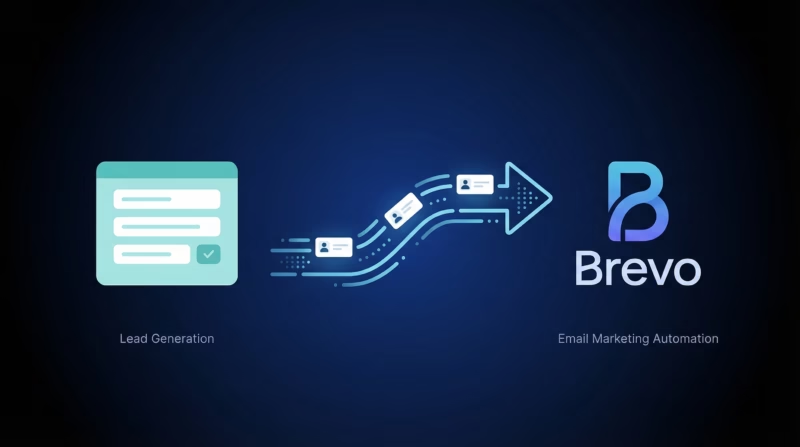
Brevo, formerly known as Sendinblue, is a powerful marketing automation platform that offers a range of features including email marketing, SMS campaigns, CRM, and more. Connecting Google Ads leads to Brevo via LeadSync enables seamless lead management, ensuring you can nurture and convert leads more effectively. With Brevo’s advanced segmentation and automation tools, you can create personalized marketing campaigns that resonate with your audience. By integrating Google Ads lead form extensions directly into Brevo, you eliminate manual data entry, reduce response times, and enhance your marketing efficiency, ultimately driving better engagement and higher conversion rates for your business.
Prerequisites for Google Ads to Brevo Integration
Before connecting your Google Ads leads to Brevo, ensure you have the following in place:
- An active LeadSync account (Business plan or higher)
- A Google Ads account with Lead Form Extensions enabled
- At least one active or paused campaign with a Lead Form Extension
- A Brevo account with at least one contact list created
- Your Brevo API Key (generated in Brevo settings)
These prerequisites ensure a smooth integration process and allow you to start capturing and organizing Google Ads leads immediately upon setup completion.
Step 1: Connect Your Google Ads Account to LeadSync
The first step is to authorize your Google Ads account within LeadSync so the system can access your lead form extensions.
This OAuth connection grants LeadSync permission to read your lead form extensions and capture leads in real-time. You can manage or revoke this access at any time from your Google Account settings.
Step 2: Generate a Brevo API Key
Next, you’ll need to generate an API key in Brevo to allow LeadSync to add leads to your contact lists securely.
Log in to your Brevo account.
Click your account name in the top right corner and select SMTP & API.
In the API Keys section, click Generate New API Key.
Give your API key a descriptive name (for example: “LeadSync Google Ads”) and click Generate.
Copy the generated API key to your clipboard. This key is sensitive and should only be shared with trusted services like LeadSync. You will not be able to view it again once you leave this page, so keep it in a safe place if needed.
Step 3: Add a Brevo Connection in LeadSync
Now you’ll create a connection between LeadSync and Brevo using the API key you just generated.
In LeadSync, navigate to Connections from the left menu.
Click Add Connection.
From the Connection dropdown, select Brevo.
Paste your Brevo API Key into the designated field.
Give your connection a clear name so you can identify it later (for example: “Google Ads – Brevo List” or “Brevo-Main-Leads”).
Click Update Connection.
Once saved, you’ll be able to select the Contact List in Brevo where your Google Ads leads should be added. Choose your preferred list from the dropdown.
Step 4: Pair Your Google Lead Form to Brevo
With your Google account and Brevo connection set up, you now need to link your specific lead form extension to your Brevo connection.
In LeadSync, go to Lead Forms from the left menu.
Click Add Lead Form.
From the Ad Account dropdown, select the Google Ads account you connected in Step 1.
From the Lead Form dropdown, select the specific Lead Form Extension you want to use (this is the form attached to your active Google Ads campaign).
From the Connection dropdown, select the Brevo connection you created in Step 3.
Click Update Notification to complete the pairing.
Field Mapping for Google Lead Forms
LeadSync automatically maps common fields from your Google Lead Form to Brevo contact attributes. At a minimum, ensure the Email field is mapped correctly, as Brevo requires a valid email address to create a contact. Other common field mappings include:
- Email (required) → Email in Brevo
- First Name → FIRSTNAME
- Last Name → LASTNAME
- Phone → SMS (if available in your list)
- Custom fields → Custom contact attributes in Brevo
If you have custom fields in your Google Lead Form, you can map them to custom attributes in Brevo. This ensures all captured data is organized correctly within Brevo for better segmentation and personalization.
Testing Your Google Ads to Brevo Connection
Before running live campaigns, it’s important to verify that your setup is working correctly.
Go back to your Lead Forms section and locate the form you just connected.
Look for the Test Form option and click it to preview your lead form.
Fill out the test form with properly formatted data. Pay special attention to fields like email and phone number, as Brevo can reject improperly formatted data.
Click Continue or Submit (depending on your form configuration) to create a test lead.
LeadSync will provide a Track Status option. Click this button to monitor the lead’s journey through the system.
After a few moments (usually within 1-2 minutes), you should see a success message indicating that your test lead was successfully added to your Brevo contact list.
Log into your Brevo account and navigate to your Contacts or Lists section. You should see your test lead appearing in your contact list.
Authorize New IP Address in Brevo
When you send your first test lead, Brevo may send you a security email with the subject line “Security Alert: Verify a new IP”. This is a standard security measure to protect your account.
Open the email and click the Yes, authorize new IP address button to whitelist LeadSync’s IP address on your Brevo account.
Once authorized, you won’t need to approve any future leads from LeadSync, and your leads will flow seamlessly into Brevo without interruption.
Frequently Asked Questions
Where will my Google Ads leads appear in Brevo?
Your Google Ads leads will appear in the Contacts section of your Brevo account, organized within the specific contact list you selected during setup. You can view, segment, and manage these contacts just like any other contacts in Brevo.
Why am I not receiving leads in Brevo from Google Ads?
If you’ve followed all the steps above and aren’t receiving leads, please check our most common issues troubleshooting guide. Common problems include incorrect email formatting, API key issues, or account permission problems. If you’re still not receiving leads, please contact our support team for assistance.
Can I segment my leads in Brevo after they are transferred from Google Ads?
Absolutely. Once your Google Ads leads are transferred to Brevo, you can segment them based on various criteria such as lead source, interests, form submission date, or engagement level. This helps in creating targeted marketing campaigns and improving conversion rates. Brevo’s segmentation engine gives you powerful tools to group leads strategically.
What types of automation can I set up with Brevo for my Google Ads leads?
You can set up various automated workflows in Brevo, such as sending a welcome email to new leads, scheduling follow-up emails, adding leads to specific campaigns based on their interests, assigning leads to your sales team, and triggering SMS notifications. Brevo’s automation tools allow you to create sophisticated nurture sequences that respond to lead behavior and engagement.
How quickly are leads transferred from Google Ads to Brevo using LeadSync?
LeadSync transfers leads from Google Ads to Brevo in real-time. Most leads appear in your Brevo account within 1-2 minutes of being captured through your Google Lead Form. This ensures your sales team can respond quickly to new leads and follow up while interest is highest.
Is there a limit to the number of leads I can transfer to Brevo using LeadSync?
The number of leads you can process depends on your LeadSync subscription plan. Ensure that your Brevo account plan can accommodate the number of leads you expect to capture and manage. Both services scale to handle high-volume lead generation, so growing your campaigns is straightforward.
Can I customize the lead form fields that are transferred to Brevo?
Yes. You can customize the mapping of lead form fields from your Google Lead Form to Brevo contact attributes within LeadSync settings. This ensures that all relevant information is accurately captured and transferred. Whether you’re collecting phone numbers, company names, or custom fields, you have full control over how data is organized in Brevo.
Can I use Google Ads lead forms with other marketing platforms besides Brevo?
Yes. LeadSync supports Google Ads lead form integrations with dozens of marketing platforms, CRMs, and email service providers. Whether you prefer Brevo, Mailchimp, ActiveCampaign, GetResponse, or another platform, you can set up multiple connections and route your Google Ads leads to the systems that work best for your business.
Go Beyond Single-Channel Lead Capture
While Google Ads is a powerful lead generation channel, many businesses find that combining multiple sources drives faster growth and better data insights. LeadSync works with Google, Facebook, LinkedIn, and TikTok, allowing you to unify all your leads in one place.
Consider connecting additional channels to your Brevo account:
- Facebook Lead Ads to Brevo – Capture leads directly from Facebook and Instagram
- Slack notifications for new leads – Get instant alerts when leads arrive
- Google Sheets lead tracking – Maintain a spreadsheet backup of all leads
- SMS lead notifications – Text your team when new leads come in
By integrating Google Ads with Brevo and connecting to email, Slack, Sheets, and SMS, you create a comprehensive lead management system that keeps your entire team aligned and responsive.
Get Started with Google Ads to Brevo Today
Converting Google Ads leads into paying customers starts with having the right systems in place. LeadSync automates the entire process, from lead capture to Brevo contact creation, so your sales team can focus on what they do best: closing deals.
Ready to sync your Google Ads leads to Brevo? Start your 14-day free trial today—no credit card required. In just a few minutes, you’ll have a fully automated lead generation workflow that saves time and improves your conversion rates.
Related Integration Guides
Looking for a different destination for your Google Ads leads? These integration guides walk you through setup step by step:
- How to Send Google Ads Leads to GetResponse
- How to Send Google Ads Leads to ActiveCampaign
- How to Send Google Ads Leads to Constant Contact
- How to Send Google Ads Leads to Mailchimp
- How to Send Google Ads Leads to AWeber