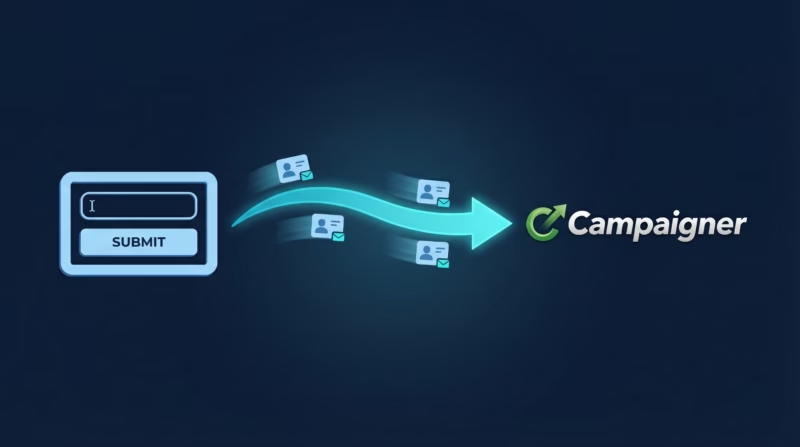
Google Ads lead form extensions capture qualified prospects instantly, but those leads are worthless sitting in your Google Ads account. Without automation, you’re manually exporting data, copy-pasting contact information, and losing valuable time that could be spent on nurturing. LeadSync solves this by automatically sending every Google lead directly to Campaigner, so you can segment audiences, build email sequences, and trigger automations without lifting a finger.
Quick Start: Google Leads to Campaigner in 5 Steps
- Get your Campaigner API key from account settings
- Connect LeadSync to your Google Ads account via OAuth
- Select your lead form extension and Campaigner contact list
- Map your fields (email required, first name, last name, custom fields)
- Test with a lead to confirm data flows into Campaigner correctly
Once connected, every new lead flows into Campaigner automatically within 1-2 minutes. No setup fees, no per-lead charges, just flat-rate pricing and a free 14-day trial to test it out.
Why Sync Google Ads Leads to Campaigner?
- Maps lead data to any Campaigner database column, including custom fields, so your database structure stays flexible
- Name fields are sanitized automatically to meet Campaigner formatting requirements, eliminating rejected contacts
- Each lead appears in your Campaigner list within 1-2 minutes of form submission, so you can launch automations quickly
- Supports lead forms from multiple platforms—Google, Facebook, LinkedIn, and TikTok—through a single integration
- No per-lead fees, flat-rate pricing, no Zapier needed—save on third-party tool costs while keeping workflows simple
- 14-day free trial, no credit card required—test the integration with real leads before committing
Step-by-Step: Connect Google Ads Leads to Campaigner
Step 1: Get Your Campaigner API Key
Log in to your Campaigner account and navigate to your account settings or integrations section. Look for API settings or developer credentials. Copy your API key—you’ll need this to authenticate LeadSync. Keep this key secure; treat it like a password.
Step 2: Log in to LeadSync and Connect Your Google Account
Sign in to your LeadSync account. Navigate to Ad Accounts in the left menu, then click Google. Click “Add Google Account” and sign in with your Google account. LeadSync will ask for permission to access your Google Ads data. Approve the permissions, and your Google Ads account will appear in the list when the connection is complete.
Step 3: Set Up Your Campaigner Connection
Now you’ll connect Campaigner as your destination. Go to Connections in the left menu and click “Add Connection”. Select Campaigner from the dropdown and paste your API key into the authentication field. LeadSync will test the connection immediately. Once authenticated, select the contact list where you want Google leads to be added. You can create separate lists for different campaigns or consolidate all leads into one master list—the choice is yours.
Step 4: Connect Your Google Lead Form Extension
Go to Lead Forms in the left menu and click “Add Google Lead Form”. LeadSync will display your connected Google Ads accounts. Select the account that contains your lead form extension, then select the specific form you want to sync. If you’re running multiple campaigns with different forms, you can create separate connections for each one. Finally, select the Campaigner connection you just created. LeadSync will now know to route all leads from this form to your Campaigner list.
Step 5: Map Your Fields
This is where you tell LeadSync which Google form fields map to which Campaigner database columns. Email address is required—map this field first. Then map first name, last name, phone, company, or any custom fields in your form. LeadSync shows you all available fields from both platforms, so you can match them accurately. The interface is intuitive, making it simple even if you’ve never done field mapping before.
Step 6: Test with a Lead
Before fully activating, submit a test lead through your Google lead form extension. Wait 1-2 minutes, then check your Campaigner list to confirm the contact appears with all mapped fields populated correctly. If you see the contact with the right data, you’re ready to go live. If something’s missing or misaligned, adjust your field mappings and test again.
Customizing Your Campaigner Integration
Once your integration is live, LeadSync offers several advanced features to maximize the value of your synced leads. If your Campaigner database includes custom fields—like “Lead Source,” “Industry,” “Budget,” or “Buying Timeline”—you can map those fields just like standard ones. This ensures every lead is fully contextualized from the moment it enters your system.
You can also set up automation triggers within Campaigner itself. Use the synced data to segment audiences, send immediate welcome emails, or assign leads to sales sequences based on the information they provide in your Google form. LeadSync ensures the data arrives fast enough for timely automations, so there’s no delay between form submission and action.
If you run multiple Google campaigns with different lead forms, create separate connections in LeadSync for each one. You can route each form to a different Campaigner list, or send all forms to the same list and use Campaigner’s segmentation to organize leads by campaign later. The flexibility is entirely up to you.
Go Beyond Campaigner: Multi-Channel Lead Routing
Campaigner is your email hub, but your leads need to reach multiple channels. LeadSync integrates with dozens of platforms, so the same Google leads can flow to multiple destinations automatically. Set up multi-channel workflows without Zapier or manual exports.
- Email: Beyond Campaigner, receive instant email notifications with lead details—perfect for sales teams who need immediate alerts. Learn more in our guide on setting up Google lead ads email notifications.
- Slack: Get leads dropped into your Slack channel in real-time so your team stays synchronized. Check out our guide on syncing Google leads to Slack for team workflows.
- Google Sheets: Create a live database of all your leads in a spreadsheet for reporting, analysis, and quick access. See our tutorial on Google lead ads to Google Sheets.
- SMS: Send leads directly to your SMS platform for text-based follow-ups and time-sensitive offers. Learn how in our guide on Google lead ads to SMS notifications.
Each integration is just a few clicks—add as many destinations as you need, and LeadSync handles the routing automatically. Your tech stack becomes a coordinated machine instead of a collection of disconnected tools.
Related Integration Guides
Looking for a different destination for your Google Ads leads? These integration guides walk you through setup step by step:
- How to Send Google Ads Leads to Mailvio
- How to Send Google Ads Leads to Iterable
- How to Send Google Ads Leads to AutopilotHQ
- How to Send Google Ads Leads to Vertical Response
- How to Send Google Ads Leads to Mailchimp
Frequently Asked Questions
How fast do leads sync from Google Ads to Campaigner?
LeadSync syncs leads within 1-2 minutes of form submission. This speed allows Campaigner automations to trigger quickly without noticeable delays. If you’re waiting longer, check your Google Ads account permissions and Campaigner API key to ensure they’re configured correctly.
Will I get duplicate leads in Campaigner?
LeadSync doesn’t deduplicate by default, so if someone submits your form twice, they’ll appear as two contacts in Campaigner. However, Campaigner itself has built-in deduplication based on email address. You can also use Campaigner’s merge features to combine duplicate records manually, or configure rules within Campaigner to flag duplicates for review.
Can I map custom fields from my Google form to Campaigner?
Absolutely. If your Google lead form includes custom fields, LeadSync will detect them during field mapping. Simply match them to the corresponding custom columns in your Campaigner database. This ensures no data is lost and every piece of context follows your lead through the pipeline.
What does “name sanitization” mean, and why is it important?
Campaigner has strict formatting requirements for name fields to ensure consistency in your database. Some lead forms accept special characters or unexpected spacing that Campaigner rejects. LeadSync automatically cleans up these names—removing extra spaces, special characters, or formatting issues—so every name lands cleanly in Campaigner without errors or rejections.
What does LeadSync cost compared to Zapier?
LeadSync charges one flat rate per month, regardless of the number of leads you sync. Zapier, by comparison, charges based on tasks (each lead can be 2-3 tasks), which adds up quickly at scale. For example, 1,000 leads per month could cost $200+ on Zapier, while LeadSync covers unlimited leads on a single plan. Plus, LeadSync’s integration is pre-built for Campaigner, so setup is faster and more reliable.
Can I send the same leads to multiple Campaigner lists?
Yes. Create multiple connections in LeadSync, each pointing to a different Campaigner list. You might want to segment by campaign, geography, product interest, or any other criteria. Each connection syncs all leads automatically, so you can organize your Campaigner database however you prefer.
Is there a difference between LeadSync and Zapier for this integration?
Yes. LeadSync is purpose-built for lead synchronization, so it offers faster setup, lower costs, and features like automatic name sanitization that Zapier requires manual configuration for. Zapier is more flexible for cross-platform workflows, but if you’re purely syncing leads to email platforms like Campaigner, LeadSync is simpler, faster, and cheaper.
Can I try this for free before committing?
Yes. LeadSync offers a 14-day free trial with full access to all features, including the Campaigner integration. No credit card required. Test it with real leads, sync to your Campaigner list, and see how automations perform. If you decide it’s not right for you, cancel anytime—no questions asked.
Stop wasting time on manual lead entry and disconnected tools. Get your Google leads into Campaigner automatically, then build email campaigns that convert. Start your free trial today and see the difference real-time lead sync makes for your business. Choose your plan and get started.