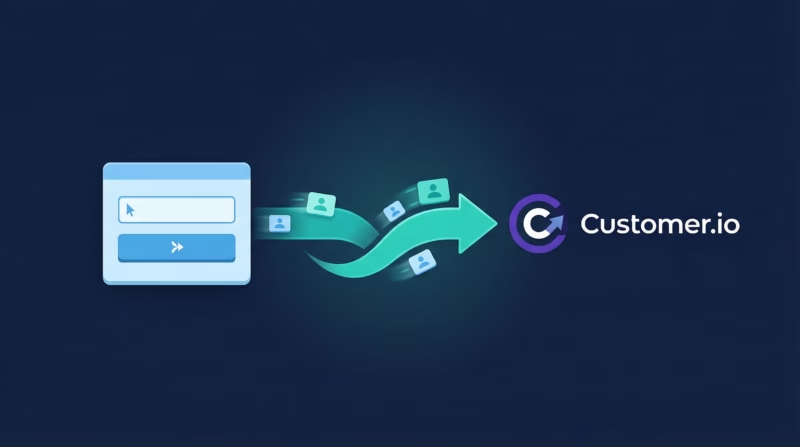
Your Google Ads lead form extensions are capturing qualified prospects every day, but they’re trapped in isolation. Without connecting them to your email platform, you’re missing critical opportunities to nurture, segment, and convert those leads into customers. Customer.io is built for behavior-triggered messaging—sending the right message at the right time based on customer actions and attributes. When you sync Google lead form leads directly into Customer.io through LeadSync, every new prospect becomes an identified customer ready for automated campaigns, behavioral segmentation, and personalized engagement.
Quick Start: Google Ads Leads to Customer.io in 5 Steps
- Get your Customer.io Site ID and API Key from Integrations settings
- Connect your Google Ads account to LeadSync
- Add a Customer.io destination and paste your credentials
- Map your Google lead form fields to Customer.io attributes
- Test with a lead and watch it sync in seconds
Why Sync Google Ads Leads to Customer.io?
Customer.io is one of the most powerful behavior-based email platforms on the market. When paired with Google Ads lead form extensions and LeadSync, you unlock capabilities that generic email platforms can’t match:
- Every lead becomes an identified customer with rich attributes. Your Google lead form data—email, phone, company, budget, timeline—flows directly into Customer.io as searchable, segmentable attributes. No more CSV uploads or manual CRM entries.
- Custom attributes enable advanced segmentation and targeting. Map custom fields from your Google form (like “Product Interest” or “Budget Range”) to Customer.io attributes, then build segments that trigger automated workflows based on those values.
- Leads sync in seconds, not hours. Your new Google leads appear in Customer.io instantly, ready to enter triggered campaigns, welcome series, or nurture funnels within moments of form submission.
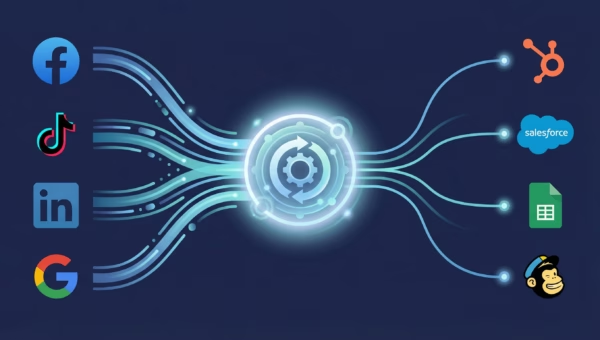
- Integrations span Google, Facebook, LinkedIn, and TikTok. LeadSync connects all your lead ad platforms to Customer.io, creating a unified lead capture and messaging hub.
- Start free, no credit card required. LeadSync offers a 14-day free trial with no payment method upfront. Test the entire integration before committing.
Step-by-Step: Connect Google Ads Leads to Customer.io
Step 1: Get Your Customer.io API Credentials
Log into your Customer.io account and navigate to Settings > API Credentials. You’ll see two values:
- Site ID: A numeric identifier unique to your Customer.io workspace
- API Key: Your secret authentication token (treat this like a password—never share it publicly)
Copy both values and keep them handy. You’ll paste them into LeadSync in the next few steps.
Step 2: Log in to LeadSync and Connect Your Google Account
Go to leadsync.me/account/signin and log in with your LeadSync account. If you don’t have one yet, start your free 14-day trial here.
From your LeadSync dashboard, navigate to Ad Accounts > Google from the left menu. Click Add Google Account and authorize LeadSync to access your Google Ads account. This grants LeadSync permission to read your lead form extensions and pull lead submissions. Once authorized, your Google account will appear in the accounts list.
Step 3: Add a Customer.io Destination
Next, you need to configure where your Google leads will go. From your LeadSync dashboard, click Connections in the left menu, then click Add Connection. Select Customer.io from the list of available integrations.
LeadSync will prompt you for:
- Site ID: Paste the numeric ID from Customer.io
- API Key: Paste your secret API key
- Connection Name (optional): Give this connection a friendly name, like “Google Leads” so you can identify it later if you set up multiple Customer.io destinations
Click Update Connection to authenticate. LeadSync will verify your credentials and confirm the connection is working.
Step 4: Connect Your Google Lead Form Extension
Now that both your Google Ads account and Customer.io destination are set up, it’s time to link them. From your LeadSync dashboard, go to Lead Forms in the left menu and click Add Google Lead Form.
You’ll be asked to select:
- Ad Account: Choose the Google Ads account you authorized in Step 2
- Lead Form Extension: Select the specific lead form extension you want to sync (if you have multiple forms)
- Customer.io Connection: Choose the Customer.io destination you created in Step 3
Once selected, LeadSync will display all the fields from your Google lead form and ask you to map them to Customer.io.
Step 5: Map Your Fields
This is where the magic happens. LeadSync shows you all the fields in your Google lead form and asks you to map them to Customer.io attribute names.
For example:
- Google field “Full Name” → Customer.io attribute “name”
- Google field “Email” → Customer.io attribute “email” (typically required)
- Google field “Phone” → Customer.io attribute “phone”
- Google field “Company Size” → Customer.io attribute “company_size” (custom)
- Google field “Budget” → Customer.io attribute “budget_range” (custom)
Email is typically required for Customer.io; other fields are optional but recommended for richer segmentation. LeadSync will often suggest sensible defaults, but you can customize the mapping to match your Customer.io schema. Click Update Notification when you’re done.
Step 6: Test with a Lead
Before you consider the setup complete, submit a test lead through your Google campaign. Within 1-2 minutes, the lead should appear in Customer.io under People or Customers. You should see all mapped fields populated with the test data.
If the test is successful, you’re done. Your integration is live. All future Google leads will automatically sync to Customer.io.
Customizing Your Customer.io Integration
Once your Google-to-Customer.io pipeline is running, you can enhance it with custom attributes and advanced workflows.
Custom Attributes for Deeper Segmentation
Beyond the standard fields (name, email, phone), you can create custom attributes in Customer.io to segment your audience. For example:
- Lead Score: Map a hidden field or calculated value from your Google form to prioritize hot leads
- Product Interest: If your form asks “Which product are you interested in?”, map that to a customer attribute and use it to trigger product-specific nurture campaigns
- Timeline: Map “When are you ready to buy?” to segment early-stage vs. ready-to-buy leads
- Campaign Source: Track which Google campaign each lead came from to analyze performance by campaign
Once a custom attribute is mapped, you can build segments in Customer.io based on those values and trigger workflows automatically.
Behavior-Based Messaging Workflows
Customer.io’s strength is behavior-triggered campaigns. Once your Google leads are synced, you can set up workflows like:
- Welcome Series: New Google leads automatically enter a 5-email onboarding sequence
- Segment-Specific Campaigns: Users with “Budget: Enterprise” receive different messaging than “Budget: Startup”
- Abandoned Funnel Recovery: If a lead visits your site but doesn’t convert, trigger a re-engagement campaign
- Win-Back Campaigns: Leads that never reply to your welcome series receive a separate, more aggressive campaign
The combination of rich lead data (from Google Ads) and Customer.io’s behavioral engine (triggered messaging) creates a powerful nurture machine.
Go Beyond Customer.io: Multi-Channel Lead Routing
Customer.io is excellent for email, but your Google leads might need to reach multiple systems simultaneously. LeadSync supports routing the same lead to multiple destinations:
- Email via Customer.io: Nurture with automated campaigns
- Slack notifications: Alert your sales team instantly when a high-value lead arrives
- Google Sheets: Create a simple lead log for ad hoc analysis or manual follow-up
- SMS messages: Send immediate text reminders to leads with a phone number
Check out our guides for each channel:
- Email Notifications: How to Route Google Leads via Email
- Slack Notifications: Instant Google Lead Alerts
- Google Sheets: Organize Google Leads in a Spreadsheet
- SMS Notifications: Text-Based Lead Alerts
Frequently Asked Questions
How long does it take for a Google lead to appear in Customer.io?
Typically 1-2 minutes. LeadSync checks your Google lead forms regularly and pushes new leads to Customer.io immediately upon discovery. In rare cases (network delays, API throttling), it may take up to a few minutes.
Can I map the same Google field to multiple Customer.io attributes?
No, each Google field maps to one Customer.io attribute. However, if you need the same data in multiple places, you can use Customer.io’s attribute aliasing or automation rules to duplicate the value server-side.
What happens if a lead submits the form twice?
LeadSync treats each form submission as a separate event. Customer.io will update the existing customer record with new data (if the email already exists) or create a duplicate record (if the email doesn’t match). Most teams deduplicate in Customer.io using email as the unique identifier.
Can I pause syncing without disconnecting?
Yes. In LeadSync, you can disable a connection or lead form without deleting it. The integration will stay configured but inactive, and you can re-enable it anytime.
Does LeadSync charge per lead?
No. LeadSync charges a flat monthly fee based on your plan. You can sync 100 leads or 10,000 leads per month—the price doesn’t change. Customer.io may have its own per-contact pricing depending on your plan.
What if I need to resync historical leads?
LeadSync can pull historical leads from your Google lead form (usually the last 90 days, depending on Google’s API limits). Contact LeadSync support if you need to backfill older data.
Can I use Customer.io tags instead of custom attributes?
Yes. LeadSync supports mapping to both Customer.io attributes and tags. Tags are useful for static categorization (like “VIP Lead” or “Trial Signup”), while attributes are better for variable data (like budget ranges or timelines).
What if my Customer.io API key expires?
Syncing will fail and you’ll see an error in LeadSync. Simply re-enter your updated API key in the connection settings, and syncing will resume.
Can I route leads from multiple Google campaigns to Customer.io?
Yes. You can set up multiple lead form connections in LeadSync (one per campaign or form) and route them all to the same Customer.io destination. All leads will flow into your Customer.io workspace with their respective mapping rules applied.
Related Integration Guides
Looking for a different destination for your Google Ads leads? These integration guides walk you through setup step by step:
- How to Send Google Ads Leads to Moosend
- How to Send Google Ads Leads to SendGrid
- How to Send Google Ads Leads to Vertical Response
- How to Send Google Ads Leads to Campaign Monitor
- How to Send Google Ads Leads to Iterable
Start Syncing Google Ads Leads to Customer.io Today
Your Google leads deserve to be in a system built for engagement, not just storage. Customer.io, paired with LeadSync, creates a behavior-driven funnel that nurtures leads, segments audiences, and converts visitors into customers.
Ready to get started? Choose your LeadSync plan today. You’ll have your Google-to-Customer.io pipeline running in less than 10 minutes, and your first leads syncing within seconds.