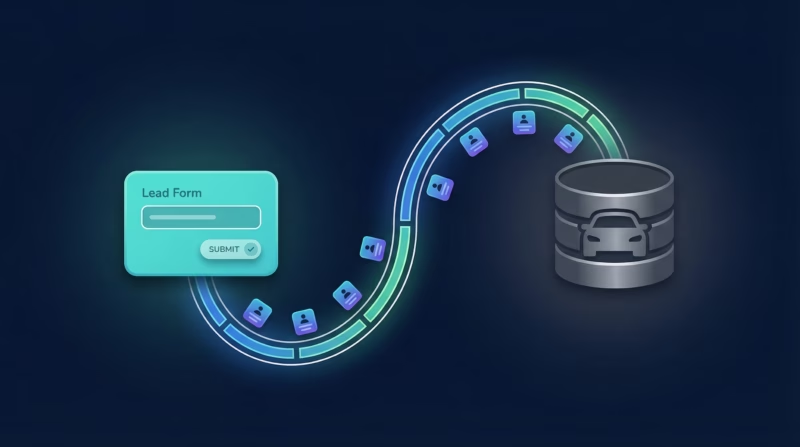
Google Ads Lead Form Extensions are a powerful way for automotive dealers to capture high-intent buyers, but only if those leads land in your CRM fast and complete. If you’re manually copying lead data into VinSolutions, ELEAD, DealerSocket, or ProMax, you’re wasting time and losing follow-up speed. ADF/XML integration automates the entire process—Google Ads leads flow directly into your dealer CRM in 1-2 minutes, ready for your sales team to act on. Here’s how to set it up.
Quick Start: 5 Steps to Google Ads Leads in Your Dealer CRM
- Find your CRM’s ADF intake email (check your dealer principal, CRM admin, or support docs)
- Sign up for LeadSync (14-day free trial, no card required)
- Connect your Google Ads Account and authorize LeadSync to access your lead forms
- Select your Lead Form Extension and choose ADF/XML as your destination
- Test with a lead and watch it flow into your CRM within 1-2 minutes
Why Send Google Ads Leads via ADF/XML?
ADF/XML is the automotive industry standard. Every major dealer CRM speaks it. Here’s what you get:
- Universal Compatibility. Works with VinSolutions, ELEAD/CDK, DealerSocket, ProMax, and hundreds of other ADF-compatible CRMs. No proprietary APIs, no custom integrations.
- Reliable Delivery. Leads arrive in your CRM within 1-2 minutes of form submission. No batch processes, no daily sync windows. Your sales team sees the lead quickly and can act on it.
- Rich Field Mapping. Capture vehicle of interest, trade-in details, finance preferences, custom questions, and more. Every field your Google form collects gets delivered to your CRM.
- Google’s Lead Quality. Google Lead Form Extensions have lower friction than most form solutions. One-click submission with pre-filled data from Google accounts means higher conversion rates and better data quality.
- Proven at Scale. Used by automotive agencies and dealer groups across the US and Australia. Handles high-volume campaigns without breaking a sweat.
- No Per-Lead Fees. 14-day free trial, then affordable flat rate. No per-lead charges like Zapier. No integration limits.
Step-by-Step: Connect Google Ads Leads to Your Dealer CRM
Step 1: Find Your CRM’s ADF Intake Email
Every dealer CRM has an ADF intake email address. This is a dedicated email that accepts ADF/XML-formatted lead data. You’ll need this address to configure LeadSync.
Where to find it:
- Check your CRM documentation or settings page. Look for “ADF email,” “lead intake,” or “automated lead delivery.”
- Ask your CRM support team or dealer principal. They’ll have it on file.
- Check your dealer’s onboarding email from your CRM vendor. Often included in setup documentation.
Common CRM providers and where to find the ADF email:
- VinSolutions: Settings > Lead Sources > ADF/XML Email
- ELEAD: Administration > Lead Routing > Email Address
- DealerSocket: Admin > Lead Sources > Intake Email
- ProMax: Setup > Internet Settings > ADF Email
Save this email address—you’ll need it in Step 3.
Step 2: Log in to LeadSync and Connect Your Google Account
Visit leadsync.me and sign up for your free trial (no credit card required). Once logged in, go to Ad Accounts from the left menu and click Google.
Click “Add Google Account” and authorize LeadSync to access your Google Ads account. This is a one-time OAuth connection that allows LeadSync to read your lead forms.
Your Google account will appear in the table once connected. If you have multiple Google Ads accounts, you can add them all here.
Step 3: Create an ADF/XML Connection for Your CRM
Go to Connections from the left menu and click “Add Connection”. Select “ADF/XML (Automotive CRM)” from the dropdown.
Enter your CRM’s ADF intake email address (the one you found in Step 1). You can add multiple email addresses separated by commas if you want to send leads to multiple CRM instances or locations.
Give your connection a descriptive name like “VinSolutions ADF” or “DealerSocket Main” and click “Update Connection”. LeadSync will validate the email and confirm it’s reachable.
Step 4: Set Up Your Lead Form Extension in Google Ads
If you haven’t already created a Google Lead Form Extension, do that now. Go to your Google Ads account, open your campaign, and add a Lead Form Extension to your ads.
Configure your form with the fields you want to capture:
- First Name (required)
- Last Name (required)
- Email (required)
- Phone Number (required)
- Vehicle of Interest (custom question, dropdown or text)
- Trade-in Vehicle Details (year, make, model)
- Finance Preference (finance, lease, cash, trade-in)
- Desired Timeframe (ASAP, 1-2 weeks, etc.)
- Additional custom questions (budget, color preference, etc.)
Save your form and make sure it’s active in your campaign. Note the form name—you’ll select it in LeadSync in the next step.
Step 5: Connect Your Lead Form to LeadSync
Back in LeadSync, go to Lead Forms from the left menu and click “Add Google Lead Form”.
Select:
- Your Google Ad Account (from the dropdown)
- Your Lead Form Extension (the one you just created in Google Ads)
- Your ADF/XML Connection (the destination you set up in Step 3)
You’ll then see a field mapping interface. This is where you tell LeadSync how to translate your Google form fields into ADF/XML fields for your CRM.
Step 6: Map Your Fields
Standard mappings (LeadSync handles these automatically, but you can override):
- First Name → FirstName
- Last Name → LastName
- Email → EmailAddress
- Phone Number → PhoneNumber
- Additional Comments → Comments
Vehicle-specific mappings (assign your Google form custom fields):
- Vehicle of Interest field → Vehicle_of_Interest (or custom tag)
- Trade-in Year → TradeIn_Year
- Trade-in Make → TradeIn_Make
- Trade-in Model → TradeIn_Model
- Finance Preference → FinancePreference
- Desired Timeframe → TimeFrame
If you have custom questions in your Google form, map those too. LeadSync will include them in the ADF/XML Comments or custom fields.
Click “Update Notification” when mapping is complete.
Step 7: Test with a Lead
Once mapping is complete, LeadSync is ready to go. Submit a test lead through your Google campaign (from your own phone or a colleague’s). Within 1-2 minutes, it should appear in your CRM inbox or lead dashboard.
Check your CRM for:
- Lead contact details (name, email, phone)
- Vehicle details (year, make, model, trade-in info)
- Custom field data and comments
- Timestamp of the lead submission
If everything looks good, you’re live. Your Google Ads campaign is now connected to your dealer CRM. Leads will flow in automatically.
Why Google Ads Leads Are Worth Capturing
Google Lead Form Extensions have several advantages over traditional form solutions. They appear right within the Google Ads interface, so users don’t leave the Google ecosystem to submit. This one-click experience, combined with pre-filled data from logged-in Google accounts, results in higher submission rates and better data quality.
For automotive dealers, this means more qualified leads with fewer incomplete submissions. Your sales team gets complete contact information and vehicle preferences faster, enabling quicker follow-up and higher conversion rates.
Customizing Your ADF/XML Integration
LeadSync gives you fine-grained control over how your leads are formatted and delivered.
Custom Tags and Metadata: Struggling to categorize leads in your CRM? Add custom tags to your ADF payload. For example, tag all Google Ads leads with “Google_Paid” or “Google_Leads_Campaign_Q1” so your sales team can filter and report accurately.
Lead Scoring and Routing: Advanced users can route leads based on vehicle interest or location. For example, all truck inquiries go to your truck specialist, and all sedan inquiries go to your used-car manager. This requires custom scripting, but LeadSync’s API supports it.
Multi-Destination Delivery: Need to send the same lead to multiple CRM intake emails? LeadSync supports parallel delivery. One lead, multiple CRMs. Useful if you run multiple dealerships or share leads with a central office.
Lead Deduplication: LeadSync can detect duplicate leads (same email and phone) and either skip sending or update an existing CRM record. Check your integration settings to enable deduplication.
Go Beyond ADF/XML: Multi-Channel Lead Routing
ADF/XML is perfect for your CRM, but LeadSync also supports routing Google Ads leads to other channels on the same connection. Your sales team can monitor leads across email, Slack, Google Sheets, and SMS simultaneously.
- Email Notifications: Get instant email alerts for every new lead. Keep your inbox in sync with your CRM.
- Slack Alerts: Post leads to a dedicated Slack channel for your sales team. Faster than email for urgent outreach.
- Google Sheets: Build a live lead database in Google Sheets for reporting and analysis. Perfect for cross-dealership tracking.
- SMS Notifications: Text your sales team the moment a high-priority lead comes in. Get instant engagement.
This multi-channel approach ensures no lead falls through the cracks. While your CRM is the system of record, real-time Slack or SMS alerts get your team on the phone within minutes of lead submission.
Combining Google, Facebook, LinkedIn, and TikTok Leads
If you’re running lead campaigns across multiple platforms, LeadSync consolidates everything into one CRM. Set up separate connections for Google, Facebook, LinkedIn, and TikTok lead forms, all routing to the same ADF/XML email. Your sales team works from a single lead dashboard in your CRM, regardless of which platform the lead came from.
This eliminates the headache of switching between platforms and ensures consistent lead quality across all channels.
Frequently Asked Questions
What if my CRM doesn’t have an ADF intake email?
Most modern dealer CRMs support ADF/XML. If yours doesn’t, contact your CRM vendor—they may have a direct API integration available. Alternatively, LeadSync supports many CRMs directly (VinSolutions, DealerSocket, Jobber, etc.) without needing ADF. Check the integrations page to see if your CRM is listed.
Can I send Google Ads leads to multiple dealer CRMs at once?
Yes. LeadSync lets you add multiple destinations to the same Google Lead Form Extension. Set up one connection for ADF/XML to your primary CRM, and a second connection for your backup or secondary dealership. Each lead is sent to both automatically.
How long does it take for a lead to appear in my CRM?
Usually 1-2 minutes. LeadSync monitors your Google Lead Form Extension in real time and sends the ADF/XML email as soon as a form is submitted. Delivery depends on your CRM’s email processing speed, which is typically instant but can take a few minutes if your CRM is processing a high volume.
What if a lead is missing a required field (like phone number)?
LeadSync will still send the lead to your CRM, but it will note the missing field in the ADF/XML. Your CRM may flag the lead as incomplete or ask your sales team to fill in the missing info. To reduce incomplete leads, make all key fields required in your Google Lead Form Extension.
Does LeadSync charge per lead?
No. LeadSync charges a flat monthly rate based on your plan, not per lead. You can send unlimited leads without worrying about overage fees. Perfect for high-volume campaigns.
Can I customize the ADF/XML format for my specific CRM?
LeadSync uses standard ADF/XML format, which all major CRMs accept. If your CRM requires a proprietary variation, contact LeadSync support with your CRM’s spec sheet—custom formatting may be available.
What happens if my CRM’s ADF email bounces?
LeadSync will detect the bounce and alert you (via dashboard notification or email). Check that the ADF email is correct and active with your CRM. Update it in your LeadSync settings and re-test with a lead.
Can I test the integration before going live?
Absolutely. Submit a test lead through your Google Lead Form Extension and check your CRM. No need to worry about data pollution—test leads are clearly marked and easy to identify.
Does LeadSync support multi-location dealership groups?
Yes. You can create multiple connections within your LeadSync account, each pointing to a different dealership’s ADF email. Route Google Ads leads from Campaign A to Dealership A and Campaign B to Dealership B—all managed from one dashboard.
Related Integration Guides
Looking for a different destination for your Google Ads leads? These integration guides walk you through setup step by step:
- How to Send Google Ads Leads to Webhook
- How to Send Google Ads Leads to HubSpot
- How to Send Google Ads Leads to Pipedrive
- How to Send Google Ads Leads to Zoho CRM
- How to Send Google Ads Leads to Keap
Ready to Automate Your Google Ads Leads?
Stop manually copying lead data into your dealer CRM. ADF/XML integration gets your Google Ads leads where they need to go—quickly and accurately. Your sales team wins, your conversion rates improve, and you reclaim hours of admin time every week.
Start your free 14-day trial with LeadSync today. No credit card required, no setup fees, no integration limits. Choose your plan and get started.