Quick Start Summary
Use LeadSync to pipe new Google Ads leads straight into any Iterable list in under five minutes. Generate a Standard API Key in Iterable, add it to LeadSync, authorize your Google account, select your lead form extension, pick your list, hit Update—done.
1. Why use LeadSync to send Google Ads leads to Iterable?
LeadSync delivers your leads to Iterable in real time, so they enter your email, SMS, or push-notification workflows while intent is highest—boosting conversion and reducing manual uploads. With Google Ads Lead Form Extensions becoming the standard for lead capture on Google, syncing directly to your email platform eliminates friction and keeps your campaigns performing at peak efficiency.
2. Prerequisites
- Active LeadSync account
- Google Ads account with at least one Lead Form Extension in an active campaign
- Iterable account with permission to create Standard API Keys
3. Step-by-Step: Setting up the integration
Step 1: Add Your Google Account to LeadSync
- Log in to LeadSync and go to Ad Accounts from the left sidebar.
- Click the Google tab.
- Click the Add Google Account button.
- You’ll be redirected to Google’s login page. Sign in with the Google account that manages your Ads campaigns.
- Grant LeadSync permission to access your Google Ads accounts and lead form data.
- You’ll be redirected back to LeadSync. Your Google account now appears in the Connected Ad Accounts table.
Step 2: Create Your Iterable Connection
- Go to Connections in the left sidebar.
- Click the Add Connection button.
- From the Connections dropdown, select Iterable.
- Generate an API key in Iterable by going to Settings > API Keys and clicking New API Key. LeadSync requires a Standard API key (not Server-side).
- Paste the API key into the Add your Iterable API key field.
- Enter a name for your connection. This is for your internal reference only. We recommend you use something descriptive like “Google Ads Leads” or the name of your Iterable list.
- Click the Update Connection button. This will retrieve your lists from Iterable.
- A new dropdown will appear showing all your Iterable lists. Select the list where you want Google Ads leads to be added.
- Click Update Connection again to save your connection.
4. Connecting a Google Lead Form Extension to your Iterable connection
Now that you’ve set up an Iterable connection, you need to connect the lead form extension you’re using in your Google Ads campaigns.
- Go to Lead Forms in the left sidebar, then click Add Google Lead Form.
- Select your Ad Account from the dropdown. This should be the Google Ads account you connected in Step 1.
- Select your Lead Form Extension from the dropdown. LeadSync will display all active and paused lead form extensions in your account.
- Map your form fields to match Iterable. At minimum, you must map the Email field (required). Optionally map First Name, Last Name, and Phone if those fields exist in your form.
- Select the Iterable connection you created above from the dropdown.
- Click Update Notification to save your changes.
- Test your connection by submitting a test lead through your Google campaign. The user should appear in Iterable within 1-2 minutes.
5. Understanding Lead Sync Speed
After a user submits a lead through your Google Ads lead form extension, LeadSync typically delivers that lead to Iterable within 1-2 minutes. This is slightly longer than some other platforms (Facebook leads, for example, sync in 5-10 seconds) because Google Ads lead data moves through webhooks that poll periodically rather than firing in real time. Even so, 1-2 minutes is fast enough that leads enter your Iterable workflows while purchase intent is still fresh, allowing you to segment and nurture them immediately.
6. Troubleshooting Tips
- Can’t see your Ad Account? Make sure the Google account you connected in LeadSync has access to that Ads account, and that the account is not suspended or restricted.
- Lead form not appearing? The form must be attached to an active or paused campaign. Archived campaigns won’t show their forms.
- API key fails? Double-check that you generated a Standard API key in Iterable, not a Server-side key. Server-side keys will be rejected.
- Test lead missing? Verify that the email field is mapped correctly and that your test email is valid. Check your Iterable list filters to ensure the lead wasn’t filtered out.
- Not receiving leads after setup? Make sure your Google campaign is active (or paused—paused campaigns still capture leads). Wait 1-2 minutes after submission before checking Iterable.
7. Quick Wins After Setup
- Add new Google leads to an Iterable Welcome Journey with a timed SMS follow-up for instant engagement.
- Use campaign parameters and ad copy insights from your Google campaigns to create highly specific segments within Iterable.
- Set up a Slack webhook in Iterable to notify your sales team instantly when a high-value lead submits your form.
- Build a drip sequence that combines email, SMS, and in-app messages to nurture leads captured through Google Ads.
8. Multi-Channel Lead Capture with LeadSync
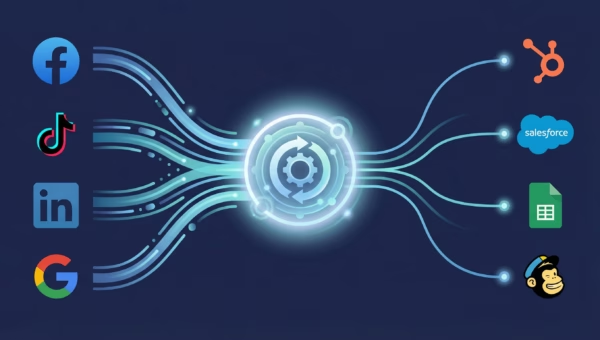
Google Ads is just one source in your lead-generation arsenal. LeadSync lets you unify leads from Google, Facebook, LinkedIn, and TikTok into a single Iterable account. This means you can build cross-channel audience segments, track which platforms deliver the highest-quality leads, and run unified nurture campaigns regardless of where the lead came from.
For example, you might route all Google Ads leads and Facebook leads to the same Iterable list, but tag them with their source. Then in Iterable, you can create workflows that treat Google leads one way and Facebook leads another—all from a single connection in LeadSync.
9. Other Popular Lead Integrations
LeadSync syncs far more than just Iterable. Below are four popular destinations where you can send your Google Ads leads—each one available from the same Connections → Add Connection menu:
| Destination | Best For |
|---|---|
| Email Automation | Trigger instant welcome emails, nurture sequences, and re-engagement campaigns from your Google Ads leads. |
| Slack Notifications | Alert your sales or support team instantly when a lead submits a form through your Google campaign. |
| Google Sheets | Stream raw lead data into a live spreadsheet for easy sharing, analysis, and third-party automation. |
| SMS / Text Messages | Deliver instant SMS confirmations or promotional offers to new leads captured through your Google campaigns. |
Pro Tip: You can run multiple connections at once—e.g., pipe the same Google Ads lead to Google Sheets for analytics, Iterable for email nurture, and Slack for instant notifications. Just repeat the lead-form mapping steps for each destination.
With native integrations to dozens of platforms, LeadSync makes sure your Google Ads lead form extension data lands exactly where your marketing and sales teams need it—no CSV downloads, manual entries, or API wrangling required.
Get Started Syncing Google Ads Leads to Iterable Today
Stop letting your Google Ads leads sit in a silo. Sync them directly to Iterable and start building email, SMS, and push-notification workflows that convert. LeadSync makes the setup simple—no code, no Zapier, no middleman. In just a few clicks, every lead captured through your Google Ads lead form extensions will flow directly into your Iterable lists, ready for immediate nurture.
Start your free trial of LeadSync today and connect Google Ads to Iterable in under five minutes.
Related Integration Guides
Looking for a different destination for your Google Ads leads? These integration guides walk you through setup step by step:
- How to Send Google Ads Leads to Campaigner
- How to Send Google Ads Leads to Vertical Response
- How to Send Google Ads Leads to Mailvio
- How to Send Google Ads Leads to Moosend
- How to Send Google Ads Leads to AutopilotHQ