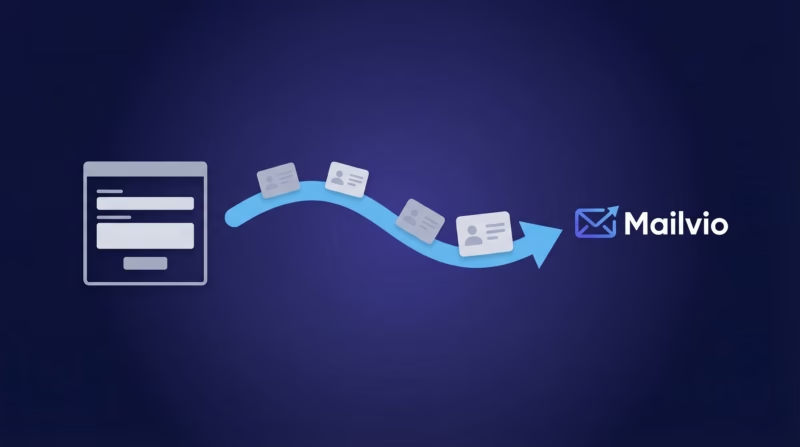
Google Ads lead form extensions capture hundreds of qualified prospects each month, but without a system to route them, they sit idle in your account collecting dust. Mailvio makes it simple to build email lists, segment subscribers, and automate campaigns—but only if your leads actually reach it. With LeadSync, every Google lead automatically syncs to Mailvio in real time, ready for email nurturing and conversion.
Quick Start: Google Ads Leads to Mailvio in 5 Steps
- Get your Mailvio API key from your account integrations
- Connect LeadSync to Mailvio using the API key
- Authorize Google Ads and select your lead form extension
- Map fields (email required; first name, last name, and custom fields optional)
- Test with a lead to confirm the sync works end-to-end
Why Sync Google Ads Leads to Mailvio?
- Leads are added to your chosen Mailvio list with all mapped custom fields populated automatically
- Supports required and optional custom fields defined in your Mailvio account
- New subscribers appear in Mailvio within 1-2 minutes of submitting your lead form
- Captures leads from Google, Facebook, LinkedIn, and TikTok lead ad platforms
- No per-lead fees, flat rate pricing, no Zapier needed to get started
- 14-day free trial, no credit card required to test before committing
Step-by-Step: Connect Google Ads Leads to Mailvio
Step 1: Get Your Mailvio API Key
Log in to your Mailvio account and navigate to your account settings. Click on Integrations (or API settings, depending on your Mailvio plan). Copy your API key—you’ll need this to authenticate LeadSync. Keep this key private; treat it like a password.
Step 2: Log in to LeadSync and Add a New Connection
Log in to your LeadSync account and go to Connections. Click Add New Connection and select Mailvio from the list. Paste your API key into the form and click Authenticate. LeadSync will verify the key and confirm your Mailvio account is connected.
Step 3: Select Your Subscriber List
Once authenticated, LeadSync will display all available subscriber lists in your Mailvio account. Choose the list where you want Google leads to be added. You can create a dedicated list for lead ads (e.g., “Google Leads Q1 2026”) or use an existing list. This selection applies to all leads synced through this connection.
Step 4: Set Up Your Google Ads Lead Form Connection
In LeadSync, go to Ad Accounts and select Google. Click Add Google Account to authorize (you’ll be redirected to Google to grant permissions). Once authorized, go to Lead Forms and select the specific lead form extension you want to sync. You can set up multiple Google lead forms to different Mailvio lists if needed.
Step 5: Map Your Fields
Now the critical part: field mapping. LeadSync will show all fields from your Google lead form extension alongside fields in Mailvio. Email is required and must be mapped. Map first name, last name, phone, and any custom fields you’ve defined in Mailvio. If a field isn’t available in Google, leave it unmapped—Mailvio will accept the lead without it. Save your mapping when complete.
Step 6: Test with a Lead
Before going live, submit a test lead through your Google lead form extension. LeadSync should sync the test lead to Mailvio within 1-2 minutes. Log in to Mailvio and verify the lead appears in your chosen list with all fields correctly mapped. If the test passes, you’re ready to start syncing real leads at scale.
Customizing Your Mailvio Integration
Once your Google-to-Mailvio sync is running, you have several customization options. Create multiple connections if you run different ad campaigns targeting different audiences—each campaign can sync to a different Mailvio list. Use custom fields to capture additional data from your Google lead form (e.g., product interest, budget, company size). In Mailvio, set up automation workflows triggered by new subscribers from your lead list—send a welcome email, nurture sequence, or route to sales based on field values.
LeadSync also supports field transformations, so you can standardize data before it reaches Mailvio. For example, if Google captures “yes” or “no” for a custom field but Mailvio expects “true” or “false”, LeadSync can handle the conversion.
Go Beyond Mailvio: Multi-Channel Lead Routing with LeadSync
Google leads are valuable on their own, but their true power emerges when you route them to multiple channels simultaneously. Use LeadSync to send every Google lead to Mailvio AND notify your team in real time.
- Email notifications: Receive an alert for each new lead. Read more in our guide: How to Setup Google Ads Email Notifications
- Slack alerts: Post each lead to a Slack channel for instant team visibility. Learn more: Synchronized Google Ads Leads to Slack
- Google Sheets: Maintain a spreadsheet of all leads for reporting and analysis. See our guide: Google Ads Leads to Google Sheets
- SMS notifications: Text your sales team immediately when a high-value lead arrives. Details here: Google Ads SMS Notifications
With LeadSync, one Google lead can trigger multiple actions—to Mailvio, your team, and your internal systems—without manual intervention or third-party tools like Zapier.
Related Integration Guides
Looking for a different destination for your Google Ads leads? These integration guides walk you through setup step by step:
- How to Send Google Ads Leads to AutopilotHQ
- How to Send Google Ads Leads to Campaigner
- How to Send Google Ads Leads to Mailchimp
- How to Send Google Ads Leads to Iterable
- How to Send Google Ads Leads to ActiveCampaign
Frequently Asked Questions
How fast does LeadSync sync leads to Mailvio?
Most leads appear in Mailvio within 1-2 minutes of submission. This speed is achieved because LeadSync pulls from Google’s lead form system in near real time. Your subscribers are ready for email campaigns quickly.
What if someone submits my Google form twice?
LeadSync checks Mailvio for duplicate email addresses by default. If the same email appears twice, the second submission updates the existing subscriber with any new field data. You won’t have duplicate subscribers clogging your list.
Can I sync custom fields from Google to Mailvio?
Yes. Any custom field you’ve created in your Google lead form extension can be mapped to a custom field in Mailvio during setup. LeadSync supports an unlimited number of custom fields, so capture whatever data your sales process requires.
Is there a per-lead cost with LeadSync?
No. LeadSync charges a flat monthly rate, not per lead. Sync 100 leads or 10,000 leads—your subscription cost stays the same. This pricing model makes scaling your ad spend risk-free from a software perspective.
Can I send Google leads to multiple Mailvio lists?
Yes. Create separate Google-to-Mailvio connections in LeadSync for different campaigns or audience segments. Route leads from Campaign A to List A and leads from Campaign B to List B. Each connection has its own field mapping and list selection.
How does LeadSync compare to Zapier for this integration?
Both work, but LeadSync is simpler and cheaper. Zapier charges per task and per lead, adding up quickly at scale. LeadSync is a flat rate with no per-lead fees, built specifically for lead synchronization, and includes features like duplicate detection and field transformation built in. No Zapier configuration required—just map fields and go.
Can I try this before paying?
Absolutely. LeadSync offers a free 14-day trial with no credit card required. Set up your Google-to-Mailvio sync, test with real leads, and experience the speed and reliability yourself. No strings attached.
What if my Mailvio plan doesn’t support the API?
Mailvio’s API is available on most plans. If you’re on an older or custom plan without API access, contact Mailvio support to upgrade. The cost is minimal compared to the time you’ll save automating lead capture and follow-up.
Turning Google leads into Mailvio subscribers is one of the highest-leverage automations you can build. Stop losing leads to manual entry and email delays. Start your free 14-day trial today and see Google leads flow into Mailvio automatically. Choose your plan and get started.