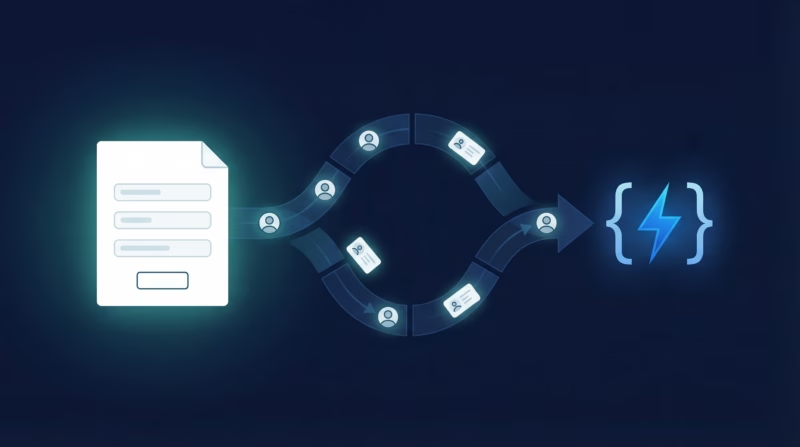
Not every tool has a native LeadSync integration—and that’s okay. Webhooks let you send Google Ads leads to any system that accepts HTTP requests, from custom-built APIs to internal databases to third-party platforms. LeadSync handles the plumbing: we normalize your Google lead data, transform it into JSON, and POST it to your endpoint. You focus on processing the data your way.
Quick Start: Google Ads Leads to Webhook in 5 Steps
- Prepare a webhook endpoint that accepts POST requests and returns HTTP 200
- Log in to LeadSync, go to Ad Accounts > Google, and authorize your Google account via OAuth
- Create a new Webhook destination and add your endpoint URL with your preferred authentication method
- Select your Google lead form extension and map it to your webhook destination
- Test with a lead and monitor delivery in the LeadSync dashboard
Why Use Webhook for Google Ads Leads?
Step-by-Step: Connect Google Ads Leads to Your Webhook
Step 1: Prepare Your Webhook Endpoint
Your webhook endpoint must be a publicly accessible URL that accepts POST requests. It should validate the incoming JSON payload, process the lead data (store in your database, trigger a workflow, etc.), and return an HTTP 200 response within 10 seconds. If your endpoint times out or returns a non-2xx status code, LeadSync will retry the delivery up to 3 times over 24 hours.
If you’re building a simple endpoint, here’s a minimal example structure: accept the POST body, log the lead data, perform your business logic, and return 200. Most frameworks make this trivial—Express.js, Laravel, Django, Flask, all handle webhook routing natively.
Step 2: Connect Your Google Account to LeadSync
In the LeadSync dashboard, navigate to Ad Accounts from the left menu and select Google. Click Add Google Account and sign in to your Google account. Authorize LeadSync to access your Google Ads account and lead form extensions. Your account will appear in the table once the connection is confirmed.
Step 3: Log in to LeadSync and Create a Webhook Destination
In the LeadSync dashboard, navigate to Connections and click Add Connection. From the integration dropdown, select Webhook. You’ll see a configuration form with fields for URL, authentication, HTTP method, and payload template. Give your webhook connection a descriptive name, such as “Google Leads Webhook” or “CRM Inbound Webhook”.
Step 4: Configure Your Webhook URL and Authentication
Enter your webhook endpoint URL (e.g., https://api.yourapp.com/leads/inbound). Select your HTTP method—most webhooks use POST, but LeadSync also supports PUT, PATCH, GET, and DELETE if your endpoint requires a specific method.
If your endpoint requires authentication, choose one of three options:
Bearer YOUR_TOKEN. Use this for APIs that expect OAuth-style tokens.X-API-Key.Step 5: Connect Your Google Lead Form Extension
Go to Lead Forms from the left menu and click Add Google Lead Form. Select your connected Google Ads account from the dropdown, then choose the specific lead form extension you want to track. Finally, select the webhook destination you just created. LeadSync will then start routing all leads from that form extension to your webhook endpoint.
Step 6: Customize Your Payload Template
This is where the flexibility of webhooks shines. LeadSync provides a JSON template editor where you define the exact structure of data sent to your endpoint. Use placeholder tags to reference lead form fields:
{{first_name}}, {{last_name}}, {{email}}, {{phone}}, {{company}}, {{message}}, and any custom fields from your Google lead form. LeadSync will replace these tags with actual lead values.
A simple example payload:
{"name": "{{first_name}} {{last_name}}", "email": "{{email}}", "phone": "{{phone}}", "source": "google_lead_form", "timestamp": "2026-03-01T10:30:00Z"}
You can nest fields, add static values, include metadata, or structure the payload however your API expects. The template is pure JSON—no special syntax required beyond the {{placeholder}} tags.
Step 7: Test with a Lead
Before going live, test your webhook with a sample lead. LeadSync provides a “Send Test Lead” button that posts your template payload to your endpoint. Check your endpoint logs to confirm the request arrived, validate the JSON structure, and verify your business logic works. If the test passes, you’re ready to receive real leads from your Google campaigns.
Customizing Your Webhook Integration
Webhooks are infinitely flexible. Here are common customization patterns:
Payload Templates: Include only the fields you need to reduce payload size and simplify downstream processing. You can also nest fields, rename them, or add computed values (like a UUID or timestamp). The template editor supports any valid JSON structure.
Authentication Options: If your endpoint uses a rotating token, update the authentication credentials in LeadSync—no code changes needed. For API keys stored in custom headers, specify the header name and value. For OAuth flows, use Bearer tokens refreshed by your API provider.
HTTP Methods: While POST is the standard, some APIs prefer PUT (idempotent updates), PATCH (partial updates), or even GET with query parameters. LeadSync supports all five HTTP verbs, so adapt to your endpoint’s requirements.
Error Handling: If your endpoint returns a non-2xx status code, LeadSync automatically retries the delivery (exponential backoff: immediately, 1 hour later, 24 hours later). If all retries fail, the lead is marked as failed in the dashboard. You can manually retry from the UI or check your endpoint logs to debug the issue.
Monitoring: The LeadSync dashboard shows delivery status, timestamps, and response codes for every lead sent to your webhook. Click into a failed delivery to see the request payload and response body, helping you debug quickly.
Go Beyond Webhook: Multi-Channel Lead Routing
Webhooks are powerful, but sometimes you want to send leads to multiple destinations simultaneously. LeadSync lets you combine webhook with native integrations in a single workflow:
For example, you could send each lead to your webhook endpoint (for CRM ingestion), simultaneously notify your sales team on Slack, and append to a Google Sheet for reporting. LeadSync orchestrates all three—one Google lead form extension, three destinations, zero manual work.
Frequently Asked Questions
What HTTP methods does LeadSync support for webhooks?
LeadSync supports POST, PUT, PATCH, GET, and DELETE. Most webhooks use POST (the HTTP standard for submitting data), but some APIs prefer other methods. Choose the method your endpoint expects, and LeadSync will send requests accordingly.
Can I use Bearer tokens, Basic auth, or API keys?
Yes to all three. Bearer tokens go in the Authorization header as Bearer YOUR_TOKEN. Basic auth encodes username:password in the header. API keys can be sent as a custom header (you specify the header name and value). Pick whichever your endpoint requires.
How do I define my JSON payload format?
Use the JSON template editor in LeadSync. Write valid JSON and insert placeholder tags like {{first_name}}, {{email}}, {{phone}}, etc. LeadSync will replace these tags with lead values before sending. You can nest fields, add static values, or structure the payload any way your API expects.
How fast are Google Ads leads delivered to my webhook?
LeadSync delivers Google Ads leads to your webhook endpoint within 1-2 minutes of capture. This rapid delivery ensures your sales team can act quickly on fresh leads. The exact timing depends on your Google Ads account’s polling interval, but the end-to-end process is optimized for speed.
What happens if my webhook endpoint is slow or times out?
LeadSync allows 10 seconds for your endpoint to respond. If it times out or returns a non-2xx status code, LeadSync will retry three times over 24 hours (immediately, 1 hour later, 24 hours later). Check your endpoint logs to diagnose performance issues. For high-volume scenarios, consider adding a queue (like AWS SQS or RabbitMQ) between your endpoint and your processing logic.
How do I test my webhook before going live?
LeadSync provides a “Send Test Lead” button in the webhook configuration. This sends a sample payload (with placeholder values replaced by test data) to your endpoint. Check your endpoint logs to confirm the request arrived, validate the JSON structure, and verify your business logic works. Once the test passes, you’re ready for real leads from your Google campaigns.
Can I send the same lead to multiple webhook endpoints?
Yes. Create multiple webhook destinations in LeadSync (one for each endpoint URL), and assign them all to the same Google lead form extension. LeadSync will POST each lead to all endpoints simultaneously. This is useful for syncing data across multiple systems—e.g., your internal API, a third-party CRM, and a data warehouse.
What if my webhook endpoint is temporarily down?
LeadSync retries failed deliveries automatically. If your endpoint returns a non-2xx status code on the first attempt, LeadSync will retry after 1 hour and again after 24 hours. If all retries fail, the lead is marked as failed in the dashboard. You can manually trigger a retry once your endpoint is back online, or check the response body in the LeadSync UI to debug the root cause.
How does LeadSync compare to Zapier for webhook delivery?
Zapier is a general automation platform; LeadSync is purpose-built for lead routing. Zapier works well for simple integrations, but for high-volume lead delivery, LeadSync offers faster latency, better retry logic, built-in Google Ads integration, and lead-specific features (deduplication, field mapping, multi-destination routing). If you’re already using Zapier for other workflows, you can still use LeadSync for leads and connect them via webhook—both systems can coexist. For lead-only use cases, LeadSync’s native approach is faster and cheaper.
Can I use webhooks for leads from Google, Facebook, LinkedIn, and TikTok forms too?
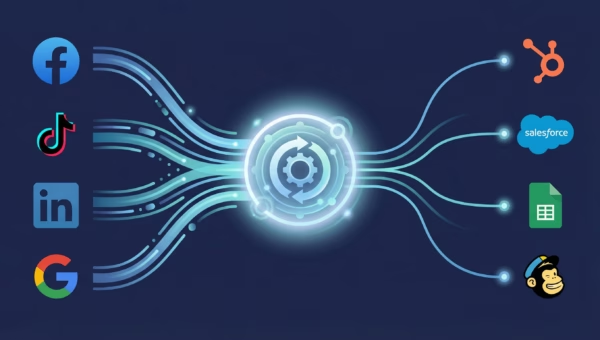
Absolutely. Connect your Google, Facebook, LinkedIn, or TikTok lead forms to LeadSync using the same process. Each form sends leads to your webhook with the same JSON structure, payload template, and authentication. This is the power of a unified platform—one webhook endpoint handles leads from any source, normalized by LeadSync.
Related Integration Guides
Looking for a different destination for your Google Ads leads? These integration guides walk you through setup step by step:
- How to Send Google Ads Leads to ADF/XML (Dealer CRM)
- How to Send Google Ads Leads to HubSpot
- How to Send Google Ads Leads to Pipedrive
- How to Send Google Ads Leads to Zoho CRM
- How to Send Google Ads Leads to Keap
Start Sending Google Ads Leads to Your Webhook Today
Webhooks unlock unlimited possibilities for lead routing. Whether you’re building a custom CRM, syncing to an internal tool, or connecting to a third-party API, LeadSync makes it simple: configure your endpoint, define your payload, and let us handle the delivery. No integration code required—just HTTP and JSON.
Ready to try it? Sign up for a 14-day free trial of LeadSync and start routing Google Ads leads to your webhook today. No credit card required.