Facebook lead forms generate thousands of valuable prospects every month, but manual data entry and delays cost you conversions. SharpSpring is a powerful CRM for service-based businesses, yet lead data sitting in Facebook’s platform does nothing for your sales team. LeadSync bridges this gap by automatically routing Facebook leads directly into SharpSpring—turning interested prospects into qualified contacts in seconds, without manual work or custom code.
Quick Start: Facebook Leads to SharpSpring in 5 Steps
- Grab your SharpSpring API credentials (Account ID + Secret Key) from your account settings
- Connect LeadSync to Facebook and authenticate your ad account
- Enter your SharpSpring API details in LeadSync and select your target active list
- Map your Facebook form fields to SharpSpring contact properties and custom fields
- Test a lead submission—it syncs to SharpSpring in seconds
Why Sync Facebook Leads to SharpSpring?
Automating your Facebook-to-SharpSpring workflow delivers immediate business value. Here’s what you gain:
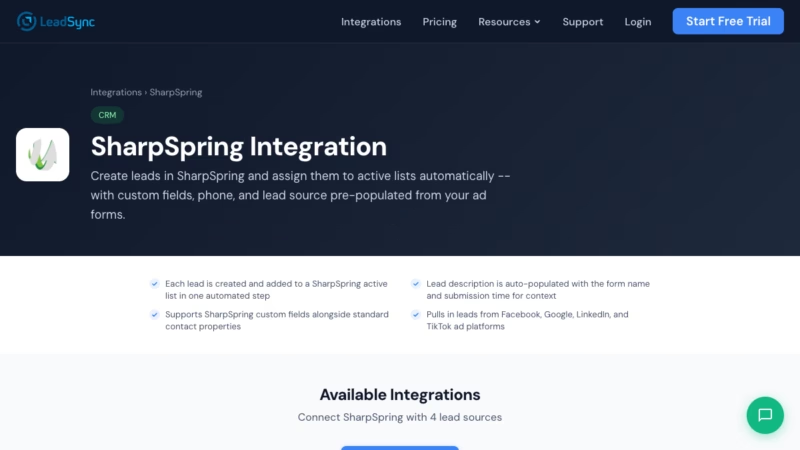
- One-Step Lead Creation: Each Facebook lead is automatically created and added to your active SharpSpring list the moment they submit your form—no double-entry, no delays.
- Smart Lead Descriptions: Lead descriptions are auto-populated with the form name and submission timestamp, giving your team instant context on every prospect.
- Custom Field Support: Map any Facebook form field to SharpSpring standard contact properties or custom fields. Handle unlimited custom data without extra setup.
- Multi-Channel Lead Capture: Facebook lead form is just one source. The same LeadSync workflow accepts leads from Google Ads, LinkedIn Lead Gen Forms, and TikTok—all routing to the same SharpSpring list.
- No Monthly Fees, No Zapier Needed: LeadSync costs a flat rate and includes all integrations. Start with a 14-day free trial—no credit card required, cancel anytime.
Step-by-Step: Connect Facebook Leads to SharpSpring
Step 1: Get Your SharpSpring API Credentials
Log in to your SharpSpring account and navigate to Settings > SharpSpring API > API Settings. You’ll see two fields:
- Account ID – A unique identifier for your SharpSpring account
- Secret Key – Your private API key (keep this secure and never share it)
Copy both values and save them somewhere safe—you’ll need them in the next step.
Step 2: Log in to LeadSync and Add a New Connection
Visit leadsync.me, sign in to your account, and go to Connections in the left sidebar. Click the Add Connection button and select SharpSpring from the list of available platforms.
Step 3: Enter Your Account ID and Secret Key
LeadSync will prompt you for your SharpSpring credentials. Paste your Account ID and Secret Key into the corresponding fields. Click Connect to verify the credentials. If the connection succeeds, you’ll see a green checkmark.
Step 4: Select Your Active List
After verifying your credentials, LeadSync will fetch all your SharpSpring active lists. Select the list where you want Facebook leads to be added. This is typically a list like “Facebook Leads” or “Lead Form Submissions”—create a new list in SharpSpring first if needed, then refresh the dropdown in LeadSync.
Step 5: Set Up Your Facebook Lead Form Connection
In LeadSync, go to Sources and select Facebook Lead Ads. Authenticate with your Facebook account and select the specific ad account and lead form you want to sync. LeadSync will retrieve all fields from your Facebook form.
Step 6: Map Your Fields
The field mapping step is where the magic happens. LeadSync shows your Facebook form fields on the left and your SharpSpring contact properties on the right. Drag and drop to match them:
- Facebook “First Name” → SharpSpring “firstName”
- Facebook “Last Name” → SharpSpring “lastName”
- Facebook “Email” → SharpSpring “email”
- Facebook “Phone” → SharpSpring “phone”
- Any custom fields → Custom properties (if you created them in SharpSpring)
Fields that don’t have a match in SharpSpring can be stored in the lead description or ignored. LeadSync will guide you through unmapped fields.
Step 7: Test with a Lead
Before going live, submit a test lead through your Facebook form. Give LeadSync 30-60 seconds to process the lead, then log in to SharpSpring and check your active list. You should see the test contact with all fields correctly populated. Verify the lead description includes the form name and timestamp.
Customizing Your SharpSpring Integration
Once your Facebook-to-SharpSpring sync is running, you can fine-tune it to match your sales process:
- Lead Scoring & Segmentation: Use SharpSpring automation rules to assign leads to sales reps or move high-value prospects to a VIP list based on form data.
- Conditional Routing: Set up LeadSync rules to send leads to different SharpSpring lists based on form field values (e.g., “Route service requests to the Service team list”).
- Duplicate Prevention: LeadSync checks for existing contacts in SharpSpring by email before creating a new record, reducing data bloat.
- Sync History & Logs: Review all synced leads in LeadSync’s dashboard to confirm delivery and troubleshoot any mapping issues.
Go Beyond SharpSpring: Multi-Channel Lead Routing
Facebook leads are just the beginning. LeadSync lets you build a unified lead-capture workflow across multiple channels—all flowing to SharpSpring or routing to different destinations based on your business rules:
- Email Notifications: Get instant email alerts when high-priority Facebook leads submit your form.
- Slack Integration: Post Facebook lead summaries to Slack so your team sees them in real-time without leaving chat.
- Google Sheets: Automatically log leads to a Google Sheet for quick team review and analytics.
- SMS Notifications: Text your sales team when a lead arrives, ensuring faster follow-up.
Combine these with SharpSpring sync to build a truly automated lead management engine.
Related Integration Guides
Looking for a different destination for your Facebook leads? These integration guides walk you through setup step by step:
- How to Send Facebook Leads to Ontraport
- How to Send Facebook Leads to HubSpot
- How to Send Facebook Leads to Pipedrive
- How to Send Facebook Leads to Zoho CRM
- How to Send Facebook Leads to Keap
Frequently Asked Questions
How long does it take for a Facebook lead to appear in SharpSpring?
LeadSync syncs most leads within 30-60 seconds of form submission. Occasional delays (up to 2-3 minutes) can occur due to network latency, but the typical window is under a minute.
What happens if a lead already exists in SharpSpring?
LeadSync checks for existing contacts by email address. If a match is found, the existing contact is updated with any new form data rather than creating a duplicate. This keeps your SharpSpring list clean.
Can I send Facebook leads to multiple SharpSpring lists?
Yes. Set up multiple connections in LeadSync—each with different SharpSpring lists as destinations. Use conditional routing rules to decide which list each lead goes to based on form responses.
Do I need to know how to code?
No code required. LeadSync is designed for non-technical users. The entire setup—from connecting Facebook to mapping fields—happens through a simple drag-and-drop interface.
What if a Facebook form field doesn’t match any SharpSpring property?
LeadSync lets you store unmapped fields in the lead description, or you can create a custom field in SharpSpring first and map to it. If neither option works, the field is simply not synced.
Can I sync leads from other ad platforms (Google, LinkedIn, TikTok)?
Absolutely. LeadSync supports Facebook, Google Ads, LinkedIn Lead Gen, and TikTok lead forms. You can send all of them to SharpSpring using the same workflow, or route them to different destinations based on the source.
What if the sync fails for a lead?
LeadSync logs all synced leads and flagged any errors in the dashboard. Common failures include incorrect API credentials, missing required fields, or a deleted SharpSpring list. The error message tells you exactly what to fix.
Is there a limit to how many Facebook leads I can sync?
No artificial limits. LeadSync scales with your business. Whether you’re syncing 10 leads a day or 1,000, the cost stays the same. Your only limit is your SharpSpring plan’s contact capacity.
Can I undo a sync or delete leads from SharpSpring through LeadSync?
LeadSync syncs leads into SharpSpring but doesn’t manage deletion. To remove a lead, log in to SharpSpring directly and delete it from your active list. LeadSync’s job is to move data forward, not backward.
Ready to automate your Facebook-to-SharpSpring lead flow? Start your free 14-day trial today—no credit card required, and full access to all integrations. Your sales team will thank you for the instant lead delivery.