Zoho CRM is powerful, but only if your leads actually reach it. Most teams still download Facebook leads as CSVs, then manually import them or use clunky integrations that drop half the fields. Your leads sit in someone’s downloads folder while competitors are already calling. LeadSync sends Facebook leads directly to Zoho CRM in real-time, automatically tags them by source for accurate reporting, and works with Zoho accounts worldwide—regardless of your data centre. No manual uploads. No lost fields. No delays.
Quick Start
Get Facebook leads into Zoho CRM in 5 minutes:
- Step 1: Log in to LeadSync and click “Connect a Service”
- Step 2: Select Zoho CRM from the connection menu
- Step 3: Approve the OAuth connection between LeadSync and Zoho (one-time approval)
- Step 4: Name your Zoho connection in LeadSync and confirm
- Step 5: Add your Facebook Lead Form, map your fields, and start syncing
Why Sync Facebook Leads to Zoho CRM?
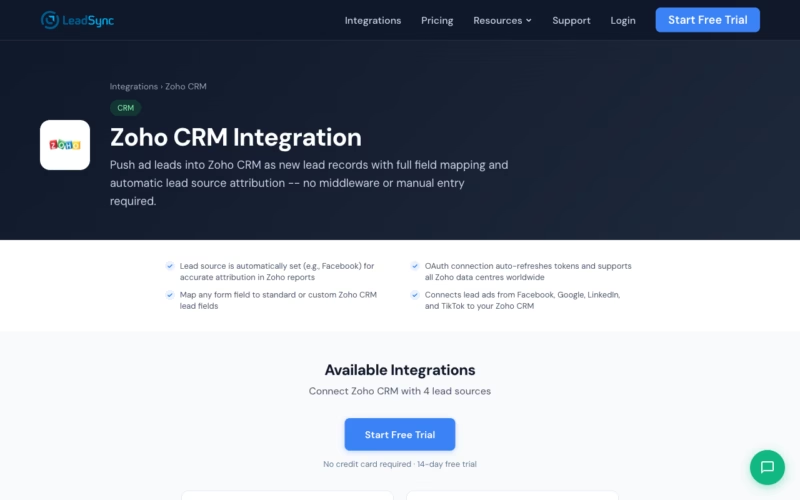
Zoho CRM works best when it has fresh, complete lead data arriving in real-time. When leads come from multiple sources—Facebook, Google Ads, LinkedIn—tracking which channel produces your best customers becomes nearly impossible. Real-time sync plus automatic source tagging means your reporting is accurate from day one.
- Leads sync to Zoho within seconds, ready for immediate follow-up
- Lead source is automatically tagged (Facebook, Google, LinkedIn, or TikTok) so your reports are accurate
- Works with Zoho data centres in US, Europe, India, and Australia—same connection worldwide
- Map any Facebook form field to standard or custom Zoho lead fields without data loss
- Integrates with Facebook, Google, LinkedIn, and TikTok lead forms using one connection
- 14-day free trial. No credit card required. No Zapier. No complexity.
Step-by-Step: Connect Facebook Leads to Zoho CRM
Step 1: Log in to LeadSync and Start a New Connection
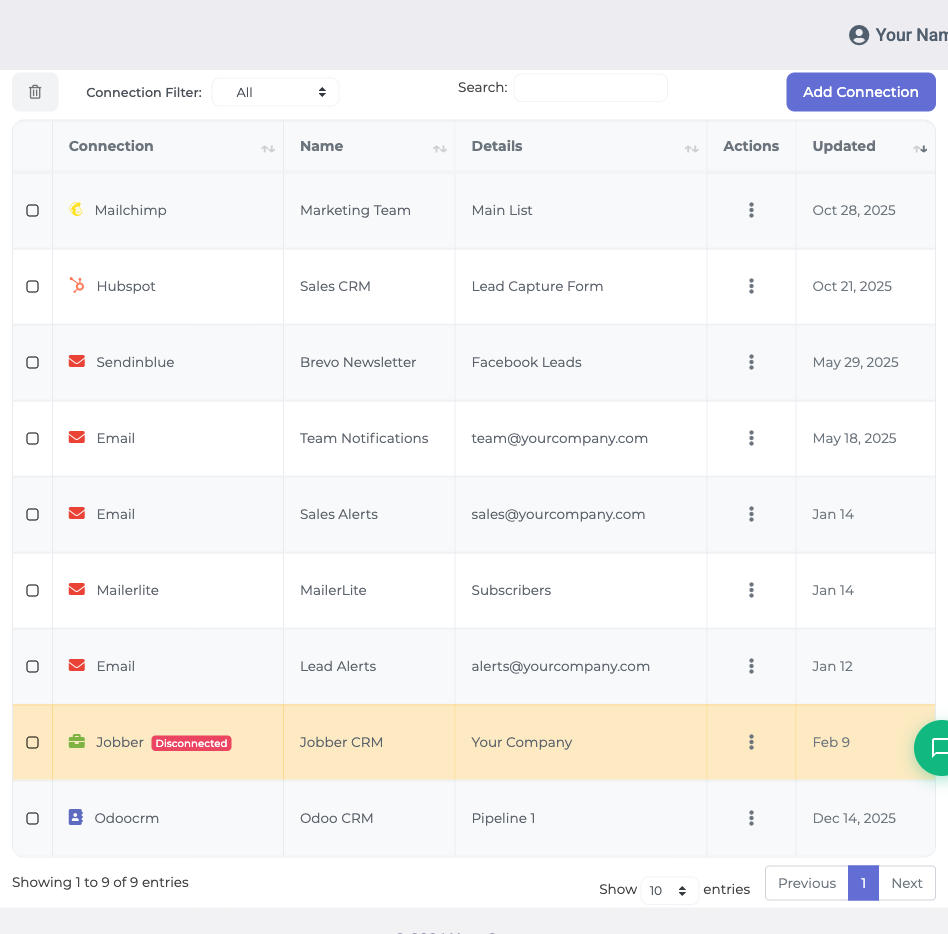
LeadSync uses OAuth to connect to Zoho, which means you approve the connection once and LeadSync handles token management automatically. No API keys to copy and paste. Start by logging in to your LeadSync account.
Click “Connections” in the left sidebar, then click “Add Connection” (or “Connect a Service” if this is your first time). A dropdown menu appears. Select “Zoho CRM” from the list.
Step 2: Approve LeadSync in Your Zoho Account
A new window opens asking you to log in to (or confirm access in) your Zoho account. This is Zoho’s OAuth approval screen. It shows that LeadSync is asking permission to create and update leads in your Zoho CRM. Review the permissions, then click “Accept” to approve the connection.
LeadSync will not access anything else in your Zoho account—only lead creation and management. Your data is secure, and you can revoke access at any time from your Zoho settings.
Step 3: The Token Fills Automatically
After you click “Accept,” the browser returns to LeadSync and the OAuth token populates automatically. You don’t copy anything. The connection is live.
Give this connection a name—something like “Zoho US” or “Zoho Main”—so you can identify it if you add more connections later. Then click “Update Connection” to save it.
Step 4: Add Your Facebook Lead Form
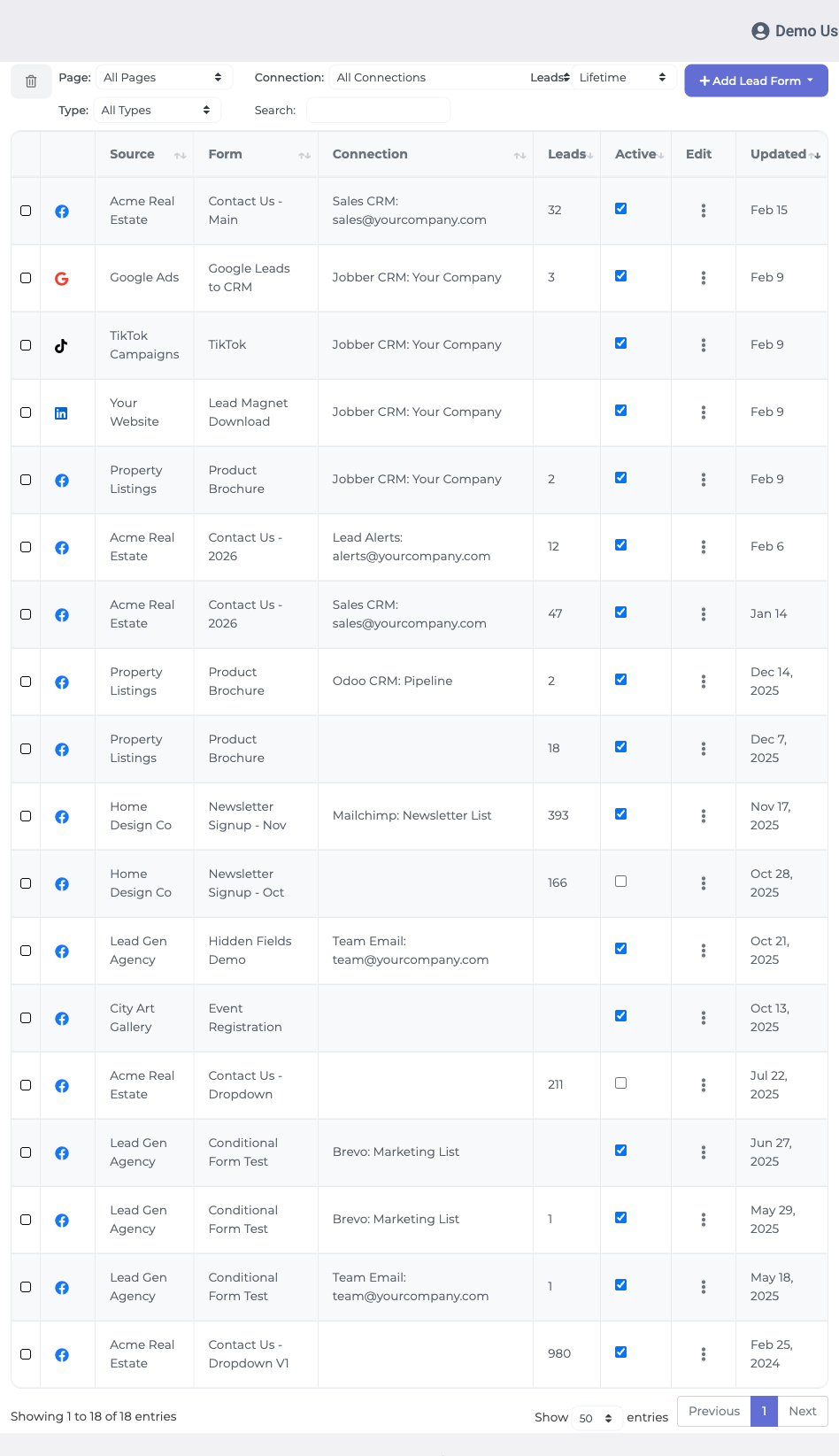
Now tell LeadSync which Facebook lead form to sync. Click “Lead Forms” in the left sidebar, then click “Add Facebook Lead Form.”
LeadSync will ask you to select your Facebook Page (you need admin rights), your specific Lead Form, and the Zoho connection you just created. Choose all three from the dropdowns, then proceed to field mapping.
Step 5: Map Facebook Fields to Zoho Lead Fields
This is where your Facebook form data becomes Zoho CRM data. LeadSync shows you each field from your Facebook form alongside all available fields in your Zoho account (both standard and custom fields).
For each Facebook field, select where it should go in Zoho. Email maps to “Email,” phone to “Phone,” and so on. If your Zoho has custom fields—like “Lead Source Detail,” “Industry,” or “Company Size”—you can map Facebook form fields to those too. LeadSync supports unlimited custom fields.
Step 6: Confirm Your Settings and Activate
Review your mappings one more time. Make sure every important field is mapped correctly. Then click “Update Notifications” to activate the connection. LeadSync will confirm your setup and start listening for new leads from your Facebook form.
That’s it. Every new lead from your Facebook form now flows directly into Zoho CRM in real-time.
Step 7: Test with a Lead
Submit a test lead through your Facebook form and wait 10-15 seconds. Then log in to Zoho CRM and check the Leads section. Your test lead should appear there automatically with all the fields you mapped filled in. If it does, you’re live. If not, double-check that the Zoho connection is still active and your field mappings are correct.
Customizing Your Zoho CRM Integration
Zoho CRM is flexible, and LeadSync makes customization straightforward. Once your setup is live, you can tweak how leads are created and what data gets captured.
One of the most powerful features is automatic lead source tagging. LeadSync automatically sets each lead’s “Source” field to the platform it came from: “Facebook,” “Google,” “LinkedIn,” or “TikTok.” This means you don’t have to manually tag leads or create a Zoho workflow to do it. Your reporting will show exactly which ad platform is generating the highest-quality leads, and you can optimize your ad spend accordingly.
If your Facebook form has conditional fields (fields that only appear based on previous answers), LeadSync captures them and maps them to your Zoho custom fields. This is useful if you ask different questions to different audiences—you preserve that nuance in Zoho without losing data.
Zoho also supports “Lead Scoring” and automated workflows. Once your leads are syncing, you can create Zoho workflows that automatically move leads through your pipeline based on criteria like lead score, source, or company size. LeadSync handles the data import; Zoho handles the automation from there.
Go Beyond Zoho CRM: Multi-Channel Lead Routing
Zoho CRM is where your leads live, but they also need to reach your team in real-time. LeadSync routes each lead to multiple destinations simultaneously—all from one connection.
Send your Facebook leads to Zoho CRM and also trigger welcome emails, post real-time alerts to your sales team in Slack, save backups to Google Sheets, or send SMS notifications to your reps. Everything happens at once. This is why companies replace Zapier—LeadSync does more with fewer integrations.
Frequently Asked Questions
Does LeadSync work with Zoho CRM?
Yes, completely. LeadSync uses Zoho CRM’s official OAuth API, which works with all Zoho CRM plans (free through Enterprise). The connection is secure, and your data stays in your Zoho account.
How fast do leads appear in Zoho CRM?
Leads appear in Zoho CRM within 5-30 seconds. Most arrive in 5-10 seconds. This is fast enough for your team to follow up while the lead is hot.
Does LeadSync work with Zoho in Australia, Europe, and India?
Yes. Zoho operates data centres in the US, Europe, India, and Australia. LeadSync automatically detects which data centre your account uses and syncs leads to the correct region. You don’t need to configure anything—it just works.
Does it automatically set the lead source?
Yes. LeadSync automatically sets each lead’s “Source” field to the platform it came from: Facebook, Google, LinkedIn, or TikTok. This ensures your Zoho reports show which channels are producing your best leads.
Can I sync from Google Ads, LinkedIn, and TikTok too?
Yes. The same Zoho connection works with lead forms from Facebook, Google Ads (Lead Form ads), LinkedIn, and TikTok. Set up each form once in LeadSync, point it to your Zoho connection, and all leads flow into the same CRM. Your reporting captures all channels in one place.
Do I need Zapier?
No. LeadSync replaces Zapier for lead routing. Zapier is useful for complex multi-step workflows, but for syncing leads to Zoho, LeadSync is simpler, faster, and usually cheaper. Most teams paying for Zapier just to sync leads could cut that cost by switching to LeadSync.
Is there a lead limit?
LeadSync pricing is based on your ad platform spend, not lead volume. So whether you get 100 leads or 10,000 per month, you pay the same. This makes budgeting predictable.
What about duplicate leads?
LeadSync checks for duplicates by email before creating a lead in Zoho. If the same email submits your form twice, LeadSync creates one lead in Zoho and updates it with the new submission data. No duplicate clutter in your CRM.
Is there a free trial?
Yes. LeadSync offers a free 14-day trial with full access to all features. No credit card required. Test it with your Facebook forms and Zoho CRM before committing.
Related Integration Guides
Looking for a different destination for your Facebook leads? These integration guides walk you through setup step by step:
- How to Send Facebook Leads to Keap
- How to Send Facebook Leads to Pipedrive
- How to Send Facebook Leads to Follow Up Boss
- How to Send Facebook Leads to HubSpot
- How to Send Facebook Leads to Copper
Start Syncing Facebook Leads to Zoho CRM Today
Zoho CRM is built to scale with your sales team. But only if your leads reach it in real-time. Stop downloading CSVs. Stop waiting for manual imports. Stop using Zapier for something this simple.
Try LeadSync free for 14 days. No credit card required. Real-time Facebook leads in your Zoho CRM, automatically tagged by source. Get started now.