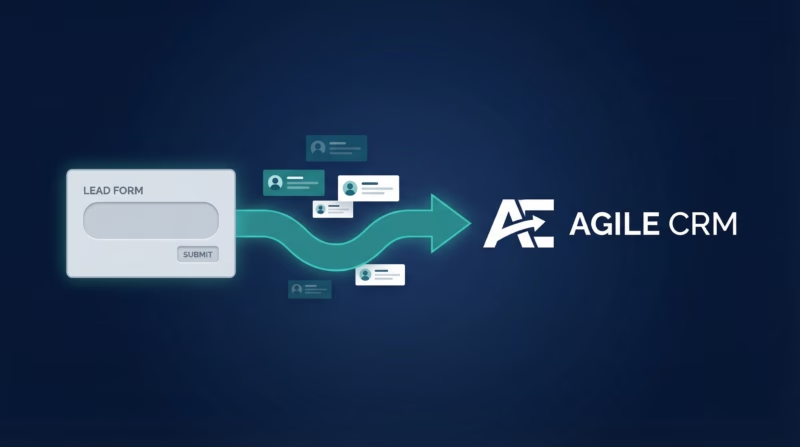
Google Ads Lead Form Extensions are a game-changer for capturing high-intent prospects, but those leads sit dormant unless you act fast. When you sync Google lead forms directly to Agile CRM, every new prospect lands in your sales pipeline within minutes—ready for immediate follow-up and automated workflows. This guide shows you how to connect Google Ads Lead Form Extensions to Agile CRM using LeadSync, eliminating manual data entry and keeping your team focused on closing deals.
Quick Start: 5 Steps to Sync Google Leads to Agile CRM
- Get your Agile CRM API credentials from Admin Settings
- Log in to LeadSync and authorize your Google Ads account
- Add a new Agile CRM connection with your API key
- Connect your Google lead form extension to Agile CRM
- Map your Google form fields to Agile CRM contact properties and test
Why Sync Google Leads to Agile CRM?
Agile CRM is built for small teams and sales-driven businesses. But Agile CRM only knows about contacts you send it. By automating lead flow from Google Ads to Agile CRM with LeadSync, you unlock critical advantages:
Leads Arrive in Minutes, Not Hours
The moment someone submits your Google lead form extension, they appear in Agile CRM within 1-2 minutes. Your sales team can call, email, or message them immediately—when interest is strongest. Delays kill conversions. Fast sync ensures your team never misses a warm lead from high-intent search traffic.
Auto-Tag Leads by Campaign for Easy Tracking
Every lead synced from Google Ads arrives tagged with the campaign name and form source. This means you can segment contacts by campaign, track which Google Ads drive the best quality prospects, and measure ROI by keyword and ad—all without manual work.
Map Any Google Form Field to Any Agile CRM Property
Google lead forms capture different fields depending on your industry and goals. LeadSync lets you map system properties like name, phone, company, and address, plus any custom fields Agile CRM has. No field goes to waste, and no manual copy-pasting required.
Workflows Trigger Immediately
The moment a contact lands in Agile CRM, your automated workflows spring to life. Send welcome emails, assign leads to sales reps, add them to nurture campaigns, or kick off SMS sequences. Your entire sales machine runs on autopilot.
Works Across All Your Lead Sources
LeadSync isn’t just for Google Ads. Sync leads from Google, Facebook, LinkedIn Lead Gen, TikTok, and more—all to the same Agile CRM account. One unified database, one source of truth, endless lead sources.
No Zapier. No Hidden Costs. No Setup Headaches.
Zapier charges per task and limits you to basic field mapping. LeadSync is built specifically for lead routing, includes unlimited custom mapping, and costs a fraction of Zapier’s monthly bill. Start with a 14-day free trial—no credit card required.
Step-by-Step: Connect Google Leads to Agile CRM
Step 1: Get Your Agile CRM API Credentials
LeadSync needs three pieces of information to connect to your Agile CRM account: your subdomain (the URL where you log in), your email address, and your API key.
Log in to Agile CRM and navigate to Admin Settings > API. You’ll see your domain (e.g., mycompany.agilecrm.com), your email, and your REST API key. Copy all three—you’ll need them shortly.
Step 2: Log in to LeadSync and Authorize Your Google Ads Account
Go to leadsync.me and log in with your LeadSync account. If you don’t have one yet, sign up for a free 14-day trial on the pricing page.
Navigate to Ad Accounts in the left sidebar and click Google. Then click Add Google Account. LeadSync will prompt you to sign in to your Google account and authorize access to your Google Ads campaigns. Follow the on-screen prompts to grant permission. Once authorized, LeadSync can see all your lead form extensions in real-time.
Step 3: Add a New Agile CRM Connection
Back in LeadSync, go to Connections and find Agile CRM in the list of supported platforms. Click Add Connection.
A form will appear asking for your Agile CRM credentials:
- Subdomain: Enter the domain from your Agile CRM URL (e.g., if you log in at
mycompany.agilecrm.com, entermycompany) - Email: The email address associated with your Agile CRM account
- API Key: Paste the REST API key from Admin Settings > API
Name your connection (e.g., “Google Leads”) for easy identification. Click Update Connection. LeadSync will test the credentials and confirm the connection is live.
Step 4: Connect Your Google Lead Form Extension
Now that both Google Ads and Agile CRM are connected, you need to tell LeadSync which lead form extension to sync. Go to Lead Forms in the left sidebar and click Add Google Lead Form.
You’ll see a form asking for:
- Ad Account: Select the Google Ads account you authorized in Step 2
- Lead Form Extension: Select the specific lead form you want to sync
- Agile CRM Connection: Select the Agile CRM connection you created in Step 3
Click Next to move to field mapping.
Step 5: Map Your Fields and Test
LeadSync shows you all the fields from your Google lead form on the left and all available Agile CRM properties on the right. Your job is to tell LeadSync which Google field should match which Agile CRM field.
For example:
- Google’s
Email Address→ Agile CRM’sEmail - Google’s
First Name→ Agile CRM’sFirst Name - Google’s
Last Name→ Agile CRM’sLast Name - Google’s
Phone Number→ Agile CRM’sPhone - Google’s
Company→ Agile CRM’sCompany - Google’s
Custom Question→ Agile CRM’sCustom Field (if available)
Email is a required field for Agile CRM—make sure it’s properly mapped. LeadSync will suggest matches automatically based on field names. Review them and adjust as needed. If a Google form field doesn’t have a match in Agile CRM, you can leave it unmapped—it simply won’t be synced.
Once you’re satisfied with your mapping, click Update Notification. Your sync is now live.
Step 6: Test with a Lead
Submit a test lead through your Google Ads campaign. Within 1-2 minutes, check your Agile CRM account. You should see your test lead appear as a new contact with all fields correctly mapped.
If the lead doesn’t appear, go back to the LeadSync dashboard and check the Activity Log for your sync. You’ll see any errors or warnings that explain what went wrong. Most issues are simple: a typo in the API key, an unmapped email field, or an Agile CRM custom field that doesn’t exist yet.
Customizing Your Google Ads to Agile CRM Integration
Auto-Tag Leads by Campaign
Every lead synced to Agile CRM arrives with tags that include the Google campaign name and lead form source. This makes it easy to segment your contacts by which ad campaigns drive the most leads and which ones convert best.
Sync Multiple Google Lead Forms to the Same Account
Running multiple lead campaigns? Create a separate sync for each Google lead form extension, all pointing to the same Agile CRM connection. Each form’s leads arrive with their own tags, so you can track performance separately.
Trigger Agile CRM Workflows on Inbound Leads
Once a lead is in Agile CRM, set up automated workflows to:
- Send an instant welcome email
- Assign the lead to a specific sales rep based on campaign or company
- Add the contact to a nurture sequence
- Create a task for follow-up
- Add them to a segment for future campaigns
Workflows execute within seconds, so your team can reach out while the lead is still hot from their Google search.
Go Beyond Agile CRM: Multi-Channel Lead Routing
LeadSync isn’t limited to Agile CRM. You can route your Google leads to multiple destinations at once, or split leads between different platforms based on campaign, source, or custom logic.
Popular combinations with Google Ads leads:
- Email: Get instant notifications when new leads arrive, with all their form responses included
- Slack: Post leads to a dedicated Slack channel so your whole team sees them in real-time
- Google Sheets: Archive all lead responses in a live spreadsheet for reporting and analysis
- SMS: Send automatic text messages to new leads with your company’s response time and next steps
The best teams use multiple channels. Agile CRM handles sales workflows, Slack keeps the team informed, and Google Sheets provides a permanent audit trail. LeadSync makes this setup effortless—add a destination in minutes.
Frequently Asked Questions
Does LeadSync work with all Agile CRM plans?
Yes. LeadSync works with Agile CRM’s Standard, Professional, and Enterprise plans. You just need access to the API key, which is available in any paid Agile CRM account.
Can I sync leads from multiple Google lead forms to one Agile CRM account?
Absolutely. Create a separate sync for each Google lead form extension, all pointing to the same Agile CRM connection. Each lead arrives with tags identifying its source form, so you can track and segment by campaign.
What happens if a contact already exists in Agile CRM?
LeadSync checks for existing contacts by email address. If a match is found, LeadSync updates the contact with new data instead of creating a duplicate. This keeps your Agile CRM database clean and prevents duplicate entries.
How fast are leads synced?
Most leads appear in Agile CRM within 1-2 minutes of form submission. Speed depends on Google’s delivery to LeadSync and Agile CRM’s API response time.
Can I map custom fields?
Yes. If your Agile CRM account has custom fields set up, they’ll appear as options in LeadSync’s field mapper. Map any Google form field to any Agile CRM custom field. If a custom field doesn’t exist in Agile CRM yet, create it first, then refresh the field list in LeadSync.
What if my Google form asks for information Agile CRM doesn’t capture?
You have two options. First, create a custom field in Agile CRM to hold that data, then map it in LeadSync. Second, if it’s not critical, simply leave it unmapped—it won’t sync to Agile CRM, but you can still see it in LeadSync’s lead history.
Will syncing slow down my Agile CRM account?
No. LeadSync uses Agile CRM’s REST API, which is designed to handle automation at scale. Syncing thousands of leads per day has no impact on your Agile CRM performance.
Can I stop syncing at any time?
Yes. Simply go to your sync in LeadSync and disable it. No leads will sync until you turn it back on. You can pause and resume as many times as you need.
Related Integration Guides
Looking for a different destination for your Google Ads leads? These integration guides walk you through setup step by step:
- How to Send Google Ads Leads to Odoo
- How to Send Google Ads Leads to LionDesk
- How to Send Google Ads Leads to HubSpot
- How to Send Google Ads Leads to Copper
- How to Send Google Ads Leads to Pipedrive
Start Syncing Google Leads to Agile CRM Today
Connecting Google Ads Lead Form Extensions to Agile CRM takes just a few minutes with LeadSync. No more manual lead entry, no more missed prospects, and no more guessing about lead quality. Every Google lead lands in your sales pipeline within minutes, ready for immediate follow-up and automated workflows.
Ready to get started? Sign up for a 14-day free trial on leadsync.me/pricing. No credit card required, no commitments. See how much faster your team can close deals when leads from Google Ads sync automatically to Agile CRM within minutes.