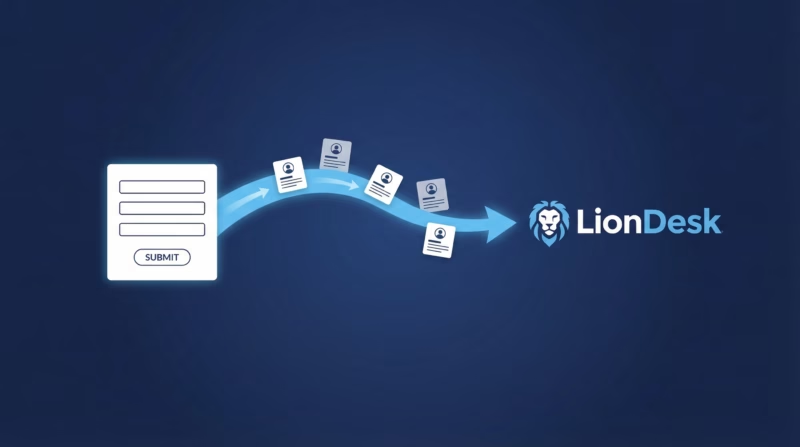
Real estate agents know the pressure: Google Ads leads come in fast, but manual entry into LionDesk wastes precious minutes. By the time you’ve typed in the contact details, a competitor has already called. LeadSync eliminates that bottleneck by automatically syncing every Google lead directly into your LionDesk CRM in real-time, so your team can focus on closing deals instead of data entry.
Quick Start: Google Ads Leads to LionDesk in 5 Minutes
- Sign up for a free 14-day LeadSync trial (no credit card required)
- Connect your Google Ads account via OAuth and select your lead form extension
- Authorize LionDesk via one-click OAuth
- Map Google lead form fields to LionDesk contact fields (email, phone, name, real estate custom fields)
- Test with a lead—it arrives in LionDesk within 1-2 minutes
Why Sync Google Ads Leads to LionDesk?
Your Google Ads campaigns are generating qualified real estate leads, but if they’re sitting in a spreadsheet or manual inbox, you’re losing money. Here’s why real estate teams choose LeadSync to bridge Google Ads and LionDesk:
- Accurate lead attribution. Every lead is tagged with the correct contact source in LionDesk, so you know which Google campaign, ad group, or lead form extension generated each lead. No more guessing about campaign performance.
- Real estate field support. LeadSync captures all the fields your leads provide: first and last name, email, phone, spouse name, home phone, office phone, and any custom real estate fields you’ve added to your form. Nothing gets lost.
- Instant follow-up. Each lead creates a contact in LionDesk within 1-2 minutes—not hours. Your agents see the lead immediately and can call or text while the lead is still warm.
- Multi-channel lead capture. Sync leads from Google, Facebook, LinkedIn, and TikTok campaigns all into the same LionDesk inbox. One platform, all your digital leads.
- No Zapier, no complexity. 14-day free trial, no credit card, one-click setup. LeadSync was built for real estate teams—you don’t need a developer or automation expert.
Step-by-Step: Connect Google Ads Leads to LionDesk
Step 1: Log in to LeadSync and Connect Your Google Account
Start at leadsync.me and log in to your account (or sign up for a free trial). From the left menu, go to Ad Accounts > Google and click Add Google Account. You’ll be taken to Google’s sign-in page—log in with the account that manages your Google Ads. LeadSync asks for permission to access your lead form extensions. Once you authorize, your Google account is connected and your lead form extensions become available.
Step 2: Authorize LionDesk via OAuth
Next, go to Connections in the left menu and click Add Connection. Select LionDesk from the dropdown. Click the Connect to LionDesk button and you’ll be taken to LionDesk’s login screen—sign in with the account that owns your CRM. LeadSync asks for permission to create and update contacts on your behalf. Once you authorize, you’re sent back to LeadSync and your LionDesk account is connected.
Step 3: Set Up Your Google Lead Form Extension Connection
Now go to Lead Forms in the left menu and click Add Google Lead Form. LeadSync will ask you to select your Google Ad Account from the dropdown, then choose the specific lead form extension you want to sync. All leads submitted through that form will automatically flow into LionDesk. If you run multiple lead form extensions (e.g., one for buyer leads, one for seller leads), you can create separate connections in LeadSync for each form.
Step 4: Map Your Google Fields to LionDesk
This is where LeadSync shines. You’ll see a field mapping interface that shows every field in your Google lead form extension on the left and every field in LionDesk on the right. Map them together:
- Email: Google email → LionDesk Email (required)
- First name: Google first_name → LionDesk First Name
- Last name: Google last_name → LionDesk Last Name
- Phone: Google phone_number → LionDesk Phone
- Spouse name (real estate): Google spouse → LionDesk Spouse (custom field)
- Home phone (real estate): Google home_phone → LionDesk Home Phone (custom field)
- Office phone (real estate): Google office_phone → LionDesk Office Phone (custom field)
- Any custom fields: Map them the same way
LeadSync auto-suggests matches, so you’ll only need to confirm or adjust a few. Once you’re happy with the mapping, save and move on.
Step 5: Test with a Lead
Before going live, submit a test lead through your Google Ads campaign or use the Google Ads preview tool to test your lead form extension. Watch the LeadSync dashboard—you’ll see it appear in the queue within seconds. Then log into LionDesk and check your contacts. The test lead should be there with all fields populated correctly. If everything looks good, you’re live. All future Google leads will sync automatically.
Customizing Your LionDesk Integration
Once your connection is running, LeadSync gives you advanced options to fit your real estate workflow:
- Contact source tags. Automatically tag every synced lead with a source like “Google Ads – Buyer Leads” so you know where the lead came from in LionDesk.
- Real estate custom fields. If your LionDesk account has custom fields for property type, price range, timeline, or other real estate details, LeadSync can map them if your Google form collects them.
- Agent assignment. Optionally route leads to specific agents based on geography, lead type, or a round-robin schedule. Configure this in LeadSync’s routing rules.
- Duplicate detection. LeadSync can check if a lead with the same email already exists in LionDesk before creating a new contact. Choose to skip the duplicate, update it, or always create a new contact.
- Webhook logging. View a complete log of every lead synced, with timestamps and any errors. Useful for debugging if a lead doesn’t arrive.
Go Beyond LionDesk: Multi-Channel Lead Routing
One of LeadSync’s biggest advantages is that it handles leads from multiple sources. You can set up separate syncs to route Google Ads leads to email, Slack, Google Sheets, SMS, and more—all at the same time. No need to choose between tools.
- Email notifications: Get an instant email when a new Google lead arrives. Read our guide on how to set up Google Ads lead email notifications.
- Slack alerts: Post new leads to a Slack channel so your team sees them immediately. See how in our article on synchronized Google Ads leads with Slack.
- Google Sheets backup: Keep a running spreadsheet of all leads for reporting and analysis. Learn how in Google Ads leads to Google Sheets.
- SMS follow-up: Send an automatic text message to new leads. Check out our guide on Google Ads SMS notifications.
The best part? You can enable all of these at once. One Google Ads lead can sync to LionDesk, trigger an email, post to Slack, and update Google Sheets simultaneously.
Frequently Asked Questions
How long does it take for a Google Ads lead to appear in LionDesk?
Typically within 1-2 minutes. Google sends the lead to LeadSync, LeadSync validates and maps the fields, then pushes it to LionDesk. The entire process is fast enough that your agent can call the lead while it’s still “hot.”
What if a lead is missing a field (e.g., no phone number)?
LeadSync still syncs the lead to LionDesk with whatever information is available. You can configure LeadSync to require certain fields (like email) before syncing, or allow partial leads through and have your team fill in the missing info later.
Can I sync leads from multiple Google lead form extensions into the same LionDesk account?
Yes. Create a separate LeadSync connection for each Google lead form extension, all pointing to the same LionDesk account. You can use contact source tags to differentiate which form each lead came from.
What happens if a lead already exists in LionDesk?
By default, LeadSync checks for duplicates by email address. You can configure it to skip the duplicate, update the existing contact with new info, or always create a new contact. Choose based on your workflow.
Is there a limit to how many leads I can sync?
No. LeadSync handles unlimited leads—whether you’re syncing 10 a week or 1,000 a day. Pricing is flat-rate, not per-lead.
What if the sync breaks or a lead doesn’t arrive?
LeadSync logs every sync attempt with detailed error messages. If a lead fails, you’ll see exactly why (e.g., “missing required email field,” “LionDesk API rate limit”). Most issues are easy to fix—the logging makes debugging fast. LeadSync support is available 24/5.
Can I use LeadSync if I run multiple real estate teams or offices?
Yes. Create separate LionDesk accounts for each team, then set up separate LeadSync connections. You can also use LeadSync’s agent assignment feature to route leads to the right person in a single LionDesk account.
Do I need a Zapier subscription to use LeadSync with LionDesk?
No. LeadSync is a direct integration with LionDesk—no Zapier, no webhooks to configure, no middleware. You save money on Zapier fees and get a faster, more reliable sync.
What’s the difference between LeadSync and manual lead entry?
Manual entry takes 2-5 minutes per lead and is error-prone. LeadSync syncs in 1-2 minutes with 100% accuracy. Over a month of 100 leads, that’s 3-8+ hours you get back to spend on closing deals instead of typing.
Related Integration Guides
Looking for a different destination for your Google Ads leads? These integration guides walk you through setup step by step:
- How to Send Google Ads Leads to Agile CRM
- How to Send Google Ads Leads to Copper
- How to Send Google Ads Leads to Odoo
- How to Send Google Ads Leads to Follow Up Boss
- How to Send Google Ads Leads to HubSpot
Start Your Free 14-Day Trial Today
Ready to stop losing time on lead entry? Head to leadsync.me/pricing, choose your plan, and start your free trial. No credit card required. Your first Google Ads lead to LionDesk could be syncing within minutes.