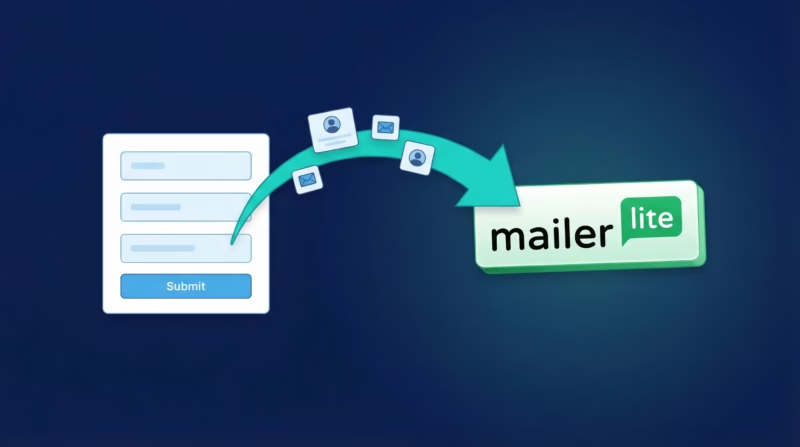
If you’re running Google Ads Lead Form Extensions and want to sync those leads directly with your MailerLite account, you’re in the right place. This guide will walk you through the process to seamlessly connect Google leads to MailerLite.
What is MailerLite?
MailerLite is a powerful email marketing platform designed to help businesses of all sizes create and manage effective email campaigns. With its user-friendly interface and robust features, MailerLite enables you to build professional email newsletters, automate your marketing processes, and track your results effortlessly.
Features of MailerLite:
1. Drag-and-Drop Editor: Create stunning email campaigns without any coding skills using the intuitive drag-and-drop editor.
2. Automation: Automate your email marketing with ease, from welcome emails to complex workflows, ensuring timely and relevant communication with your subscribers.
3. Landing Pages and Pop-Ups: Design and publish engaging landing pages and pop-ups to capture leads and grow your email list.
4. Segmentation: Target specific groups of subscribers with personalized content using advanced segmentation features.
5. Analytics and Reporting: Track the performance of your campaigns with detailed analytics and reporting, helping you make data-driven decisions.
Benefits of MailerLite:
1. Cost-Effective: MailerLite offers competitive pricing plans, making it accessible for businesses with any budget.
2. Ease of Use: Its user-friendly design ensures that even beginners can create and manage professional email campaigns without a steep learning curve.
3. Scalability: Whether you’re a small business or a large enterprise, MailerLite scales with your needs, offering features that grow with your business.
4. Integration: Seamlessly integrate MailerLite with other tools and platforms, enhancing your overall marketing strategy.
By leveraging MailerLite’s features, businesses can enhance their email marketing efforts, engage with their audience more effectively, and drive better results.
Why Sync Google Ads Leads with MailerLite?
Connecting your Google Ads leads to MailerLite allows you to automatically add new leads to your email marketing campaigns, without having to manually download them from Google Ads Manager. With this integration, you can ensure that your lead data is always up-to-date and your email lists are constantly growing.
If you simply need email notifications whenever a new Google lead comes in, then check out our Google leads to email FAQ.
Prerequisites
Before we dive in, make sure you have:
• A Google Ads account with active Lead Form Extensions.
• A MailerLite account.
• Admin access to both accounts.
• An account with LeadSync.
Step 1: Set Up Your Google Lead Form Extension
1. Log in to Google Ads Manager: Navigate to your Google Ads account and access your active campaigns.
2. Create a Lead Form Extension: Go to your campaign, select Ads & Extensions, then choose Lead Form Extensions. Create a new form with the necessary fields to capture information like name, email address, phone number, and any other relevant details.
3. Verify Your Form: Ensure that your lead form is active and properly configured with your Google Ads campaign before moving to the next step.
Step 2: Connect Your Google Account to LeadSync
1. Sign In to LeadSync: Log in to your LeadSync account. If you don’t have one, sign up at LeadSync.
2. Go to Ad Accounts: In your LeadSync dashboard, click on ‘Ad Accounts’ from the left menu and select ‘Google’.
3. Click Add Google Account: Click the ‘Add Google Account’ button and authorize LeadSync to access your Google Ads data via OAuth.
4. Sign In to Google: You’ll be redirected to Google’s sign-in page. Enter your credentials and grant LeadSync the necessary permissions to access your Google Ads account and lead forms.
Step 3: Create a MailerLite Connection
1. Go to Connections: From your LeadSync dashboard, navigate to ‘Connections’ and click ‘Add Connection’.
2. Select MailerLite: Choose MailerLite from the connection dropdown menu.
3. Generate an API Key in MailerLite: Log in to your MailerLite account, go to Integrations, then click on ‘Developer API’. Generate a new API token for LeadSync and copy the token.
4. Paste Your API Token: Return to LeadSync and paste the API token into the connection form. Click ‘Update Connection’. If you’ve created Groups in MailerLite, you’ll be able to select the group to add new leads to from the List dropdown.
Step 4: Pair Your Lead Form to Your Connection
1. Go to Lead Forms: From the LeadSync dashboard, navigate to ‘Lead Forms’ and click ‘Add Google Lead Form’.
2. Select Your Ad Account: Choose your Google Ads account from the dropdown menu.
3. Choose Your Lead Form Extension: Select the specific lead form extension you want to sync with MailerLite.
4. Select Your MailerLite Connection: Choose the MailerLite connection you just created.
5. Map Your Fields: You’ll be prompted to map your Google form fields to MailerLite fields. Ensure that the email field is mapped correctly, as this is required. Map any other fields like first name, last name, and phone number as needed. Click ‘Update Notification’ once you’re done.
Step 5: Test Your Connection
We always recommend that you create a test lead to ensure it gets added to your MailerLite list correctly. Submit a test lead through your Google Ads campaign, and check your MailerLite subscriber list to confirm the data was synced properly. This typically takes 1-2 minutes.
Best Practices
• Regularly Monitor Your Leads: Ensure that leads are syncing correctly by regularly checking your MailerLite account and comparing numbers with Google Ads Manager.
• Optimize Your Lead Form: Keep your Google lead form fields minimal to reduce friction and increase conversion rates. Only ask for essential information.
• Segmentation: Use MailerLite’s segmentation features to categorize your leads by source, campaign, or interests for more targeted email campaigns.
• Follow Up Promptly: Set up automated welcome emails to engage new leads as soon as they sign up through your Google form.
Troubleshooting
If you encounter any issues, here are a few tips:
• Check Permissions: Ensure that LeadSync has the necessary permissions to access both your Google Ads account and MailerLite. Verify that your Google Ads account has access to the ad account and lead form extensions.
• Field Mapping: Double-check the field mappings to ensure all necessary fields are correctly aligned between your Google form and MailerLite.
• API Key Issues: If you experience authentication errors, generate a new API key in MailerLite and update your LeadSync connection.
• Support: Contact LeadSync Support for further assistance.
Cross-Channel Lead Distribution
LeadSync makes it easy to route Google Ads leads to multiple destinations simultaneously. In addition to MailerLite, you can send your Google leads to:
• Email: Receive instant email notifications when new leads come in.
• Slack: Post leads to a Slack channel for team visibility and real-time alerts.
• Google Sheets: Automatically populate a spreadsheet with lead data for easy tracking and analysis.
• SMS: Send immediate SMS notifications to your team when new leads arrive.
LeadSync works with Google, Facebook, LinkedIn, and TikTok, giving you the flexibility to centralize leads from all your advertising channels into one powerful platform.
Wrapping Up
By following these steps, you can effortlessly connect Google Ads leads to MailerLite, ensuring your email marketing efforts are streamlined and effective. This integration will save you time and help you engage with your leads more efficiently.
Start connecting your Google Ads leads to MailerLite today and watch your email list grow! Ready to get started? Check out LeadSync pricing plans to find the perfect fit for your business.
Related Integration Guides
Looking for a different destination for your Google Ads leads? These integration guides walk you through setup step by step:
- How to Send Google Ads Leads to Campaign Monitor
- How to Send Google Ads Leads to Kit (ConvertKit)
- How to Send Google Ads Leads to SendGrid
- How to Send Google Ads Leads to AWeber
- How to Send Google Ads Leads to Customer.io