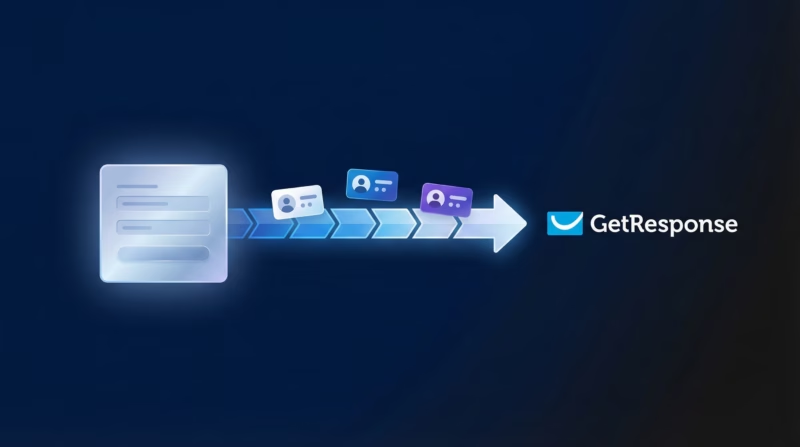
Getting Facebook leads into GetResponse shouldn’t require coding or manual data entry. Every lead that fills out your Facebook Lead Ad form can trigger your GetResponse autoresponder immediately—but only if they land in your email list first.
LeadSync connects your Facebook ads directly to GetResponse in minutes. No Zapier. No API fumbling. Your leads appear in GetResponse the moment they submit the form, ready to start your day-zero sequence.
Quick Start — 5 Steps
- Get your GetResponse API key (Account Settings → Integrations & API)
- Connect LeadSync to GetResponse using that API key
- Select your GetResponse campaign
- Connect your Facebook Lead Ad form
- Map your custom fields and go live
Takes about 10 minutes. Your leads start flowing immediately.
Why Sync Facebook Leads to GetResponse?
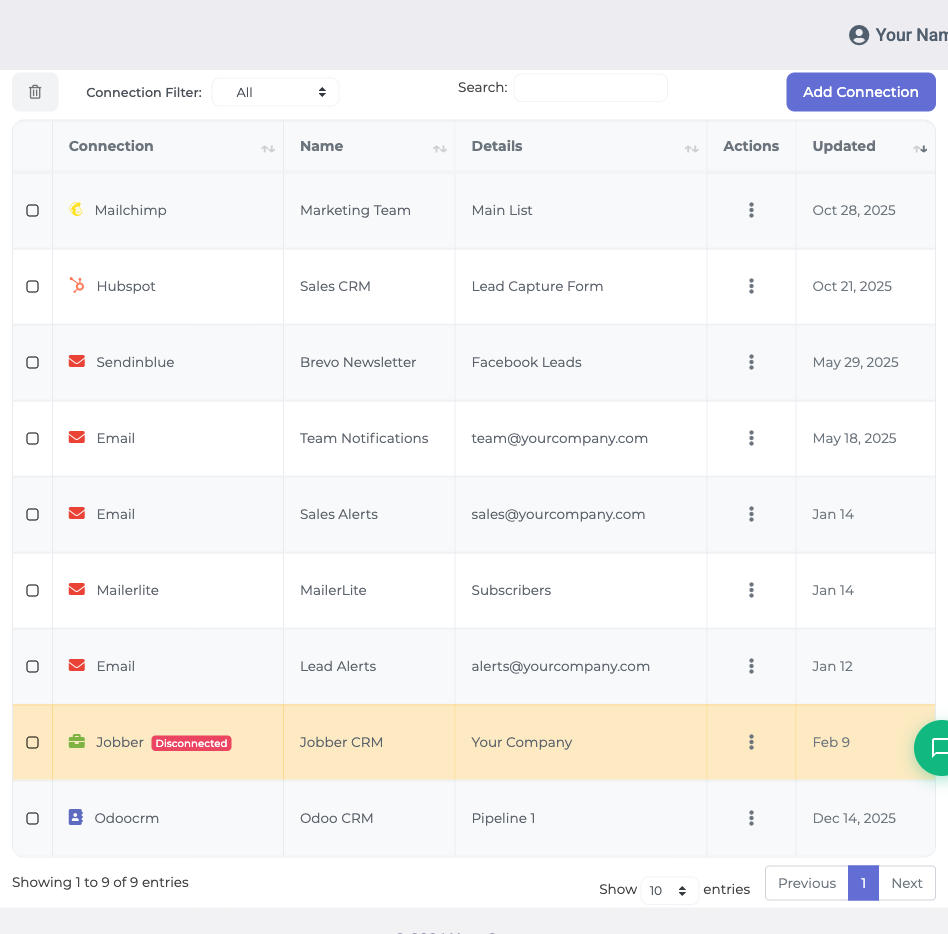
GetResponse is built for automating email sequences. But it can’t pull leads from Facebook Lead Ads directly. That’s where LeadSync fills the gap.
- Day-zero autoresponder starts immediately. Your first email goes out the second the lead submits the form, not after a delay or manual upload.
- Custom fields map automatically. Job title, company, phone, and any custom fields you’ve added to your Lead Ad form sync directly to GetResponse field definitions.
- Every lead arrives as it comes in. No batching. No waiting. Your GetResponse list updates in real time.
- No manual work. Set it up once and forget it. Leads flow from Facebook to GetResponse without you lifting a finger.
- Capture leads from multiple platforms. Want leads from Google Ads, LinkedIn Lead Gen Forms, or TikTok ads in the same GetResponse campaign? Add them all.
No Zapier needed. No $30/month Zap eating into your margin. LeadSync handles it natively.
Ready to try it? Start your free 14-day trial.
Step-by-Step: Connect Facebook Leads to GetResponse
Step 1: Generate Your GetResponse API Key
GetResponse uses API keys for third-party integrations. You’ll need to generate one before LeadSync can access your account.
Log into GetResponse and navigate to your Account Settings. Look for Integrations & API. Click on API in the left menu.
Click the Generate API Key button. Give your key a name (e.g., “LeadSync Facebook Ads”). Click Generate.
Your API key will appear. Copy it immediately. You won’t see it again after you close this page.
Step 2: Connect LeadSync to GetResponse
Log into your LeadSync dashboard. Go to Connections in the top menu. Click Add Connection.
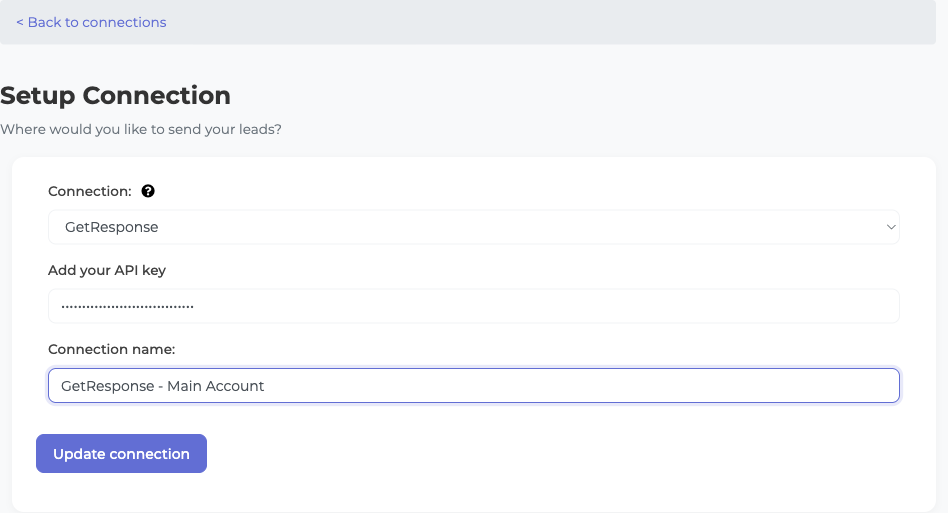
Select GetResponse from the dropdown list. You’ll see the connection form.
Paste your GetResponse API key into the API Key field. Give your connection a name (e.g., “GetResponse – Main Account”). Click Update Connection.
Step 3: Select Your GetResponse Campaign
Once LeadSync verifies your API key, a new List dropdown appears. This is where you’ll select which GetResponse campaign receives your Facebook leads.
We recommend creating a dedicated campaign in GetResponse for Facebook Lead Ads. This keeps your lead workflows separate from other email campaigns.
Select your campaign from the dropdown. Click Update Connection again. You’re now connected.
Step 4: Connect Your Facebook Lead Ad Form
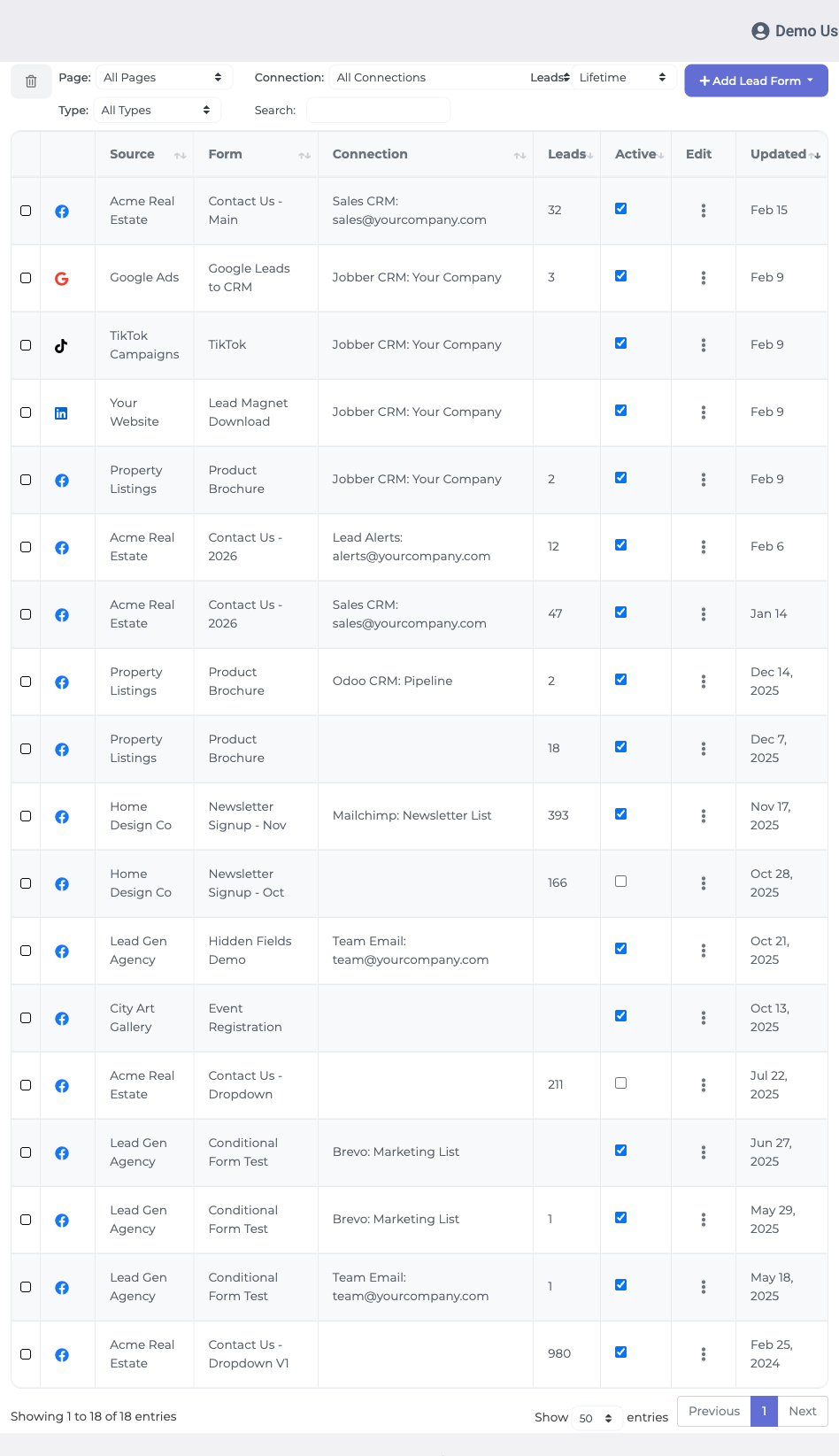
Go to the Lead Forms section in LeadSync. Click Add Facebook Lead Form.
Select your Facebook Page from the dropdown. Then select the specific Lead Form you want to sync to GetResponse. Select your GetResponse connection.
Click Update notification. LeadSync is now listening for new leads from this form.
Step 5: Map Custom Fields (Optional)
If your Facebook Lead Ad form includes custom fields beyond the standard name and email, you’ll want to map them to GetResponse so the data arrives in the correct place.
In the Lead Form setup page, scroll to Field Mapping. LeadSync will show each field from your Facebook form on the left, and your GetResponse fields on the right.
Match them up. For example, if your form asks for “Job Title,” map it to your GetResponse “Job Title” field. Click Update notification when you’re done.
Critical: Disable Double Opt-In on Your GetResponse Campaign
This is the most important step many people miss.
By default, GetResponse sends new subscribers a confirmation email and waits for them to click the confirmation link before adding them to your campaign. This delays your day-zero autoresponder by hours or days.
Since Facebook Lead Ads already collect consent in your ads, you don’t need a second confirmation email. Disable double opt-in in your GetResponse campaign settings.
Log into GetResponse, go to your campaign, and find Confirmation Settings or Opt-In Settings (exact naming varies by GetResponse version). Uncheck Double Opt-In.
Save your changes. Now leads will appear in your campaign immediately and trigger your autoresponder without delay.
Customizing Your GetResponse Integration
Using Full Name Parsing
If your Facebook Lead Form collects a full name field but GetResponse expects separate first and last name fields, LeadSync automatically splits the full name for you.
Just map “Full Name” from Facebook to “First Name” in GetResponse during field mapping, and it will be parsed correctly.
Adding Custom Fields to GetResponse
If you add a new custom field to your Facebook Lead Form after the integration is live, you can add that field to GetResponse and remap it in LeadSync without reconnecting.
Go back to your Lead Form settings in LeadSync, refresh the field list, and map the new field. Your next lead with that field will sync correctly.
Managing Multiple Facebook Forms
If you run multiple Facebook Lead Ad campaigns, you can connect each one to GetResponse separately. This lets you send different audiences to different campaigns or use different field mappings.
Go to Lead Forms and click Add Facebook Lead Form multiple times. Each form connection is independent.
Go Beyond GetResponse: Multi-Channel Lead Routing
GetResponse is great for email sequences, but your leads might need to go to other platforms too.
LeadSync lets you route the same Facebook leads to multiple destinations simultaneously:
- Send email notifications to your team the moment a lead arrives
- Text new leads directly with SMS
- Post leads to Slack channels for instant team alerts
- Log all leads in a Google Sheet for tracking and reporting
Most of our users connect GetResponse for nurturing and Slack for immediate team notification. That way your sales team jumps on hot leads while your email sequence builds relationships over time.
Frequently Asked Questions
How often do leads sync from Facebook to GetResponse?
Instantly. When someone submits your Facebook Lead Ad form, LeadSync captures the lead immediately and sends it to GetResponse within seconds. Your day-zero email can go out right away.
Can I send leads from multiple Facebook ad accounts to one GetResponse campaign?
Yes. Each Facebook Page is independent in LeadSync, but they can all feed into the same GetResponse campaign. Connect multiple Facebook Lead Forms to the same GetResponse connection and they’ll all arrive in the same list.
What happens if I add a new field to my Facebook Lead Form?
LeadSync will detect the new field. Go back to your Lead Form settings and add the mapping in the Field Mapping section. Leads submitted after that will include the new field in GetResponse.
Does LeadSync charge per lead?
No. LeadSync has a flat monthly rate based on your plan. Sync 100 leads or 10,000 leads—your price stays the same.
Can I test the integration before going live with all my ads?
Absolutely. Set up the integration with a small test form or a low-budget ad campaign first. Submit a few test leads and verify they’re showing up in GetResponse correctly. Once you’re confident, scale up to your full campaigns.
What if my lead has a custom phone or address field?
LeadSync supports any custom fields GetResponse supports. During field mapping, match your Facebook custom fields to your GetResponse fields. If the field doesn’t exist in GetResponse yet, create it in your GetResponse account first, then map it in LeadSync.
What if I want to use different GetResponse campaigns for different Facebook forms?
No problem. Create a new GetResponse connection for each campaign (or use the same connection and select a different campaign for each Lead Form). Each Facebook form can route to a different GetResponse campaign.
Is my API key secure in LeadSync?
Yes. Your API key is encrypted and stored securely. LeadSync only uses it to add subscribers to your GetResponse account. You can revoke the key at any time in GetResponse without affecting your other integrations.
What if I delete the integration? What happens to my existing GetResponse subscribers?
Existing subscribers stay in GetResponse. Deleting the LeadSync connection just stops new leads from being added. It doesn’t remove anyone who was already synced.
Related Integration Guides
Looking for a different destination for your Facebook leads? These integration guides walk you through setup step by step:
- How to Send Facebook Leads to Constant Contact
- How to Send Facebook Leads to Brevo
- How to Send Facebook Leads to AWeber
- How to Send Facebook Leads to ActiveCampaign
- How to Send Facebook Leads to Kit (ConvertKit)
Start Syncing Facebook Leads to GetResponse Today
Your Facebook leads are valuable. Every minute they sit in your lead form without hitting GetResponse is a minute your autoresponder isn’t working.
LeadSync connects them in under 10 minutes. No code. No Zapier. Just instant lead delivery.
Try LeadSync free for 14 days. Connect Facebook to GetResponse, watch your first leads arrive, and see how your autoresponder performs. No credit card required.