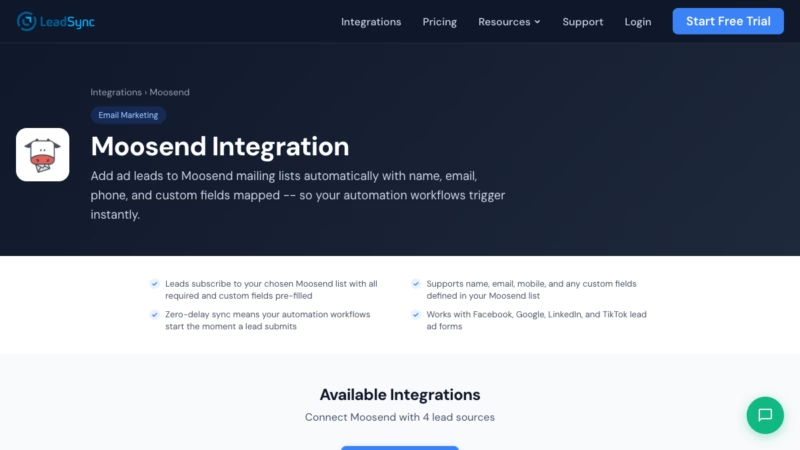
Facebook leads sit in your ad account for hours before your team even sees them. By then, engagement drops, response rates plummet, and you’ve lost momentum. LeadSync automates this: the moment someone fills out your Facebook lead form, their data flows directly into Moosend, triggering your email automation workflows instantly. No manual exports, no delays, no lost leads.
Quick Start: Facebook Leads to Moosend in 5 Steps
- Grab your Moosend API key from account settings
- Connect Moosend to LeadSync with one click
- Authorize your Facebook ad account
- Map your lead form fields to Moosend list fields
- Test with a real lead and watch it sync instantly
Why Sync Facebook Leads to Moosend?
Step-by-Step: Connect Facebook Leads to Moosend
Step 1: Get Your Moosend API Key
Log into your Moosend account and navigate to Settings > API Key. You’ll see your API key displayed in a text field. Copy this entire key—you’ll need it in the next step. If you haven’t generated an API key yet, Moosend will prompt you to create one. Keep this key private and never share it in emails or public channels.
Step 2: Log in to LeadSync and Add a New Connection
In your LeadSync dashboard, click Add New Connection (or navigate to Destinations). Search for Moosend and click to select it. Paste your API key into the field labeled API Key. LeadSync will verify the key immediately. Once verified, you’re ready to move to the next step.
Step 3: Select Your Mailing List
After authentication, LeadSync pulls all your Moosend mailing lists. Choose which list you want Facebook leads to subscribe to. If you don’t see your desired list, create it in Moosend first, then come back to LeadSync and refresh the dropdown. You can set up multiple connections to route different lead sources to different lists.
Step 4: Set Up Your Facebook Lead Form Connection
Click Connect Facebook and authorize LeadSync to access your ad account. You’ll be taken to Facebook’s permission screen where you’ll confirm that LeadSync can read your lead forms and ads. Once authorized, return to LeadSync and select the Facebook lead form you want to connect. If you have multiple ad accounts, LeadSync lets you choose which one to use.
Step 5: Map Your Fields
Email is required—make sure your Facebook lead form has an email field and that LeadSync maps it correctly. Map any other fields you’ve set up: first name, last name, phone, company, or custom fields you’ve added to your Moosend list. Fields that don’t have a match in Moosend are skipped; they won’t cause errors. You can reorder mappings or leave fields unmapped if they’re optional.
Step 6: Test with a Lead
Before going live, submit a test lead through your Facebook lead form. You should see it appear in your Moosend list within 30 seconds. Check that all fields populated correctly and that the subscriber is assigned to the right list. If something’s off, go back to the field mapping step and adjust. Once you’re confident, you’re live—every new lead will sync automatically.
Customizing Your Moosend Integration
Custom fields: Moosend lists support custom fields beyond the basics. If you’ve added custom fields to your list (like “Industry” or “Budget Range”), map your Facebook form fields to them during setup. LeadSync syncs any field you’ve mapped, no limits.
Automation workflows: Once leads land in Moosend, your automation workflows trigger immediately. Create welcome sequences, nurture campaigns, or drip campaigns that start the moment a lead subscribes. LeadSync gets leads in the door; Moosend handles the follow-up.
Multiple Moosend lists: If you run different lead forms or campaigns for different audiences, set up separate LeadSync connections for each. Route Facebook leads to List A, Google leads to List B—all from a single dashboard. Each connection syncs independently and instantly.
Duplicates: Moosend’s default behavior handles duplicates based on email address. If the same email subscribes twice, Moosend updates the existing record. If you prefer to reject duplicates, configure that in Moosend’s list settings, and LeadSync will respect that rule.
Go Beyond Moosend: Multi-Channel Lead Routing
Moosend is just one destination. LeadSync integrates with dozens of platforms, so you can route the same Facebook leads to multiple places simultaneously:
Combine Moosend with these channels to build a complete lead management engine that captures, qualifies, and nurtures leads across every touchpoint.
Frequently Asked Questions
How fast do leads sync from Facebook to Moosend?
Leads sync in under 30 seconds. Most sync within 10-15 seconds. This means your Moosend automation workflows start almost immediately, giving you a huge competitive advantage over manual or delayed systems.
What if a lead is missing their email address?
Email is required for Moosend subscription. If a Facebook lead form submission doesn’t include an email, LeadSync will flag it and not sync that lead. Make sure your Facebook form requires the email field to avoid lost leads.
Can I sync custom fields from my Facebook form to Moosend?
Yes. Map any custom field in your Facebook form to a custom field in your Moosend list. During field mapping, you’ll see all available fields. Fields that don’t have a Moosend equivalent can be stored in Moosend’s custom fields if you’ve created them, or skipped entirely.
Is there a per-lead fee or monthly cap on synced leads?
No. LeadSync uses flat-rate pricing. You pay one monthly fee regardless of how many leads you sync. Sync 10 leads or 10,000 leads per month—your cost stays the same. This is why LeadSync is so much cheaper than Zapier for high-volume lead management.
Can I send the same Facebook leads to multiple Moosend lists?
Yes. Create multiple LeadSync connections—one for each Moosend list you want to target. You can send all leads to every list, or use LeadSync’s advanced routing to send different leads to different lists based on custom criteria like form source or lead data.
How does LeadSync compare to Zapier for Facebook-to-Moosend automation?
Zapier charges per task (per lead synced). At 500 leads per month, Zapier costs $750+. LeadSync’s flat rate is typically $50-150 per month, depending on your plan. Plus, LeadSync is built for lead syncing, so it’s faster, more reliable, and doesn’t require fussing with Zap configurations. No comparison.
Do I need to install anything on my website?
No. LeadSync is a cloud service. You never install code or create webhooks. Just authorize Facebook and Moosend, map your fields, and you’re done. Everything runs on LeadSync’s servers.
Can I try this for free before committing?
Yes. LeadSync offers a 14-day free trial with full feature access. No credit card required. Connect as many integrations as you want and sync as many leads as you need. If you decide it’s not for you, cancel anytime with no questions asked.
What happens if the Moosend API goes down or there’s an error during sync?
LeadSync automatically retries failed syncs with exponential backoff. If a lead fails to sync, you’ll receive an alert, and LeadSync will keep retrying for 24 hours. In rare cases of repeated failures, check your API key, list name, and field mappings. Most issues are resolved by refreshing the connection in LeadSync.
Related Integration Guides
Looking for a different destination for your Facebook leads? These integration guides walk you through setup step by step:
- How to Send Facebook Leads to Vertical Response
- How to Send Facebook Leads to Customer.io
- How to Send Facebook Leads to Iterable
- How to Send Facebook Leads to SendGrid
- How to Send Facebook Leads to Campaigner
Start Syncing Facebook Leads to Moosend Today
Stop losing leads to delays and manual work. With LeadSync and Moosend, every Facebook lead becomes an instant subscriber ready for your email automation. Your team moves faster. Your follow-up improves. Your conversions grow. Start your 14-day free trial today—no credit card required. See how much faster you can close leads when they arrive in Moosend the moment they fill out your form.