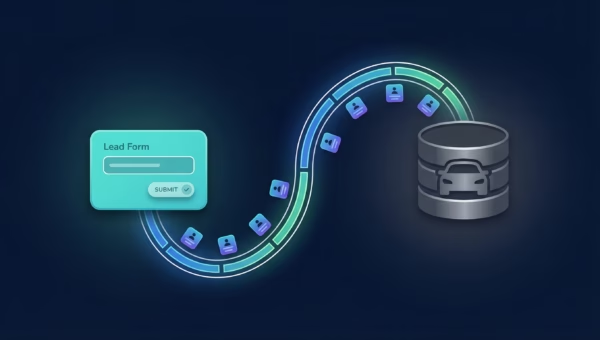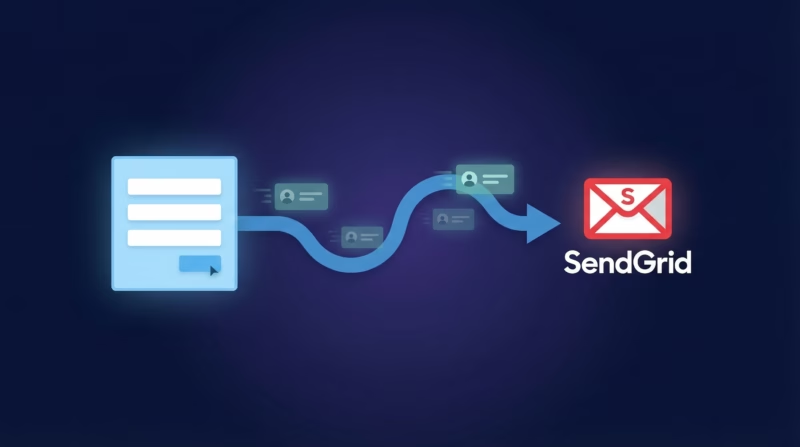
Your Google lead form extension just captured a high-intent prospect, but getting that lead into SendGrid for nurturing shouldn’t require manual work or fragile Zapier connections. With LeadSync, every Google lead automatically syncs to SendGrid in seconds—with zero setup delays and full field mapping built in. This guide shows you how to connect Google Ads leads to SendGrid and start building automated email campaigns on day one.
Quick Start: Connect Google Ads Leads to SendGrid in 5 Steps
- Generate a SendGrid API Key (Full Access)
- Open LeadSync and go to Ad Accounts > Google, then click “Add Google Account” and authorize
- Navigate to Connections, select SendGrid, and paste your API Key
- Go to Lead Forms, select your Google lead form extension and SendGrid connection
- Map Google form fields to SendGrid reserved fields (email, first name, last name)
Done. Leads sync automatically. No credit card required. Start your free 14-day trial.
Why Sync Google Ads Leads to SendGrid?
Google lead form extensions capture high-intent prospects directly in the search network, but without a delivery system, they’re just data sitting in Google Ads. SendGrid turns those leads into engaged email subscribers. Here’s what you gain by connecting the two:
- Automatic upsert behavior: Existing contacts are updated with new data, not duplicated. If Sarah has already responded to your ads, her profile stays clean.
- Reserved field mapping: Email, first name, last name, phone, and company all sync to SendGrid’s native fields—no custom field bloat.
- Seconds-fast delivery: Leads arrive in SendGrid within 5-10 seconds, so you can trigger welcome sequences immediately.
- Custom field support: Map any Google form field (company industry, budget, job title, company size) to SendGrid custom fields for segment-ready data.
- Multi-source flexibility: Works with leads from Google, Facebook, LinkedIn, and TikTok—all flowing into a single SendGrid list.
- No third-party bloat: Zapier costs $20-30/month per task and adds latency. LeadSync is one flat rate, no per-lead fees, no Zapier dependency.
Step-by-Step: Connect Google Ads Leads to SendGrid
Step 1: Create a SendGrid API Key
Log in to your SendGrid account and navigate to Settings > API Keys. Click “Create API Key” and give it a descriptive name like “LeadSync Google Leads.” Select Full Access to ensure the connection can read lists, write contacts, and handle custom fields. Copy the key—you’ll paste it into LeadSync next.
Keep this key somewhere secure; SendGrid only shows it once.
Step 2: Connect Your Google Ads Account to LeadSync
Open LeadSync and go to Ad Accounts > Google in the left menu. Click “Add Google Account” and you’ll be taken to Google’s OAuth authorization screen. Sign in with the Google account that manages your ad campaigns. Authorize LeadSync to access your Google Ads data. Your Google account will now appear in the table—you’re connected.
Step 3: Set Up Your SendGrid Connection
In LeadSync, go to Connections from the left menu. Click “Add Connection” and select SendGrid from the dropdown. Paste the full SendGrid API Key you generated in Step 1. LeadSync immediately validates it and loads your available contact lists. Give your connection a name like “Google Leads” and select the contact list where you want Google leads to land—or create a dedicated list in SendGrid first (e.g., “Google Lead Form Prospects”). Click “Update Connection” when done.
Step 4: Set Up Your Google Lead Form Connection
In LeadSync, go to Lead Forms from the left menu. Click “Add Google Lead Form” and you’ll see a series of dropdowns. First, select your Google Ad Account (the one you authorized in Step 2). Next, select your Lead Form Extension from the list of active or paused campaigns. Then, select your SendGrid Connection (the one you just created in Step 3).
Step 5: Map Your Google Form Fields to SendGrid
Now the critical part: tell LeadSync which Google form fields go to which SendGrid fields. Most lead form extensions capture email, first name, and last name—these map directly to SendGrid reserved fields. If your Google form includes custom fields (e.g., “What’s your company size?” or “What’s your industry?”), map them to SendGrid custom fields so you can segment and personalize campaigns.
Example mapping:
- Google “Email” → SendGrid Email (required)
- Google “First Name” → SendGrid First Name
- Google “Last Name” → SendGrid Last Name
- Google “Company” → SendGrid Company
- Google “Company Size” → SendGrid custom field “Company Size”
Click “Update Notification” to save your mapping. Leads will now sync automatically from this point forward.
Step 6: Test with a Lead
Fill out your Google lead form yourself. Within 1-2 minutes, check your SendGrid contact list—you should see your test lead with all fields populated correctly. If something’s missing or malformed, go back to your field mapping and adjust. Once the test passes, you’re live. New leads will sync automatically from this point forward.
Customizing Your SendGrid Integration
LeadSync’s SendGrid integration is flexible. Here are common customizations:
Add Custom Fields for Segmentation
SendGrid custom fields let you store any data your Google lead form collects. If your form asks “What industry are you in?” or “How many employees does your company have?”, create matching custom fields in SendGrid and map Google data to them. This unlocks powerful segmentation—you can trigger different email sequences based on company size, industry, or job function.
Create Multiple Connections for Different Lead Forms
Running multiple Google campaigns with different lead form extensions? Create a separate LeadSync connection for each campaign if you want leads in different SendGrid lists—or route all campaigns to a single list and use SendGrid’s segmentation features to organize them. LeadSync supports both workflows.
Update Existing Contacts (Upsert Behavior)
If someone submits multiple Google lead forms or re-engages with your campaign, LeadSync upserts the contact instead of duplicating it. Their first name, last name, and custom fields are updated with the latest data. This keeps your SendGrid list clean and prevents double-emails.
Trigger SendGrid Automations
After syncing a lead to SendGrid, set up automations in SendGrid to trigger on contact creation or field updates. Send a welcome email immediately, add them to a nurture sequence, or notify your sales team via webhook. LeadSync gets the lead to SendGrid fast enough that your automations fire within seconds.
Go Beyond SendGrid: Multi-Channel Lead Routing
SendGrid email is powerful, but your Google leads deserve more channels. LeadSync syncs Google leads to a growing ecosystem of platforms—so you can reach prospects where they’re most engaged:
- Email nurture: How to Send Lead Ads to Email
- Slack alerts: Get Instant Slack Notifications for Leads
- Google Sheets tracking: Sync Leads to Google Sheets
- SMS follow-up: Send SMS to Leads
Combine these channels—send an email welcome sequence via SendGrid while simultaneously alerting your sales team in Slack and saving a backup in Google Sheets.
Frequently Asked Questions
Can I sync leads from multiple Google lead form extensions to the same SendGrid list?
Yes. Create separate LeadSync connections for each Google lead form extension, but route them all to the same SendGrid list. This is useful if you run multiple campaigns and want all leads to flow into one SendGrid list for unified nurturing.
What happens if a lead submits the form twice?
LeadSync upserts the contact. If the email matches an existing SendGrid contact, the lead’s information is updated (not duplicated). This prevents your SendGrid list from bloating with duplicate entries.
How quickly do leads sync from Google Ads to SendGrid?
Typically 1-2 minutes. After someone fills out your Google lead form, LeadSync fetches the data from Google Ads, validates it, and pushes it to SendGrid. You’ll see the contact appear in your SendGrid list within a couple of minutes.
Can I map custom Google form fields to SendGrid custom fields?
Yes. When setting up your LeadSync connection, you’ll see all the fields your Google lead form captures. Map any custom field (company size, industry, job function, budget, etc.) to a corresponding SendGrid custom field. This unlocks advanced segmentation in SendGrid.
What if I don’t know my SendGrid list ID?
No problem. When you paste your SendGrid API Key into LeadSync, we automatically load all your available lists. Just pick one from the dropdown. You don’t need to know the ID—LeadSync handles it behind the scenes.
Does LeadSync store my SendGrid API Key?
Your API Key is stored securely in LeadSync’s encrypted database. We never share it with third parties or log it in plain text. If you want to revoke access, delete the connection in LeadSync and generate a new API Key in SendGrid. Your SendGrid account controls the key—you’re always in charge.
Can I sync leads from other ad platforms to SendGrid via LeadSync?
Yes. LeadSync supports Google, Facebook, LinkedIn, and TikTok lead forms. Each platform’s leads sync to the same SendGrid list with the same field mapping. This is ideal if you run ads across multiple channels—all leads flow into one SendGrid list for unified nurturing.
What if my Google Ads account isn’t showing up in LeadSync?
Make sure you authorized LeadSync to access your Google Ads account in Step 2, and that the account you’re logged into has the right permissions. If you’re still not seeing it, try disconnecting and reconnecting your Google account in LeadSync’s Ad Accounts section.
What’s the difference between LeadSync and Zapier?
Zapier charges per task ($20-30/month for SendGrid integration) and adds latency. LeadSync is built specifically for lead routing—faster, one flat rate, no per-lead fees, and no third-party bloat. For Google leads to SendGrid, LeadSync is simpler and more reliable.
Is there a free trial?
Yes. LeadSync offers a 14-day free trial. No credit card required. Build your integration, test with real leads, and experience the speed and simplicity of LeadSync before committing.
Related Integration Guides
Looking for a different destination for your Google Ads leads? These integration guides walk you through setup step by step:
- How to Send Google Ads Leads to Customer.io
- How to Send Google Ads Leads to Campaign Monitor
- How to Send Google Ads Leads to Moosend
- How to Send Google Ads Leads to MailerLite
- How to Send Google Ads Leads to Vertical Response
Start Syncing Google Ads Leads to SendGrid Today
Your Google lead form extensions are a goldmine of intent-rich prospects. SendGrid is the engine for nurturing them into customers. LeadSync connects the two in seconds, with zero manual work and full field mapping built in.
Try LeadSync free for 14 days—no credit card, no setup fees. Start your free trial today.