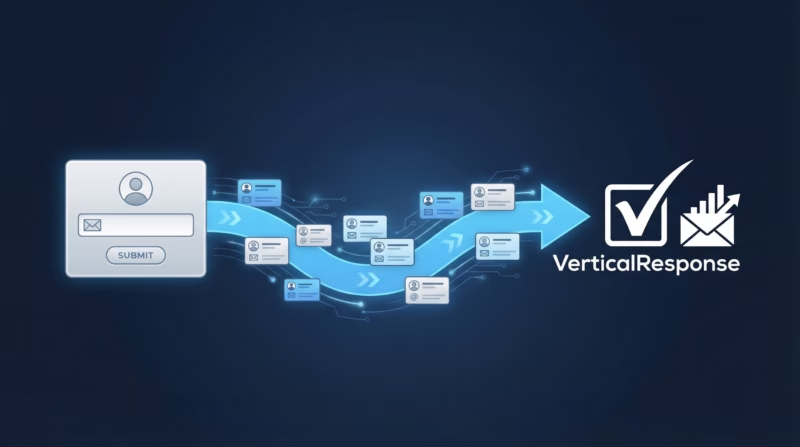
Your Google Ads campaigns capture hundreds of qualified leads every month through lead form extensions, but those prospects are stuck in your Google Ads account—disconnected from the email marketing platform where you can actually nurture and convert them. LeadSync solves this by automatically syncing your Google Ads leads directly to Vertical Response, the straightforward email marketing platform trusted by small businesses and agencies. Within minutes of a prospect submitting your lead form, they land in your Vertical Response contact list, ready to receive your welcome sequence, nurture campaigns, and promotional offers.
Quick Start: Google Ads Leads to Vertical Response in 5 Steps
- Log in to LeadSync and navigate to Ad Accounts > Google
- Click Add Google Account and authorize via OAuth (secure, no API keys needed)
- Go to Connections and select Vertical Response as your destination
- Choose which Vertical Response contact list receives your Google leads
- Map your Google lead form fields to Vertical Response contact fields and test
Why Sync Google Ads Leads to Vertical Response?
- Capture standard and custom fields from your lead form. Email and name sync by default; add phone, company, job title, and custom questions to enrich your prospect data. Everything your Google form captures flows into Vertical Response.
- OAuth connection stays active automatically. Authorize once via your Google account, and LeadSync maintains the connection permanently—no API keys to regenerate, no monthly re-authentication required.
- Leads appear in 1–2 minutes. Your Google lead form submission syncs to Vertical Response quickly, giving your sales team a brief window to respond while leads are warm. Zero manual data entry, zero spreadsheet updates.
- Works with all major lead sources. Sync leads from Google, Facebook, LinkedIn, and TikTok ads into the same Vertical Response list—one central hub for all your ad-generated contacts regardless of platform.
- Flat-rate pricing with no per-lead charges. LeadSync costs the same whether you send 10 leads or 10,000 each month. No hidden integration fees, no Zapier markup, no surprise bills as your campaigns scale.
- Start your free trial instantly. Try LeadSync for 14 days at no cost with no credit card required, and test the integration with real Google leads before you commit to a paid plan.
Step-by-Step: Connect Google Ads Leads to Vertical Response
Step 1: Log in to LeadSync and Connect Your Google Account
Open LeadSync and navigate to Ad Accounts > Google from the left menu. Click Add Google Account and you’ll be redirected to Google’s secure login. Sign in with the Google account that manages your Ads account, and authorize LeadSync to access your campaigns and lead forms. This OAuth connection is encrypted and secure—you never share your Google password with LeadSync, and you can revoke access anytime from your Google Account settings. Once authorized, your Google Ads account appears in the LeadSync dashboard.
Step 2: Create a Vertical Response Connection
With your Google account connected, navigate to Connections in the LeadSync sidebar. Click Add Connection and select Vertical Response from the list of supported email marketing platforms. Vertical Response appears alongside Constant Contact, Klaviyo, ActiveCampaign, and other popular platforms—LeadSync integrates with dozens of destinations. Enter your Vertical Response API key (found in your Vertical Response account settings under integrations) and click Continue.
Step 3: Select Your Vertical Response Contact List
After authorizing Vertical Response, LeadSync displays all available contact lists in your Vertical Response account. Select the list where you want Google leads to land—for example, Google Lead Ads or All Paid Traffic Leads. If you want to route leads from different Google campaigns to different Vertical Response lists, you can create multiple connections, each pointing to a separate list. Most teams use a single “All Google Leads” list and organize contacts using tags or segments inside Vertical Response for campaign tracking and segmentation.
Step 4: Set Up Your Google Lead Form Extension
Now connect your Google lead form extension as the source. Go to Lead Forms in the LeadSync menu and click Add Google Lead Form. You’ll be prompted to select your Ad Account (the Google Ads account you authorized in Step 1), then select your specific Lead Form Extension from the dropdown. Google displays all active and paused lead form extensions in that account. Choose the form you want to sync—for example, “Free Consultation Request” or “Product Demo Signup.” You can connect multiple Google lead forms to the same Vertical Response list, or create separate connections for different lists depending on your campaign structure.
Step 5: Map Your Fields and Test
Now match your Google lead form fields to Vertical Response contact fields. LeadSync auto-detects common fields like email, first name, and last name based on your form structure. Email is required—every lead must have an email address to sync to Vertical Response. Map additional fields that your Google form captures: phone number, company name, job title, budget range, or custom fields specific to your business. LeadSync clearly shows which fields are custom versus standard Vertical Response fields, so you know exactly where each piece of data lands in your contact record. Once mapping is complete, click Save to finalize the integration.
Step 6: Test with a Lead Submission
Before running live campaigns, test the connection by submitting a test lead through your Google lead form. You can do this yourself or ask a colleague to fill out the form. After submission, check your Vertical Response contact list within 1–2 minutes—the test lead should appear with all mapped fields populated correctly. Verify that email, name, phone, and any custom fields are present and in the right places. If the data looks accurate, your integration is live and will automatically sync all future Google leads to Vertical Response in real-time.
Customizing Your Google Ads to Vertical Response Integration
After the initial setup, you have several options to refine how leads flow from Google into Vertical Response.
Capture custom form questions. If your Google lead form extension includes custom questions—like “What’s your timeline?” or “How many employees?”—map them to Vertical Response custom contact fields. This enriches your contact data and allows you to segment your list by interest level, company size, or buying intent in your email campaigns.
Set up automated follow-up sequences in Vertical Response. Once leads land in your contact list, create an automation workflow in Vertical Response: send a welcome email immediately after signup, deliver a product demo link after 48 hours, and nurture with weekly education emails. LeadSync handles the sync from Google Ads; Vertical Response handles the email automation. This keeps your setup simple and leverages Vertical Response’s native automation engine.
Organize and segment with tags. Use Vertical Response’s tagging system to mark leads by source (“Google Ads”), campaign (“Spring Promo”), or interest level (“High Priority”). Then segment your email campaigns to send targeted messages to each group—for example, high-intent prospects get an immediate sales call offer, while cold leads receive educational content first.
Monitor sync performance in real-time. LeadSync’s dashboard displays live stats: total leads synced, sync failures (if any), and last successful sync timestamp. If a lead fails to sync—usually because email was missing or the form had an error—you’ll see it in the sync log with details on how to resolve it.
Beyond Vertical Response: Multi-Channel Lead Distribution with LeadSync
Vertical Response is just one destination among many. LeadSync lets you send the same Google Ads leads to multiple platforms simultaneously, ensuring no lead ever sits in a single silo. Route your Google leads to email, SMS, Slack, Google Sheets, CRMs—or combine them for maximum reach and redundancy.
- Email alerts: Receive instant email notifications when a new lead submits your Google form, complete with their contact details. Read our guide on setting up lead ads email notifications.
- Slack notifications: Post each new lead to a dedicated Slack channel so your sales team sees prospects in real-time while they’re checking messages. Learn how to sync leads to Slack.
- Google Sheets: Append every lead to a shared Google Sheet for quick reporting, team collaboration, and custom analysis. See our guide on syncing leads to Google Sheets.
- SMS messages: Send an immediate SMS to new leads with a special offer or urgent call-to-action, complementing your email follow-up in Vertical Response. Check out SMS notification guides.
Related Integration Guides
Looking for a different destination for your Google Ads leads? These integration guides walk you through setup step by step:
- How to Send Google Ads Leads to Iterable
- How to Send Google Ads Leads to Moosend
- How to Send Google Ads Leads to Campaigner
- How to Send Google Ads Leads to Customer.io
- How to Send Google Ads Leads to Mailvio
Frequently Asked Questions
How quickly do Google Ads leads sync to Vertical Response?
Most leads appear in Vertical Response within 1–2 minutes of form submission. LeadSync batches and queues leads to ensure zero data loss, so even if there’s a brief delay, every lead is captured and synced in the order it was submitted.
Do I need to re-authorize Google after the initial setup?
No. LeadSync uses OAuth tokens that refresh automatically. You authorize once via Google, and the connection stays active indefinitely. If you change your Google password, LeadSync continues working—the token is independent of your password. You only need to re-authorize if you manually disconnect the integration or revoke LeadSync access from your Google Account settings.
Can I sync custom fields from my Google lead form to Vertical Response?
Absolutely. If your Google lead form extension includes custom questions—such as “Company size,” “Budget,” or “Preferred contact time”—LeadSync lets you map them to Vertical Response custom contact fields. This works for any field that Vertical Response supports, so you capture rich prospect data beyond basic contact information.
What’s the cost difference between LeadSync and Zapier for Google Ads syncing?
LeadSync charges a flat monthly rate—the same price whether you send 10 or 10,000 leads to Vertical Response. Zapier charges per task (each sync is a billable action), so syncing 1,000 Google Ads leads could cost significantly more as your campaigns scale. Plus, LeadSync offers a free 14-day trial with no credit card required, so you can test the integration risk-free before committing.
Can I send Google Ads leads to multiple Vertical Response lists?
Yes. Create multiple LeadSync connections, each pointing to a different Vertical Response list. For example, you might route leads from your “Enterprise Plan” campaign to one list and “Starter Plan” leads to another. This gives you fine-grained control over lead segmentation and allows you to run different email sequences for different prospect tiers.
What happens if a lead is missing an email address?
LeadSync requires an email address to create or update a contact in Vertical Response, so leads without an email cannot be synced. You’ll see these in the LeadSync sync log marked as failed. To prevent this, make email a required field in your Google lead form extension so every submission includes an email address.
Do I pay separately to LeadSync and Vertical Response for each lead?
No. LeadSync charges a fixed monthly subscription for unlimited lead syncing. Vertical Response charges separately for your email marketing plan based on your total contact list size. You’re not charged per lead by either platform—just one flat fee from LeadSync and one from Vertical Response, with no per-lead integration markups.
How long is the LeadSync free trial, and what’s included?
The trial is 14 days with no credit card required. You get full access to all LeadSync integrations—including Google Ads, Vertical Response, and cross-channel destinations—and can sync unlimited test leads during the trial period. After 14 days, upgrade to a paid plan to continue syncing leads automatically.
Which versions of Google Lead Form Extensions are supported?
LeadSync supports all standard Google Lead Form Extensions across Google Search, Display, and YouTube campaigns. Your lead form must be part of an active or paused campaign to appear in LeadSync. If your form isn’t showing in the dropdown, verify that your Google Ads account has proper access and that at least one campaign contains an active lead form extension.
Ready to stop manually exporting Google Ads leads and start automating your email pipeline? Start your free LeadSync trial today—no setup fees, no long-term contracts, no credit card required. Visit leadsync.me/pricing, choose your plan, and connect Google Ads and Vertical Response in minutes. Your leads are waiting.