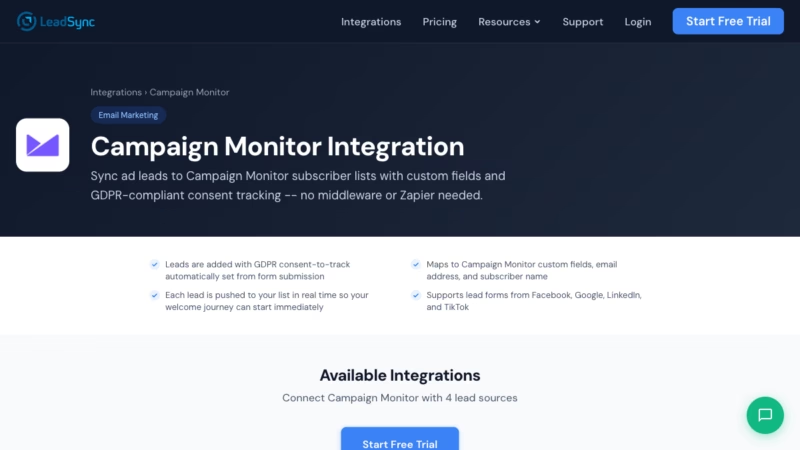
Facebook lead forms capture interested prospects, but manual CSV downloads and delayed follow-up mean cold leads by the time you reach out. With LeadSync, your Facebook leads sync directly to Campaign Monitor in real time—no Zapier, no manual exports, no delays. Start your welcome journey the moment a lead raises their hand.
Quick Start
- Copy your Campaign Monitor API Key and Client ID from Account Settings
- Log in to LeadSync and add Campaign Monitor as a new connection
- Paste your credentials and select your subscriber list
- Connect your Facebook lead form and map fields (email, name, custom fields)
- Test with a lead and verify it appears in Campaign Monitor within seconds
Why Sync Facebook Leads to Campaign Monitor?
Campaign Monitor is a powerful email marketing platform trusted by agencies and brands for subscriber management and automated email journeys. But without real-time lead integration, you’re stuck downloading CSVs and manually uploading them—a workflow that delays your first touch and wastes time.
LeadSync bridges that gap with instant Facebook-to-Campaign Monitor syncing. Here’s why it matters:
- GDPR consent-to-track automatically set — LeadSync captures consent from your Facebook form submission, so every lead is added to Campaign Monitor with the right compliance flag
- Real-time syncing — Leads land in your Campaign Monitor list within seconds, so your welcome journey starts immediately
- Custom field mapping — Map Facebook fields to Campaign Monitor custom fields (company, phone, source, etc.)
- Multi-source support — Sync leads from Facebook, Google, LinkedIn, and TikTok to the same Campaign Monitor list
- No Zapier required — LeadSync handles the integration natively, saving you zap budget and setup complexity
- 14-day free trial — Test the full integration with no credit card required
Step-by-Step: Connect Facebook Leads to Campaign Monitor
Step 1: Log in to Campaign Monitor and Copy Your API Credentials
Campaign Monitor stores API credentials in your Account Settings. Here’s how to find them:
- Log in to your Campaign Monitor account
- Click your profile icon (top right) and select Account Settings
- Navigate to the API Keys tab
- Copy your API Key (a long alphanumeric string)
- Also note your Client ID if required by LeadSync
Keep these credentials handy—you’ll paste them into LeadSync in the next step. Never share these publicly or hardcode them in unsecured files.
Step 2: Log in to LeadSync and Add a New Connection
Now switch to LeadSync to set up the integration:
- Log in to your LeadSync account at https://leadsync.me/account/signin
- From the dashboard, click Connections in the left sidebar
- Click the Add Connection button
- From the list of providers, select Campaign Monitor
Step 3: Paste Your API Key and Client ID
LeadSync will prompt you for your Campaign Monitor credentials:
- Paste your API Key in the first field
- Paste your Client ID in the second field (if applicable)
- Click Connect to authenticate
- Select the Campaign Monitor list where you want leads to appear
- Name your connection (e.g., “Main List”) for easy identification
- Click Update Connection to save
Step 4: Set Up Your Facebook Lead Form Connection
Next, tell LeadSync where your Facebook leads are coming from:
- In LeadSync, navigate to Lead Forms
- Click Add Facebook Lead Form
- Select your Facebook Page (the page running the lead ads)
- Select your Lead Form (the specific form collecting leads)
- From the “Destination” dropdown, select your Campaign Monitor connection
- Click Save
LeadSync is now listening to your Facebook lead form and will forward leads to Campaign Monitor automatically.
Step 5: Map Your Facebook Fields to Campaign Monitor
LeadSync needs to know which Facebook fields map to which Campaign Monitor fields. Configure this in the field mapping section:
- Email — Facebook “Email” field → Campaign Monitor email address (required)
- First Name — Facebook “First Name” field → Campaign Monitor first name (or subscriber name)
- Last Name — Facebook “Last Name” field → Campaign Monitor last name (optional)
- Custom fields — Map additional Facebook fields (phone, company, industry, etc.) to Campaign Monitor custom fields you’ve created
If your Facebook form doesn’t collect email (rare, but possible), make sure to set up a fallback or use a field that Campaign Monitor can use to identify the subscriber. Campaign Monitor requires an email address to create a new subscriber, so email mapping is essential.
Step 6: Test with a Lead
Before declaring victory, verify the integration works end-to-end:
- Submit a test lead through your Facebook lead form (use your own email address or a test address)
- Wait 5–10 seconds for LeadSync to process and forward the lead
- Log in to Campaign Monitor and check your list
- Verify the test lead appears with the correct fields populated (email, name, custom fields)
If the test lead doesn’t appear within 30 seconds, check that your API credentials are correct and that LeadSync has permission to write to your Campaign Monitor list. Most issues stem from typos in the API Key or selecting the wrong list.
Customizing Your Campaign Monitor Integration
Once the basics are working, you can refine the integration to match your workflow:
Map Custom Fields for Better Segmentation
If your Facebook form collects additional data (company, industry, budget, timeline), create matching custom fields in Campaign Monitor and map them in LeadSync. This lets you segment subscribers and personalize email campaigns without manual data entry.
Set Up Automated Welcome Journeys
With real-time syncing, your Campaign Monitor automations trigger the moment a lead subscribes. Set up a welcome series that introduces your product, qualifies the lead, or offers a discount—all without lifting a finger.
Verify GDPR Consent
LeadSync captures the consent-to-track flag from your Facebook form submission. Campaign Monitor respects this flag, so your leads are added with the correct compliance status. If you’re in the EU or have EU subscribers, this is critical for staying compliant.
Monitor Sync Performance
LeadSync’s dashboard shows you sync status, success rate, and any errors. If a lead fails to sync (rare), you’ll see the error and can troubleshoot quickly.
Go Beyond Campaign Monitor: Multi-Channel Lead Routing
Facebook leads are valuable, but Campaign Monitor is just one destination. LeadSync lets you route the same lead to multiple channels simultaneously:
- Email notifications — Notify your team instantly when a hot lead arrives
- Slack — Post leads to a Slack channel for real-time team visibility
- Google Sheets — Append leads to a spreadsheet for analysis and reporting
- SMS notifications — Send urgent alerts via text when high-value leads arrive
Most users combine Campaign Monitor with Slack and email to ensure no lead falls through the cracks—marketing gets the lead in Campaign Monitor for nurturing, sales gets notified in Slack for immediate outreach.
Frequently Asked Questions
Does LeadSync work with Campaign Monitor?
Yes. LeadSync natively integrates with Campaign Monitor via API, so you can sync Facebook leads (and leads from Google, LinkedIn, and TikTok) directly to your subscriber lists.
How fast do leads sync?
Most leads sync within 5–10 seconds. Campaign Monitor’s API is fast and reliable, so you can expect consistently quick syncing. In rare cases (API outages), LeadSync queues and retries, so no leads are lost.
Do I need Zapier?
No. LeadSync handles the integration natively, which means no Zapier subscription, no zap usage limits, and simpler troubleshooting. If you’re already on Zapier for other workflows, that’s fine—but you don’t need it for this integration.
What fields can I map?
At minimum, you must map the email field (Campaign Monitor requires this). You can also map first name, last name, and any custom fields you’ve created in Campaign Monitor. If your Facebook form collects extra data (company, phone, etc.), you can map those too.
Can I sync leads from Instagram too?
Yes. If you’re running lead ads on Instagram, the leads go through Facebook’s lead form system, so LeadSync captures them the same way. You can send Instagram leads to Campaign Monitor just like Facebook leads.
Is there a free trial?
Yes. LeadSync offers a 14-day free trial with no credit card required. Set up the integration, test it with real leads, and cancel anytime if it’s not for you. (But we think you’ll love it.)
Does it support GDPR consent?
Yes. LeadSync automatically captures and respects the consent-to-track flag from your Facebook form, so every lead is added to Campaign Monitor with the correct compliance status. If you’re processing EU subscribers, you’re covered.
What happens if Campaign Monitor is down?
LeadSync has built-in retry logic. If Campaign Monitor is temporarily unavailable, LeadSync queues the lead and tries again. Once Campaign Monitor is back up, the lead syncs automatically. You won’t lose any leads.
Can I send leads to multiple Campaign Monitor lists?
Yes. Set up separate connections in LeadSync for each Campaign Monitor list, then route different Facebook lead forms to different lists. This is useful if you run multiple lead ads targeting different audiences (e.g., enterprise vs. SMB, by geography, by product line, etc.).
Related Integration Guides
Looking for a different destination for your Facebook leads? These integration guides walk you through setup step by step:
- How to Send Facebook Leads to SendGrid
- How to Send Facebook Leads to MailerLite
- How to Send Facebook Leads to Customer.io
- How to Send Facebook Leads to Kit (ConvertKit)
- How to Send Facebook Leads to Moosend
Ready to Sync Your Facebook Leads?
Stop exporting CSVs and uploading them manually. Let LeadSync handle the work so you can focus on nurturing leads the moment they arrive. Try LeadSync free for 14 days—no credit card required, no hidden fees.
Start your free trial today and sync your first Facebook lead to Campaign Monitor in under 5 minutes.