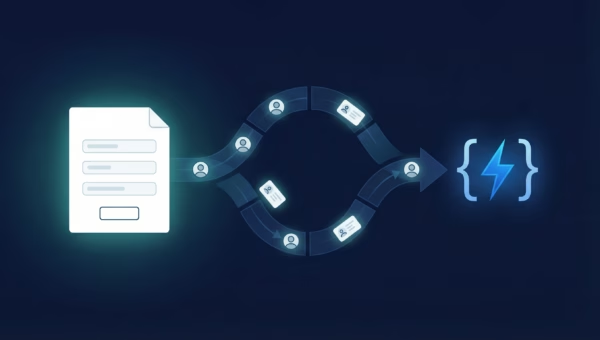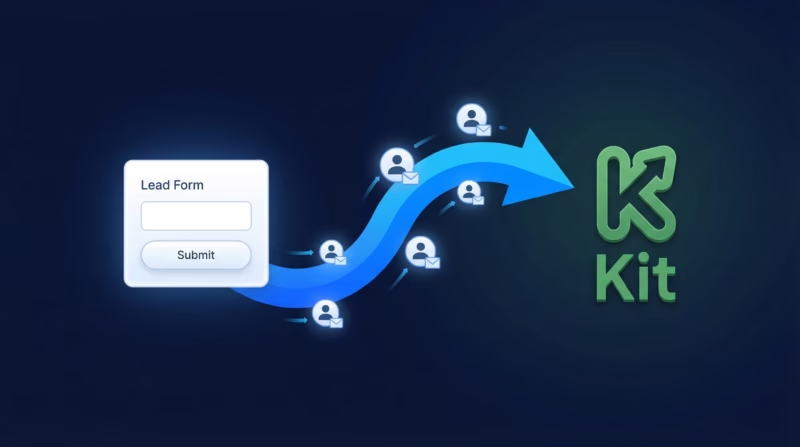
Marketers running Google Ads lead form extensions capture high-intent prospects daily. But manually transferring those leads to Kit (formerly ConvertKit) is slow, error-prone, and costs you conversions. LeadSync automates the entire flow — Google Ads leads are instantly subscribed to your Kit form, tagged for automation sequences, and primed to receive your content within seconds of submission.
Quick Start — 5 Steps to Sync Google Ads Leads
No complicated setup. This takes about 10 minutes from OAuth to live syncing.
- Connect your Google Ads account in LeadSync via OAuth.
- Copy your Kit API key from Kit Account settings.
- Add a Kit connection to LeadSync and select your List and Tag.
- Connect your Google Lead Form Extension to this Kit connection.
- Save. Leads now subscribe automatically.
Why Sync Google Ads Leads to Kit (ConvertKit)?
Kit is the email platform built for creators. If you’re selling courses, newsletters, or digital products to your audience, Kit’s automation is essential. Here’s what LeadSync delivers:
- Instant subscription: Leads subscribe to your Kit list within seconds of lead form submission — no manual work.
- Automatic tagging: Each lead is tagged immediately, triggering your Kit automation sequences without delay.
- Custom fields pass through: Every question on your Google form extension becomes a custom field in Kit for advanced segmentation.
- Multi-channel support: Sync leads from Google, Facebook, LinkedIn, and TikTok to the same Kit account.
- No Zapier overhead: One direct API connection. No workflow builder. No monthly fees on top of Kit.
- Opt-in compliant: Leads are subscribed to Kit as “Unconfirmed” by default — you can auto-confirm them in settings.
- Free 14-day trial: Test with real campaigns before committing.
Step-by-Step: Connect Google Ads Leads to Kit
Step 1: Connect Your Google Ads Account
LeadSync uses OAuth to safely connect to your Google Ads account. This means you don’t store your password anywhere — LeadSync requests permission for lead form access only, and you can revoke it anytime.
Log into LeadSync. Click “Ad Accounts” in the left menu, then select “Google.” Click “Add Google Account” and you’ll be redirected to Google to sign in. Grant LeadSync permission to access your lead form data. You’ll return to LeadSync with your account now connected.
Your Google Ads account now appears in the Ad Accounts table. You’re ready to select your lead form in the next step.
Step 2: Get Your Kit API Key
Kit (ConvertKit) uses API key authentication for integrations. This is more secure than storing your password and lets you revoke access anytime.
Log into your Kit account. Click on your account icon (top right) and select “Account.” Look for the “API Key” section. Copy the key — you’ll use this to connect LeadSync in the next step.
Keep this key safe. If someone gets it, they can manage your subscribers. If you ever need to reset it, you can regenerate a new one from this same page, but you’ll need to update LeadSync with the new key.
Step 3: Add Kit Connection in LeadSync
Log into LeadSync. Click “Connections” in the top menu, then “Add Connections.”
Find ConvertKit/Kit in the dropdown list (it’s listed under both names). Paste your API key into the field and name this connection (example: “Kit – Google Leads”). Click “Update Connection.”
LeadSync validates the API key immediately. If you see a green checkmark, you’re connected. If you see an error, verify the API key has no extra spaces or line breaks.
Step 4: Select Your Kit List and Tag
After connecting, LeadSync reads your Kit account and displays all available lists. Select the list where new subscribers should land.
Next, select or create a tag. This tag will be applied to every lead so you can trigger specific automation sequences in Kit. For example, tag them as “google-leads” or “high-intent-signup” so Kit knows which email sequence to send them.
Click “Update Connection” to save your Kit settings.
Step 5: Connect Your Google Lead Form Extension
Now tell LeadSync which Google lead form extension to monitor. Click “Lead Forms” and select “Add Google Lead Form.”
A form will appear asking you to select your connected Google Ad Account from the dropdown. Once selected, you’ll see a list of all active and paused lead form extensions in that account. Select the form you want to sync.
In the “Destination” section, select your Kit connection from the dropdown. LeadSync will then show you the fields from your Google form (typically Email and First Name). Map these to the corresponding Kit subscriber fields.
Click “Update Notifications” to finalize the setup.
Done. From this moment forward, every lead submitted to your Google lead form extension will be added to Kit as a new subscriber with your selected tag.
Step 6: Test and Verify Subscription
Submit a test lead to your Google lead form. Check Kit within 1-2 minutes — you should see your test email appear in your subscriber list, tagged with the label you selected.
The subscriber may appear as “Unconfirmed” initially (more on that below). This is normal and doesn’t prevent email from sending. Check LeadSync’s Activity log if something goes wrong — it logs every sync with error details.
Customizing Your Kit Integration
Once syncing is live, you can fine-tune subscriber settings and field mapping in Kit.
Handling Double Opt-In and Auto-Confirm
By default, subscribers added via API appear as “Unconfirmed” in Kit. This is an opt-in protection — the subscriber received your form submission, but hasn’t clicked a confirmation email yet.
If you want to auto-confirm subscribers (they go straight to “Confirmed” without a second email), go to Kit’s form settings. In your form, click “Settings,” then look for “Incentive” section. Check the box “Auto-confirm new subscribers.” Save.
After enabling auto-confirm, new leads will skip the confirmation step and go straight into your automation sequences.
Mapping Custom Fields from Your Google Form
If your Google lead form extension includes custom questions (like “What’s your main challenge?” or “What’s your budget?”), you can map those to Kit custom fields for better segmentation.
Go back to your lead form connection in LeadSync and click “Edit Field Mapping.” Match each Google form field to a Kit field or custom field on the right side.
Custom fields in Kit must exist before mapping. If you haven’t created a custom field in Kit yet, do that first (in Kit’s Subscriber settings), then refresh LeadSync.
Using Multiple Tags for Advanced Automation
One powerful strategy: use multiple tags on the same subscriber. For example, tag with both “google-leads” (the source) and “product-interested” (the campaign type). This lets you run highly targeted Kit automations.
LeadSync applies one tag at sync time. But once in Kit, you or your team can manually add more tags, or use Kit’s automation to add tags based on subscriber behavior (e.g., “add tag ‘engaged’ when subscriber opens 3+ emails”).
Syncing Multiple Google Lead Forms to the Same Kit List
If you run multiple lead forms across different ad campaigns or audiences, you can point them all at the same Kit connection and list. Use different tags for each form so you know which campaign each subscriber came from.
For example: “Form 1 = tag google-webinar” and “Form 2 = tag google-leadmagnet.” Now you can see exactly which campaign converted each subscriber.
Go Beyond Kit: Multi-Channel Lead Routing
Kit is one part of your lead ecosystem. LeadSync syncs the same leads to CRMs, SMS, Slack, Google Sheets, and more — all from one Google lead form.
- Email notifications: Send instant alerts when new leads arrive.
- SMS alerts: Get text notifications for new subscribers.
- Slack notifications: Post to Slack so your team stays in sync.
- Google Sheets: Back up all leads to a spreadsheet for analytics.
Many creators use Kit + Email Notifications + Slack. This keeps subscribers in Kit, alerts you when new leads arrive, and centralizes team communication in Slack.
Frequently Asked Questions
Is it Kit or ConvertKit? Does it matter?
The company rebranded from ConvertKit to “Kit” in 2024. LeadSync supports both names interchangeably — search for either one. It’s the same product and API.
Which LeadSync plan do I need?
You need at least a Business account in LeadSync. Kit integration is not available on the free tier. Start your free 14-day trial of any paid plan to test with real campaigns.
Why do my subscribers appear as “Unconfirmed” in Kit?
That’s by design. Leads added via API are marked “Unconfirmed” until they click a confirmation link. If you want to skip this step, enable “Auto-confirm new subscribers” in your Kit form settings (under Incentive).
Will unconfirmed subscribers receive my emails?
It depends on your Kit settings, but typically no — unconfirmed subscribers are held until they confirm. Auto-confirm solves this instantly. Ask yourself: did they opt in to your Google form? Yes. Then auto-confirm makes sense.
How fast do leads sync from Google to Kit?
Most leads appear in Kit within 1-2 minutes of form submission. Google and Kit’s infrastructure are both fast, and LeadSync prioritizes lead delivery for better conversion.
What if someone submits my form twice with the same email?
Kit’s deduplication typically catches duplicate emails and updates the existing subscriber instead of creating a duplicate. No errors, no double-subscriptions — just one clean subscriber record.
Can I sync custom form fields from my Google lead form to Kit?
Yes. In LeadSync’s field mapping, you can match any Google form field to a Kit custom field. Kit’s custom fields must exist before mapping — create them in Kit first, then map them in LeadSync.
What if I need to disconnect my Google account?
Go to Ad Accounts > Google in LeadSync and click “Disconnect.” LeadSync will lose access to your Google Ads account. To reconnect, click “Add Google Account” again and authorize anew. Your Kit connection and tags are preserved.
What if I need to regenerate my Kit API key?
Go to Kit Account settings, regenerate your API key, and paste the new one into LeadSync’s Kit connection settings. Click “Update Connection” to validate. Syncing resumes immediately.
Does this work with Facebook, LinkedIn, and TikTok lead ads?
Yes. Create separate lead form connections for Facebook, LinkedIn, and TikTok, and point them all at the same Kit connection. All subscribers land in Kit with the same tags and field mapping.
What if the sync fails?
Check LeadSync’s Activity log for detailed error messages. Most issues are API key problems, field mapping mismatches, or Google account access issues. If you need help, email support@leadsync.me with your connection name — responses usually come within 1 hour.
Related Integration Guides
Looking for a different destination for your Google Ads leads? These integration guides walk you through setup step by step:
- How to Send Google Ads Leads to MailerLite
- How to Send Google Ads Leads to AWeber
- How to Send Google Ads Leads to Campaign Monitor
- How to Send Google Ads Leads to Constant Contact
- How to Send Google Ads Leads to SendGrid
Start Syncing Google Ads Leads to Kit Today
Stop manually transferring leads from Google to Kit. LeadSync puts every Google Ads lead into your list instantly, tagged and ready for your email sequences. High-intent prospects flow directly into your automation from the moment they submit your form.
Start your free 14-day trial → No credit card. No setup fees. Cancel anytime.