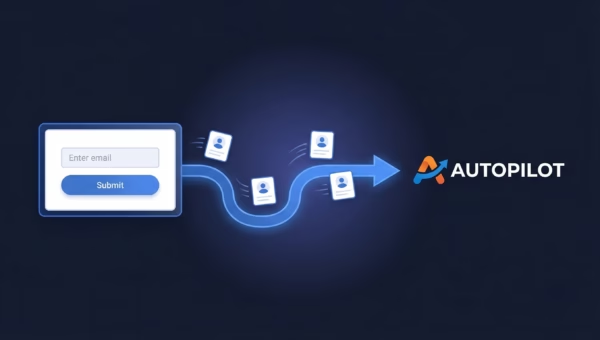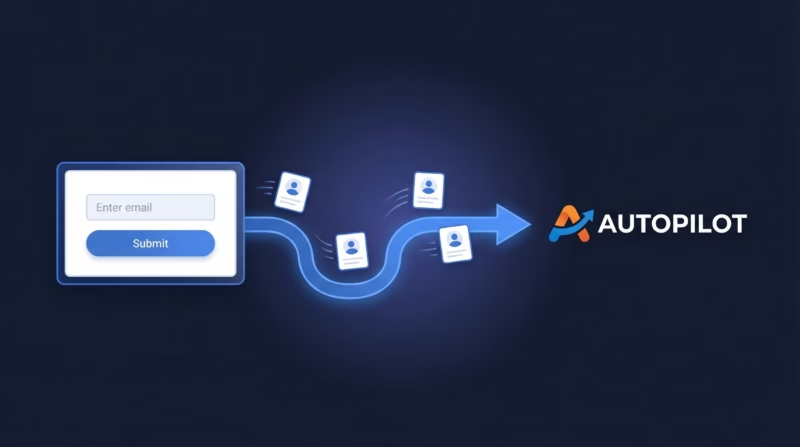
Your Facebook lead form ads are generating interest, but those leads are sitting idle in Facebook’s ad manager—waiting for nurture that never comes. Without an automated pipeline, each lead requires manual entry into your marketing system, costing time and losing momentum. LeadSync solves this by instantly syncing your Facebook leads to AutopilotHQ (now Ortto), where they trigger marketing automation journeys, nurture sequences, and personalized campaigns—all within seconds of submission.
Quick Start: Facebook Leads to AutopilotHQ in 5 Steps
- Get your API key from AutopilotHQ Settings
- Connect your AutopilotHQ account to LeadSync
- Authorize your Facebook page and select your lead form
- Map your form fields to AutopilotHQ custom fields
- Test with a lead and activate
Why Sync Facebook Leads to AutopilotHQ?
Step-by-Step: Connect Facebook Leads to AutopilotHQ
Step 1: Get Your AutopilotHQ API Key
Log into your AutopilotHQ account (the platform was rebranded from Autopilot, so you may see either name depending on when you signed up). Navigate to Settings > Integrations > API and copy your API key. Keep this key handy—you’ll paste it into LeadSync in the next step.
Step 2: Log in to LeadSync and Add a New Connection
Open LeadSync and go to Connections. Click Add New Connection and select AutopilotHQ from the destination list. Paste your API key into the connection form and click Save. LeadSync will verify the key and confirm your connection.
Step 3: Configure Your Connection Settings
Once connected, you’ll see connection options. Choose your default Autopilot List where leads will be added—this is the audience segment that will trigger your automation journeys. You can override this per integration if you need different lead forms to populate different lists.
Step 4: Set Up Your Facebook Lead Form Connection
Create a new integration in LeadSync and select Facebook Lead Ads as your source. Authorize your Facebook page when prompted (LeadSync uses OAuth, so you won’t share your password). Select the lead form you want to sync, and confirm the form fields LeadSync detects.
Step 5: Map Your Fields
This is where the magic happens. Map each Facebook form field to an AutopilotHQ field. Email is required to create or update contacts. First name and last name are standard; add any custom fields your form collects (phone, company, job title, budget, timeline, etc.). LeadSync supports field type mapping, so a date field in your form will sync as a date field in Autopilot, not a string. This ensures your automation can handle data correctly—for example, triggering journeys based on date ranges.
Step 6: Test with a Lead
Before going live, test the integration. Submit a test lead through your Facebook lead form (or use your test form submission if you have one). Within 30 seconds, that lead should appear in your AutopilotHQ list. Check that all fields populated correctly, then activate the integration.
Customizing Your AutopilotHQ Integration
Journey Triggers: Once a lead lands in your AutopilotHQ list, set up list-based automation. Create a journey triggered by list membership, and add email sequences, SMS messages, or task assignments. LeadSync ensures every lead starts that journey automatically.
Custom Fields with Type Support: If your form asks for a budget range or decision timeline, map those to Autopilot custom fields with matching types (single-select, number, date). Your journeys can then segment leads based on these values—high-budget leads get premium offers, short-timeline leads get faster follow-up.
List Assignment Rules: You can set up multiple Facebook form integrations, each routing to a different Autopilot list. For example, “Sales Leads” go to one list, “Webinar Signups” go to another. Each list triggers its own journey.
Marketing Automation at Scale: Because LeadSync syncs every lead in real-time, your nurture sequences run 24/7 without manual work. You’re free to focus on strategy—automating the execution.
Go Beyond AutopilotHQ: Multi-Channel Lead Routing
Some teams need leads in multiple places. LeadSync lets you sync a single Facebook lead form to AutopilotHQ and email, and Slack, and Google Sheets simultaneously—no duplicate integrations, no Zapier chains. Here are other ways to extend your lead pipeline:
Frequently Asked Questions
How fast do leads sync to AutopilotHQ?
Leads sync within 10–30 seconds of form submission. Most arrive within 15 seconds, allowing your automation sequences to start almost immediately while the lead is still in “thinking mode.”
What’s the difference between Autopilot and Ortto?
Autopilot was rebranded to Ortto in 2023. If your account still shows “Autopilot,” it will automatically update to Ortto branding over time. The API and integrations work the same way—LeadSync supports both names and both systems.
Do custom fields with specific types (date, select, etc.) work with LeadSync?
Yes. LeadSync detects the field type in AutopilotHQ and maps accordingly. If your form has a “Decision Timeline” date field and you map it to an Ortto date custom field, the date will sync correctly—and your automation can trigger actions based on that date (e.g., “send follow-up if decision date is within 30 days”).
What are the pricing terms for syncing to AutopilotHQ?
LeadSync charges a single monthly fee per integration, not per lead. You can send 100 leads or 10,000 leads to the same AutopilotHQ destination for the same price. No Zapier subscription, no per-action charges.
Can I set up different Facebook forms to go to different Autopilot lists?
Absolutely. Create one integration for each Facebook form, and assign each to a different AutopilotHQ list. Your sales form goes to “Sales Leads,” your webinar form goes to “Webinar Attendees,” etc. Each list can trigger its own journey.
Is LeadSync faster or better than Zapier for this integration?
LeadSync is built specifically for lead syncing—no rate limits, no action credits, and faster delivery (10–30 seconds vs. 30 seconds to several minutes with Zapier). Plus, a single LeadSync integration is cheaper than Zapier’s per-task model when you’re syncing hundreds of leads per month.
Is there a free trial?
Yes. LeadSync offers a 14-day free trial with full access to all features, including AutopilotHQ syncing. No credit card required to start.
What happens if my lead form has fields AutopilotHQ doesn’t have?
You can create custom fields in AutopilotHQ to match any form field. LeadSync supports mapping to those custom fields, so no data is lost. If a field isn’t essential, you can skip mapping it.
Can I map the same form field to multiple Autopilot fields?
No, but you don’t need to. Map each form field once to its corresponding Autopilot field. If you need the same data in multiple places (e.g., phone number in both a custom field and an SMS field), create those fields in AutopilotHQ first, then map once in LeadSync.
Related Integration Guides
Looking for a different destination for your Facebook leads? These integration guides walk you through setup step by step:
- How to Send Facebook Leads to Mailchimp
- How to Send Facebook Leads to Mailvio
- How to Send Facebook Leads to ActiveCampaign
- How to Send Facebook Leads to Campaigner
- How to Send Facebook Leads to Brevo
Start Syncing Facebook Leads to AutopilotHQ Today
Waiting to manually process leads is a race you’ll always lose. With LeadSync and AutopilotHQ, every Facebook lead automatically enters your nurture funnel, triggering personalized journeys and building relationships at scale. Set it up in under 5 minutes, test it with one lead, and watch your conversion rate climb as your team spends less time on data entry and more time on strategy.
Ready to automate? Start your free 14-day trial of LeadSync and sync your first lead to AutopilotHQ today—no credit card, no commitments.