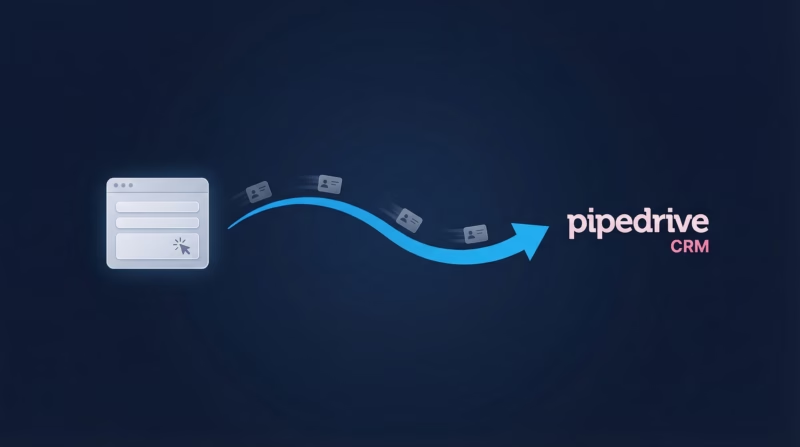
Your sales team is losing deals every day. Why? Because Facebook leads arrive as CSV downloads, sit in someone’s inbox, and go cold before anyone calls. You need your leads in Pipedrive within seconds—not hours. LeadSync sends Facebook leads directly to Pipedrive, creates both a Person and a linked Deal in one step, and your sales team starts following up immediately. No Zapier. No manual CSV uploads. No delays.
Quick Start
Get Facebook leads into Pipedrive in 5 minutes:
- Step 1: Log in to LeadSync and click “Connect a Service”
- Step 2: Select Pipedrive from the connection menu
- Step 3: Grab your Pipedrive API key from Personal Preferences
- Step 4: Paste the key into LeadSync and confirm the connection
- Step 5: Add your Facebook Lead Form, map your fields, and you’re live
Why Sync Facebook Leads to Pipedrive?
The faster your sales team gets to a lead, the higher your conversion rate. When leads sit in your email or a CSV file, they go nowhere. Real-time lead routing means your reps can call back in seconds, not tomorrow morning.
- Leads appear in Pipedrive within seconds—no delays, no manual work
- Each Facebook lead creates both a Person and a linked Deal in one step
- Map Person fields and Deal fields independently so data goes exactly where you need it
- Works with lead forms from Facebook, Google, LinkedIn, and TikTok—same connection, all platforms
- 14-day free trial. No credit card required. No Zapier. No complexity.
Step-by-Step: Connect Facebook Leads to Pipedrive
Step 1: Log in to Pipedrive and Copy Your API Key
You’ll need a Pipedrive API key to connect LeadSync. This is a secure token that lets LeadSync create leads on your behalf. It takes 30 seconds to find it.
Click your user profile icon in the top-right corner of Pipedrive and select “Personal Preferences.” Go to the “API” tab and copy your personal API token. This is what you’ll paste into LeadSync. Keep this tab open—you’ll need it in the next step.
Step 2: Log in to LeadSync and Add a New Connection
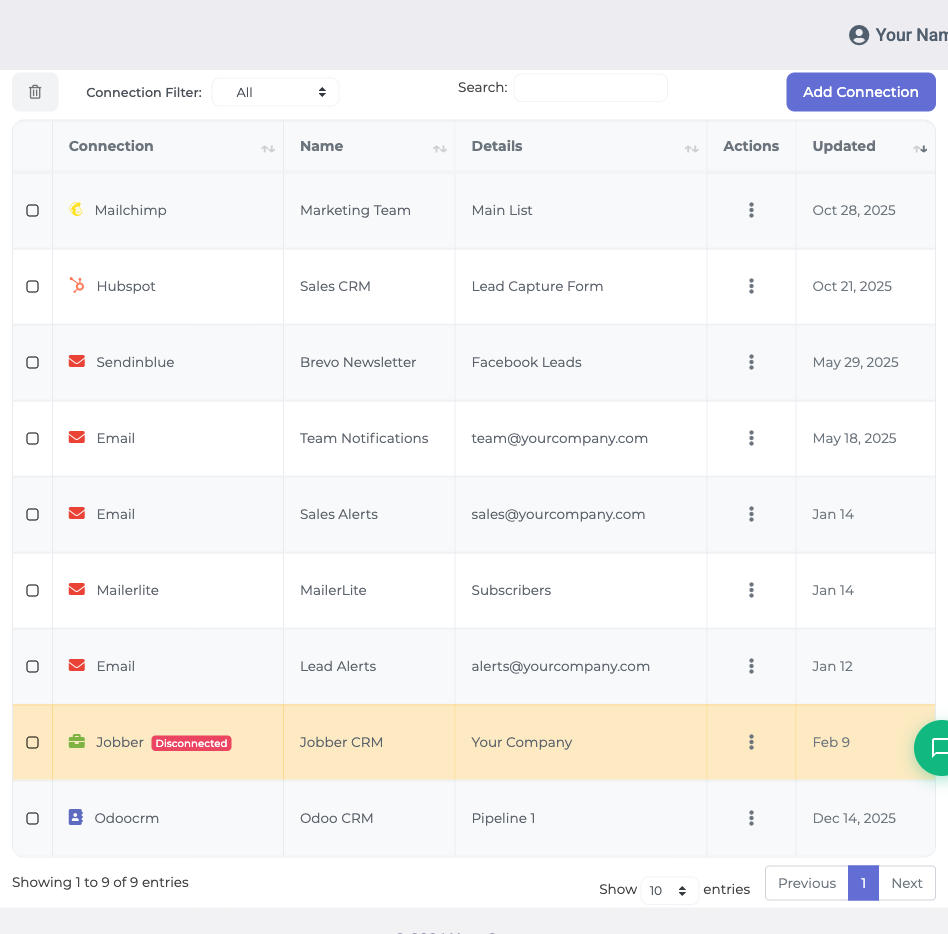
LeadSync connects multiple platforms to Pipedrive, so you can route leads from any ad platform in one place. Start by creating your first Pipedrive connection.
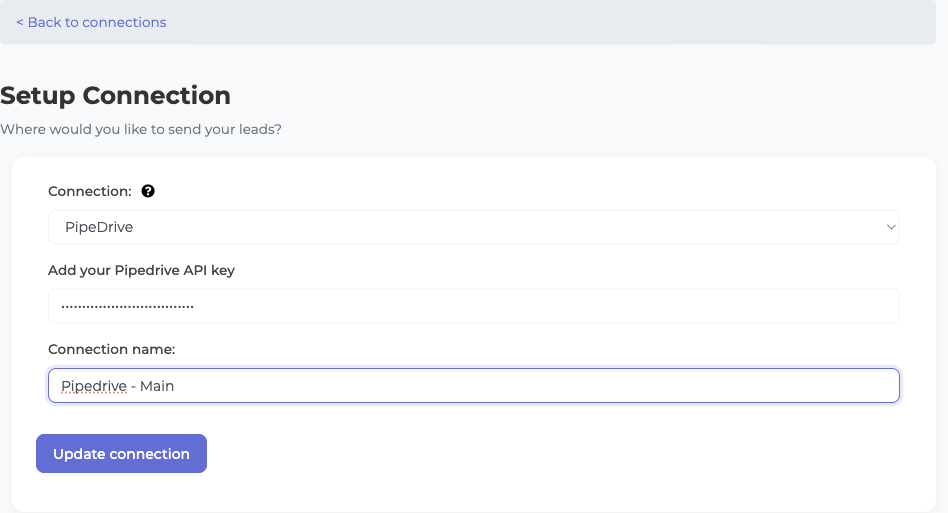
Log in to LeadSync. In the left sidebar, click “Connections,” then click “Add Connection” (or “Connect a Service” if this is your first time). A dropdown menu appears—select “Pipedrive” from the list.
Step 3: Paste Your API Key and Name Your Connection
A dialog box opens asking for your Pipedrive API key. Paste the token you copied from Pipedrive into the API Key field. Then give this connection a name—something like “Pipedrive Main” or “Sales Pipeline”—so you can identify it if you add more connections later.
Click “Update Connection” to confirm. LeadSync will verify the key is valid, then save it securely. You only do this once.
Step 4: Set Up Your Facebook Lead Form Connection
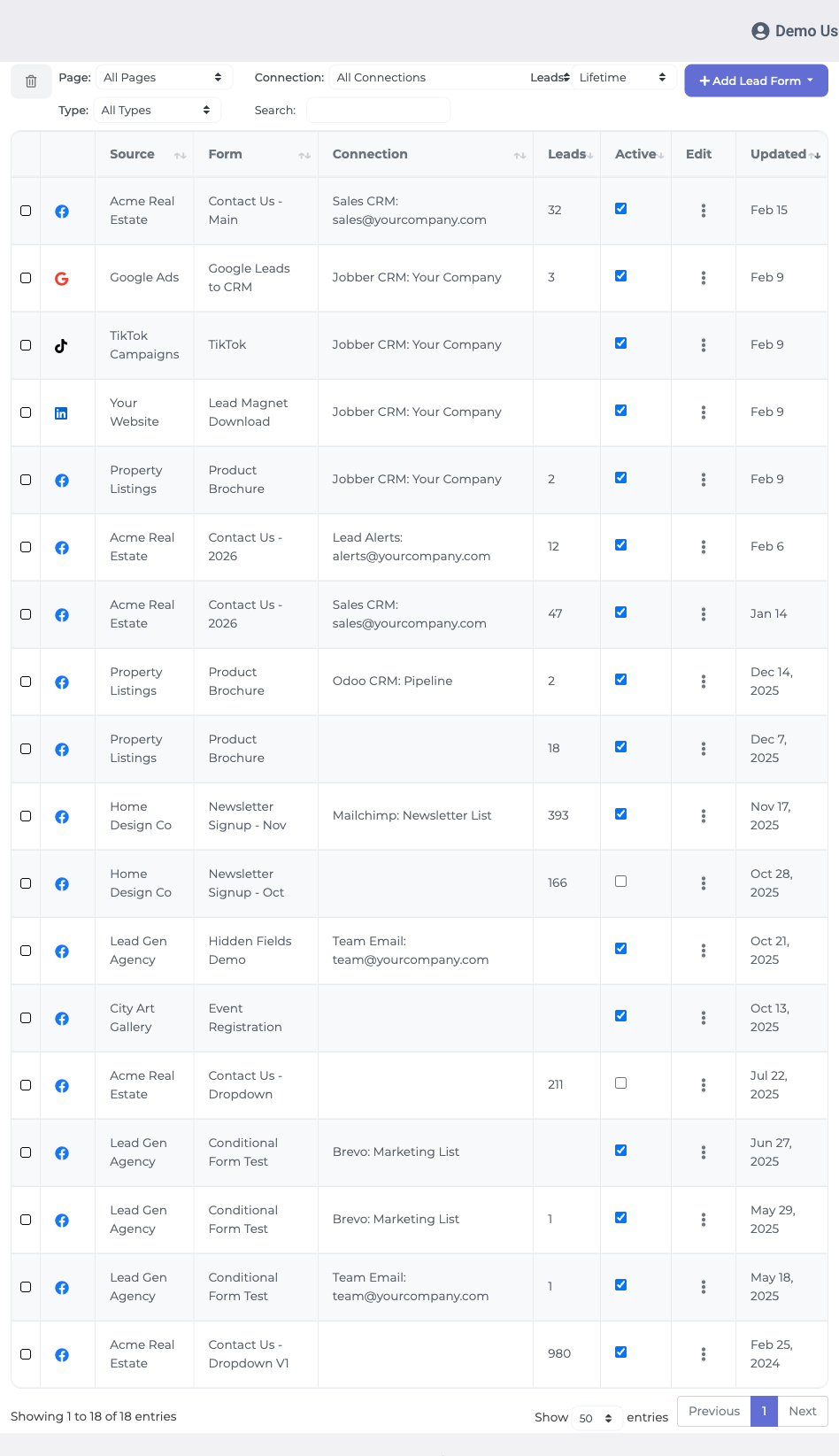
Now that Pipedrive is connected, you need to tell LeadSync which Facebook lead form you want to sync. Click the “Lead Forms” section in the left sidebar, then click “Add Facebook Lead Form.”
LeadSync will ask you to select three things: your Facebook Page (you need admin rights), your Lead Form (the specific form you want to capture), and the Pipedrive connection you just created. Choose all three from the dropdowns.
Step 5: Map Your Facebook Fields to Pipedrive
This is where the magic happens. Your Facebook lead form has fields (name, email, phone, etc.), and you’re telling LeadSync which Pipedrive field each one should fill. LeadSync shows you all the fields from your Facebook form and all available fields in Pipedrive side-by-side.
For each Facebook field, select the Pipedrive field you want it to map to. Email usually maps to “Email,” phone to “Phone,” and so on. If your Pipedrive has custom fields (like “Company Size” or “Industry”), you can map Facebook form fields to those too.
Step 6: Choose Your Pipedrive Deal Stage
Here’s a Pipedrive-specific feature: each lead can create both a Person and a linked Deal. You tell LeadSync which deal stage to start new deals in. Most teams choose “Lead” or “Contacted,” but you can pick whichever stage makes sense for your workflow.
Select the deal stage from the dropdown, then click “Update Notifications.” LeadSync will confirm your setup and start listening for new leads from your Facebook form.
Step 7: Test with a Lead
To confirm everything is working, submit a test lead through your Facebook form. Wait 10-15 seconds, then log in to Pipedrive and check the Deals section. Your test lead should appear as both a Person and a linked Deal. If it does, you’re done. If not, check your API key and field mappings.
That’s it. Every new lead from your Facebook form now flows directly into Pipedrive in real-time.
Customizing Your Pipedrive Integration
Pipedrive is flexible, and so is LeadSync. Once your basic setup is live, you can customize how leads are created and what data gets populated.
The key is understanding that LeadSync creates both a Person (contact) and a Deal (opportunity) from each Facebook lead. You can map different fields to each. For example, you might map the Facebook “Budget” field to a custom Pipedrive Deal field called “Expected Deal Value,” while mapping “Company” to the Person’s organization field. This separation gives you precise control over your CRM data.
You can also customize which deal stage new leads start in. Some teams want all leads in “Lead” stage, then manually move them to “Contacted” when a rep calls. Others automate this with Pipedrive’s workflows. If you’re using Pipedrive workflows, you can set all new LeadSync deals to start in a specific trigger stage, and Pipedrive will automatically move them through your pipeline based on your rules.
If your Facebook form has conditional fields (fields that appear based on previous answers), LeadSync captures whatever the form-filler entered. Map those to Pipedrive custom fields so you don’t lose that data. The more specific your mapping, the less manual cleanup your sales team has to do.
Go Beyond Pipedrive: Multi-Channel Lead Routing
Pipedrive is powerful for sales pipeline management, but your leads don’t live in one place. They also need to trigger emails, SMS notifications, Slack alerts, and spreadsheet backups. LeadSync routes each lead to multiple destinations simultaneously.
You can send the same Facebook lead to Pipedrive and also trigger an email sequence to warm them up, post a notification to your sales team in Slack, save a backup copy to Google Sheets, or send an SMS to your rep’s phone. All in real-time. All from one LeadSync connection. This is why companies replace Zapier—LeadSync does more with fewer moving parts.
Frequently Asked Questions
Does LeadSync work with Pipedrive?
Yes, completely. Pipedrive uses API key authentication, which LeadSync supports fully. Any Pipedrive account (free plan and up) can connect to LeadSync. The connection is secure and uses Pipedrive’s official API, so your data stays in your account.
How fast do leads appear in Pipedrive?
Leads appear in Pipedrive within 5-30 seconds. In most cases, it’s closer to 5-10 seconds. This is real-time enough that your sales team can call back while the person is still thinking about their inquiry. No more “we’ll follow up tomorrow” delays.
Can I sync from Google Ads, LinkedIn, and TikTok too?
Yes. The same Pipedrive connection works with lead forms from Facebook, Google Ads (Google Lead Form ads), LinkedIn, and TikTok. Set up each form once in LeadSync, point it to your Pipedrive connection, and they all feed into the same CRM. Your sales team gets all leads in one place, regardless of where they came from.
Do I need Zapier?
No. LeadSync replaces Zapier for lead routing. Zapier is great for complex multi-step workflows, but for syncing leads from ad platforms to Pipedrive, LeadSync is simpler, faster, and cheaper. One Zapier integration for leads usually costs $20-50/month depending on volume. LeadSync’s free tier covers small teams, and paid plans are flat-rate.
Is there a lead limit?
LeadSync plans are based on your ad platform spend, not lead volume. So if you get 100 leads a month or 10,000, you pay the same. This makes it predictable and cost-effective compared to per-lead or usage-based pricing.
What about duplicate leads?
LeadSync checks for duplicates by email before creating a lead in Pipedrive. If the same email submits your form twice, LeadSync creates one Person in Pipedrive, then links the second submission as additional data in the Deal or as a linked note. Your sales team won’t see duplicate contacts cluttering their pipeline.
Does LeadSync create both a Person and a Deal in Pipedrive?
Yes. That’s a core feature of the Pipedrive integration. Each Facebook lead automatically creates a Person (contact record) and a linked Deal (opportunity) in one step. You map Person fields and Deal fields independently, so a lead’s budget information can go to the Deal’s “Expected Value” field while their company name goes to the Person’s organization field. This saves your sales team hours of manual data entry.
Can I map different fields to Person vs Deal?
Yes, completely. LeadSync lets you map each Facebook form field to either a Person field or a Deal field. This is particularly useful if your Facebook form collects budget information (which belongs in Deal) separately from company details (which belong in the Person record). You control exactly where each piece of data lands.
Is there a free trial?
Yes. LeadSync offers a free 14-day trial. No credit card required. You get full access to all features, including unlimited lead syncs during the trial. Test it with your Facebook forms and Pipedrive account before you commit to a plan.
Related Integration Guides
Looking for a different destination for your Facebook leads? These integration guides walk you through setup step by step:
- How to Send Facebook Leads to Zoho CRM
- How to Send Facebook Leads to HubSpot
- How to Send Facebook Leads to Keap
- How to Send Facebook Leads to Odoo
- How to Send Facebook Leads to Follow Up Boss
Start Syncing Facebook Leads to Pipedrive Today
Your sales team is ready to follow up on leads in seconds, not hours. LeadSync makes that possible. Stop downloading CSVs, stop missing leads, stop using Zapier for something this simple.
Try LeadSync free for 14 days. No credit card required. Real-time Facebook leads in your Pipedrive. Get started now.